
Open the calendar publication you want to change.
In the Page Design tab, click Change Template.
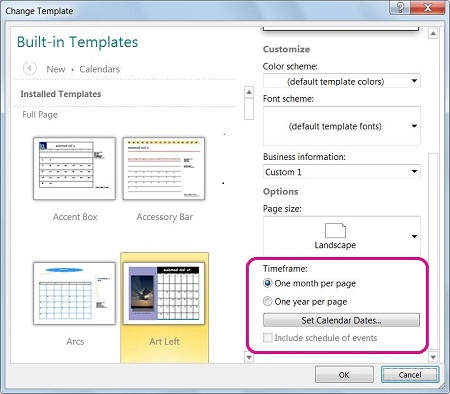
In the Change Template dialog box, click Set Calendar Dates.
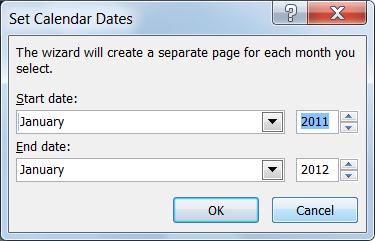
In the Set Calendar Dates dialog box, add the months you want.
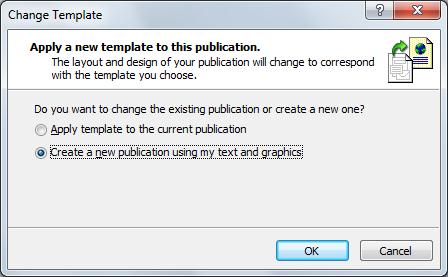
Lastly, in the Change Template dialog, choose to either change your existing calendar by selecting Apply template to the current publication, or create a new calendar by selecting Create a new publication using my text and graphics.
Important
This only works for calendars created using one of the built-in templates, templates that are installed on your computer when you install Publisher. Also, you can’t add non-consecutive months, for example you can’t add August and November without also adding September and October. However, you can use this process to change the month on a one-month calendar.
Add a new month page by hand
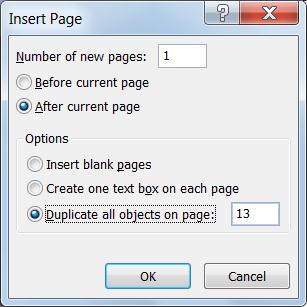
In the Page Navigation pane on the left right-click the page above where you want a new page and click either Insert Page or Insert Duplicate Page.
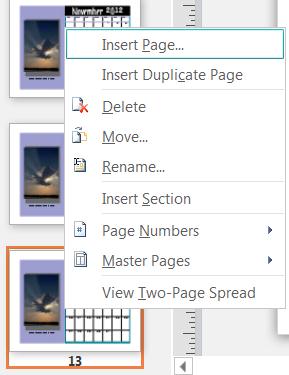
If you selected Insert Duplicate Page then you’re done, a duplicate page is inserted below the original page. If you chose Insert Page, then select the options you want.
Now edit the new month with the correct dates.