
The calendar templates that come with Publisher were designed to save you time. To change the dates on one of the built-in templates, simply set the dates in the Change Template dialog box. To change the dates on a normal calendar, add and edit a new calendar page by hand.
Open the calendar publication that you want to change.
In the Page Designtab, click Change Template.
In the Change Template dialog box, click Set Calendar Dates.
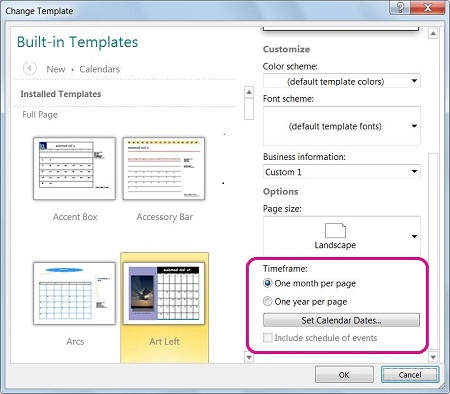
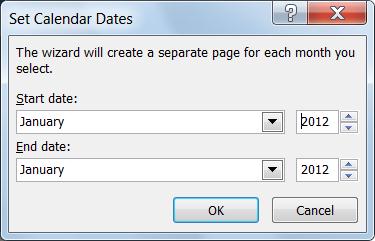
In the Set Calendar Dates dialog box, enter new month in Start date and the same month in End date.
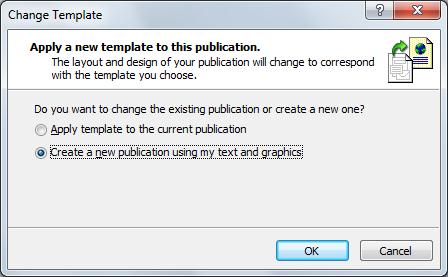
Lastly, in the Change Template dialog choose to either change your existing calendar by selecting Apply template to the current publication, or create a new calendar by selecting Create a new publication using my text and graphics.
Add a new month page by hand
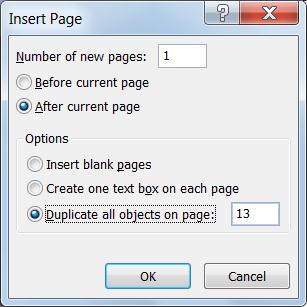
In the Page Navigation pane on the left right-click the page above where you want a new page and click either Insert Page or Insert Duplicate Page.
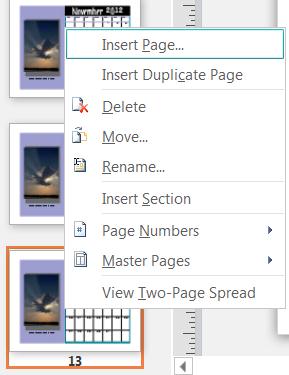
If you selected Insert Duplicate Page then you’re done, a duplicate page is inserted below the original page. If you chose Insert Page, then select the options you want.
Now edit the new month with the correct dates.