
A Skype Meeting Broadcast is an online meeting or event intended for large audiences of up to 10,000 people.
By adding a Yammer feed to your meeting, you enable attendees to participate by asking questions and posting comments. Presenters and other participants can read the posts as they come in and respond to them in real time. This also allows for dynamic meeting content because a presenter can be alerted via Yammer that more elaboration or clarification is needed and can elaborate more thoroughly on the topic at hand before moving on to the next item on the agenda.
Prerequisites
Before adding a Viva Engage feed to your Skype Meeting Broadcast, make sure:
Your company has a Viva Engage network. For more information about Yammer, go to Yammer admin help.
Make sure everyone invited to the Skype Meeting Broadcast can also participate in the Viva Engage group that you select. For a private Viva Engage group, everyone invited to the broadcast must be members of the group in order to participate. For a public group, anyone in the organization can participate freely. For more information about Viva Engage groups, see Manage a group in Yammer.
In some browsers, such as Internet Explorer 11 or Safari, Yammer might not load successfully. To resolve this:
- For Internet Explorer, click Internet Options > Security. Clear Enable Protected Mode, and then click OK.
- For Safari browser, click Preferences > Privacy. Under Cookies and website data, select Always allow.
Refresh your browser to reload the page with the new settings.
Add a Yammer feed
Browse to the Skype Meeting Broadcast portal.
Sign in with your work or school account (e.g., seanc@contoso.com).
Select the meeting or event to which you'll add the Yammer feed.
Click Customize.
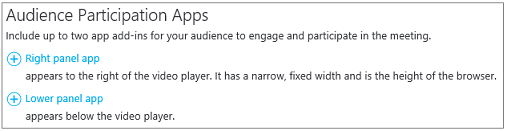
Determine where you want the Yammer feed to be displayed, either to the right of the video player (click Right panel app) or underneath it (click Lower panel app).
In Select an app click Yammer Conversation > Select.
Type or paste the ID of the Yammer group that will be used for the meeting. You can find the ID appended to the end of the URL for your Yammer group (e.g., https://www.yammer.com/contoso.com/#/threads/inGroup?type=in_group&feedId=1234567). For more information, see How do I find a Yammer group's feedID?
If you want to kick off the Yammer conversation, type prompt text such as "What do you think of the opening video?"
Type the network name of your Yammer group. You can find the network name in your Yammer group URL (e.g., https://www.yammer.com/contoso.com/#/threads/inGroup?type=in_group&feedId=1234567).

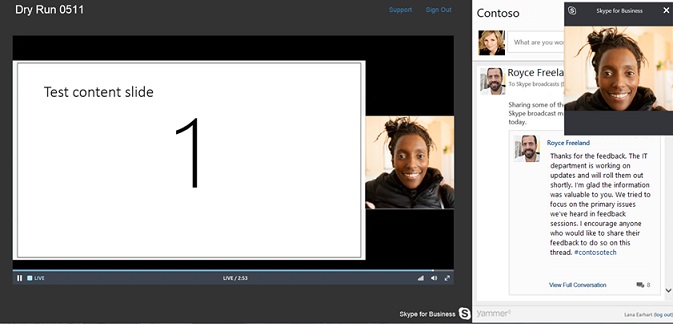
In the upper right corner of the page click Done. Here's what your broadcast dashboard looks like with Yammer integration.
Skype Meeting Broadcast helpWhat is a Skype Meeting Broadcast?Schedule a Skype Meeting BroadcastJoin a Skype Meeting BroadcastManage a Skype Meeting BroadcastUse Bing Pulse in your Skype Meeting BroadcastRecord and post your Skype Meeting Broadcast