This page helps you identify your pen, see which Surface devices it’s compatible with, and review supported features.
Note
These device models are not compatible with Surface Slim Pen or Surface Pen because they do not support inking or writing.
- Surface Laptop (8th Edition)
- Surface Laptop 13-inch
- Surface Laptop (7th Edition)
- Surface Laptop Go (all editions)
If you're looking for information about using your Surface Pen with a non‑Surface Windows PC, see Use a Surface Pen with another Windows PC.
Surface Slim Pen
Also called Surface Slim Pen 2 / Surface Slim Pen (2nd Edition)
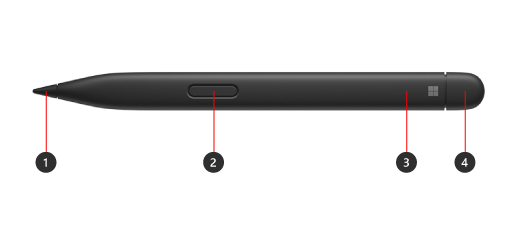
- Pen tip
- Right-click and select button
- LED light
- Eraser and top button
Learn how to set up and use Surface Slim Pen
Battery and Charging
Includes a preinstalled rechargeable Li‑ion battery. Charging is supported by compatible Surface devices and accessories. See how to charge your Surface Slim Pen. A standalone Surface Slim Pen charger is available separately if needed.
Compatibility and Features
Check your Surface model to see which pen features are supported on your device.
| Surface model | Supports pen and inking | Supports Bluetooth | Magnet attach | Tilt | Tactile signals* | Zero force inking |
|---|---|---|---|---|---|---|
| Surface Pro 12-inch | Yes, with 4096 pressure points | Yes | Yes, integrated storage and charging on the back of Surface Pro 12-inch | Yes | Yes | Yes |
| Surface Pro (12th Edition) Surface Pro (11th Edition) Surface Pro 10 for Business Surface Pro 9 Surface Pro 8 |
Yes, with 4096 pressure points | Yes | Yes, with Surface Pro 13-inch Flex Keyboard Yes, with Surface Pro 13-inch Keyboard with pen storage or Surface Pro Signature Keyboard |
Yes | Yes | Yes |
| Surface Pro X | Yes, with 4096 pressure points | Yes | Yes, with Surface Pro X Signature Keyboard or Surface Pro Signature Keyboard | Yes | No | Yes |
| Surface Laptop Studio 2 Surface Laptop Studio |
Yes, with 4096 pressure points | Yes | Yes, in the charging area | Yes | Yes | Yes |
| Surface Duo 2 | Yes, with 4096 pressure points | Yes | Yes, with Surface Duo 2 Pen Cover | No | No | No |
| Surface Hub 3 Surface Hub 2S |
Yes, with 4096 pressure points | Yes | No | No | No | No |
*Tactile signals are available in select apps on devices running Windows 11.
Other pens
Explore the headings below for more information about each pen.
Surface Slim Pen (1st Generation)
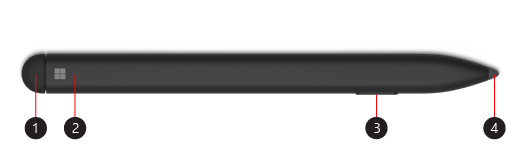
- Eraser and top button
- LED Light
- Right-click and select button
- Pen tip
Learn how to set up and use Surface Slim Pen (1st Gen)
Battery and Charging
For info on charging the battery, go to How to charge your Surface Slim Pen.
Compatibility and Features
Check your Surface model to see which pen features are supported on your device.
| Surface model | Supports pen and inking | Supports Bluetooth | Magnet attach | Tilt |
|---|---|---|---|---|
| Surface Pro X | Yes, with 4096 pressure points | Yes | Yes, with Surface Pro X Signature Keyboard | Yes |
| Surface Duo | Yes, with 4096 pressure points | No | No | No |
Surface Pen with no clip
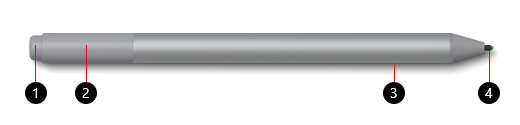
- Eraser and top button
- LED light
- Right-click and select button
- Pen tip
Learn how to set up and use Surface Pen
Battery
For info on changing the battery, go to Change Surface Pen batteries.
Compatibility and Features
Check your Surface model to see which pen features are supported on your device.
| Surface model | Supports pen and inking | Supports Bluetooth | Magnet attach | Tilt |
|---|---|---|---|---|
| Surface Pro 7+ Surface Pro 7 Surface Pro 6 Surface Pro (5th Gen) |
Yes, with 4096 pressure points | Yes | Yes | Yes |
| Surface Laptop 2 Surface Laptop (1st Gen) |
Yes, with 1024 pressure points | Yes | No | No |
| Surface Laptop 6 for Business Surface Laptop 5 (all models) Surface Laptop 4 (all models) Surface Laptop 3 (all models) |
Yes, with 4096 pressure points | Yes | No | Yes |
| Surface Laptop Studio 2 Surface Laptop Studio |
Yes, with 4096 pressure points | Yes | No | Yes |
| Surface Book (all models) | Yes, with 1024 pressure points | Yes | Yes | No |
| Surface Book 3 (all models) Surface Book 2 (all models) |
Yes, with 4096 pressure points | Yes | Yes | Yes |
| Surface Go 4 Surface Go 3 Surface Go 2 Surface Go |
Yes, with 4096 pressure points | Yes | Yes | Yes |
| Surface Studio 2+ Surface Studio 2 Surface Studio |
Yes, with 4096 pressure points | Yes | Yes | Yes |
Surface Pen with single button on flat edge
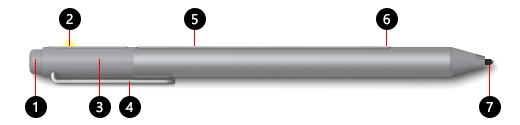
- Eraser and top button
- LED light
- Cap
- Clip
- Magnet
- Right-click and select button
- Pen tip
Battery
For info on changing the battery, go to Change Surface Pen batteries.
Compatibility and Features
Check your Surface model to see which pen features are supported on your device.
| Surface model | Supports pen and inking | Supports Bluetooth | Magnet attach | Tilt |
|---|---|---|---|---|
| Surface Pro 4 Surface Pro 3 |
Yes, with 1024 pressure points | Yes | Yes | No |
| Surface Laptop (1st Gen) | Yes, with 1024 pressure points | Yes | No | No |
| Surface 3 | Yes, with 1024 pressure points | Yes | Yes | No |
| Surface Studio | Yes, with 4096 pressure points | Yes | Yes | No |
Surface Pen with two side buttons

- Top button
- Right-click and select button
- Eraser button
- Pen tip
Battery
For info on changing the battery, go to Change Surface Pen batteries.
Compatibility and Features
Check your Surface model to see which pen features are supported on your device.
| Surface model | Supports pen and inking | Supports Bluetooth | Magnet attach | Tilt |
|---|---|---|---|---|
| Surface Pro 3 | Yes, with 1024 pressure points | Yes | No | No |
| Surface 3 | Yes, with 1024 pressure points | Yes | No | No |
Microsoft Classroom Pen
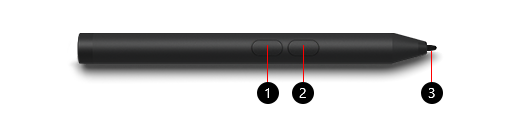
- Right-click and select button
- Eraser button
- Pen tip
Battery
For info on changing the battery, go to Change Surface Pen batteries.
Compatibility and Features
Check your Surface model to see which pen features are supported on your device.
| Surface model | Supports pen and inking | Supports Bluetooth | Magnet attach | Tilt |
|---|---|---|---|---|
| Surface Go 3 Surface Go 2 Surface Go |
Yes, with 1024 pressure points | No | No | No |
Microsoft Classroom Pen 2 and Microsoft Business Pen

- Pen tip
- Eraser button
- Right-click and select button
- Storage Clip and tether slot for secure storage
Battery
For info on changing the battery, go to Change Surface Pen batteries.
Compatibility and Features
Check your Surface model to see which pen features are supported on your device.
| Surface model | Supports pen and inking | Supports Bluetooth | Magnet attach | Tilt |
|---|---|---|---|---|
| Surface Pro 7+ | Yes, with 1024 pressure points | No | No | No |
| Surface Go Surface Go 2 Surface Go 3 |
Yes, with 4096 pressure points | No | No | No |
| Surface Go 4 | Yes, with 4096 pressure points | No | No | No |
Surface Pro Pen
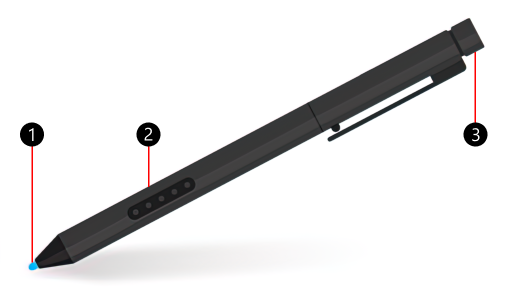
- Pen tip
- Right-click and select button
- Eraser cap
Battery
The Surface Pro Pen doesn't have any batteries and doesn't require charging.
Compatibility and Features
Check your Surface model to see which pen features are supported on your device.
| Surface model | Supports pen and inking | Supports Bluetooth | Magnet attach | Tilt |
|---|---|---|---|---|
| Surface Pro 2 Surface Pro (1st Gen) |
Yes, with 1024 pressure points | No | No | No |
Surface Hub Pen

- Pen tip
- Right-click and select button
- Eraser cap
Battery
For info on changing the battery, go to Troubleshoot Surface Hub Pen.
Compatibility and Features
Check your Surface model to see which pen features are supported on your device.
| Surface model | Supports pen and inking | Supports Bluetooth | Magnet attach | Tilt | Tactile signals | Zero force inking | Dual Pen support |
|---|---|---|---|---|---|---|---|
| Surface Hub 3 50" | Yes, with 4096 pressure points | Yes | Yes, on the sides and top of device | Yes | No | Yes | Yes |
| Surface Hub 3 85" | Yes, with 4096 pressure points | Yes | Yes, on the sides of device | Yes | No | Yes | Yes |
| Surface Hub 2S 50" | Yes, with 4096 pressure points | Yes | Yes, on the sides and top of device | Yes | No | Yes | Yes |
| Surface Hub 2S 85" | Yes, with 4096 pressure points | Yes | Yes, on the sides of device | Yes | No | Yes | Yes |
Related topics
Need more help?
Technical support

For technical support, open the Surface app, describe your problem and select Get Help.
Community support

Communities can help you ask questions, and hear from experts with rich knowledge. Ask the Community.
Other support

If you can't use your Surface or have a question about something else, open Get Help to get other support online.