
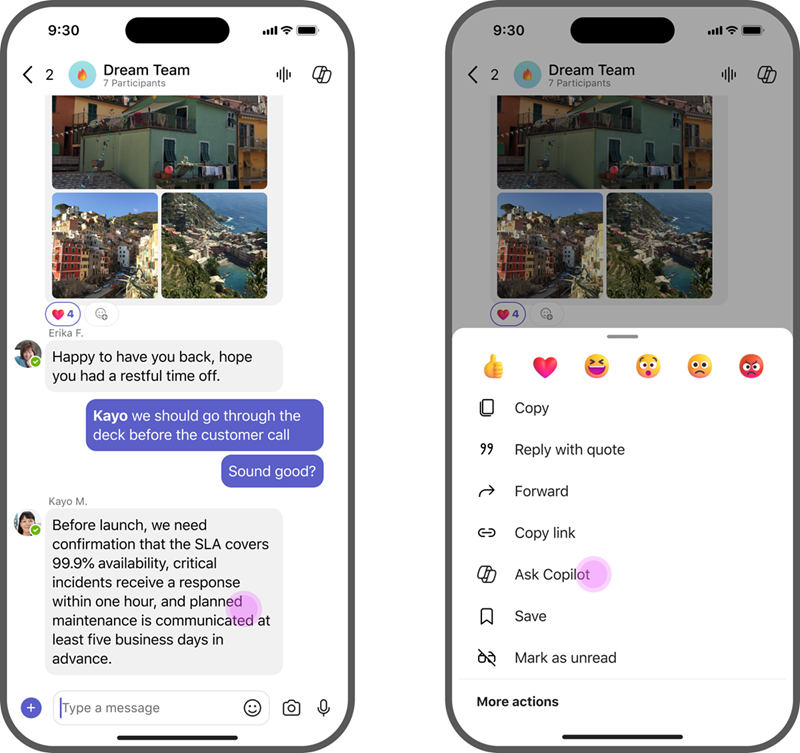
Ask Copilot in Microsoft Teams is a faster way for users to get Copilot help directly in chats. You can find it in 1:1 chats, group chats, meeting chats, and channel threads across desktop, web, and mobile.
Use Copilot Ask from your conversations
On desktop and web, users can access Ask Copilot  in two different ways in chats and channels.
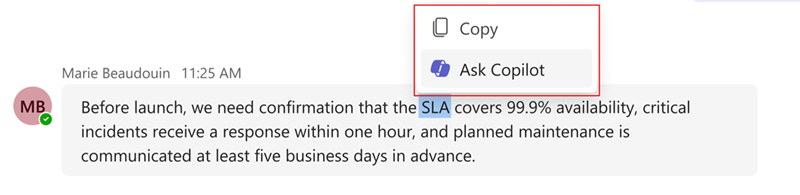
- Select text within a message.
- Right-click on the text, and choose Ask Copilot
.
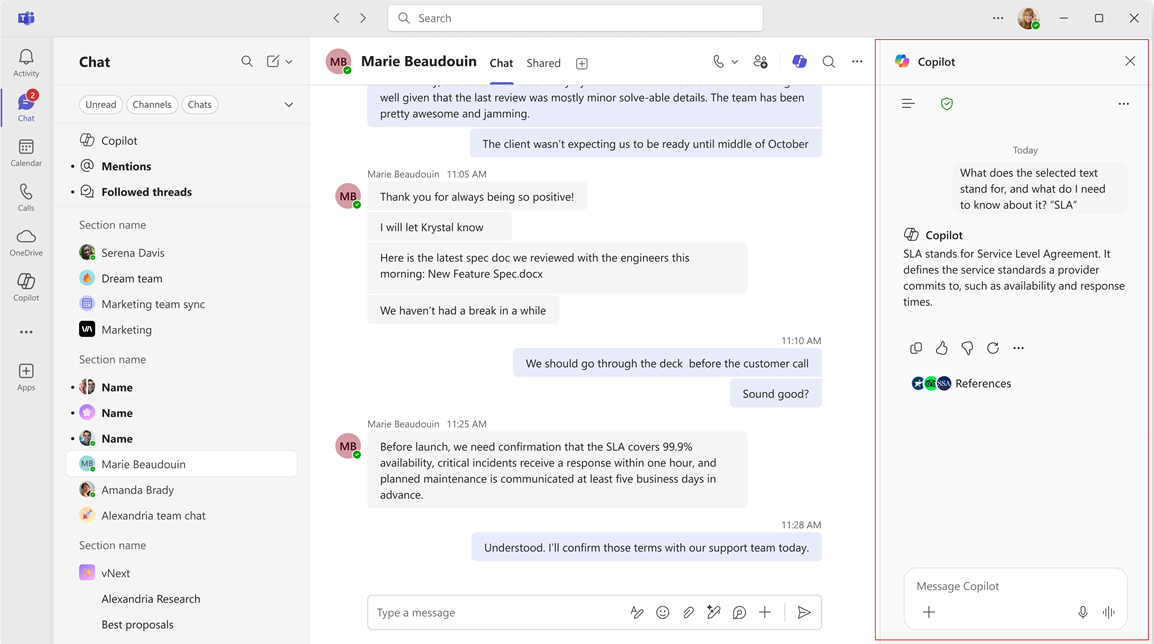
- The Copilot pane will open automatically. It will use the selected text as a prompt.
- Once Copilot generates a response, select the sources to review how the response was cited. AI-generated content may be incorrect, so sources are provided for your review when possible.
You can also:
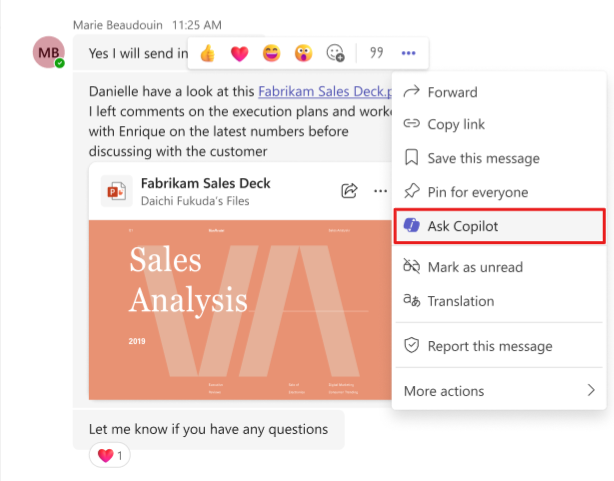
- Select More options
 .
. - Then choose Ask Copilot
.
- The Copilot pane will open automatically. It will use the selected text as a prompt.
- Once Copilot generates a response, select the sources to review how the response was cited. AI-generated content may be incorrect, so sources are provided for your review when possible.
Related topics
Use Copilot in Microsoft Teams chat and channels
Get started with Copilot in Microsoft Teams meetings