
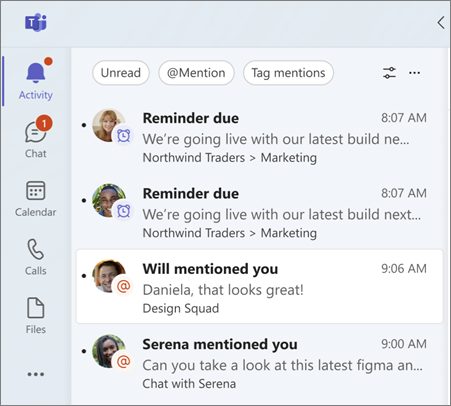
Use message reminders to come back to important messages at a specific time. You can set reminders for messages in chats and channels and manage them from Reminders  in Chat.
Set a reminder for a message in Teams
Go to the message you want to return to.
Hover over the message and select More options
 > Remind me.
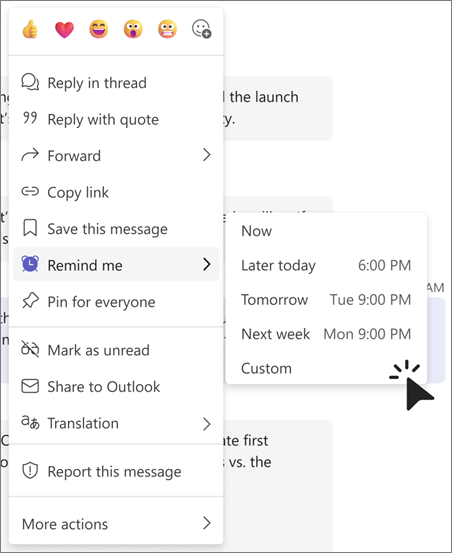
Choose when you want to be reminded:
- Now
- Later today
- Tomorrow
- Next week
- Custom to choose a specific date and time.
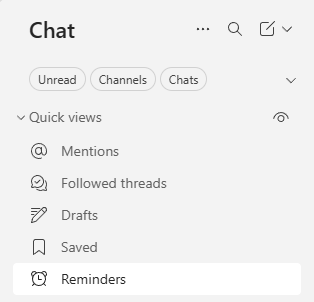
After you set your first reminder, you can view and manage your message reminders from Quick views > Reminders
in Chat.
View your reminders in Teams
Go to Chat > Quick views > Reminders
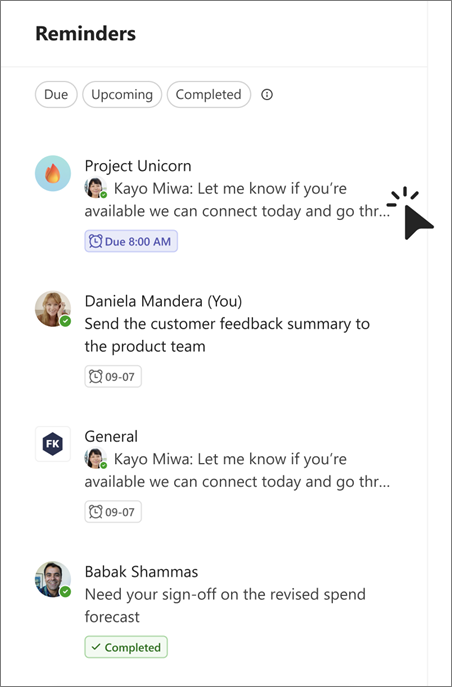
to see your message reminders. Reminders are organized by status:
- Due: Reminders that have reached their scheduled date and time.
- Upcoming: Reminders scheduled for a future date or time.
- Completed: Reminders you've marked as complete.
When a reminder becomes due, a badge appears next to Reminders
.
Manage a reminder in Teams
Manage your message reminders from Quick views > Reminders
.
Complete a reminder
- Go to Chat > Quick view > Reminders
.
- Find the reminder, hover over the message and select Complete. Completed reminders move to Completed.
Change a reminder
- Go to Chat > Quick view > Reminders
. Find the reminder you want to change.
- Hover over the message and select More options
.
- Select Edit reminder and choose a new date or time.
Remove a reminder
- Find the reminder you want to remove.
- Hover over the message and select More options
.
- Select Remove reminder.
Note
Removing a reminder doesn't delete the original message.
Change reminder notifications
When a reminder becomes due, Teams can notify you through the Activity feed, a banner, or both. To change reminder notifications:
- In Teams, select Settings and more
 > Settings.
- Select Notifications and activity.
- Under Reminders
, choose how you want to receive reminder notifications.
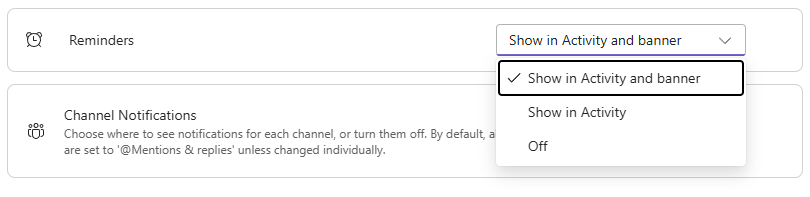
Turning off reminder notifications doesn't remove your reminders. You can still view them in Reminders.
Related topics
Manage notifications in Microsoft Teams
Mute notifications during a meeting in Microsoft Teams
Manage channel notifications in Microsoft Teams
Save a chat or channel message in Microsoft Teams