
Note
This article has done its job, and will be retiring soon. To prevent "Page not found" woes, we're removing links we know about. If you've created links to this page, please remove them, and together we'll keep the web connected.
Word automates most of the work involved in creating an index and enables you to easily make updates or apply formatting changes. To create an index, you must first mark the entries you want to include, and then build the index.
Note
This content applies to Word for Windows (including Word with a Microsoft 365 subscription). The steps and options may differ in Word for Mac or Word for the web.
Mark the entries
- Select the text you want to use as an index entry.
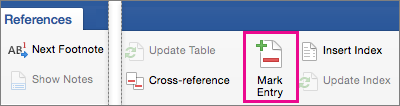
- Click References > Mark Entry.
- In the Mark Index Entry dialog box, you can edit the entry or add a second level in Subentry. If you need a third level, follow the subentry text with a colon.
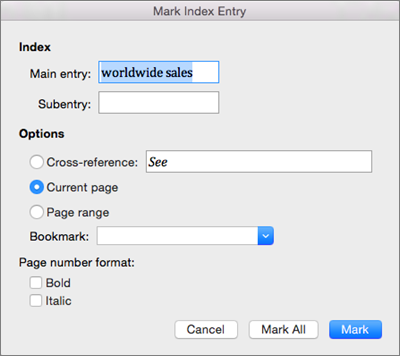
- To create a cross-reference to another entry, click Cross-reference under Options, and then type the text for the other entry in the box.
- To format the page numbers that will appear in the index, under Page number format, select Bold or Italic .
- Click Mark to mark the index entry. To mark this text everywhere it shows up in the document, click Mark All.
- Click Close.
- Repeat steps 1 - 7 until you've marked all of the entries you want in the index.
Create the index
After you mark the entries, you can insert the index into your document.
Click where you want to add the index.
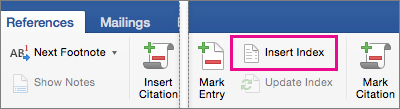
Select References > Insert Index.
In the Index dialog box, you can choose the format for text entries, page numbers, tabs, and other characters.
You can also change the overall look of the index by choosing one of the options under Formats. When you choose an option, you'll see a preview in the box to right.Click OK.
Note