
U ovom se članku donose praktični savjeti za prilagodbu web-mjesta sustava SharePoint:
- Prilagodba logotipa
- Prilagodba navigacije
- Prilagodba teme
- Prilagodba rasporeda stranice
- Prilagodba pomoću web-dijelova
Prilagodba logotipa
Prijavite se na svoje web-mjesto.
Odaberite Postavke
 desnom kutu web-mjesta sustava SharePoint. Zatim odaberite Promjena izgleda.
Otvorit će se ploča Promjena izgleda. Odabir zaglavlja.
U odjeljku Minijatura logotipa web-mjesta odaberite Promijeni da biste promijenili minijaturu logotipa web-mjesta. Da biste promijenili logotip web-mjesta, u odjeljku Logotip web-mjesta odaberite Promijeni.
Preporučene veličine:
- Minijatura logotipa: 64px x 64px.
- Za logotip: 192px x64px
Pročitajte više o preporukama za slike zaglavlja web-mjesta ovdje.
Pregledajte ažurirani logotip.
Prilagodba navigacije
Prijavite se na svoje web-mjesto.
Odaberite Uređivanje na kraju postojećih veza za navigaciju web-mjestom. Ovisno o rasporedu web-mjesta, navigacija se može nalaziti pri vrhu ili na lijevoj strani web-mjesta.
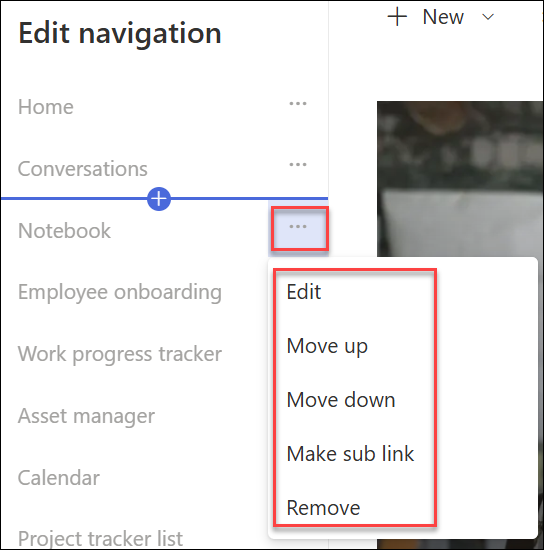
Da biste uredili postojeće veze, odaberite trotočje (...) pokraj veze. Zatim na kontekstnom izborniku odaberite jednu od sljedećih mogućnosti
- Uređivanje – mijenja adresu i/ili zaslonski naziv
- Premjesti gore – pomiče vezu prema gore
- Premjesti dolje – pomiče vezu prema dolje
- Napravi podvezu – pretvara vezu u podvezu veze iznad nje
- Promoviraj podvezu – pretvara podvezu u vezu najviše razine.
- Ukloni – briše stavku izbornika

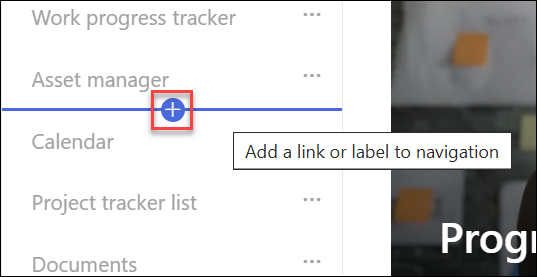
Da biste dodali novu vezu ili oznaku u navigaciju, postavite pokazivač miša na veze, a zatim odaberite znak plus. U dijaloškom okviru koji će se prikazati odaberite URL da biste dodali prilagođenu vezu ili odaberite jednu od zadanih stavki povezanih s web-mjestom. Zatim odaberite U redu.
Prilagodba teme
- Prijavite se na svoje web-mjesto.
- Odaberite Postavke desnom kutu web-mjesta sustava SharePoint. Zatim odaberite Promjena izgleda.
- Otvorit će se ploča Promjena izgleda. Odabir teme.
- Odaberite temu koju želite koristiti, a zatim odaberite Spremi. Ako odaberete gotovu temu, možete prilagoditi i glavnu boju i boju za isticanje.
Prilagodba rasporeda stranice
Izgled stranice sustava SharePoint možete prilagoditi dodavanjem sekcija s različitim rasporedima ili uređivanjem izgleda postojećih sekcija.
Ako niste, pomaknite se na stranicu na kojoj želite promijeniti raspored.
Raspored stranice možete promijeniti na sljedeće načine:
- Dodavanje nove sekcije sa stupcima
- Primjena predloška sekcije radi promjene izgleda pomoću slika
- Promjenarasporeda postojeće sekcije
- Omogućivanje sažimanja sekcije
Prilagodba pomoću web-dijelova
Prilikom dizajniranja stranice možete dodati različite web-dijelove da biste stvorili jedinstven i dojmljiv web-sadržaj. Da biste dodali web-dijelove, odaberite ikonu + koja se pojavljuje kada pokazivač miša postavite iznad stranice ili unutar sekcije na stranici.
Evo nekih najčešće korištenih web-dijelova
- Tekst: dodavanje teksta i tablica na stranicu
- Slika: Dodajte sliku iz biblioteke, prenesite novu ili je potražite na internetu
- veza: pomoću web-dijela veze dodajte vezu s pretpregledom na interni ili vanjski sadržaj
- Ugrađivanje: obogatite stranicu prikazom sadržaja s drugih web-mjesta
- Istaknuti sadržaj: dinamički prikaz sadržaja na temelju vrste sadržaja, filtriranja ili niza pretraživanja
- Datoteke i mediji: Umetnite razne vrste datoteka na stranicu
Dostupno je mnogo više web-dijelova.
Cijeli popis pogledajte ovdje.