
Use Mobile mic to dictate and use voice commands in Dragon Copilot by using your mobile device as a microphone for an active Dragon Copilot web or desktop session.
Before you begin
- Sign in to Dragon Copilot on your workstation.
- Install the Dragon Copilot mobile app.
- Sign in using the same account you use on your workstation.
Enable Mobile mic on your workstation
In Dragon Copilot:
- Open Settings
 .
. - Select Microphone.
- Select Mobile mic.
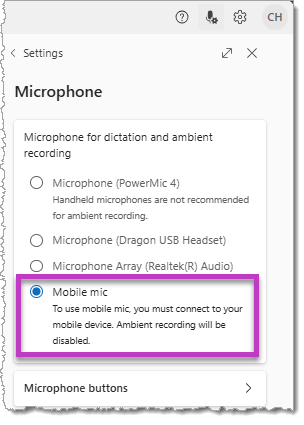
Dragon Copilot waits for a Mobile mic connection from your mobile device.

Start Mobile mic on your mobile device
In the Dragon Copilot mobile app:
- Tap the microphone icon
 .
. - On the Microphone screen, tap the Connect button.

Your mobile device becomes the microphone for your active Dragon Copilot web or desktop session.
What you can do with Mobile mic
When Mobile mic is connected, you can:
- Dictate text into Dragon Copilot on your workstation.
- Use Dragon voice commands.
- Navigate between text entry fields in notes and documents.
Mobile mic provides the same dictation and command capabilities as a connected workstation microphone.
About the Mobile mic screen
When Mobile mic is active, the Dragon Copilot mobile app displays a dedicated microphone screen. Use this screen only to control microphone input for your active Dragon Copilot web or desktop session.
Return to the Dragon Copilot mobile app
To return to the Dragon Copilot mobile app experience, close the Mobile mic screen. This action disconnects Mobile mic and returns you to the mobile app, where you can start or manage ambient recordings or perform other tasks.
Closing Mobile mic doesn't sign you out of Dragon Copilot.
Learn more
- To select or change microphones on your workstation, see Select and configure your microphone.
- If you use a microphone with programmable buttons, see Configure microphone buttons in Dragon Copilot.