
Select and configure your microphone
Use this article to select a microphone input device for dictation or ambient recording in Dragon Copilot. You choose which microphone Dragon Copilot uses, and your selection is saved per platform (web, desktop, or embedded) each time you sign in.
Note
For ambient recording, using the Dragon Copilot mobile app directly on your phone provides optimal audio quality by using the device’s built‑in microphone.
Open Microphone settings
- Select the microphone icon
 in the title bar or
 - Select Settings
 , then select Microphone.
Select a microphone
- In Settings > Microphone, review the list of available input devices.
- Select the microphone you want to use.
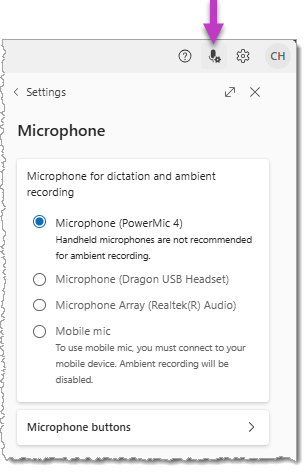
Dragon Copilot automatically saves your selection for the current platform. If the selected device isn't available, Dragon Copilot uses the system default microphone.
Note
If you change the system default microphone outside of Dragon Copilot, refresh or restart the application.
Microphone status and behavior
- The microphone icon indicates connection status.
- If a microphone disconnects, Dragon Copilot stops the recording and saves it automatically.
Use Mobile mic (use your phone as a workstation microphone)
If you don't have a microphone connected to your workstation, you can use your mobile device as a microphone for your Dragon Copilot web or desktop session.
See Use Mobile mic with Dragon Copilot.
Related configuration options
If your microphone supports programmable buttons, see Configure microphone buttons in Dragon Copilot.