
Ha létrehoz egy dokumentumtárat a SharePointban, biztonságos helyen tárolhatja a fájlokat, ahol Ön és munkatársai könnyen megtalálják, közösen használhatják, és bármikor, bármilyen eszközről elérhetik őket. A SharePoint-csapatwebhelyek alapértelmezés szerint tartalmaznak egy dokumentumtárat; Szükség szerint azonban további dokumentumtárakat és egyéb tárakat is hozzáadhat a webhelyhez. A dokumentumtárakról a Mi az a dokumentumtár? című cikk nyújt részletesebb tájékoztatást.
Megjegyzés
A webhelytulajdonosok listákat hozhatnak létre és kezelhetnek. Előfordulhat, hogy más csapattagok ezt nem tudják megtenni.
Tár létrehozása a SharePointban a Microsoft 365-ben vagy a SharePoint Server 2019-ben
Nyissa meg azt a csapatwebhelyet, ahol új dokumentumtárat szeretne létrehozni.
Válassza a menüsoron az Új, majd a Dokumentumtár lehetőséget.
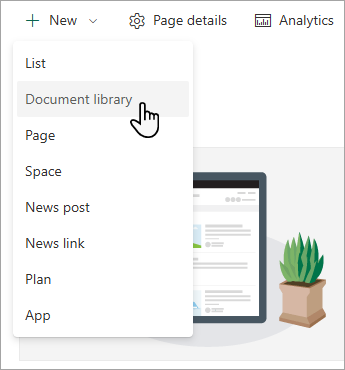
Az Új dokumentumtár létrehozása párbeszédpanelen kiindulhat üres tárból, kiindulhat egy meglévő tárból, vagy használhat egy sablont.

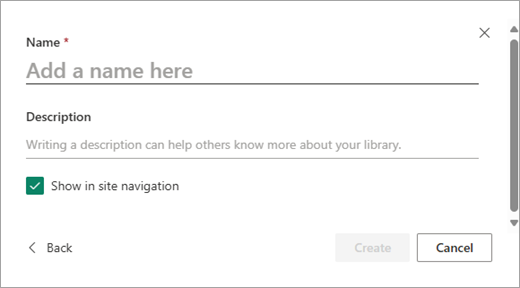
A Név párbeszédpanelen nevet és leírást adhat az új tárnak, hogy mások könnyebben megtalálhassák és használhassák a tárat.
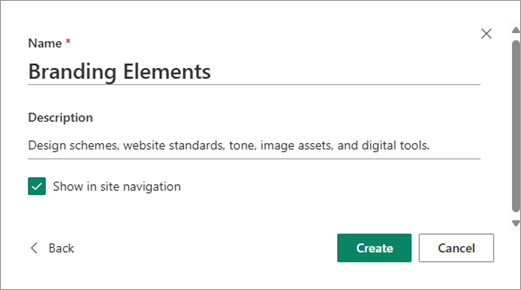
Miután megadta az új dokumentumtár nevét és leírását, válassza a Létrehozás gombot.
A verziószámozásról, a fájlok feltöltéséről és a tárak egyéb funkcióinak engedélyezéséről a verziószámozás működése listákban és tárakban című témakörben olvashat.
Megjegyzés
Egy webhelycsoportra összesen 2000 lista és tár lehet beletartozni (beleértve a fő webhelyet és az alwebhelyeket is), amely után a következő hibaüzenet jelenik meg: Hiba történt. A megkísérelt művelet tiltott, mert túllépi a listanézet küszöbértékét. További információ: A SharePoint korlátozásai.

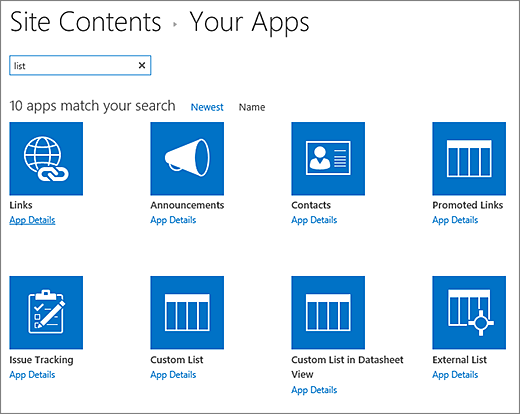


A dokumentumtárak kezelésének további lépései
A tár létrehozása után további információkat tudhat meg a SharePoint-tárakról:
- Fájlok és mappák feltöltése tárba
- Fájlok áthelyezése, illetve másolása a SharePoint rendszerben
- A verziószámozás engedélyezése és beállítása listákhoz és tárakhoz
- Nagy listák és tárak kezelése
- Tár beállítása fájlkivétel megkövetelésére
- SharePoint-lista vagy -tár engedélyeinek testreszabása
- Lista vagy tár nézetének létrehozása, módosítása és törlése
- Oszlop létrehozása listában vagy tárban
- Bevezetés a felügyelt metaadatok használatába