

Teams のコミュニティを使用すると、他のユーザーと共同作業したり、共有したり、集まったりするための場所を作ることができます。 アクティビティ、会議の計画、コミュニティの管理のための安全なスペースがあります。
特定のプロジェクトまたはタスク用に、 チャネルを作成できます。 チャネルは、メンバーがトピックや興味に基づいてディスカッションを整理できる場所です。 チャネルを使用すると、コミュニティ メンバーが更新プログラムや情報を見つけやすくなります。 たとえば、お知らせチャネルを作成して、コミュニティのメンバーに更新、変更、またはその他の重要な情報を投稿します。
注
Teams 内のコミュニティには、コミュニティの作成や参加を含め、未成年者がアクセスできません。 ただし、Microsoft Teams 無料版を使用して参加できる魅力的な機能は他にもたくさんあります。
スパムを防ぐには、[ 参加をリクエスト ] をオンにして、直接リンクの使用や、コミュニティ所有者の承認なしにコミュニティに参加できないようにします。
コミュニティを作成するときに、チャネルを追加するか、後で戻って追加するかを選択できます。 チャネルを作成または追加すると 、プロジェクトの計画と整理が容易になります。
コミュニティを作る
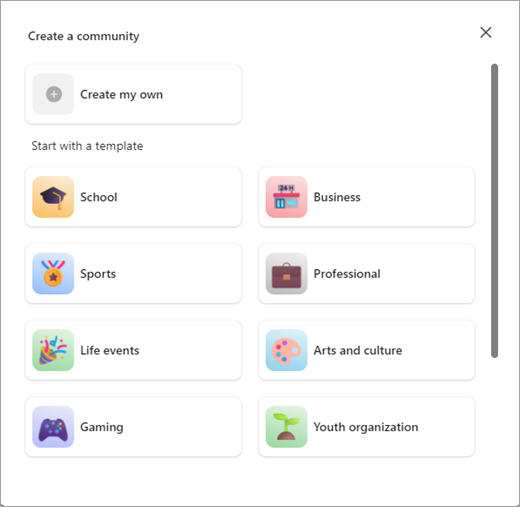
コミュニティを作成するにはさまざまな方法があります。 テンプレートを使用せずに独自のコミュニティを開始することも、スポーツ、ボランティア活動、ゲームなどのテンプレートを使用することもできます。
コミュニティを最初から作成する
[ コミュニティ]
 ] タブをタップします。
[新しいコミュニティの作成] をタップします
 。
。[ 自分で作成] をタップします。
絵文字をタップして、コミュニティの絵文字または画像で更新します。
コミュニティの作成に必要なコミュニティ名を更新します。
注
詐欺、フィッシング、マルウェアからユーザーを保護するためのリンク、冒涜的な表現、制限付き用語などを、コミュニティの名前や説明に含めることはできません。
必要に応じて、[ 説明] をタップしてコミュニティ用に追加します。
完了したら、[ 作成] をタップします。
コミュニティを作成すると、あなたが所有者になります。 ユーザーを検索してリンクや QR コードを招待または共有し、コミュニティに参加してもらうことができます。
注
スパムを防ぐには、コミュニティ名の横にある [ チーム情報![] [コミュニティ イベント] [会議情報](../../media/community-event-meeting-info.png) ] をタップします。 そこで、[ 参加リクエスト] を切り替えて、直接リンクの使用を防止したり、コミュニティ所有者の承認なしに誰かがコミュニティに参加したりできないようにすることができます。 Teams 無料版のすべてのコミュニティは既定でプライベートであり、検索や推奨事項には表示されなくなります。 コミュニティを共有するには、メンバーを直接 招待 します。
] をタップします。 そこで、[ 参加リクエスト] を切り替えて、直接リンクの使用を防止したり、コミュニティ所有者の承認なしに誰かがコミュニティに参加したりできないようにすることができます。 Teams 無料版のすべてのコミュニティは既定でプライベートであり、検索や推奨事項には表示されなくなります。 コミュニティを共有するには、メンバーを直接 招待 します。
テンプレートを使用してコミュニティを作成する
テンプレートは事前設定された名前と画像を使用して、コミュニティをすばやく開始するのに役立ちます。 たとえば、他のユーザーと共有するために 、近所のコミュニティ や ゲーム コミュニティを作成できます。
[ コミュニティ]
] タブをタップします。[新しいコミュニティの作成] をタップします
。使用するテンプレート ( スポーツ や ボランティアなど) をタップします。
絵文字をタップして、コミュニティの絵文字または画像で更新します。
コミュニティの作成に必要なコミュニティ名を更新します。
注
詐欺、フィッシング、マルウェアからユーザーを保護するためのリンク、冒涜的な表現、制限付き用語などを、コミュニティの名前や説明に含めることはできません。
必要に応じて、[ 説明] をタップしてコミュニティ用に追加します。
完了したら、[ 作成] をタップします。
コミュニティを作成すると、あなたが所有者になります。 ユーザーを検索してリンクや QR コードを招待または共有し、コミュニティに参加してもらうことができます。
注
スパムを防ぐには、コミュニティ名の横にある [ チーム情報 ] をタップします。 そこで、[ 参加リクエスト] を切り替えて、直接リンクの使用を防止したり、コミュニティ所有者の承認なしに誰かがコミュニティに参加したりできないようにすることができます。 Teams 無料版のすべてのコミュニティは既定でプライベートであり、検索や推奨事項には表示されなくなります。 コミュニティを共有するには、メンバーを直接 招待 します。
チャネルを作成または追加する
コミュニティでチャネルを作成するには、所有者である必要があります。 チャネルを一から作成することも、テンプレートを使用することもできます。 コミュニティに既にチャネルがある場合は、最大 5 つのチャネルを追加してコミュニティを整理できます。
所有するコミュニティのチャネルを作成する
- Teams アプリの [コミュニティ] の ] タブをタップします。
- チャネルを作成するコミュニティを見つけます。
-
 [チャネルの追加] ボタンをタップします。 コミュニティ名の下にあります。
 -
 、[チャネルの追加] ボタンをタップします。 画面の下部にあります。
 - [ チャンネル名 ] フィールドでチャンネル名を指定します。 絵文字ピッカーをタップして、タイトルにリアクションまたは絵文字を追加します
-
チェックマークの [
![Teams OK] ボタン](../../media/teams-ok-icon-001.png) または [完了] をタップして、コミュニティのチャネルを作成します。 変更を加えずに終了するには、[ キャンセル] を選択します。
または [完了] をタップして、コミュニティのチャネルを作成します。 変更を加えずに終了するには、[ キャンセル] を選択します。
所有するチャネルの設定を更新および管理するには、「Microsoft Teams 無料版のコミュニティ設定を更新する」を参照してください。
![コミュニティ画像を追加] ボタン](../../media/circleadditionsolid.png)


関連トピック
お問い合わせ
詳細については、 サポートにお問い合わせいただ くか、 Microsoft Teams コミュニティで質問してください。