
Create and use Auto-texts in Dragon Medical One
If you frequently use a block of text, create templates to save time. In Dragon Medical One, these templates are called Auto-texts.
When you create Auto-texts, Dragon Medical One types the text each time you need it. All you have to do is say a command and the text is inserted into your report, no matter how long the text block is. You no longer need to type or dictate the same lines over and over again.
Create Auto-texts from documents
If you already have text in a document that you want to save and reuse later, follow these instructions to create an Auto-text:
- Select the text you want to turn into an Auto-text.
- Turn on your microphone and say Create Auto-text.
- Give your Auto-text a name. Dragon Medical One automatically copies this name into the Spoken form field, but you can change or shorten it at any time. When you want to use the Auto-text later, just say the Spoken form.
- Select Save.
Create Auto-texts from scratch
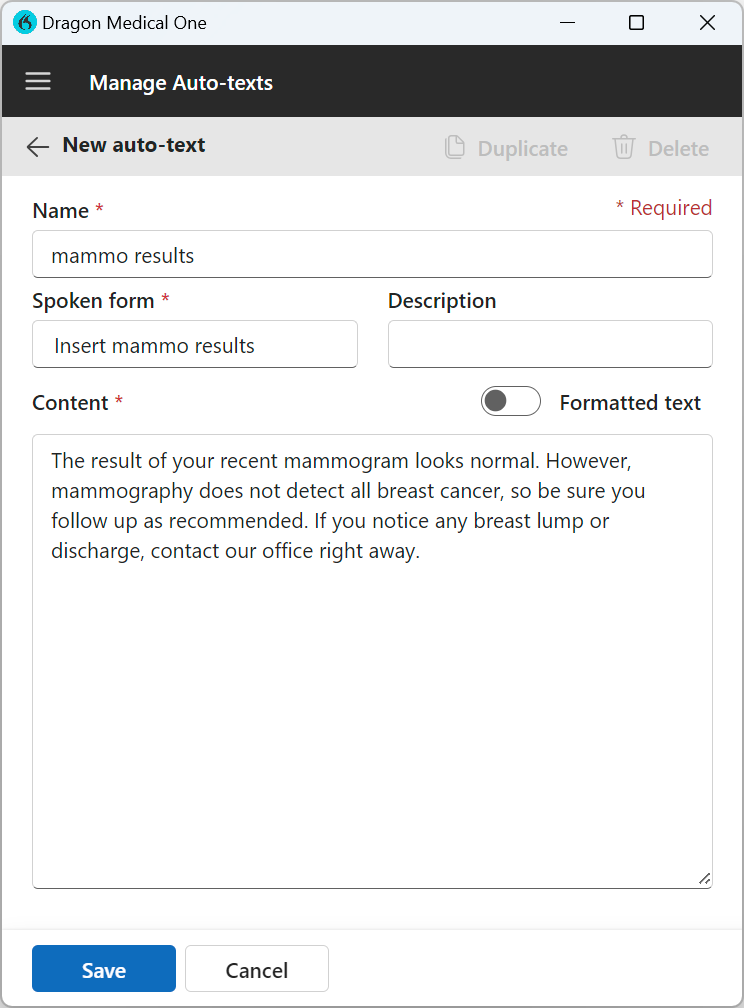
To create an Auto-text from scratch, say Create Auto-text or choose Manage Auto-texts from the DragonBar menu. Then follow these instructions:
- Give your Auto-text a name.
- Dragon Medical One automatically copies this name into the Spoken form field, but you can change or shorten it at any time. When you want to use the Auto-text later, just say the Spoken form.
- Enter the Content of the Auto-text (this is what types out when you insert the Auto-text).
- Select Save.
Note
Your organization might already have a trigger word, such as "insert," set up. If so, you need to say that word in front of your Spoken form. For example, "Insert findings."
Insert your Auto-text
To use your Auto-text, say the Spoken form in the course of your dictation, pausing briefly before and after saying the command name.
"Patient presented with a swollen ankle period x-ray has been ordered period new paragraph [pause] insert procedure note..."
Did you forget the spoken form of your Auto-text?
This situation can happen. To see a list of your Auto-texts, say manage Auto-texts or select Manage Auto-texts from the DragonBar menu. From here, you can review your Auto-texts to learn what you need to say to insert it.

Tip
You can find all spoken forms under Auto-texts in the What You Can Say menu.
Related topics
Create Auto-texts with variable fields in Dragon Medical One