
Manage formatting in Dragon Medical One
Dragon Medical One's Manage Formatting feature helps you set your preferred format for date, time, numbers, measurements, numbered lists, and more. It saves you time and lets you define your writing style.
To set formatting preferences, say Manage Formatting. You can also open the What You Can Say menu, select the hamburger icon, and then select Manage Formatting.

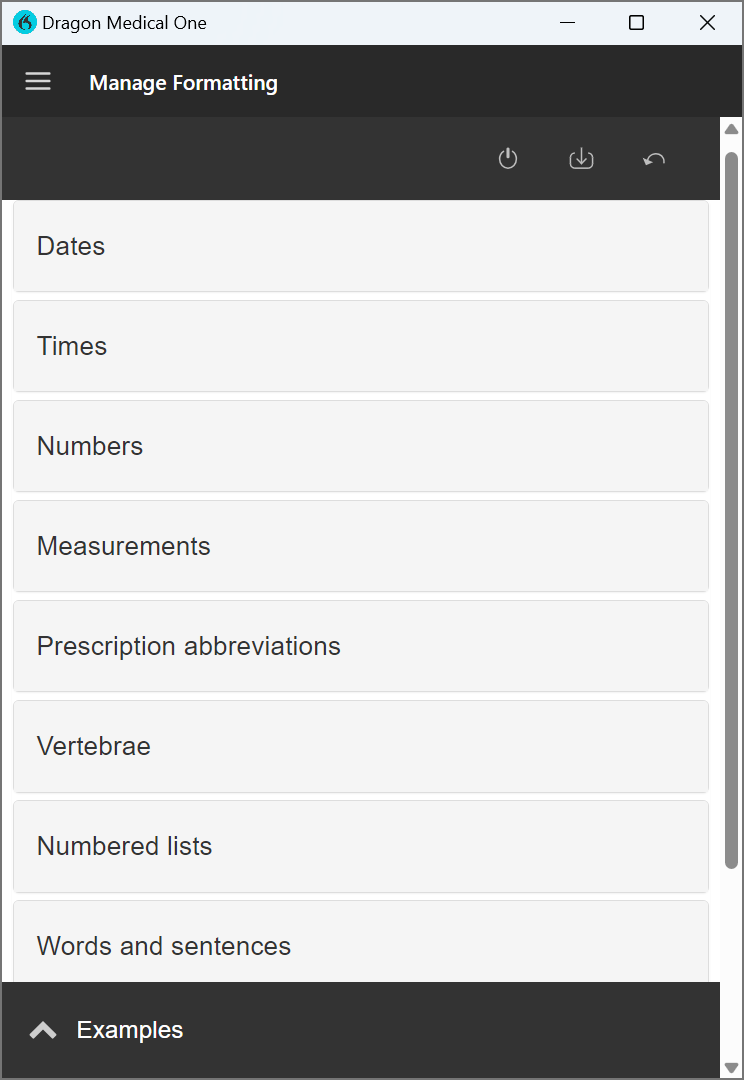
The Manage Formatting window lists the formatting options that you can customize:
- Dates
- Times
- Numbers
- Measurements
- Prescription abbreviations
- Vertebrae
- Numbered lists
- Words and sentences
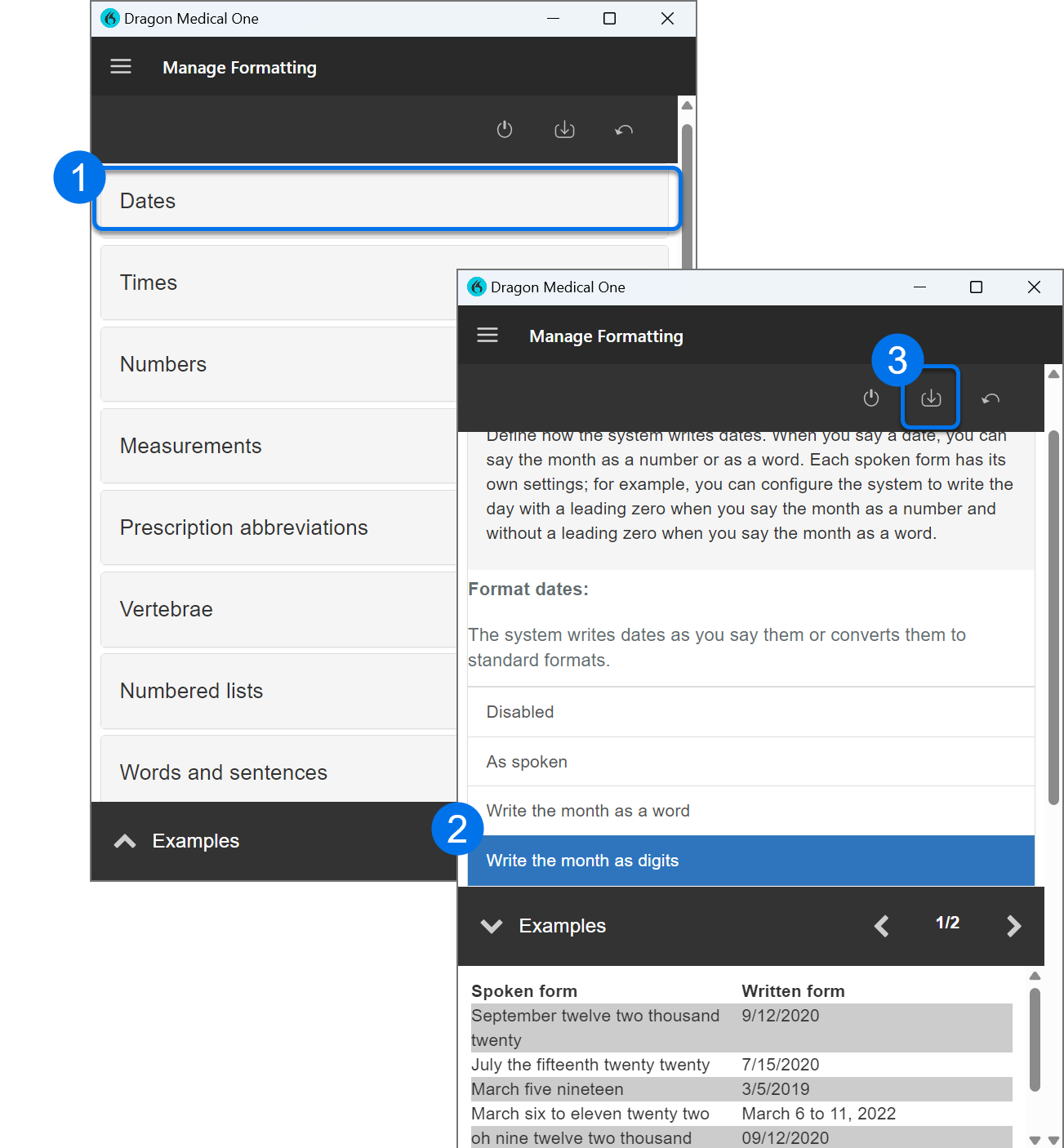
Change date format example
By default, dates are written as they are spoken. For example, if you say "September twenty two thousand twenty-three," the text displays as "September 20, 2023." Suppose you want the dates written as numerals.
Here's how to change the format:
- In the Manage Formatting window, select Dates.
- Choose Write the month as digits.
- Select Save your changes.
Now when you say, "September twenty two thousand twenty-three," the text displays as "9/20/2023."
To restore all formatting to default settings, select Reset to the default settings.

Using Manage Formatting eliminates the need to use a keyboard or mouse to change formatting, saving you time, and provides consistency throughout your documentation.