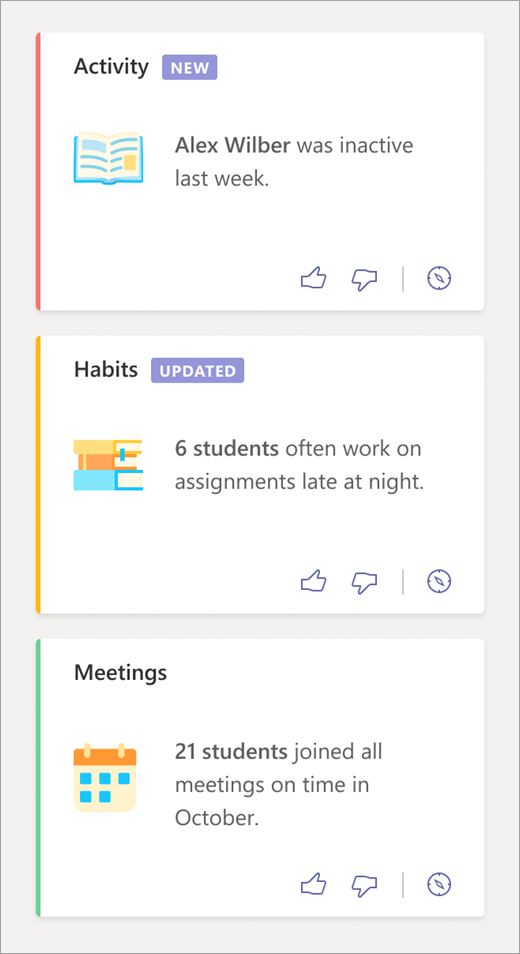
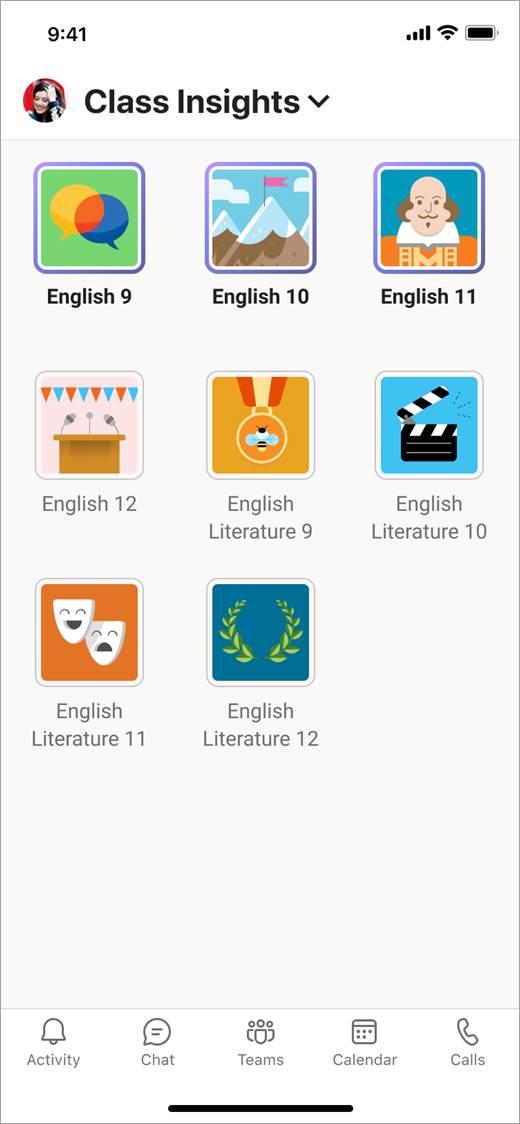
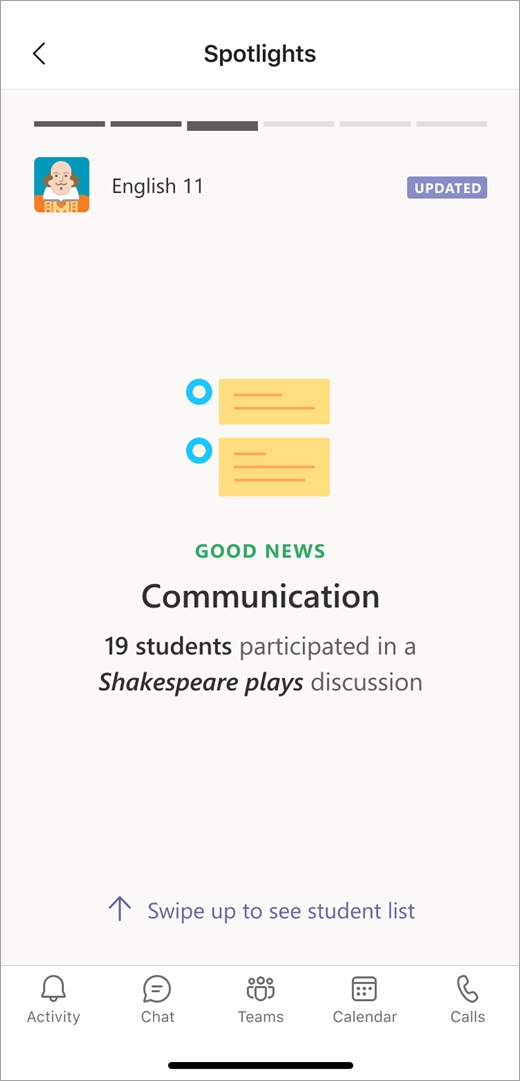
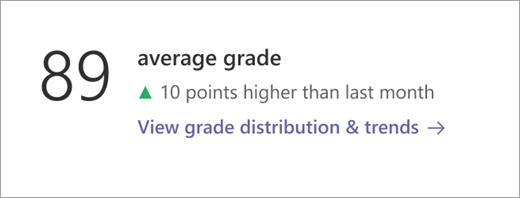
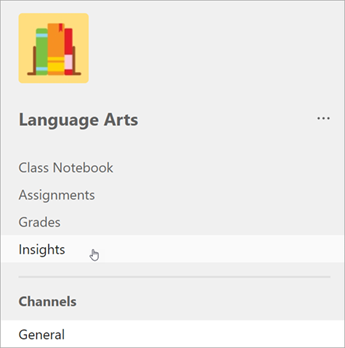
When you select the Insights tab from your class team channel, the class overview page is your first look into the app. From here, you can drill down to get specific views on your students' Teams activity.
Explore
Each class team has its own class overview page. Select the Insights tab from any of your classes to enter its overview dashboard.
Note
Default timeframes based on activity level are shown on the class overview page. To adjust the timeframe, select any datapoint to drill down further and access additional filtering.

Student activity
View which students have been active and when by selecting Track student activity. Use the filters to identify when students are the most or least active.

Communication activity
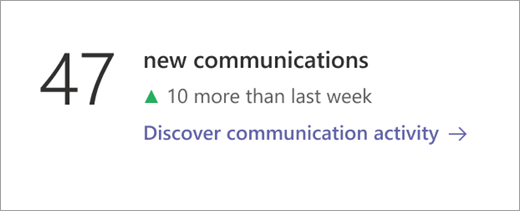
The number of posts, replies, and reactions within the time frame.
Reflect
When you use Reflect to check-in with your students, an overview of their responses is shown here.
Select View class responses to see how students responded on an individual level.