Se tiver muitos contactos, a lista pode ser um pouco esmagadora. Alterar a forma como os seus contactos são ordenados, configurar favoritos e criar listas de contactos pode ajudá-lo a encontrar quem precisa.
Selecione uma opção de guia abaixo para a versão do Outlook que você está usando.
Qual versão do Outlook eu tenho?
Observação
Se os passos neste separador Novo Outlook não funcionarem, poderá ainda não estar a utilizar o novo Outlook para Windows. Selecione Outlook Clássico e, em alternativa, siga esses passos.
No novo Outlook, tem a opção de:
Ordenar contactos | Adicionar um contacto aos favoritos | Categorizar os seus contactos | Adicionar pessoas na sua organização
Pode ordenar os seus contactos pelo nome próprio ou apelido, empresa, cidade natal, cidade do trabalho ou adicionado recentemente.
- Na barra de navegação do novo Outlook, selecione
 People.
- Com Todos os contactos selecionados , clique na opção de filtro (o filtro mostrará o nome da forma como a sua lista está atualmente filtrada, como Por nome próprio) e, em seguida, selecione uma opção de Ordenar por para saber como pretende ordená-la.
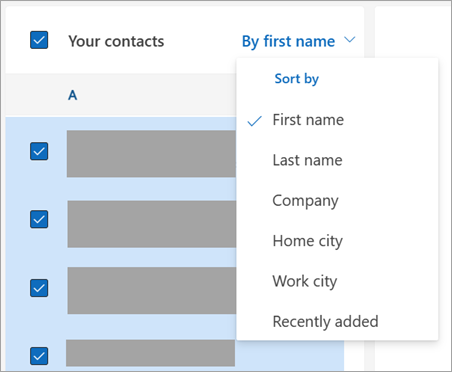
- A sua lista será atualizada imediatamente. Pode alterar a opção ordenar por em qualquer altura.
- Na barra de navegação do novo Outlook, selecione People.
- Na sua lista de contactos, selecione o contacto que pretende adicionar aos seus Favoritos.
- Pode clicar com o botão direito do rato e selecionar Adicionar aos favoritos ou selecionar Adicionar aos favoritos no Friso. Pode removê-los dos favoritos em qualquer altura.
Pode categorizar os seus contactos por cor para facilitar a localização de pessoas.
- Na barra de navegação do novo Outlook, selecione People.
- Selecione o contacto que pretende adicionar a uma categoria nova ou existente.
- Selecione
 Mais opções e, em seguida, paire o cursor sobre Categorizar.
- Selecione Nova categoria ou uma categoria existente para adicionar o contacto.
Dica
- Se quiser efetuar alterações à sua categoria de contacto, terá de criar uma nova para substituir a categoria existente.
- Se quiser eliminar uma categoria, basta remover todos os contactos da categoria.
Se estiver a utilizar o novo Outlook no trabalho ou na escola e a sua organização tiver um diretório configurado, poderá ver informações sobre os seus colegas sem os guardar como contactos. Pode procurá-los ou selecionar o respetivo nome ou imagem a partir de uma mensagem de e-mail. Os respetivos card de perfil mostrarão informações recolhidas de outros sistemas (diretório). Se quiser adicionar outras informações, como notas, aniversários, etc., pode guardar os seus colegas nos seus próprios contactos. O novo contacto está associado automaticamente ao contacto do diretório existente. Apenas verá as informações que adicionar.
Observação
Se os passos neste separador Novo Outlook (Insiders) não funcionarem, poderá ainda não estar no caminho dos Insiders. Selecione Outlook Clássico ou Novo Outlook e, em alternativa, siga esses passos.
Na nova edição do Outlook (Insiders), atualizámos a experiência onde é fácil gerir as suas categorias e ordenar rapidamente através dos seus contactos.
Observação
Ainda não é possível adicionar ou gerir os seus Favoritos . Estamos a trabalhar nesta funcionalidade e esta estará disponível em breve. Entretanto, ainda pode adicionar e gerir os seus Favoritos no Outlook Web e estes serão migrados automaticamente quando a funcionalidade Favoritos estiver pronta.
Ordenar contactos | Adicionar um contacto aos favoritos | Categorizar os seus contactos | Adicionar pessoas na sua organização
Pode ordenar os seus contactos pelo nome próprio, apelido, empresa ou recentemente adicionados.
- Na barra de navegação do novo Outlook, selecione People.
- Clique na opção de filtro (o filtro mostra o nome da forma como a sua lista está atualmente filtrada, como Por nome próprio) e, em seguida, selecione uma opção de Ordenar por para saber como pretende ordená-la.

- A sua lista será atualizada imediatamente. Pode alterar a opção ordenar por em qualquer altura.
Ainda não é possível adicionar ou gerir os seus Favoritos na edição Insiders do novo Outlook. Estamos a trabalhar nesta funcionalidade e esta estará disponível em breve. Entretanto, ainda pode adicionar e gerir os seus Favoritos no Outlook Web e estes serão migrados automaticamente quando a funcionalidade Favoritos estiver pronta.
Pode categorizar os seus contactos por cor para facilitar a localização de pessoas.
Na barra de navegação do novo Outlook, selecione People.
Selecione o contacto que pretende adicionar a uma categoria nova ou existente.
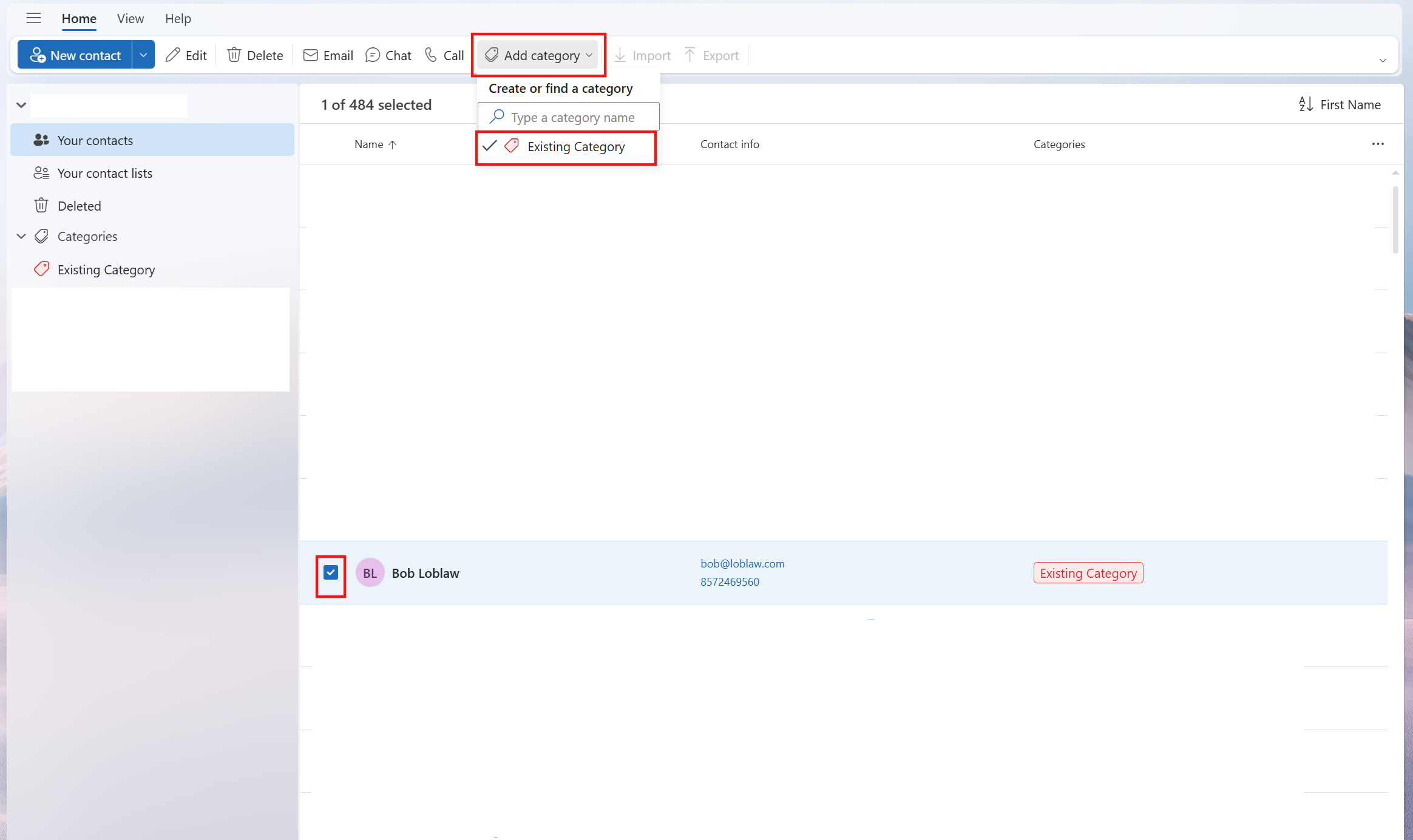
Clique em "Adicionar Categoria" no friso
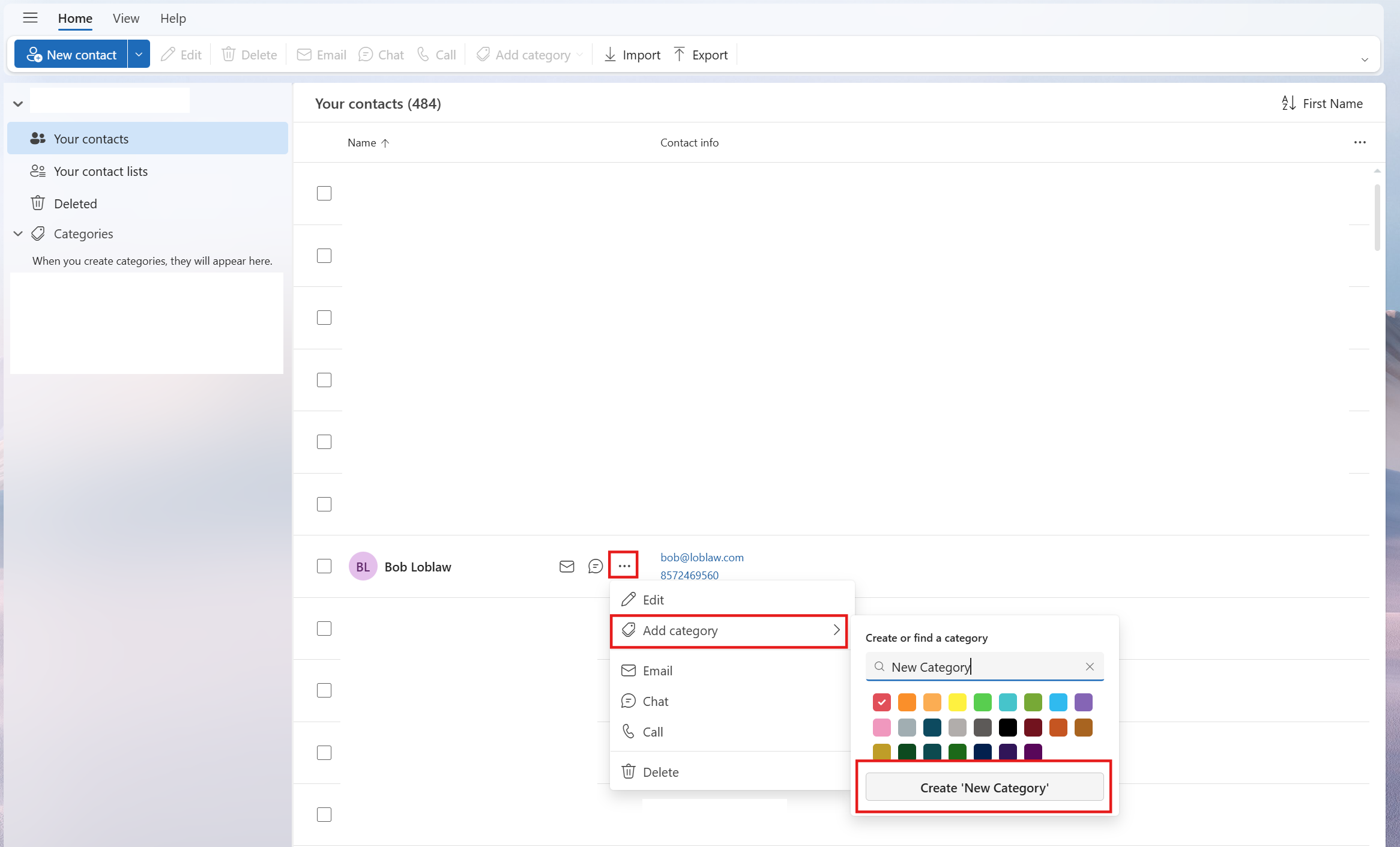
- Em alternativa, também pode pairar o cursor do rato sobre um contacto e selecionar o Mais opções e, em seguida, paire o cursor sobre Adicionar Categoria.
Selecione Nova categoria ou uma categoria existente para adicionar o contacto.


Dica
- Se quiser efetuar alterações à sua categoria de contacto, terá de criar uma nova para substituir a categoria existente.
- Se quiser eliminar uma categoria, basta remover todos os contactos da categoria.
Se estiver a utilizar o novo Outlook no trabalho ou na escola e a sua organização tiver um diretório configurado, poderá ver informações sobre os seus colegas sem os guardar como contactos. Pode procurá-los ou selecionar o respetivo nome ou imagem a partir de uma mensagem de e-mail. Os respetivos card de perfil mostrarão informações recolhidas de outros sistemas (diretório). Se quiser adicionar outras informações, como notas, aniversários, etc., pode guardar os seus colegas nos seus próprios contactos. O novo contacto está associado automaticamente ao contacto do diretório existente. Apenas o utilizador verá as informações que adicionar.
No Outlook clássico, tem a opção de:
Ordenar contactos | Adicionar um contacto aos favoritos | Alterar o formato dos nomes | de contactoCategorizar os seus contactos
Pode ordenar os seus contactos pelo nome próprio ou apelido, empresa, cidade natal e muito mais.
- Na barra de navegação no Outlook clássico, selecione
 People.
- Selecione o separador Ver no friso, no grupo Vista Atual , selecione Ver Definições.

- Selecione o botão Ordenar e, em seguida, pode escolher a partir do menu pendente Ordenar itens por para selecionar como pretende que os seus contactos sejam ordenados.
- Quando tiver terminado, selecione OK e OK novamente.
- Na barra de navegação no Outlook clássico, selecione People.
- Na sua lista de contactos, selecione o contacto que pretende adicionar aos seus Favoritos.
- Pode clicar com o botão direito do rato e selecionar Adicionar aos favoritos ou selecionar
 Ver mais opções para interagir com esta pessoa e, em seguida, selecionar Adicionar aos Favoritos. Pode removê-los dos favoritos em qualquer altura.
Observação
Se o seu e-mail for uma conta escolar ou profissional e utilizar o Microsoft 365 ou estiver num servidor Exchange no local, pode alterar o formato de nome dos seus contactos na lista de contactos principal do Outlook e quaisquer pastas de contactos que criar, mas não pode alterar o formato de nome para as pessoas na Lista de Endereços Global (GAL). Este livro de endereços é configurado automaticamente e gerido por um administrador de TI.
Os seus contactos podem não estar todos formatados da mesma forma, o que pode significar que não aparecem como esperado quando ordena com a coluna Ficheiro Como . Por exemplo, alguns podem ser arquivados como Nome próprio, Apelido, enquanto outros podem ser arquivados como Apelido, Nome próprio. Se os seus contactos não estiverem a ser ordenados da forma que pretende, experimente o seguinte:
- No Outlook clássico, clique em Definições da Conta de Ficheiro>Definições>da Conta Definições da Conta.
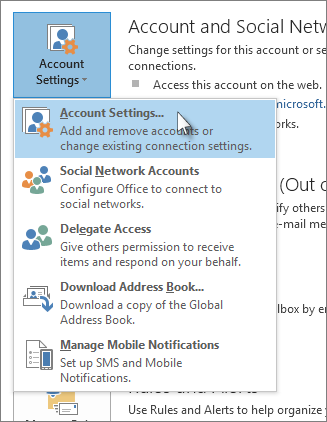
- No separador Livros de Endereços , selecione o livro de endereços para o qual pretende alterar o formato de nome e, em seguida, clique em Alterar.

- Em Mostrar nomes por, selecione Ficheiro Como (Smith, João).
- Na barra de navegação no Outlook clássico, selecione People.
- Clique com o botão direito do rato no contacto que pretende e paire o cursor sobre Categorizar.
- Pode selecionar uma cor ou selecionar Todas as Categorias. Também terá a opção de alterar o nome da categoria.
No Outlook na Web ou Outlook.com, tem a opção de:
Ordenar contactos | Adicionar um contacto aos favoritos | Categorizar os seus contactos
Pode ordenar os seus contactos pelo nome próprio ou apelido, empresa, cidade natal, cidade do trabalho ou adicionado recentemente.
- Na barra de navegação, selecione People.
- Com Todos os contactos selecionados , clique em Por nome próprio e selecione a opção Ordenar por que pretende.
- A sua lista será atualizada imediatamente. Pode alterar a opção Ordenar por em qualquer altura.
- Na barra de navegação, selecione People.
- Na sua lista de contactos, selecione o contacto que pretende adicionar aos seus Favoritos.
- Pode clicar com o botão direito do rato e selecionar Adicionar aos favoritos ou selecionar Adicionar aos favoritos no Friso. Pode removê-los dos favoritos em qualquer altura.
Pode categorizar os seus contactos por cor para facilitar a localização de pessoas.
- Na barra de navegação, selecione People.
- Selecione o contacto que pretende adicionar a uma categoria nova ou existente.
- Selecione Mais opções e, em seguida, paire o cursor sobre Categorizar.
- Selecione Nova categoria ou uma categoria existente para adicionar o contacto.
Dica
- Se quiser efetuar alterações à sua categoria de contacto, terá de criar uma nova para substituir a categoria existente.
- Se quiser eliminar uma categoria, basta remover todos os contactos da categoria.
