

As categorias permitem marcar, rotular e agrupar mensagens com facilidade no Outlook na Web e no novo Outlook. Escolha uma das categorias padrão ou crie seu própria e atribua uma ou mais categorias às suas mensagens.
Outras pessoas não verão as categorias que você atribuir.
Observação
Se as instruções não corresponderem ao que você vê, talvez você esteja usando Outlook.com ou uma versão mais antiga do Outlook na Web. Experimente Categorias em Outlook.com ou Instruções para Outlook na Web clássicas.
Adicionar uma categoria, marca ou rótulo a uma mensagem de email
Método 1:
No novo Outlook, selecione a(s) mensagem(ns) de email que você deseja categorizar.
Selecione categorizar na barra de ferramentas superior e, em seguida, faça o seguinte:
- Para aplicar uma categoria: pesquise ou selecione a categoria que você deseja usar.
- Para remover uma categoria: apague a marca de seleção ao lado da categoria.
Observação
Se você atribuiu muitas categorias e não consegue ver a categoria que você está procurando, clique em Todas as categorias na parte inferior da lista.
Método 2
Clique com o botão direito do mouse na mensagem de email ou nas mensagens selecionadas e selecione Categorizar na lista. Em seguida, faça o seguinte:
- Para aplicar uma categoria: selecione a categoria que você deseja usar.
- Para remover uma categoria: apague a marca de seleção ao lado da categoria.
Observação
Se você selecionar várias mensagens com categorias já aplicadas, as categorias selecionadas na lista suspensa mostrarão somente aquelas aplicadas a todas as mensagens que você selecionou.
Adicionar uma categoria, marca ou rótulo a um evento de calendário
Observação
Você não pode aplicar uma categoria a uma instância de uma série de compromissos ou reuniões. Você só pode aplicar categorias para toda a série.
- Clique duas vezes no evento do calendário.
- Selecione Categorizar e, em seguida, selecione uma categoria para aplicar ou apague a marca de seleção ao lado de uma categoria para removê-la.
Se você não vê a categoria que está procurando, selecione Todas as categorias na parte inferior da lista.
Mostre os emails de sua categoria e eventos do calendário
Para ver todas as mensagens que você marcou com uma categoria:
- Abra sua lista de Categorias.
- Selecione Adicionar aos favoritos.
- Volte para sua Caixa de entrada, onde você verá a categoria na lista de pastas Favoritos .
Renomear uma categoria
Não é possível renomear categorias, mas você pode criar uma nova com um novo nome.
Dica
Se você quiser substituir a categoria em uma mensagem, aplique a nova categoria antes de remover a antiga.
Criar uma categoria ou rótulo
Método 1:
- No novo Outlook, selecione uma mensagem de email ou um evento de calendário e clique com o botão direito do mouse.
- No menu Categorizar, selecione Nova categoria.
- Digite um nome para a categoria e, em seguida, se desejar, escolha uma cor clicando no ícone de categoria.
- Pressione Enter. A categoria é criada e aplicada aos itens que você selecionou.
Método 2
- Abra sua lista de Categorias.
- Selecione Criar categoria.
- Digite um nome para a sua categoria e, em seguida, se desejar, escolha uma cor selecionando o ícone de categoria.
- Pressione Enter.
Alterar a cor de uma categoria
Abra sua lista de Categorias.
Selecione o ícone da categoria que você deseja alterar.
Selecione uma cor na lista.
Observação
As cores mostradas refletem a cor do texto da Categoria, não a cor de fundo do rótulo quando aplicadas a um item.
Excluir uma categoria
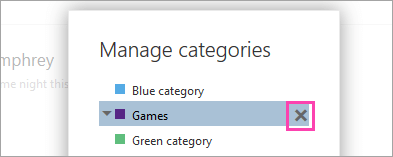
- Abra sua lista de Categorias.
- Selecione Excluir Excluir
 para excluir uma categoria.


Confira também
Organizar a Caixa de Entrada com Arquivar, Limpar e outras ferramentas no Outlook na Web