
O Copilot no Outlook facilita o gerenciamento da caixa de entrada com assistência alimentada por IA para ajudá-lo a escrever emails rapidamente, transformar longos threads de emails em breves resumos e até mesmo criar um convite de reunião a partir de um thread de emails.
Precisa redigir um email?
- Selecione Página Inicial>Novo Email.
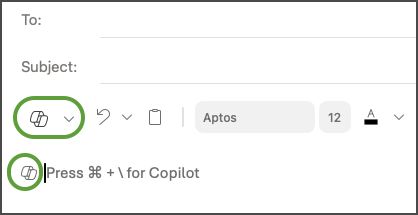
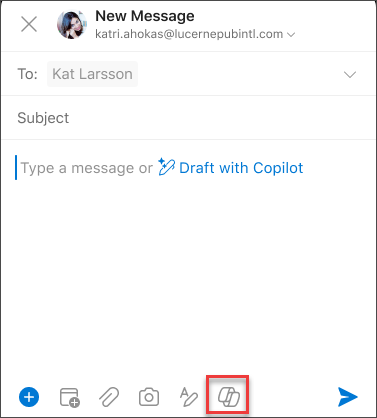
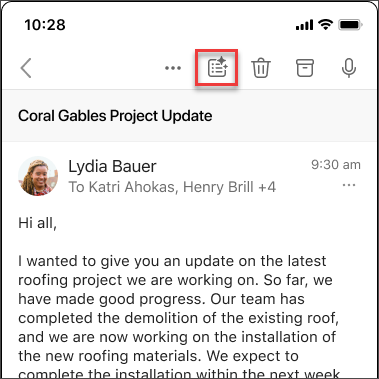
- Selecione o ícone do Copilot
 na barra de ferramentas e, no menu suspenso, selecione Rascunho se você estiver usando o novo Outlook ou Rascunho com o Copilot se estiver usando o Outlook clássico.
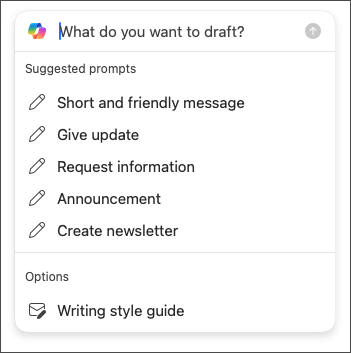
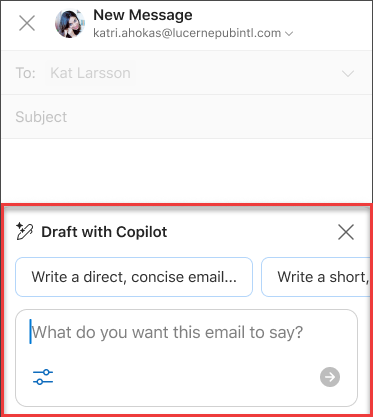
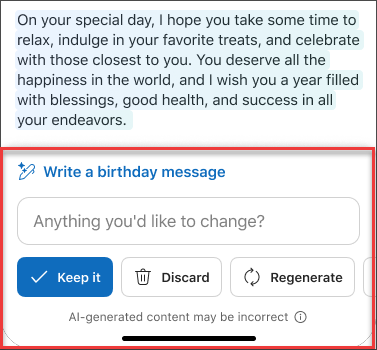
 - Na caixa do Copilot, digite o prompt. Por exemplo, "Informe à equipe que decidimos usar as telhas e para prosseguir de forma que cumpramos o prazo".
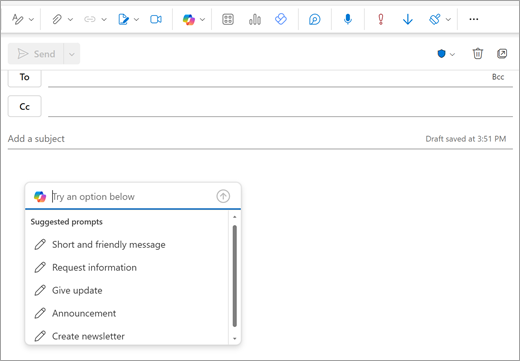
- Selecione Gerar (no novo Outlook, é um botão de seta). O Copilot criará um rascunho de mensagem para você.
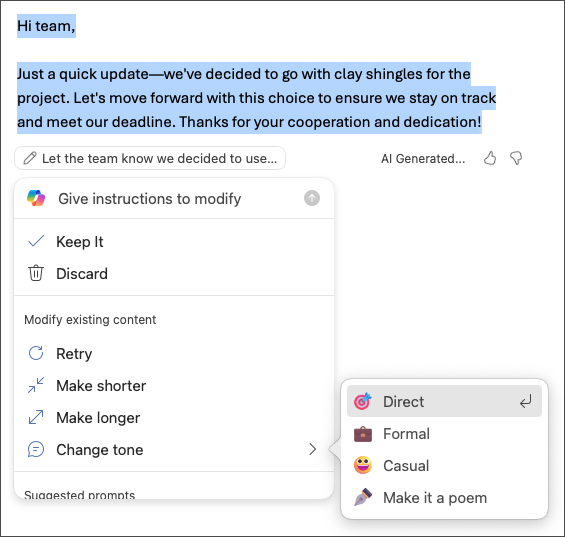
- Se desejar, você pode alterar o comprimento e o tom. No novo Outlook, selecione Torná-lo mais curto, Torná-lo mais longo ou role e selecione Alterar tom. No Outlook clássico, selecione
 Ajustar e escolha uma opção.
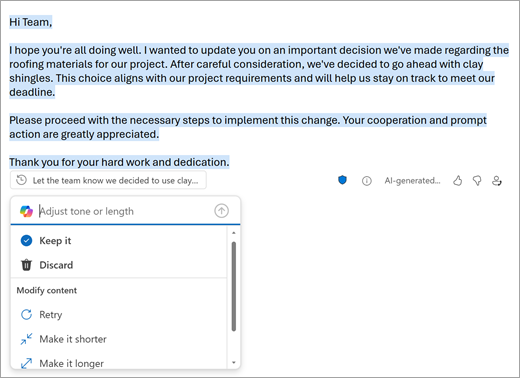
- Revise o resultado. Se não for exatamente o que você deseja, selecione Repetir no novo Outlook ou Regenerar no Outlook clássico. O Copilot criará uma nova versão. Ou, para começar do zero, selecione o texto do prompt, altere o prompt e selecione Gerar novamente.
- Quando estiver satisfeito com o resultado, selecione Manter ouManter. Edite o rascunho conforme necessário e selecione Enviar quando estiver pronto.
Deseja resumir um email?
Use resumos de email para navegar por longos threads de email e se atualizar rapidamente sobre a conversa.
- Selecione uma conversa na sua caixa de entrada.
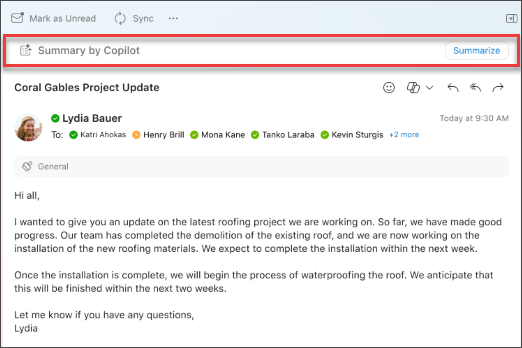
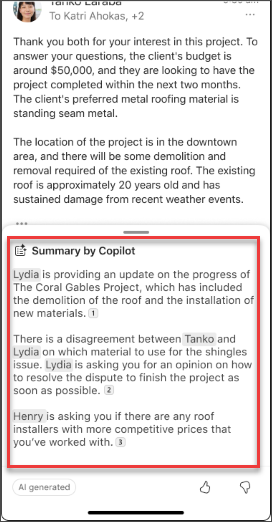
- Selecione a caixa Resumo por Copilot na parte superior do thread de email no novo Outlook ou selecione Resumir se você estiver usando o Outlook clássico. O Copilot examinará o thread para procurar pontos-chave e criará um resumo para você.
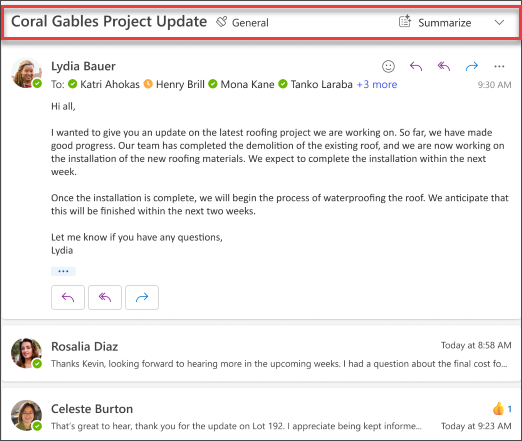
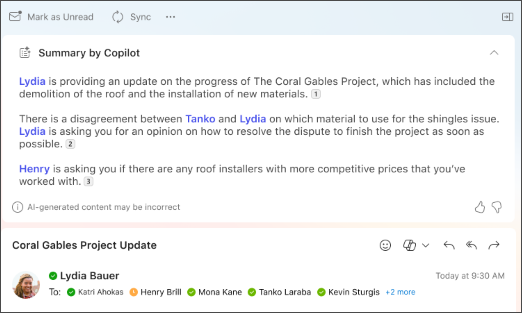
Depois de concluído, o resumo aparecerá na parte superior do email e também pode incluir citações numeradas que, quando selecionadas, levarão você ao email correspondente no thread. 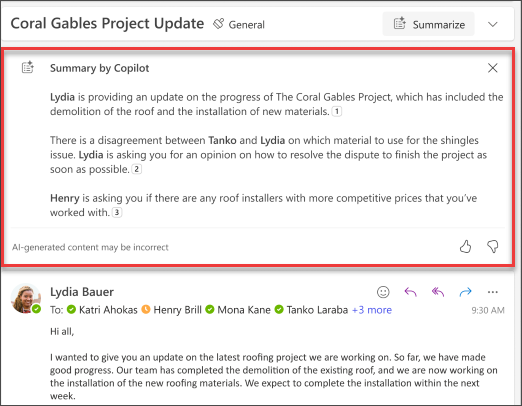
Deseja enviar um convite para reunião?
No novo Outlook, você pode usar a opção Agendar com o Copilot na barra de ferramentas para criar rapidamente um convite de reunião a partir de um email.
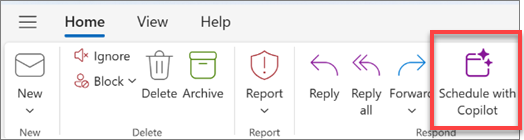
O Copilot ajuda você a criar o convite— o título e a agenda da reunião são preenchidos automaticamente e o thread de emails é adicionado como um anexo. As pessoas do thread de email são incluídas como participantes da reunião. Você pode rapidamente revisar o convite, adicionar ou alterar itens e, em seguida, enviá-lo.
Para saber como, consulte Criar uma reunião e agenda com o Copilot no Outlook.
Lembre-se...
O Copilot aproveita o GPT, um novo sistema de IA do OpenAI que cria texto com base em um prompt. Como é um novo sistema, ele pode criar coisas que você não esperava. Se você achar que o conteúdo é inesperado ou ofensivo, envie-nos comentários para que possamos melhorá-lo. Além disso, o conteúdo pode conter imprecisões ou material sensível porque é gerado pela IA que se baseia na internet. Certifique-se de examinar e verificar as informações geradas. E observe que solicitações semelhantes podem resultar na geração do mesmo conteúdo.
Privacidade
O Copilot e o Microsoft 365 foram desenvolvidos com base na abordagem abrangente da Microsoft para segurança, conformidade e privacidade.
Para obter mais informações sobre privacidade, consulte as seguintes informações:
- Se você estiver usando o Microsoft Copilot em sua organização (com sua conta corporativa ou de estudante), consulte Dados, privacidade e segurança do Microsoft Copilot.
- Se você estiver usando o Copilot em aplicativos do Microsoft 365 para casa (com sua conta Microsoft pessoal), confira Copilot em aplicativos do Microsoft 365 para casa: seus dados e privacidade.
Saiba mais
Treinamento por email com o Copilot no Outlook
Crie respostas mais rápidas usando Responder com Copilot no Outlook para Mac