

Проблемы со звуком на вашем компьютере могут быть невероятно досадными, особенно когда вы пытаетесь просмотреть видео, принять участие в собрании или прослушивать музыку. К счастью, большинство проблем со звуком можно устранить, выполнив ряд действий по устранению неполадок. В этой статье содержится подробное руководство по устранению проблем со звуком в Windows. Советы перечислены в определенном порядке — начните с первого, проверьте, помог ли он, и переходите к следующему.
Запустите средство устранения неполадок со звуком в Windows
Если вы используете устройство с Windows 11, начните с запуска автоматического средства устранения неполадок со звуком в приложении "Техническая поддержка". Он автоматически запустит диагностику и попытается устранить большинство проблем со звуком. Если вы используете более старую версию Windows или мобильное устройство, перейдите к общим шагам по устранению неполадок.
Если приложению "Техническая поддержка" не удается устранить проблему со звуком, попробуйте следующие решения.
Общие сведения об устранении неполадок со звуком в Windows 11
Попробуйте выполнить следующие общие действия по устранению неполадок, чтобы устранить проблему со звуком.
Шаг 1. Проверьте выход динамика в параметрах Windows
Если доступно несколько устройств вывода звука, убедитесь в том, что выбрано нужное. Вот как это сделать.
Возникли проблемы при воспроизведении видео? Смотрите его на YouTube.
- Щелкните значок громкости динамиков3
 на панели задач.
 - Затем нажмите стрелку
 справа от ползунка громкости динамиков, чтобы открыть список аудиоустройств, подключенных к компьютеру. Всплывающая подсказка должна отображаться как " Выберите звуковой вывод" при наведении курсора на стрелку.
 - Убедитесь в том, что звук воспроизводится на предпочитаемом вами звуковом устройстве, таком как динамик или наушники.
Если это не помогло, переходите к следующему совету..
Шаг 2. Проверьте звуковое оборудование и элементы управления громкостью
Выполните следующие действия.
Проверьте надежность подключения динамиков и наушников к разъемам. Убедитесь, что все кабели подключены.
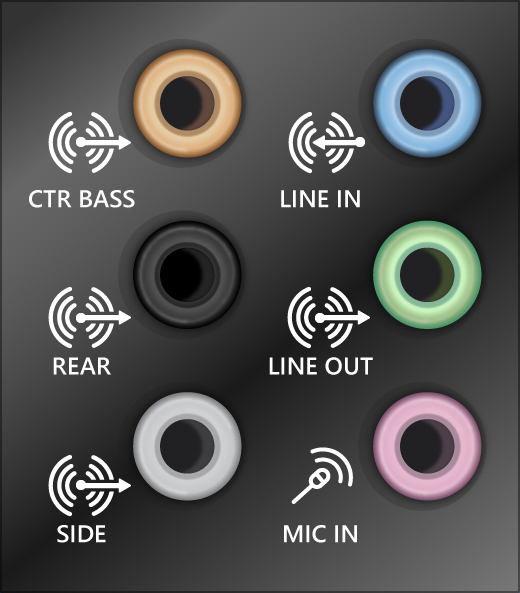
При наличии нескольких разъемов 5 мм для подключения, особенно в системе объемного звука, убедитесь, что все кабели подключены к правильному разъему.
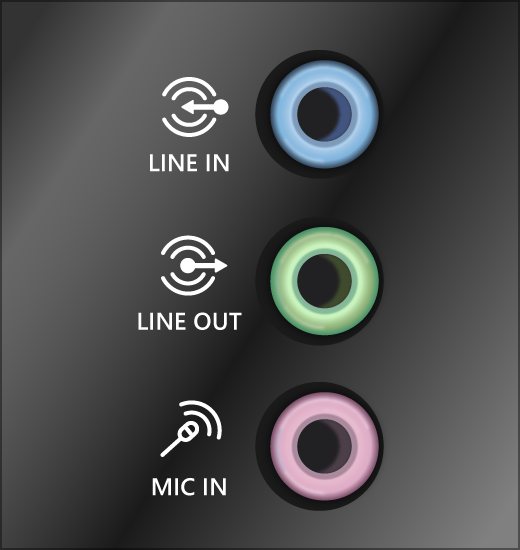
Если не ясно, к какому разъему необходимо подключить тот или иной кабель, обратитесь к изготовителю оборудования или попытайтесь по очереди найти наиболее очевидные выходные разъемы и проверьте, работают ли они.
Примечание
В некоторых системах для аудиовыхода используется разъем зеленого цвета, а для микрофонного входа — разъем розового цвета. Также могут использоваться маркировки "наушники" или "микрофон".

Убедитесь, что питание включено.
Убедитесь, что параметр "Отключить звук" не включен. Попробуйте установить более высокий уровень громкости с помощью всех регуляторов.
Примечание
У некоторых динамиков и в некоторых приложениях используются собственные регуляторы громкости. Обязательно проверьте их все.
Попробуйте подключить динамик и наушники к другому USB-порту.
Возможно, что динамики не будут работать, когда подключены наушники. Отключите наушники и посмотрите, помогло ли это.
Если проблемы со звуком сохранились, ознакомьтесь со следующими разделами, чтобы получить дополнительные сведения об устранении неполадок.
Шаг 3. Выключение дополнительных средств звука
Иногда наличие дополнительных средств звука может привести к проблемам со звуком. Их отключение может помочь устранить проблему.
- Выберите "Параметры >запуска> звука".
- В разделе "Выход " выберите используемое звуковое устройство (например, динамики или наушники).
- На открывшейся странице прокрутите до раздела "Дополнительные параметры", а затем в раскрывающемся меню выберите " Улучшения звука " значение "Выкл. ".
Если выключение дополнительных средств звука не дало результатов, дополнительные инструкции по устранению неполадок см. в следующих разделах.
Шаг 4 Запустите средство устранения неполадок со звуком
- Выберите системупараметров>пуска>.
- Прокрутите страницу вниз и выберите "Устранение> неполадок" Другие средства устранения неполадок.
- Перейдите в раздел "Звук" и нажмите кнопку "Запустить ", чтобы запустить средство устранения неполадок со звуком.
Этап 5. Проверьте параметры звука
Проверьте, не отключен ли звук для звуковых устройств и не отключены ли эти устройства.
Нажмите и удерживайте (или щелкните правой кнопкой мыши
 громкости динамиков на панели задач.
Затем нажмите стрелку
справа от ползунка громкости динамиков, чтобы открыть список аудиоустройств, подключенных к компьютеру. Всплывающая подсказка должна отображаться как " Выберите звуковой вывод" при наведении курсора на стрелку.Примечание
громкости динамиков не отображается, возможно, он находится в области переполнения. Выберите «Показать скрытые значки », чтобы провести там проверку.
 Выберите значок настроек справа от ползунка микшера громкости, чтобы открыть настройки микшера громкости. При наведении курсора на значок "Настройки" всплывающая подсказка должна отображаться как "Другие настройки микшера ".
Вы увидите набор элементов управления громкостью для ваших устройств. Убедитесь, что ни на одном из них не отключен звук. Если звук отключен, рядом с элементом управления громкостью "
 " будет отображаться красный крестик. Чтобы включить звук, одно из следующих действий:
- Выберите регулятор громкости и установите нужный уровень громкости.
- Выберите значок включения звука для выступающих .

Проверьте свойства устройства и убедитесь, что устройства не были отключены по ошибке. Выберите "Пуск
 > "
> " >"
>" >", "Громкость звука.
В разделе "Дополнительно" выберите Дополнительные параметры звука и откройте вкладку "Воспроизведение (выход") или "Запись (вход").


Выберите устройство и нажмите кнопку Свойства.
Рядом с параметром "Использование устройства" в списке устройств ввода и вывода выбрана проверка, что "Использовать это устройство (включить)".

Если это не решило проблему, переходите к следующему совету.
Шаг 6. Настройка звукового устройства по умолчанию
Если вы подключаетесь к звуковому устройству, такому как наушники или динамики, с помощью USB или HDMI, возможно, вам потребуется задать это звуковое устройство как используемое по умолчанию. Если вы используете внешний монитор без встроенных динамиков, убедитесь, что этот монитор не выбран в качестве устройства вывода звука по умолчанию. В этом случае не будет звука. Это можно проверить при задании устройства вывода звука по умолчанию. Ниже рассказывается, как это сделать.
- Выберите "Пуск> ">">", "Громкость звука.
- В разделе "Выход " выберите устройство, которое вы хотите использовать для воспроизведения в качестве устройства вывода. При выборе этого устройства оно также указывается в качестве устройства по умолчанию.
Если настройка звукового устройства по умолчанию не дала результатов, дополнительные советы по устранению неполадок см. в следующих разделах.
Шаг 7. Убедитесь, что установлены все обновления Windows.
Проверка наличия обновлений:
Нажмите кнопку "Пуск
>клиентский компонент Центра обновления Windows > и выберите "Проверить наличие обновлений".
Выполните одно из следующих действий:
- Если отображается состояние "Установлены все доступные обновления", перейдите к следующему совету.
- Если отображается состояние "Доступны обновления", щелкните Установить сейчас.
Выберите обновления, которые необходимо установить, а затем нажмите кнопку Установить.
Перезагрузите компьютер и проверьте, правильно ли работает звук.
Если это не решило проблему, переходите к следующему совету.
Шаг 8. Перезапустите Windows, чтобы применить обновления, связанные со звуком
После установки ряда обновлений необходимо перезапустить устройство.
Чтобы проверить наличие установленных обновлений, ожидающих перезагрузки, выполните следующие действия.
- Сохраните документы и закройте все приложения.
- Выберите "Пуск>PowerButton
 . Если установленные обновления ожидают завершения, вы увидите пункты " Обновить и перезагрузить " и "Обновить, завершив работу".
 - Выберите один из этих параметров перезапуска, чтобы применить обновления.
Требуется справка по Центру обновления Windows? См. статью Устранение неполадок при обновлении Windows.
Если перезапуск не дал результатов, дополнительные инструкции по устранению неполадок см. в следующем разделе.
Шаг 9. Обновление или переустановка аудиодрайверов
Аппаратные проблемы могут быть вызваны устаревшими или неработоспособными драйверами. Убедитесь, что аудиодрайвер обновлен, и при необходимости обновите его. Если это не сработает, попробуйте удалить аудиодрайвер (он будет переустановлен автоматически). Если это не поможет устранить проблему, попробуйте воспользоваться универсальным аудиодрайвером, который поставляется вместе c Windows. Если у вас возникли проблемы со звуком после установки обновлений, попробуйте выполнить откат драйвера звукового устройства.
Автоматическое обновление аудиодрайвера:
В поле поиска на панели задач введите диспетчер устройств, а затем выберите его в списке результатов.
Нажмите стрелку рядом со значком "Звуковые, игровые и видеоустройства ", чтобы развернуть его.
Нажмите и удерживайте (или щелкните правой кнопкой мыши) название звуковой платы или звукового устройства, например наушников или динамиков, выберите Обновить драйвер, затем выберите Автоматический поиск драйверов. Следуйте инструкциям на экране, чтобы завершить обновление.


Если Windows не находит новый драйвер, найдите его на веб-сайте изготовителя устройства и выполните сопутствующие указания. Если это не поможет устранить проблему, попробуйте удалить аудиодрайвер.
Удаление аудиодрайвера:
В поле поиска на панели задач введите диспетчер устройств, а затем выберите его в списке результатов.
Нажмите стрелку рядом со значком "Звуковые, игровые и видеоустройства ", чтобы развернуть его.
Нажмите и удерживайте (или щелкните правой кнопкой мыши) название звуковой карты или звукового устройства, выберите "Удалить устройство", установите флажок "Попытка проверки удалить драйвер для этого устройства", а затем нажмите кнопку "Удалить".

Перезагрузите компьютер.
Примечание
Перед перезапуском обязательно сохраните документы и все остальные текущие данные.
- При перезапуске автоматически появится запрос на переустановку звукового драйвера на компьютере.
- Чтобы перезапустить компьютер, выберите "Пуск" >Power>Restart
 .
.
Если это не поможет устранить проблему, попробуйте воспользоваться универсальным аудиодрайвером, который поставляется вместе c Windows.
Использование универсального аудиодрайвера, который поставляется вместе c Windows:
В поле поиска на панели задач введите диспетчер устройств, а затем выберите его в списке результатов.
Нажмите стрелку рядом со значком "Звуковые, игровые и видеоустройства ", чтобы развернуть его.
Нажмите и удерживайте (или щелкните правой кнопкой мыши) название звуковой карты или звукового устройства, затем выберите "Обновить драйвер">Найти драйверы> на этом компьютереВыбрать драйвер из списка уже установленных драйверов.
Выберите звуковое устройство, драйвер которого требуется обновить, нажмите кнопку Далее, а затем следуйте инструкциям по его установке.

Если эти действия не устранили проблему со звуком, перейдите на веб-сайт изготовителя устройства и установите самые последние аудиодрайверы для вашего устройства. Ниже приведен пример страницы скачивания драйвера на веб-сайте производителя звукового устройства.

Если после установки обновлений возникли проблемы со звуком
Если звук работал до запуска Центра обновления Windows, а теперь не работает, попробуйте выполнить откат аудиодрайвера.
Откат аудиодрайвера:
В поле поиска на панели задач введите диспетчер устройств, а затем выберите его в списке результатов.
Нажмите стрелку рядом со значком "Звуковые, игровые и видеоустройства ", чтобы развернуть его.
Нажмите и удерживайте (или щелкните правой кнопкой мыши) название звуковой платы или звукового устройства, затем выберите Свойства.
Перейдите на вкладку "Драйвер " и выберите " Откатить драйвер".

Прочтите и следуйте инструкциям, а затем выберите "Да ", если нужно выполнить откат аудиодрайвера.
Если откат звукового драйвера не помог или оказался невозможен, вы можете попытаться восстановить компьютер из точки восстановления системы.
Восстановление компьютера из точки восстановления системы:
При установке обновлений Майкрософт в системе мы создаем точку восстановления системы на случай возникновения проблем. Попробуйте восстановить систему до этой точки и проверьте, помогло ли это устранить проблемы со звуком. Дополнительные сведения см. в разделе "Восстановление из точки восстановления системы" статьи Параметры восстановления в Windows.
Шаг 10. Проверьте наличие аудиокодека IDT High Definition Audio в диспетчере устройств
Некоторые проблемы со звуком могут быть вызваны проблемой с аудиокодеком IDT High Definition Audio. Это можно исправить при помощи ручного обновления драйверов, позволяющего выбрать нужный звуковой драйвер.
Примечание
Не все системы имеют аудиокодек IDT High Definition Audio.
Чтобы убедиться в наличии этого аудиокодека и обновить драйвер вручную, выполните следующие действия.
- В поле поиска на панели задач введите диспетчер устройств, а затем выберите его в списке результатов.
- Нажмите стрелку рядом со значком "Звуковые, игровые и видеоустройства ", чтобы развернуть его.
- Найдите аудиокодек IDT High Definition Audio. Если он есть в списке, нажмите и удерживайте его (или щелкните правой кнопкой мыши), выберите "Обновить драйвер", а затем выберите "Найти драйверы> на этомкомпьютере".
- Вы увидите список предустановленных драйверов. Выберите Устройство с поддержкой High Definition Audio и нажмите кнопку Далее.
Шаг 11. Попробуйте использовать другие форматы звука в разделе "Параметры звука" в Windows
Введите панель управления в поле поиска на панели задач, а затем в списке результатов выберите "Панель управления".
На панели управления выберите оборудование и звук, а затем — звук.
На вкладке "Воспроизведение " выберите и удерживайте (или щелкните правой кнопкой мыши) "Устройство по умолчанию", затем выберите "Свойства".
На вкладке "Дополнительно " в разделе "Формат по умолчанию" измените параметр, нажмите кнопку "ОК" и затем проверьте звуковое устройство. Если это не помогло, попробуйте еще раз изменить данный параметр.

Если использование других форматов аудио не дало результатов, дополнительные инструкции по устранению неполадок см. в следующих разделах.
Шаг 12. Перезапуск служб Windows Audio
Введите службы в поле поиска на панели задач, а затем в списке результатов выберите "Службы".
Выберите каждую из следующих служб, нажмите и удерживайте ее (или щелкните правой кнопкой мыши), выберите Перезапустить, затем нажмите кнопку Да.
Windows Audio
Средство построения конечных точек Windows Audio
Удаленный вызов процедур (RPC)

Если перезапуск этих служб не решит проблему, дополнительные инструкции по устранению неполадок см. в следующих разделах.
Шаг 13. Исправление параметров конфиденциальности микрофона
-
Выберите"Пуск> "& безопасность приложений.>
- В разделе Разрешения приложений выберите Микрофон.
- Убедитесь, что переключатели "Доступ к микрофону" и "Разрешить приложениям получать доступ к микрофону" включены.
- Если у вас возникла эта проблема с определенным приложением, прокрутите вниз раздел "Разрешить приложениям доступ к микрофону " и убедитесь, что переключатель рядом с этим конкретным приложением также включен .
Распространенные проблемы со звуком в Windows 11
В следующем списке описаны наиболее распространенные проблемы со звуком в Windows 11. Выберите ссылку, чтобы просмотреть действия по устранению каждой проблемы.
- Исправление проблем со звуком, когда звук не воспроизводится из динамиков или наушников в Windows
- Исправление отсутствующих или необнаруженных устройств аудиовывода в Windows
- Исправление низкого или тихого звука в Windows
- Исправление остановки звука после обновления в Windows
- Исправление проблем микрофона в Windows
- Исправление искаженного или трескучего звука в Windows
- Исправление отсутствующего звука приложения, когда системные звуки в Windows работают
- Устранение проблемы с подключением Bluetooth без звука в Windows
- Обновление аудиодрайверов в Windows


