
Večino e-poštnih računov, vključno z računi Microsoft 365, Exchange Server, Outlook.com, Hotmail.com, Live.com in Google, lahko nastavite v Outlooku za Mac v nekaj hitrih korakih.
Dodajanje novega računa v Outlook for Mac
- V Outlooku za Mac izberite meni Outlook in izberite Nastavitve.
- V razdelku Osebne nastavitve izberite Računi > Dodaj račun.
- Vnesite svoj e-poštni naslov, izberite Nadaljuj in sledite pozivom.
- Če dodate račun za Yahoo oz. drug račun IMAP ali POP, boste morda preusmerjeni na ta mesta in pozvani, da omogočite Outlooku dostopanje do vaše e-pošte, stikov in koledarjev. Za nadaljevanje izberite Dovoli.
- Izberite Dokončano.
Dodajanje več računov v Outlook for Mac
Ko nastavite prvi račun, upoštevajte te korake za dodajanje vseh naslednjih e-poštnih računov.
Izberite Orodja in nato Računi.
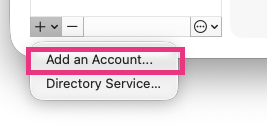
Izberite možnost +Dodaj račun na dnu okna s seznamom računov.
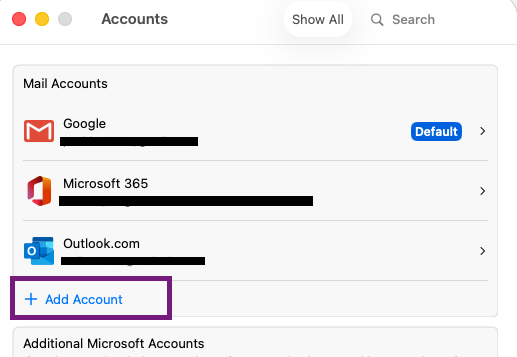
Vnesite e-poštni naslov računa.
Sledite pozivom, da zaključite nastavitev računa.
Opomba
Če dodajate račun za Yahoo ali drug račun IMAP ali POP, boste morda preusmerjeni na ta spletna mesta in pozvani, da Outlooku dovolite dostop do vaše pošte, stikov in koledarjev. Za nadaljevanje izberite Dovoli.
Izberite Dokončano.
Sorodni članki
Dodajanje računa Gmail v Outlook for Mac