
To import and export XML data in Excel, use an XML map that associates XML elements with data in cells. การเชื่อมโยงนี้จะช่วยให้คุณได้รับผลลัพธ์ที่คุณต้องการ To create an XML Map, you need an XML schema file (.xsd) and an XML data file (.xml). After creating the XML map, you can map XML elements the way you want.
เคล็ดลับ
สําหรับข้อมูลเพิ่มเติมเกี่ยวกับการใช้ XML กับ Excel ดูภาพรวมของ XML ใน Excel
- Locate or create XML schema and XML data files
- Use sample XML schema and XML data files
- สร้างแมป XML
- แมปองค์ประกอบ XML
หมายเหตุ
Excel สําหรับเดสก์ท็อป Windows เป็นเวอร์ชันเดียวที่มีฟีเจอร์การแมป XML เครื่องมือเหล่านี้ไม่พร้อมใช้งานใน Excel for Mac หรือ Excel สำหรับเว็บ
แมป XML เป็นฟีเจอร์ดั้งเดิม สําหรับสถานการณ์สมมติจํานวนมาก ให้ใช้ Power Query ใน Excel เพื่อนําเข้าและแปลงข้อมูลแบบ XML โดยเฉพาะสําหรับโครงสร้าง XML ที่ซับซ้อนหรือซ้อนกัน
Locate or create XML schema and XML data files
If another database or application created an XML schema or XML data file, you might already have them available. For example, you might have a line-of-business application that exports data into these XML file formats, a commercial web site or web service that supplies these XML files, or a custom application developed by your IT department that automatically creates these XML files.
If you don't have the necessary XML files, you can create them by saving the data you want to use as a text file. You can then use both Access and Excel to convert that text file to the XML files you need. วิธีการมีดังนี้:
Access
Import the text file you want to convert and link it to a new table.
- เลือก เปิดไฟล์>
- In the Open dialog box, select and open the database in which you want to create a new table.
- เลือกไฟล์ข้อความข้อมูลภายนอก> แล้วทําตามคําแนะนําสําหรับแต่ละขั้นตอน ตรวจดูให้แน่ใจว่าคุณลิงก์ตารางกับไฟล์ข้อความ
Access จะสร้างตารางใหม่และแสดงตารางนั้นในบานหน้าต่างนำทาง
ส่งออกข้อมูลจากตารางที่เชื่อมโยงไปยังไฟล์ข้อมูลแบบ XML และไฟล์ XML Schema
- เลือก ข้อมูลภายนอก>ไฟล์ XMLเพิ่มเติม> (ในกลุ่ม ส่งออก)
- In the Export - XML File dialog box, specify the file name and format, and select OK.
ออกจาก Access
Excel
-
Create an XML Map based on the XML schema file you exported from Access.
If the Multiple Roots dialog box appears, make sure you choose dataroot so you can create an XML table. - Create an XML table by mapping the dataroot element. See Map XML elements for more information.
- Import the XML file you exported from Access.
อีกวิธีหนึ่งคือ คุณสามารถใช้ Power Query เพื่อนําเข้าข้อมูลแบบ XML ได้โดยตรงโดยไม่ต้องสร้างไฟล์ XML Schema
หมายเหตุ
- There are several types of XML schema element constructs Excel doesn't support. The following XML schema element constructs can't be imported into Excel:
- <องค์ประกอบนี้ใด ๆ> ช่วยให้คุณสามารถรวมองค์ประกอบที่ไม่ได้ประกาศโดย Schema ได้
- <องค์ประกอบ> นี้ทําให้คุณสามารถรวมแอตทริบิวต์ที่ไม่ได้ประกาศโดย Schema ได้
- Recursive structures A common example of a recursive structure is a hierarchy of employees and managers in which the same XML elements are nested several levels. Excel doesn't support recursive structures more than one level deep.
- องค์ประกอบที่เป็นนามธรรม องค์ประกอบเหล่านี้ต้องมีการประกาศใน Schema แต่จะไม่ใช้เป็นองค์ประกอบ องค์ประกอบที่เป็นนามธรรมขึ้นอยู่กับองค์ประกอบอื่นๆ ที่ใช้แทนองค์ประกอบที่เป็นนามธรรม
- กลุ่มทดแทน กลุ่มเหล่านี้ทําให้สามารถสลับองค์ประกอบได้ทุกที่ที่มีการอ้างอิงองค์ประกอบอื่น องค์ประกอบระบุว่าเป็นสมาชิกของกลุ่มการแทนที่ขององค์ประกอบอื่นผ่านแอ<ตทริบิวต์ substitutionGroup>
- เนื้อหาผสม เนื้อหานี้ได้รับการประกาศโดยใช้ mixed="true" ในข้อกําหนดชนิดที่ซับซ้อน Excel ไม่สนับสนุนเนื้อหาแบบง่ายของชนิดซับซ้อน แต่สนับสนุนแท็กและแอตทริบิวต์ลูกที่ถูกกําหนดในประเภทซับซ้อนนั้น
Use sample XML schema and XML data files
The following sample data includes basic XML elements and structures you can use to test XML mapping if you don't have XML files or text files to create the XML files. Here's how you can save this sample data to files on your computer:
- Select the sample text of the file you want to copy, and press Ctrl+C.
- Start Notepad, and press Ctrl+V to paste the sample text.
- Press Ctrl+S to save the file with the file name and extension of the sample data you copied.
- กด Ctrl+N ใน Notepad และทําซ้ําขั้นตอนที่ 1-3 เพื่อสร้างไฟล์สําหรับข้อความตัวอย่างที่สอง
- ออกจาก Notepad
ตัวอย่างข้อมูลแบบ XML (Expenses.xml)
<?xml version="1.0" encoding="UTF-8" standalone="no" ?>
<Root>
  <EmployeeInfo>
    <Name>Jane Winston</Name>
    <Date>2001-01-01</Date>
    <Code>0001</Code>
  </EmployeeInfo>
  <ExpenseItem>
    <Date>2001-01-01</Date>
    <Description>Airfare</Description>
    <Amount>500.34</Amount>
  </ExpenseItem>
  <ExpenseItem>
    <Date>2001-01-01</Date>
    <Description>Hotel</Description>
    <Amount>200</Amount>
  </ExpenseItem>
  <ExpenseItem>
    <Date>2001-01-01</Date>
    <Description>Taxi Fare</Description>
    <Amount>100.00</Amount>
  </ExpenseItem>
  <ExpenseItem>
    <Date>2001-01-01</Date>
    <Description>Long Distance Phone Charges</Description>
    <Amount>57.89</Amount>
  </ExpenseItem>
  <ExpenseItem>
    <Date>2001-01-01</Date>
    <Description>Food</Description>
    <Amount>82.19</Amount>
  </ExpenseItem>
  <ExpenseItem>
    <Date>2001-01-02</Date>
    <Description>Food</Description>
    <Amount>17.89</Amount>
  </ExpenseItem>
  <ExpenseItem>
    <Date>2001-01-02</Date>
    <Description>Personal Items</Description>
    <Amount>32.54</Amount>
  </ExpenseItem>
  <ExpenseItem>
    <Date>2001-01-03</Date>
    <Description>Taxi Fare</Description>
    <Amount>75.00</Amount>
  </ExpenseItem>
  <ExpenseItem>
    <Date>2001-01-03</Date>
    <Description>Food</Description>
    <Amount>36.45</Amount>
  </ExpenseItem>
  <ExpenseItem>
    <Date>2001-01-03</Date>
    <Description>New Suit</Description>
    <Amount>750.00</Amount>
  </ExpenseItem>
</Root>
ตัวอย่าง XML Schema (Expenses.xsd)
<?xml version="1.0" encoding="UTF-8" standalone="no" ?>
<xsd:schema xmlns:xsd="http://www.w3.org/2001/XMLSchema">
  <xsd:element name="Root">
    <xsd:complexType>
      <xsd:sequence>
        <xsd:element minOccurs="0" maxOccurs="1" name="EmployeeInfo">
          <xsd:complexType>
            <xsd:all>
              <xsd:element minOccurs="0" maxOccurs="1" name="Name" />
              <xsd:element minOccurs="0" maxOccurs="1" name="Date" />
              <xsd:element minOccurs="0" maxOccurs="1" name="Code" />
            </xsd:all>
          </xsd:complexType>
        </xsd:element>
        <xsd:element minOccurs="0" maxOccurs="unbounded" name="ExpenseItem">
          <xsd:complexType>
            <xsd:sequence>
              <xsd:element name="Date" type="xsd:date"/>
              <xsd:element name="Description" type="xsd:string"/>
              <xsd:element name="Amount" type="xsd:decimal" />
            </xsd:sequence>
          </xsd:complexType>
        </xsd:element>
      </xsd:sequence>
    </xsd:complexType>
  </xsd:element>
</xsd:schema>
สร้างแมป XML
Create an XML map by adding an XML schema to a workbook. You can copy the schema from an XML schema file (.xsd), or Excel can try to infer one from an XML data file (.xml).
เลือกแหล่งที่มาของนักพัฒนา>
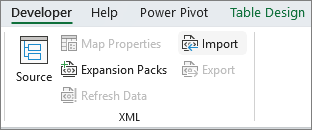
ถ้าคุณไม่เห็นแท็บ นักพัฒนา ให้ดูที่ แสดงแท็บนักพัฒนาIn the XML Source task pane, select XML Maps, and then select Add.
ในรายการ มองหาใน ให้เลือกไดรฟ์ โฟลเดอร์ หรือตําแหน่งบนอินเทอร์เน็ตที่มีไฟล์ที่คุณต้องการเปิด
เลือกไฟล์ แล้วเลือก เปิด
- สําหรับไฟล์ XML Schema Excel จะสร้างแมป XML โดยยึดตาม XML Schema If the Multiple Roots dialog box appears, choose one of the root nodes defined in the XML schema file.
- For an XML data file, Excel tries to infer the XML schema from the XML data, and then creates an XML Map.
เลือก ตกลง
แมป XML จะปรากฏในบานหน้าต่างงานแหล่งข้อมูล XML
แมปองค์ประกอบ XML
แมปองค์ประกอบ XML กับเซลล์ที่แมปเซลล์เดียวและเซลล์ที่เกิดซ้ําในตาราง XML เพื่อให้คุณสามารถสร้างความสัมพันธ์ระหว่างเซลล์และองค์ประกอบข้อมูลแบบ XML ใน XML Schema ได้
เลือกแหล่งที่มาของนักพัฒนา>
ถ้าคุณไม่เห็นแท็บ นักพัฒนา ให้ดูที่ แสดงแท็บนักพัฒนาIn the XML Source task pane, select the elements you want to map.
เมื่อต้องการเลือกองค์ประกอบที่ไม่ได้อยู่ติดกัน ให้เลือกองค์ประกอบหนึ่งองค์ประกอบ แล้วกด Ctrl ค้างไว้ แล้วเลือกแต่ละองค์ประกอบที่คุณต้องการแมปเมื่อต้องการแมปองค์ประกอบ ให้ทําตามขั้นตอนต่อไปนี้:
คลิกขวาองค์ประกอบที่เลือก แล้วเลือกองค์ประกอบแผนที่
In the Map XML elements dialog box, select a cell and select OK.
เคล็ดลับ
คุณยังสามารถลากองค์ประกอบที่เลือกไปยังตำแหน่งในเวิร์กชีตที่คุณต้องการให้องค์ประกอบนั้นปรากฏได้อีกด้วย
องค์ประกอบแต่ละรายการจะปรากฏเป็นชนิดตัวหนาในบานหน้าต่างงาน แหล่ง XML เพื่อระบุว่ามีการแมปองค์ประกอบ
เลือกวิธีที่คุณต้องการจัดการป้ายชื่อและส่วนหัวของคอลัมน์ดังนี้
เมื่อคุณลากองค์ประกอบ XML ที่ไม่เกิดซ้ำไปยังเวิร์กชีตเพื่อสร้างเซลล์ที่แมปเซลล์เดียว สมาร์ทแท็กที่มีคำสั่งสามรายการจะปรากฏ ซึ่งคุณสามารถใช้เพื่อควบคุมตำแหน่งของส่วนหัวหรือป้ายชื่อได้ดังนี้
ข้อมูลของฉันมีส่วนหัวแล้ว เลือกตัวเลือกนี้เพื่อละเว้นส่วนหัวขององค์ประกอบ XML เนื่องจากเซลล์มีส่วนหัวแล้ว (ทางด้านซ้ายหรือด้านบนของข้อมูล)
วางส่วนหัว XML ไว้ด้านซ้าย เลือกตัวเลือกนี้เพื่อใช้ส่วนหัวขององค์ประกอบ XML เป็นป้ายชื่อของเซลล์ (ด้านซ้ายของข้อมูล)
วางส่วนหัว XML ไว้ด้านบน เลือกตัวเลือกนี้เพื่อใช้ส่วนหัวขององค์ประกอบ XML เป็นส่วนหัวของเซลล์ (ด้านบนของข้อมูล)เมื่อคุณลากองค์ประกอบ XML ที่เกิดซ้ําไปยังเวิร์กชีตเพื่อสร้างเซลล์ที่เกิดซ้ําในตาราง XML ชื่อองค์ประกอบ XML จะถูกใช้เป็นส่วนหัวของคอลัมน์สําหรับตารางนั้นโดยอัตโนมัติ อย่างไรก็ตาม คุณสามารถเปลี่ยนส่วนหัวของคอลัมน์เป็นส่วนหัวใดๆ ที่คุณต้องการได้โดยการแก้ไขเซลล์ของส่วนหัวของคอลัมน์
ในบานหน้าต่างงาน แหล่งข้อมูล XML ให้เลือก ตัวเลือก เพื่อควบคุมลักษณะการทํางานของตาราง XML เพิ่มเติมดังนี้
ผสานองค์ประกอบโดยอัตโนมัติเมื่อแมป เมื่อมีการเลือกกล่องกาเครื่องหมายนี้ Excel จะขยายตาราง XML โดยอัตโนมัติเมื่อคุณลากองค์ประกอบไปยังเซลล์ที่อยู่ติดกับตาราง XML
ข้อมูลของฉันมีส่วนหัว เมื่อมีการเลือกกล่องกาเครื่องหมายนี้ ข้อมูลที่มีอยู่สามารถใช้เป็นส่วนหัวของคอลัมน์ เมื่อคุณแมปองค์ประกอบที่เกิดซ้ำในเวิร์กชีตของคุณหมายเหตุ
- If all XML commands are dimmed, and you can't map XML elements to any cells, the workbook might be shared. เลือก รีวิว>การแชร์เวิร์กบุ๊ก เพื่อตรวจสอบและลบออกจากการใช้ที่แชร์ตามต้องการ
If you want to map XML elements in a workbook you want to share, map the XML elements to the cells you want, import the XML data, remove all of the XML maps, and then share the workbook. > - If you can't copy an XML table that contains data to another workbook, the XML table might have an associated XML Map that defines the data structure. This XML Map is stored in the workbook, but when you copy the XML table to a new workbook, the XML Map isn't automatically included. Instead of copying the XML table, Excel creates an Excel table that contains the same data. If you want the new table to be an XML table, complete the steps following: > 1. Add an XML Map to the new workbook by using the .xml or .xsd file you used to create the original XML Map. You should save these files if you want to add XML Maps to other workbooks. > 1. แมปองค์ประกอบ XML ไปยังตารางเพื่อทำให้เป็นตาราง XML > > - When you map a repeating XML element to a merged cell, Excel unmerges the cell. This is expected behavior, because repeating elements are designed to work with unmerged cells only.
You can map single, nonrepeating XML elements to a merged cell, but mapping a repeating XML element (or an element that contains a repeating element) to a merged cell isn't allowed. เซลล์จะไม่ผสาน และองค์ประกอบถูกแมปไปยังเซลล์ที่มีตัวชี้อยู่
เคล็ดลับ
- You can unmap XML elements you don't want to use, or to prevent the contents of cells from being overwritten when you import XML data. For example, you could temporarily unmap an XML element from a single cell or repeating cells that have formulas you don't want to overwrite when you import an XML file. When the import is complete, you can map the XML element to the formula cells again, so you can export the results of the formulas to the XML data file.
- To unmap XML elements, right-click their name in the XML Source task pane, and select Remove element.
แสดงแท็บนักพัฒนา
ถ้าคุณไม่เห็นแท็บ นักพัฒนา ให้ทําตามขั้นตอนเหล่านี้เพื่อแสดงแท็บ
- เลือกตัวเลือกไฟล์>
- เลือกประเภท กําหนด Ribbon เอง
- ภายใต้แท็บหลักให้เลือกกล่องนักพัฒนา แล้วเลือกตกลง
ดูเพิ่มเติม
ลบข้อมูลแมป XML ออกจากเวิร์กบุ๊ก