
Do Microsoft Teams můžete přidávat aplikace ve webové, desktopové nebo mobilní verzi. Aplikace můžete také přidávat odkudkoli, kde v Teams pracujete, ať už jste na chatu, kanálu nebo schůzce.
Přidat z aplikací
- Vyberte Aplikace
 v Teams. Vyhledejte svou oblíbenou aplikaci nebo procházejte kategorie a objevte nové.
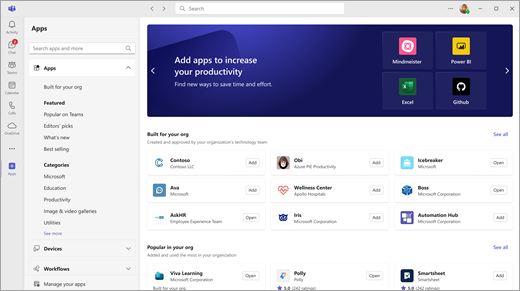
- Vyberte požadovanou aplikaci a otevře se obrazovka s popisem. V přehledu, recenzích a podrobnostech aplikace se dozvíte, co aplikace dělá a kde se v Teams zobrazuje.

- Pokud chcete aplikaci přidat, vyberte Přidat.
Přidání aplikace do karty chatu nebo kanálu
Na kartu můžete přidávat aplikace, abyste mohli sdílet obsah a spolupracovat.
- Vyberte tým, kanál nebo chat v Teams.
- Vyberte Přidat kartu, .
- Vyberte požadovanou aplikaci.
- Vyberte Přidat.
- Vraťte se do aplikace a vyberte, jestli chcete v chatu nebo kanálu napsat příspěvek o této kartě .
- Vyberte Uložit.
Poznámka
Vlastníci týmů můžou omezit, kdo může přidávat aplikace. Některé aplikace může nainstalovat jenom vlastník týmu, protože vyžadují další oprávnění.
Přidání aplikace do schůzky
Organizátoři schůzek a prezentující můžou přidávat aplikace před schůzkami nebo během nich.
- Pokud chcete před schůzkou přidat aplikaci, nejdřív odešlete pozvánku na schůzku a pak schůzku otevřete. Vyberte Přidat kartu, a zvolte aplikaci.
- Pokud chcete přidat aplikaci během schůzky, vyberte po zahájení schůzky možnost Aplikace v ovládacích prvcích schůzky.
Tip:
Další podrobnosti najdete v tématu Používání aplikací ve schůzkách Teams.
Přidání aplikace z oblasti zasílání zpráv
Některé aplikace umožňují vložení aplikace přímo do zpráv Teams.
- Když chcete do zprávy přidat aplikaci, vyberte Akce a aplikace,
 a zvolte aplikaci, kterou chcete použít.
Přidání osobní aplikace
Některé aplikace umožňují používat osobní aplikaci, takže je můžete používat mimo kanál nebo chat, ale stále v rámci aplikace Teams.
Například OneNote vám poskytne soukromý pracovní prostor v rámci Teams, zatímco Planner a Wrike nabízejí pohled z ptačí perspektivy na všechny vaše úkoly na všech nástěnkách, které jste vy nebo váš tým přidali jako karty kanálů.
- Vyberte Aplikace. v Teams.
- Vyhledávejte nebo procházejte aplikace, které mají jako schopnost uvedenou Osobní aplikaci .
- Vyberte aplikaci.
- Vyberte Přidat.
Související články
To hlavní, co potřebujete vědět o aplikacích v Microsoft Teams.