
Create sections in your Class Notebook Collaboration Space to facilitate student group work. Then, choose which students can view and edit within that section. Grant read-only permissions to the whole class if you'd like everyone to see a section but not edit it.
- Sign in to Class Notebook Wizard with the log-in provided by your school.
- Select Manage notebooks
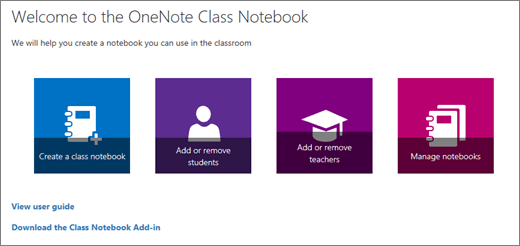
- Scroll to the notebook you'd like to modify, select it, then select Collaboration Space permissions.
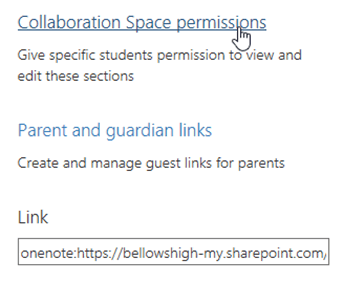
- Create a new section by selecting Add.
- Type a name for your new section and use the checkboxes to choose its student members. Give read-only access to all students in the class by selecting the checkbox.
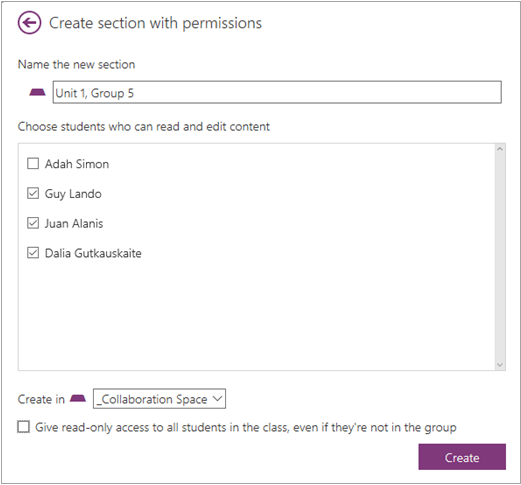
- Select Create.
Return at any time to add more sections or edit the permissions on sections you've already created.
Learn more
Getting started with the OneNote Class Notebook: A walkthrough for educators
Distribute Class Notebook pages and sections
Additional resources for educators
OneNote Class Notebook training
