
When a path to a file or folder becomes too long for OneDrive Sync to handle, OneDrive pauses that item and keeps everything else syncing normally, then walks you through a quick fix so the paused item can sync again.
Note
A "path" is the complete address of a file. It includes every folder name in the chain plus the file name, all added together. A path can get too long because of one very long name or because a file is nested inside many folders. You do not need to delete anything to fix it, and you will not lose any of your content.
Example of a path
Windows (File Explorer) -- work or school account
C:\Users\JaneDoe\OneDrive - Contoso\Projects\2026\Q1\Budget_Report_v3.xlsxWindows (File Explorer) -- personal account
C:\Users\JaneDoe\OneDrive\Projects\2026\Q1\Budget_Report_v3.xlsx
How you'll know an item needs attention
When an item's path is too long to sync, OneDrive lets you know with a red X:
Select the OneDrive cloud icon in the taskbar to open the Activity Center.
The item that needs attention is listed with a note that its path is too long to sync.
You'll see two buttons next to it: Shorten path and Move file (or Move folder, depending on whether the item is a file or a folder).
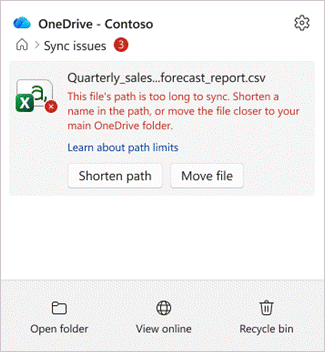
Everything else keeps syncing. Only the listed item is paused.
How to fix "file or folder is too long" errors in OneDrive
You can fix a long path in either of two ways. Both get the item syncing again, so pick whichever is easier for you:
- Shorten the path - rename the file, or one of the folders it sits inside, so the overall path is shorter.
- Move the item - move the file or folder to a location in your OneDrive that isn't nested as deeply.
Your file stays in OneDrive either way, with its contents intact.
Option 1: Shorten the path by renaming it
In the OneDrive Activity Center, find the item that needs attention and select Shorten path.
The Shorten this path window opens. It shows the full path to your item as a list of folders, ending with the file or folder that's too long.
At the bottom, OneDrive tells you how much shorter the path needs to be - for example, "Path is 32 characters too long."
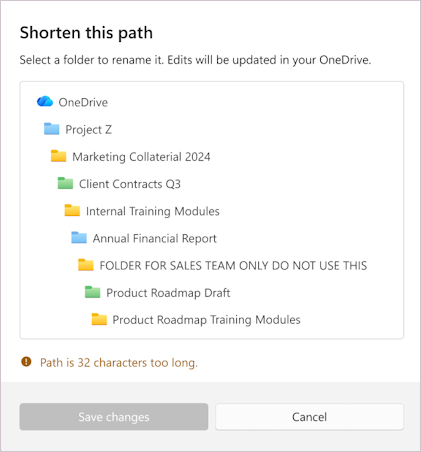
Select the file or a folder in the list and type a shorter name. The message at the bottom updates as you edit.
When the path is short enough, the message changes to "Path is short enough to sync" with a green checkmark.
Select Save changes to let OneDrive apply the new name and start syncing the item again.
Note
Renaming a folder here renames it everywhere in your OneDrive, just like renaming it in File Explorer. Everything inside that folder stays with it.
Option 2: Shorten the path by moving the file to another location
In the Activity Center, select Move file (or Move folder) next to the item.
A File Explorer window opens that mentions at the top left corner how many characters are over limit.
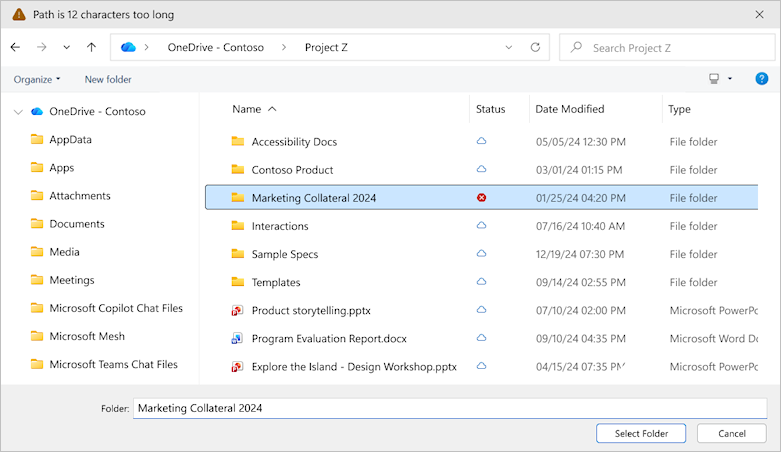
Browse to a folder that's closer to the top of your OneDrive (fewer folders deep).
Choose Select folder.
If you're asked to confirm, review the message and select Move file (or Move folder) to let OneDrive move the item and resume syncing.
Tip
Moving an item up even one or two folder levels is often enough to bring the path under the limit.
When more than one item needs fixing
Sometimes several files or folders have long paths at the same time. OneDrive groups them together in one list so you can work through them in one place.
Open the Activity Center and select Fix paths to open the Fix paths that are too long to sync list.
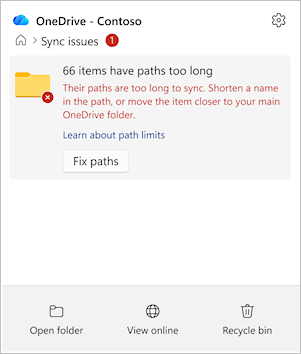
Each item shows by how many characters it is over. Point to an item, then select Shorten or Move to fix it - just as you would with a single item.
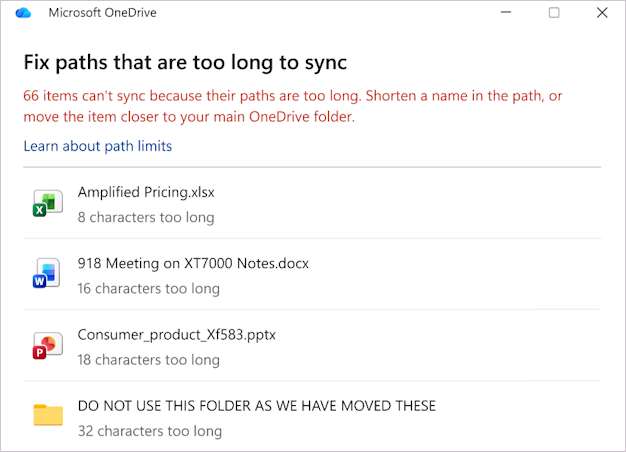
As you fix each one, it is cleared from the list.
Note
Fixing one folder can resolve several items at once. Because a folder's name is part of the path for everything inside it, shortening or moving that folder often fixes the files beneath it automatically - so you may see several items clear from the list after a single change.
Files and folders you've shared with others
If the item you're fixing is shared, OneDrive shows an extra confirmation before it makes the change.
- Moving a shared item can change sharing permissions.
- Review the message, then confirm to continue.
Files and folders in a shared library
Some items in your OneDrive are shortcuts to a shared folder. If a long-path item lives inside one of these shortcuts:
- Fixing the path changes the item for everyone who uses that folder, not just you.
- OneDrive shows a confirmation dialog explaining that the change affects the shared folder before anything happens.
- If you're not sure, check with the folder owner before you rename or move the item.
Tips to keep paths from getting too long
- Keep folder names short and meaningful.
- Avoid stacking many folders inside one another - flatter is better.
- Watch out for very long file names, especially ones that repeat the folder name.
See also
Restrictions and limitations in OneDrive and SharePoint
What are the file path length limits?
Need more help?
Account support. For help with your Microsoft account and subscriptions, visit Account & Billing Help.
Technical support. For technical support, select Contact Microsoft Support below, enter your problem and select Get Help.
Mobile users can contact Support by opening the OneDrive app and gently shaking your device.
Community support. Communities help you ask questions, give feedback, and hear from experts with rich knowledge. Ask the Microsoft Community. Do not disclose personal or sensitive information in public forums.