

After you upload photos , OneDrive helps you organize and find them. You can browse your memories fast with our new customizable Gallery, or find a photo based on where it was taken, what is in the photo, and whether it is a video, screenshot, document, and more!
Choose where you are looking at your photos.
To help you find photos, the date appears over the scroll bar as you scroll up and down your photos:

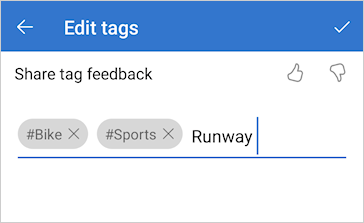
Edit or remove photo tags in OneDrive
OneDrive automatically creates tags for things it recognizes. Sometimes it makes mistakes, but you can remove or edit the tags for a photo.
- Hover your mouse over the photo to show the controls.
- Select
 to open the info pane.
 - Type a new tag or select the X next to a tag to remove it. (You edit tags by adding or removing them.)

View all photos from the same location in OneDrive
If supported by the device taking them, photos have location tags, which you can use to quickly view all photos within the same location.
Caution
Location tags can reveal personal information so be careful when using them!
To find all photos within the same location, type the location in the search bar at the top of the screen. You may need to add the country too.
Tip
If search doesn't find anything, but you know of at least one photo from that location, open the photo's detailed information pane
to see how Bing maps has recorded the location, and use that as your search term.
Create your own photo album in OneDrive
You can organize your photos into an album that you can share with friends or family.
- Select the photos you want to add to the album and then click Add to album.
- Either select
 New album and give it a name, or choose to add to one of your existing albums.

Learn more
Change views on the OneDrive website
Sort, rename, or move photos and files in OneDrive
Video formats you can play on the OneDrive website
Create photo albums starting with these templates
Need more help?
Account support. For help with your Microsoft account and subscriptions, visit Account & Billing Help.
Technical support. For technical support, select Contact Microsoft Support below, enter your problem and select Get Help.
Mobile users can contact Support by opening the OneDrive app and gently shaking your device.
Community support. Communities help you ask questions, give feedback, and hear from experts with rich knowledge. Ask the Microsoft Community. Do not disclose personal or sensitive information in public forums.