
Meeting room mode optimizes the Teams Desktop meeting interface for use in meeting rooms in the absence of more capable room solutions like Microsoft Teams Rooms. Turning on meeting room mode does the following:
Activates the in-room audio and video peripherals as your active speaker, microphone, and camera to save time and ensure personal devices are not used by mistake.
Simplifies content sharing by showing a new window for clean output on an external display while protecting your private information by leaving controls and notes on your personal device.
Enables speaker attribution and identification if the appropriate policies are enabled, improving AI meeting features like Recap and Copilot.
Disables voice isolation so in-room users other than the host can be heard clearly.
Displays the room in the participants menu and lists in-room users underneath it for accurate representation.
Activate before joining a meeting
Automatically activate meeting room mode
When you connect your laptop to a room's audio peripheral through USB, Teams automatically detects it and recommends using that peripheral on the pre-join screen. The following scenarios may help you simplify your entry into this mode:
If a connected peripheral is known to be in a shared space (for example, if it has been used by multiple unique people), Teams will suggest the Room Audio option from the meeting pre-join screen.
If a connected peripheral is known to Microsoft as a device commonly found in meeting rooms, Teams will automatically transition you to the Room Audio option. This optimizes room mode when you join.
If the connected peripheral has been associated to a BYOD room by an IT admin, Teams will automatically transition the user to the Room Audio option.
Use room audio before joining a meeting
You can also activate meeting room mode before you join a meeting. Connect your laptop to the audio and video devices in the meeting room to ensure they are properly selected in the meeting options.
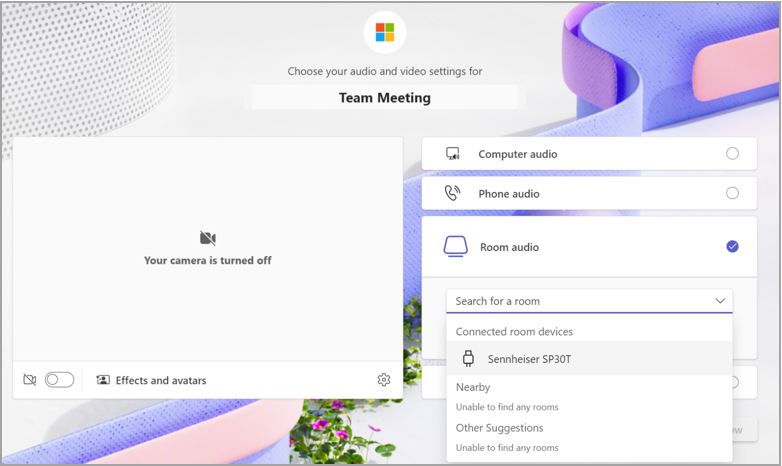
- Connect your laptop to an external audio device (like a speakerphone) using the necessary cables. Contact your IT admin if you are unsure which cables are required.
- Launch Teams on your laptop and join a meeting. For more information about joining meetings, see Join a meeting in Microsoft Teams.
- In the pre-join screen, select Room audio.
- Under Connected room devices, choose the name of the audio device.
- Join the meeting.
Activate during a meeting
From the More menu during a meeting
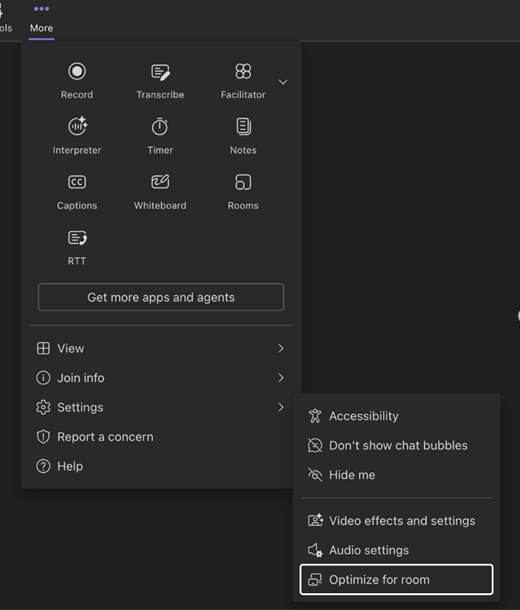
If meeting room mode is not automatically enabled for you in your Teams meeting, select More
 > Settings
 > Optimize for room. This will enable all necessary functionality to help you get the best meeting experience in a meeting room.
Share content
Meeting room mode automatically detects the connected screen. Teams broadcasts only what is in your meeting window directly onto the TV.

Note
Meeting room mode will function the same whether your preferences are set to duplicate or extend your displays in your laptop system settings.
Meeting controls will remain at the top of your device screen, just like with normal screen sharing.
Turn off meeting room mode
Proceed to More
> Settings
> Optimize for room to turn off this mode. Disconnecting your BYOD device will end meeting room mode.
Known issues
When using Together mode, you'll see a blank screen on the room host view on your laptop.
When switching between participant video galleries on the room host view, the gallery view on the shared display view won't change.
When using PowerPoint Live cameo during meeting room mode, you may experience issues when turning on your video.
Pinning a participant’s video from the desktop is not supported. For now, select More options next to the participant on the shared display view.
Breakout rooms aren't supported when in meeting room mode.
