
Last updated: February 2026
Have some work to do on a file and want to add that to your To Do list? You can do that right from the Microsoft 365 Copilot app.
How to create a To Do item for a file
In the Microsoft 365 Copilot app, select Search from the navigation pane on the left.
Scroll down into the Quick access section to find the file you want a To Do item for.
Hover over the filename and select the More actions
 button that appears to the right of the file name.
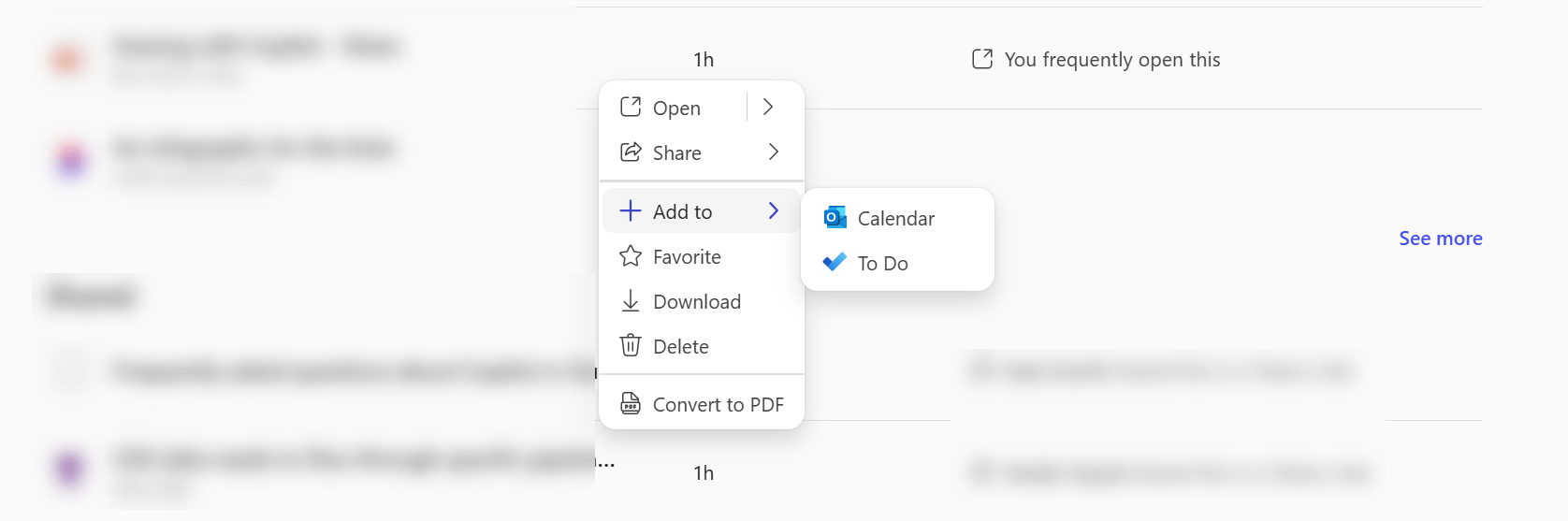
Select Add to and then To Do.
Tip
Want to add it to your calendar instead? Select Calendar instead of To Do.
A Microsoft Planner task will be created with a link to the file you selected. You can find that task in Planner, To-Do, or Microsoft Outlook.