
Voice Isolation helps Voice access focus on your voice, even when there is background noise or other people speaking around you. All speech processing happens on your device, so your voice data stays private and is never sent to the cloud.
Voice access offers three speech recognition options to help you get the best experience in different environments:
- Voice isolation: Helps Voice access focus specifically on your voice by filtering out other speakers and background noise. Ideal for shared office spaces, open floor plans, or at home when others are speaking nearby.
- Remove background noise only: Filters out non-speech sounds like a door closing, keyboard typing, or a bang against the table, without requiring any additional setup.
- No filtering: Uses the default microphone input with no additional filtering applied.
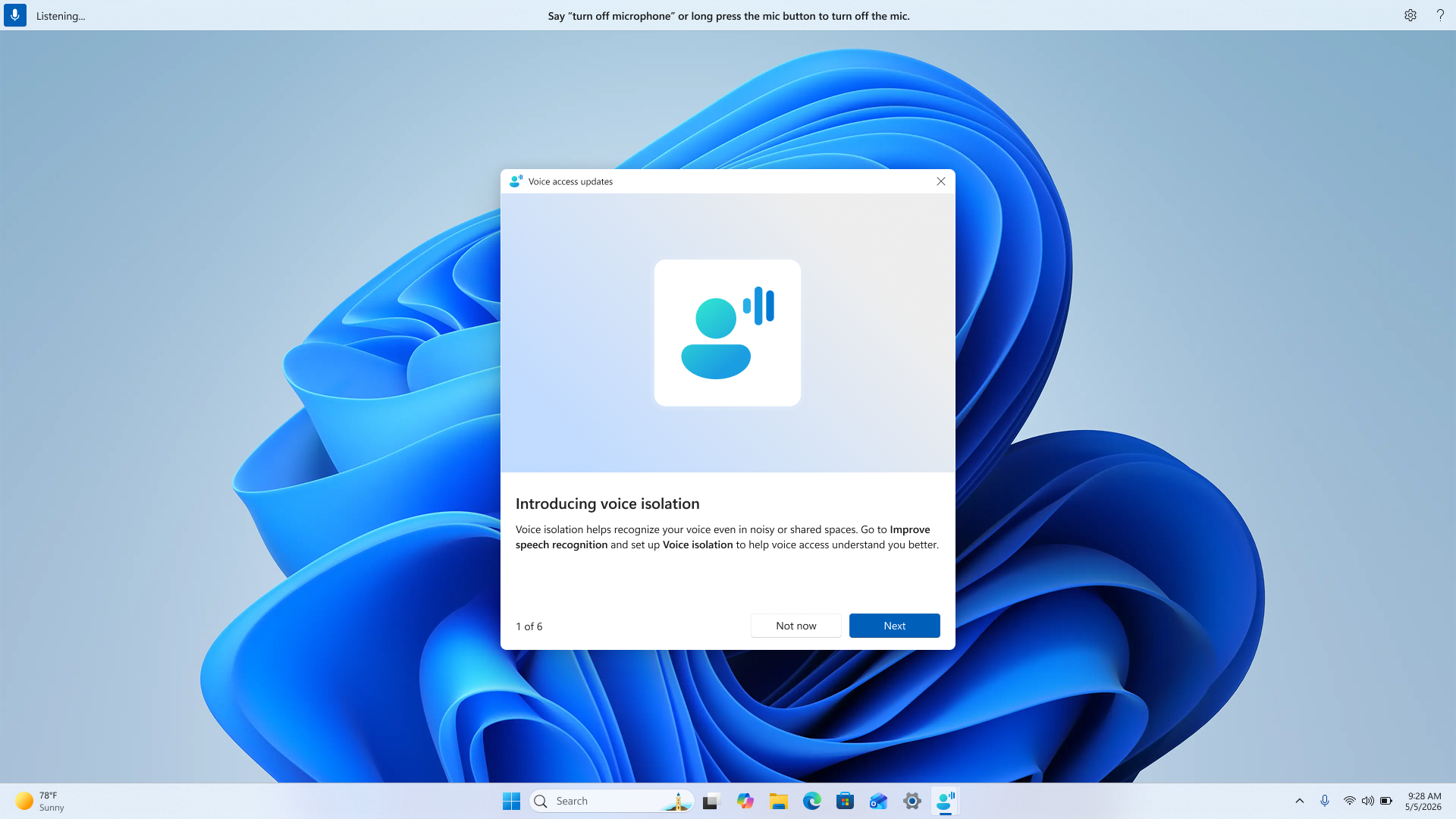
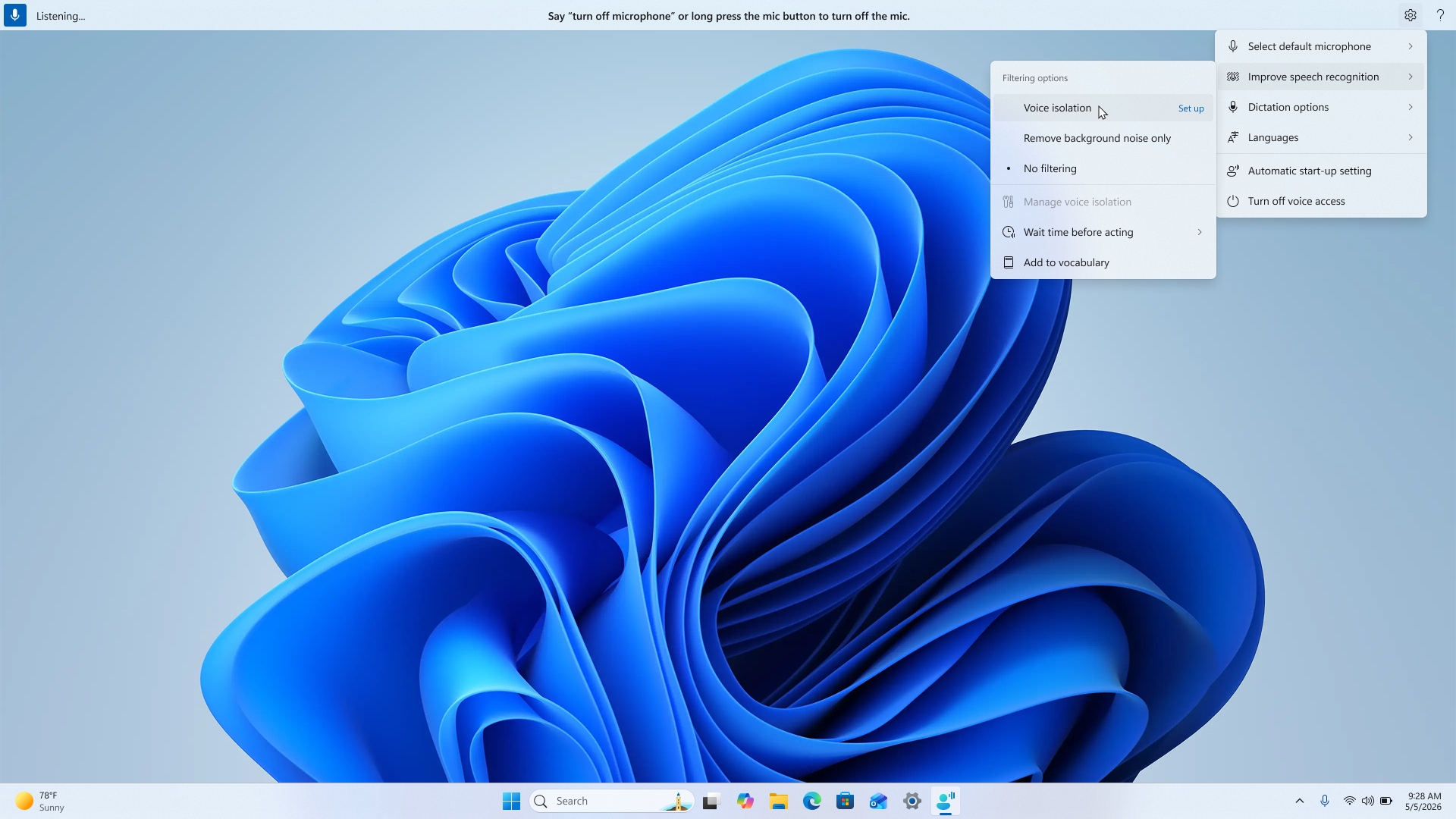
Set up background noise removal
Background noise removal works right away with no additional setup needed. To turn it on:
- Open the Voice access settings menu on the Voice access bar.
- Navigate to Improve speech recognition.
- Select Remove background noise only.
Once turned on, common background sounds like tapping, knocking, and other environmental noise will be filtered out automatically.
Set up Voice Isolation
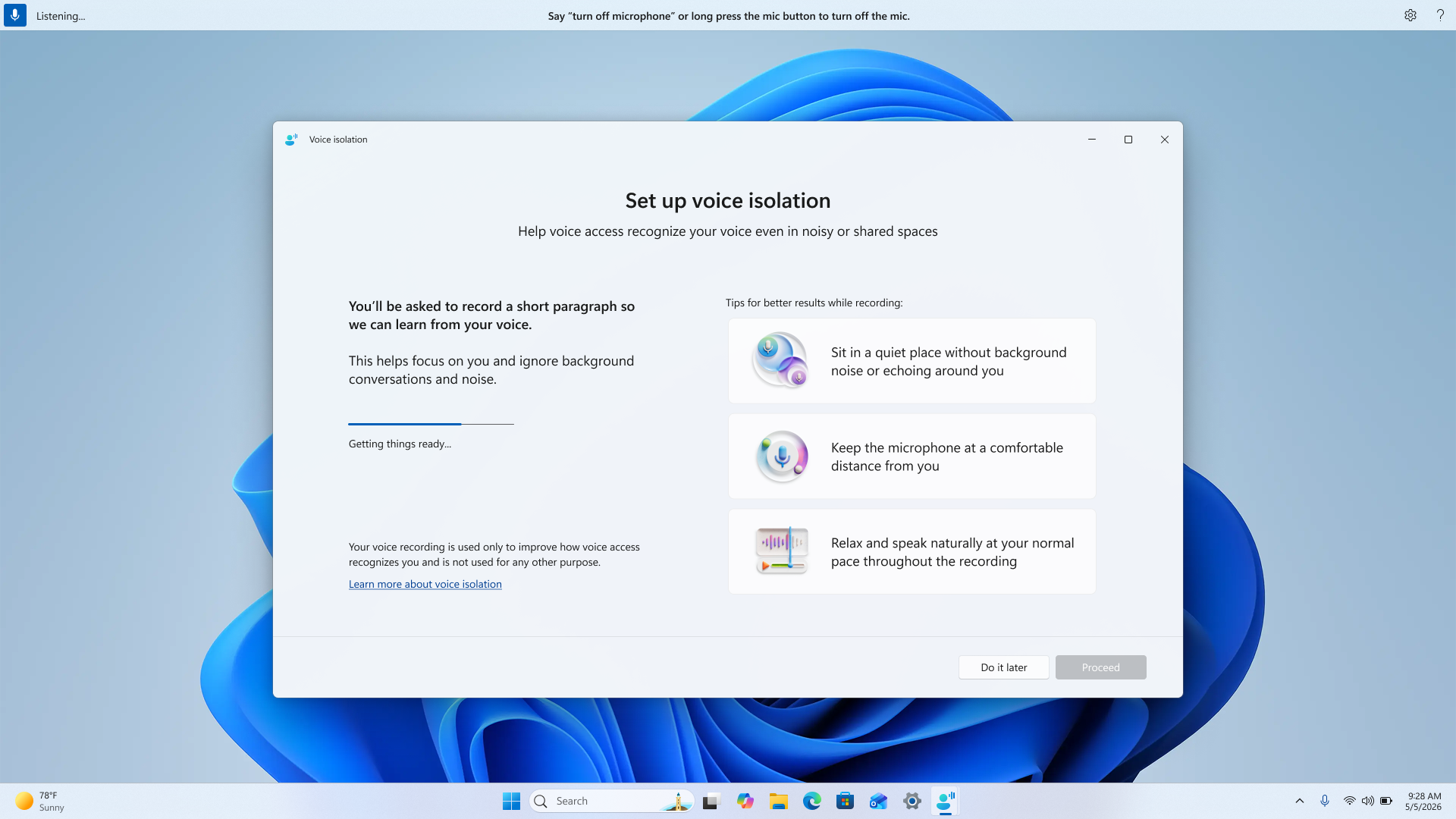
Voice Isolation requires a quick one-time setup so Voice access can learn to recognize your voice. Here's how to get started:
- Open the Voice access settings menu on the Voice access bar.
- Navigate to Improve speech recognition.
- Select Voice Isolation.
After selecting Voice Isolation, a new window will open with a brief introduction to the setup process. When you're ready, select Proceed to continue.
Download the voice model
Before recording begins, a small download will start. You'll need an internet connection for this step. This download brings a model to your device that allows Voice access to translate your recording into a voice signature. This signature is what helps Voice access tell your voice apart from others around you.
Your privacy is protected. This is a one-time download. The model runs entirely on your device, and no raw voice recording is saved. Only a voice signature is created and stored locally.
Read the paragraph
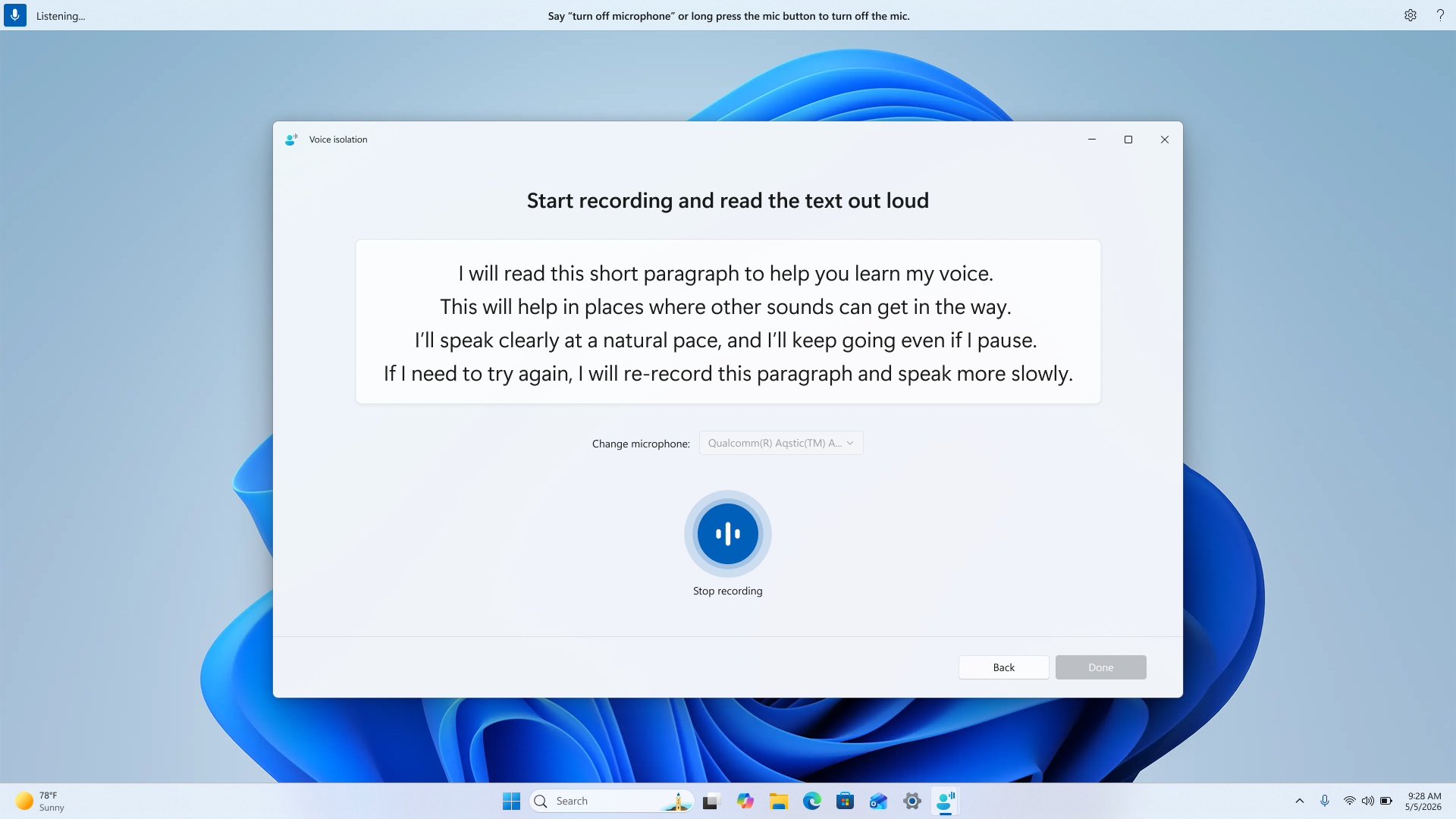
Once the download is complete, you'll see a short paragraph on screen. Select your preferred microphone and begin reading the paragraph aloud.
Before you begin recording, here are a few tips for the best results:
- Sit in a quiet place without background noise or echoing around you.
- Keep the microphone at a comfortable distance from you.
- Relax and speak naturally at your normal pace throughout the recording.
Speak as naturally as you can — pauses and a natural pace are perfectly fine. The goal is for Voice access to learn how you normally speak.
Complete setup
When the recording is finished, you'll see a success message confirming that Voice Isolation has been enabled on your device. You're all set — Voice access will now focus on your voice and filter out other speakers and noise around you.
Manage Voice Isolation
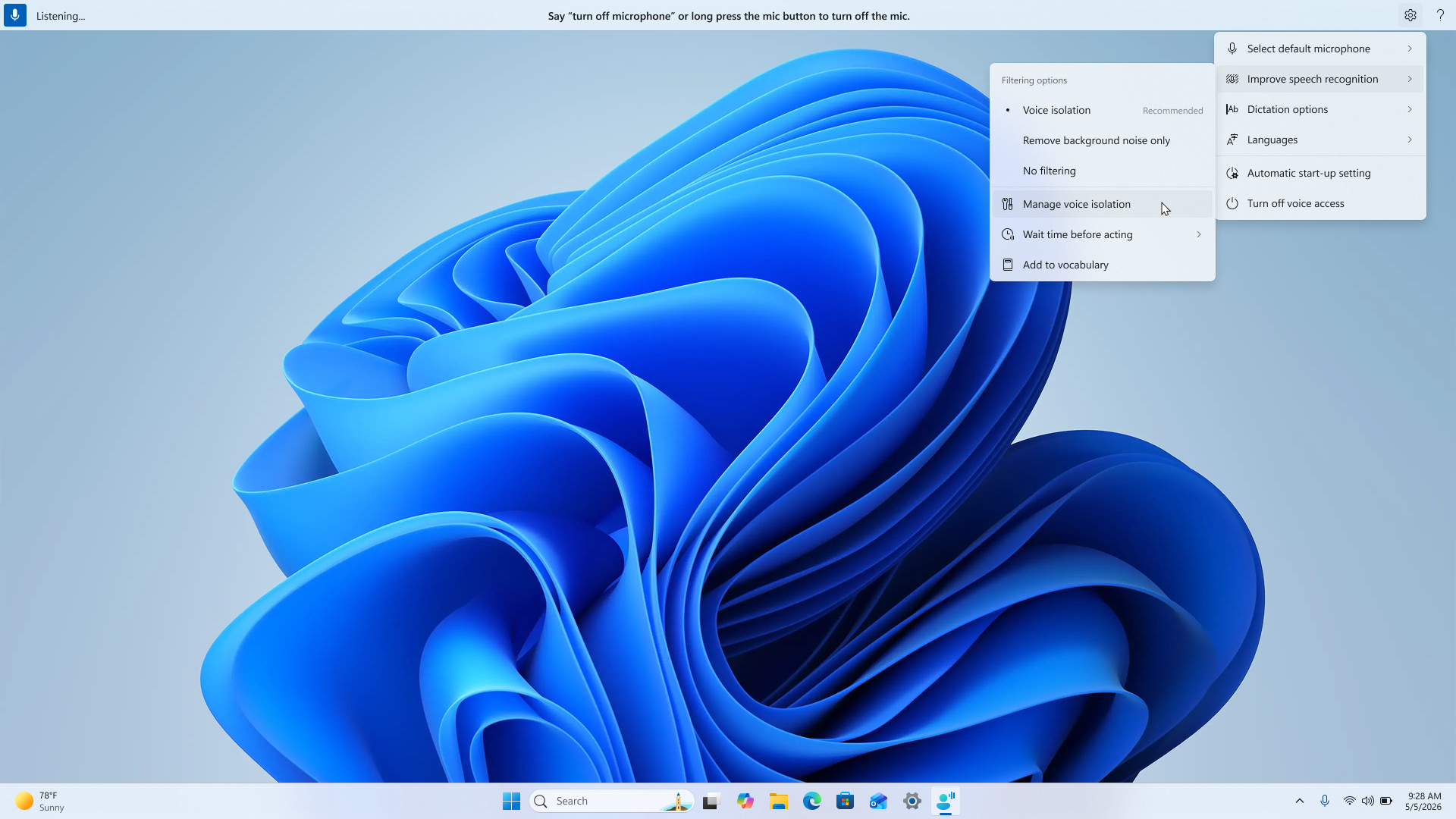
After setup, you can manage Voice Isolation at any time:
- Open the Voice access settings menu on the Voice access bar.
- Navigate to Improve speech recognition.
- Select Manage Voice Isolation.
From here, you can:
- Re-record your voice: If you feel Voice Isolation isn't performing as well as expected, you can record a new voice sample to improve the experience.
- Delete your voice recording: This removes your voice signature from the device. If you'd like to use Voice Isolation again after deleting, you'll need to go through the recording setup once more.
Switch between filtering options
You can switch between No filtering, Remove background noise only, and Voice Isolation at any time through the Improve speech recognition menu in Voice access settings. Choose whichever option works best for your current environment.
Frequently asked questions
Does Voice Isolation work in all environments?
Voice Isolation works best when you are the primary speaker in your environment with moderate background noise or conversation around you. In very noisy environments, you may still experience some recognition errors.
Can Voice Isolation separate my voice from multiple speakers?
Voice Isolation can help filter out other speakers, but it works best when background speakers are at a lower volume than your voice. There are a few things to keep in mind:
- If someone speaks at the same time as you (overlapping speech), Voice access may still occasionally pick up their voice alongside yours.
- If someone speaks right before or after you (sequential speech), their voice may briefly be captured by Voice access.
- Voices that sound similar to yours — such as speakers of the same gender — may be harder for Voice Isolation to filter out.
Will Voice Isolation improve accuracy when I'm in a quiet room?
In quiet environments, you may not notice a significant difference since there's little noise to filter. Voice Isolation is most helpful in environments where background noise or other speakers are present.
Does Voice Isolation work if I speak a different language than the one I used during setup?
Yes. Voice Isolation learns the characteristics of your voice, not a specific language. You can set it up in one language and use Voice access in another without any issues.
Is my voice data sent anywhere?
No. Everything happens on your device. The one-time download brings a model to your PC, and your voice signature is created and stored locally. No voice recordings are uploaded or shared.