
You can update your work or school profile picture in the My Account portal by selecting the edit icon on your current photo and uploading a new one.
Sign in to the My Account portal at myaccount.microsoft.com with your work or school account.
Select the Edit icon
 on your current profile photo.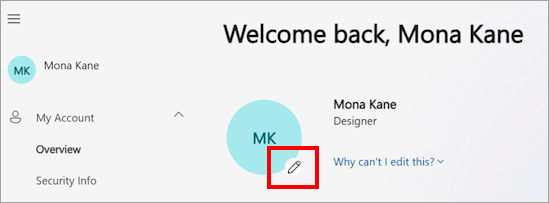
Note
If you cannot edit or change your profile picture, it may be restricted by your IT or human resources department. Learn more.
A prompt will appear that allows you to upload or change your profile picture. Resize the image if necessary:
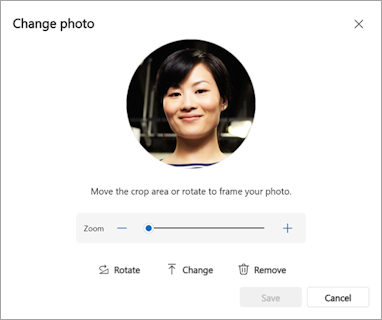
Once you've uploaded your new picture or photo, select Save.
See also
Add your profile photo to Microsoft 365
Next Steps
After you've saved your uploaded photo, you can: