After you record an encounter and make some preliminary edits by using PowerMic Mobile with DAX Copilot (the mobile app), use the DAX Copilot in Dragon Medical One desktop application to make further edits to a summary and transfer the note to the EHR.
Note
In training articles, DAX Copilot in Dragon Medical One is called the DAX Copilot desktop app or desktop app.
Steps to launch the desktop app
Follow these step-by-step instructions to launch DAX Copilot from Dragon Medical One and navigate the desktop app.
Step 1: Sign in to Dragon Medical One
The DragonBar appears, and you can move it anywhere on your desktop by using your mouse.

Step 2: Access your summaries
Either:
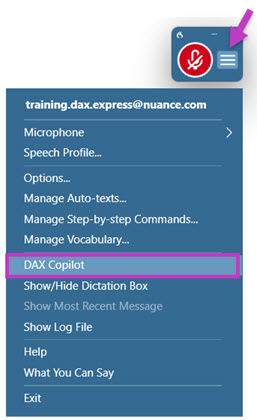
- Turn on the microphone and say, “Open DAX Copilot,” or
- Select DAX Copilot from the DragonBar menu.
A blue dot on the DragonBar and a white dot next to DAX Copilot in the DragonBar menu indicate unread summaries.

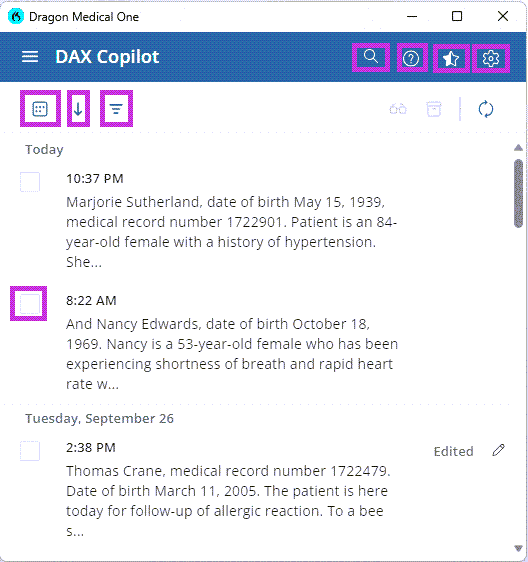
DAX Copilot opens to the Summaries list, which shows the first few lines of each transcript. Use these details to identify the summary you want to review.
Step 3: Open a summary to edit it
Note
The Summaries list is empty until you record your first encounter or if all summaries are archived. Learn how to record your first encounter.

How to navigate the DAX Copilot window
Search

Select the magnifying glass to search summaries using the first 150 characters of the transcript.
Help

Select the question mark icon to open the Resource Center. From there, you can relaunch in-app training and browse the learning library.
Submit Feedback

Select the star icon to rate (1–5 stars), add optional comments, and submit your feedback.
Settings

Select the gear icon to open DAX Copilot settings and configure summary styling and content transfer options.
Calendar

Select the calendar to view summaries from the past 3, 7, or 30 days.
- You can't access summaries after 30 days.
Sort

Sort the list chronologically in either newest or oldest order.
Filter

Select Filter to view unread, read, edited, or archived summaries. Writing indicates the AI is composing the summary.
Refresh

Select the refresh icon if the summary list isn't reflecting current encounters.
Checkbox

Use checkboxes to archive or mark summaries as read or unread. Once checked, the icons at the top become active.
- Archive hides a summary and prevents further editing.
How to view a summary
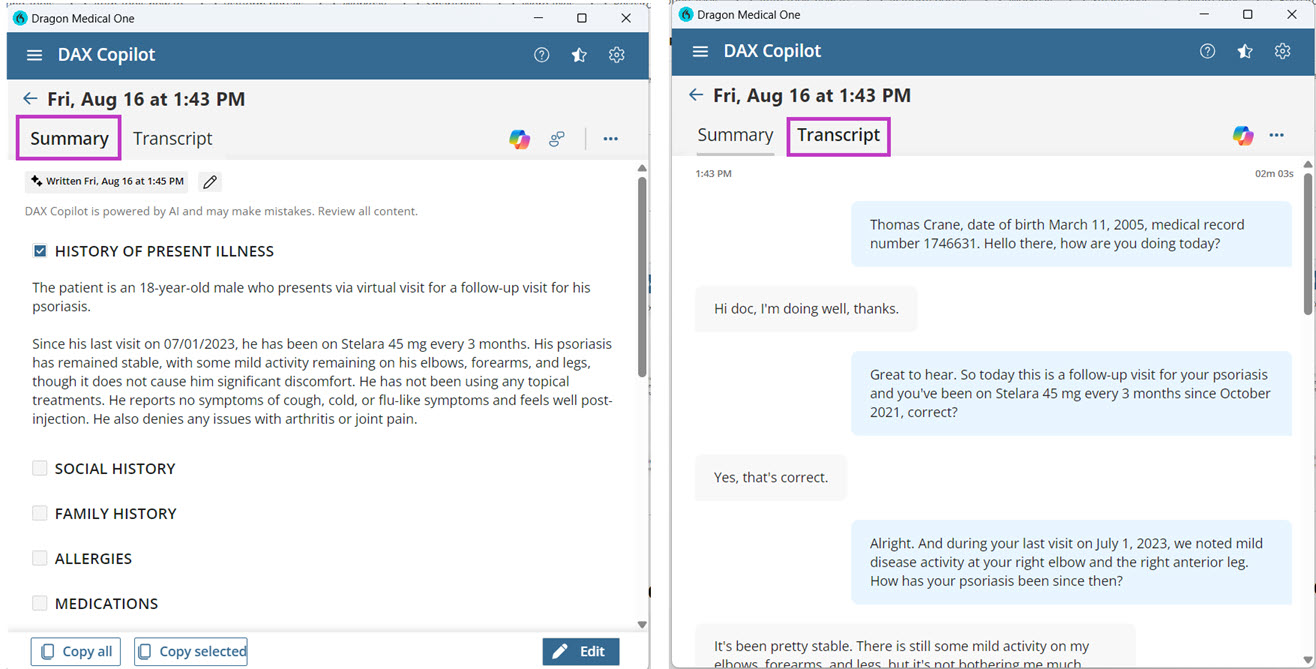
- Select a summary from the summaries list.
- Select the Summary tab to see the DAX Copilot AI-generated summary.
- Select the Transcript tab to see the transcript of your recorded conversation.
Note: Do all your editing in the Summary tab.