
Choose a background and class view
Applies To
Change your background and class view when you meet virtually with your class.
Add a background
Choose what appears behind you when you're on camera before or during a class meeting.
- Go to the Calendar
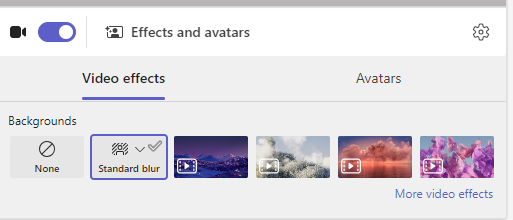
 and Join your meeting. On the pre-join screen, turn your camera on and select Effects and avatars.
 - Choose Blur to hide your background.
- Or choose a picture or virtual background.
Tip
If your school has it enabled, you can upload a photo of your own to use as a background. Select Background filters > + Add new. Choose a .JPG, .PNG, or .BMP file from your computer.
- Click Join now to apply your background and start class.
Note
To change your background during a meeting, select More actions > Apply background effects, choose a background > Preview > Apply and turn on video. Your photo will appear with the other background options.

Change your class view
Switch to Large gallery view or Together mode to show your whole class at the same time on the screen when you're meeting.
- Join the meeting.
- On the meeting controls, select View.
- Speaker: Just shows the speaker of the meeting.
- Together mode: Show you and your students together with a background added to the whole class.
- Large gallery: View everyone's video feeds simultaneously.
- Focus on content: When multiple presenters are sharing the screen multiple times (one by one), choose focus on content to reduce distractions.
Note
Large gallery view works for 9 to 49 participants. Together mode works for 5 to 49.
More options:
- Show gallery at top
- Turn off incoming video
- Full screen


