Get started in your class team
Applies To
Access your online classroom right away in Microsoft 365 Education and Microsoft Teams. With your device and school sign-in information, head into class at Microsoft365.com.
Sign into Teams
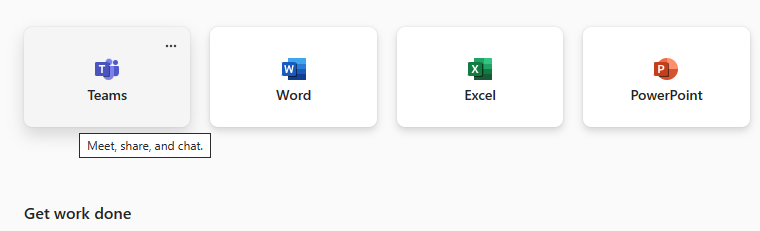
- Open Microsoft365.com on your web browser and sign in with your school email and password.
- Select the Teams app.
Note
Teams for Education is a part of Microsoft 365 Education. Students and educators at eligible institutions can sign up for Microsoft 365 Education for free. Learn more about signing up.
Create a class team
You may already have classes set up for you by your IT administrator. If not, create one.
- Select Teams
 from the app bar.
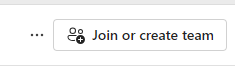
 - Select Join or create team>Create team.
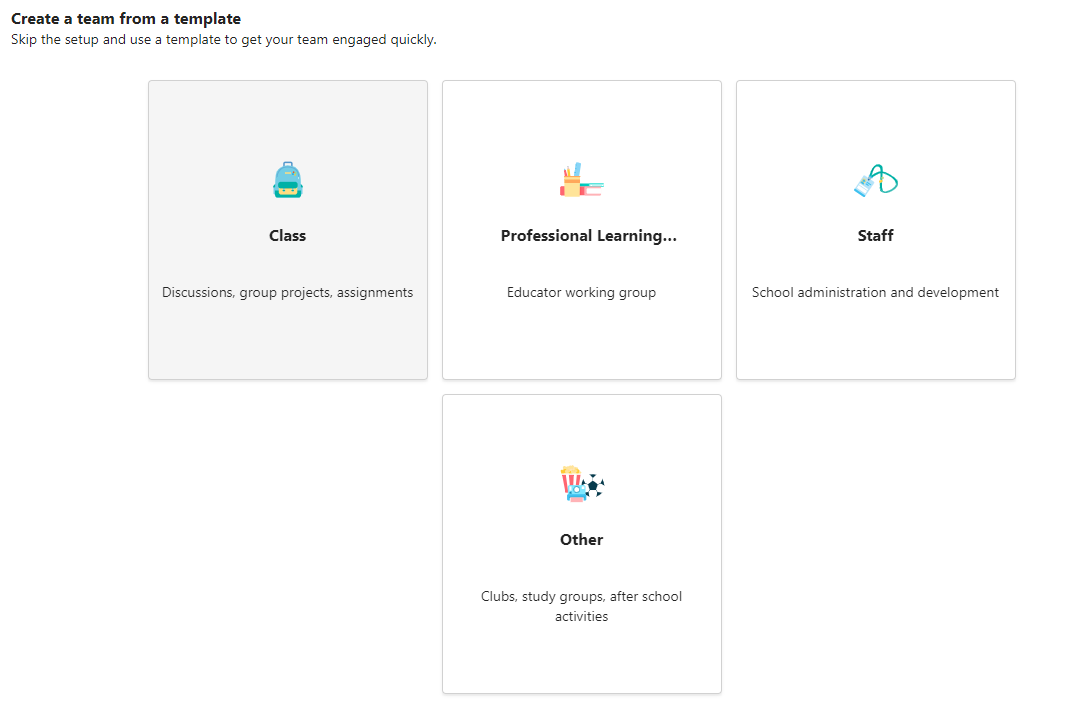
- Select Class as the team type.
- One channel - General - is created automatically by setting up a new class. Choose the Use this template button.
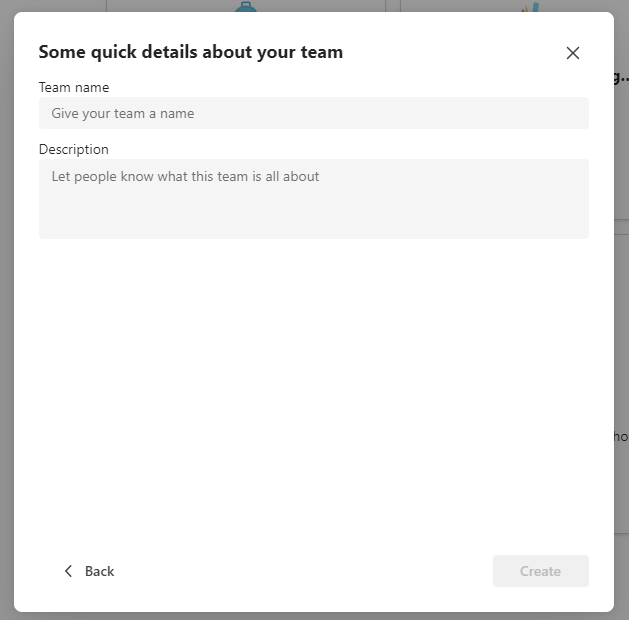
- Enter a name and optional description for your class. Select Create.
Note
Not seeing the option to create a team? Contact your IT Admin to make sure you have the proper permissions.
Add students (optional)
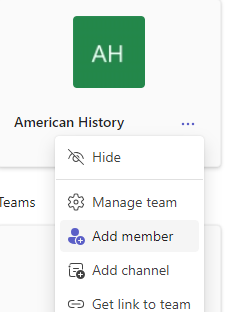
- Find your class in the list of classes in the Teams page.
- Choose the More options
 icon in the class tile.
 - Select Add member from the dropdown menu.
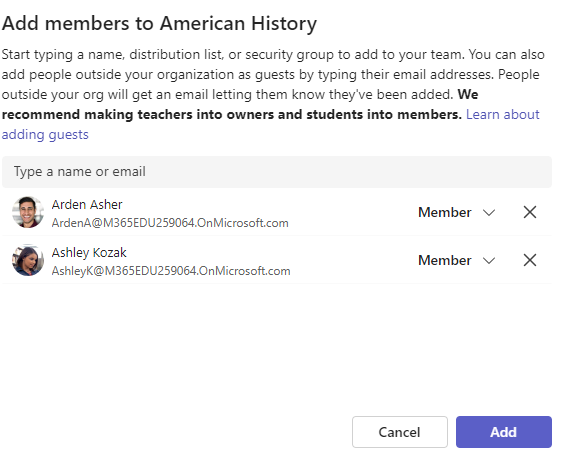
- Enter student names or email address to find the correct student. Multiple students can be added to the class list.
- Choose the Add button to add all students in the list to your class group. If your school has already created class groups, ask your IT Admin for the name of your class group.
Note
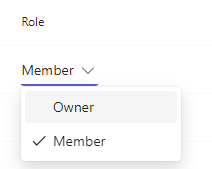
To add educators to this class team, add them to the class group, then go to the Role column and change them from a Member to an Owner.
You're done!
To add students or make changes to this team later, navigate to the team and select More options
 .
.