Accessing Microsoft Learning Zone lessons
When you join a Learning Zone lesson, you take part in an interactive experience designed to support your learning. You move through slides, answer questions, and get feedback as you go. Your teacher can assign a lesson for you to complete at your own pace, or teach it live in class.
You can use Learning Zone in a web browser on a computer or tablet, or in the Learning Zone app on Windows. Phones aren't supported.
Use a join code
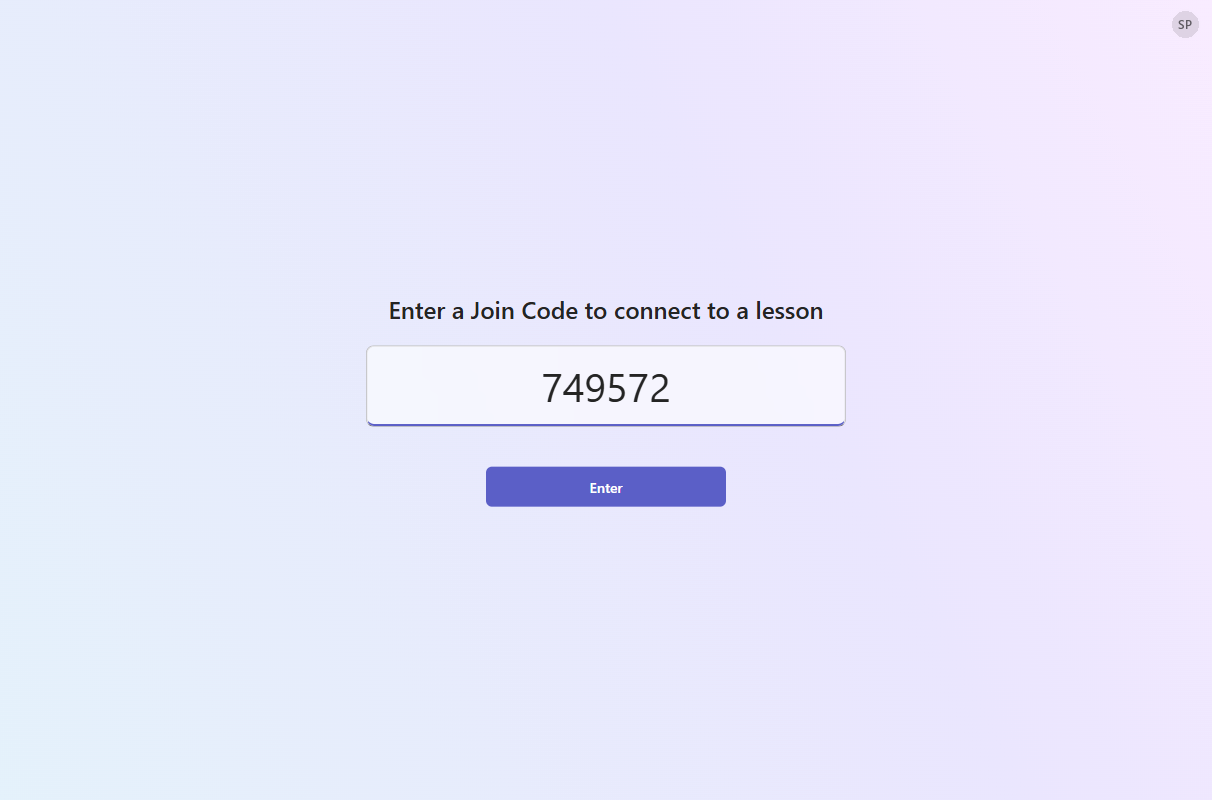
When your teacher shares a join code, go to mlz.do/code or open the Learning Zone app, enter the code, and select Enter.
Use the lesson link or QR code
You can also join directly by using a link or a QR code. Your teacher might share these through Microsoft Teams, Google Classroom, or another platform. When you open the link, the lesson opens in your browser, so you can start learning right away.
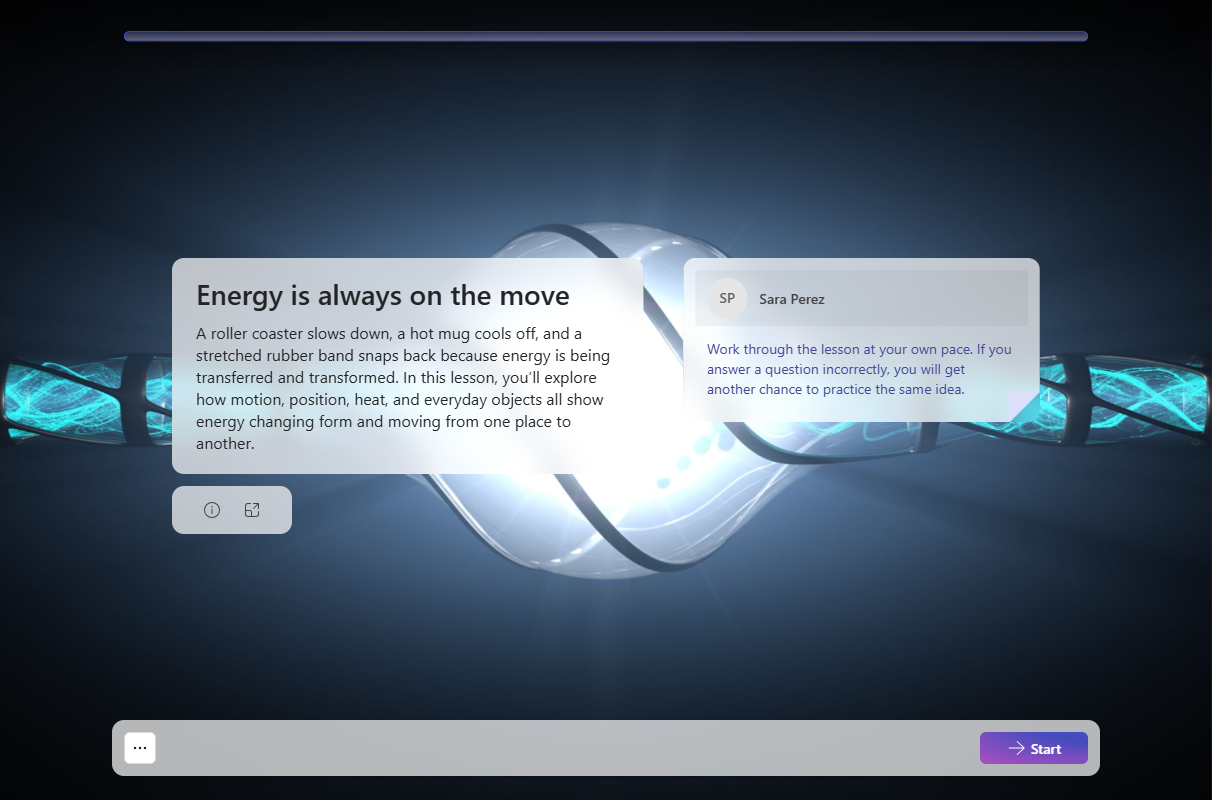
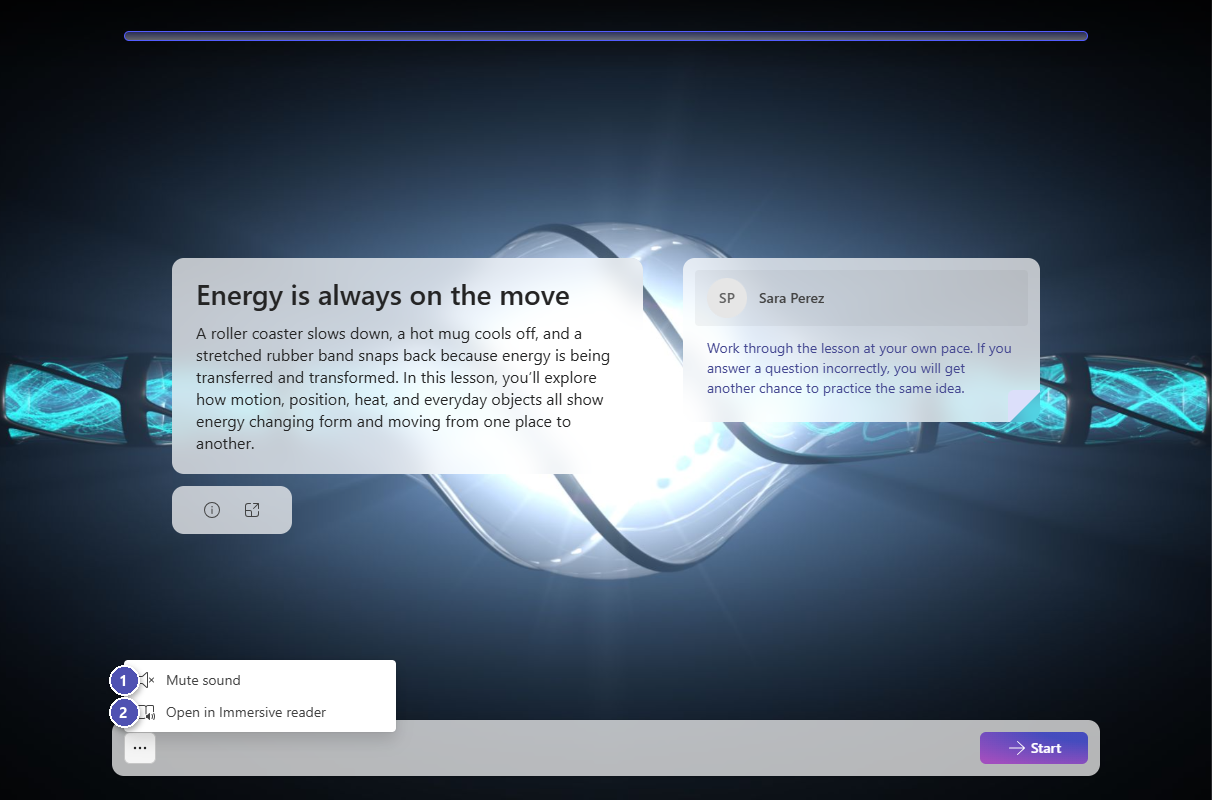
The first slide shows the lesson title and any notes from your teacher. Select Start to begin.
Use a Microsoft Teams or LMS assignment
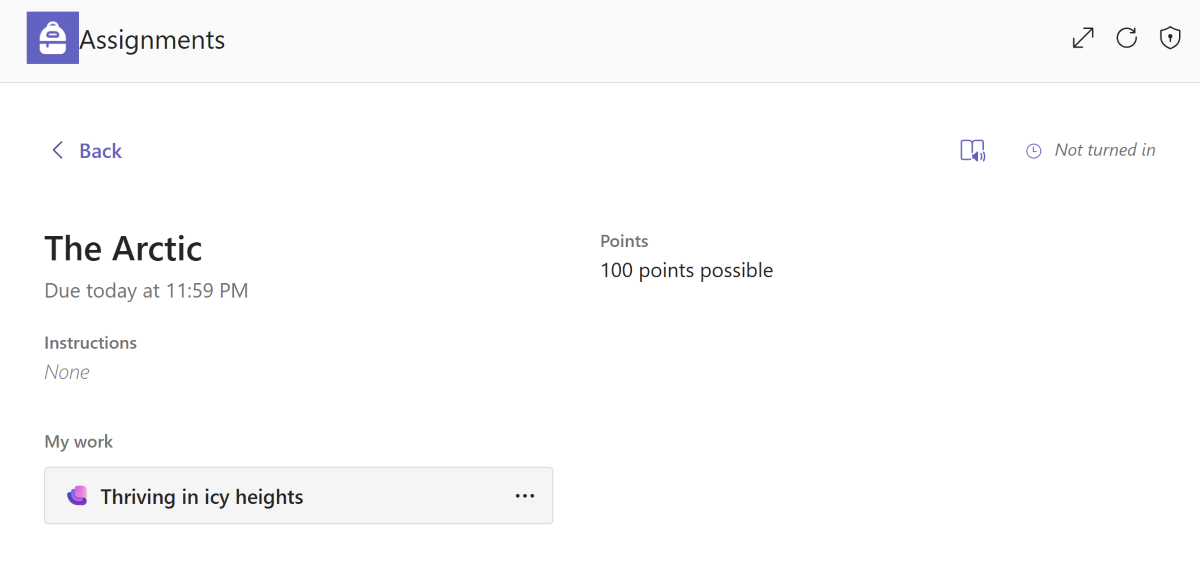
If your teacher assigns the lesson through Microsoft Teams or your school's learning platform, open the assignment and select the lesson. The lesson opens inside the assignment, so you don't need to switch between tools.
Complete a lesson
Lessons combine content slides with exercises such as multiple choice, fill in the blanks, true or false, sort, grouping, and find the match.
Read each content slide, and then select Continue.
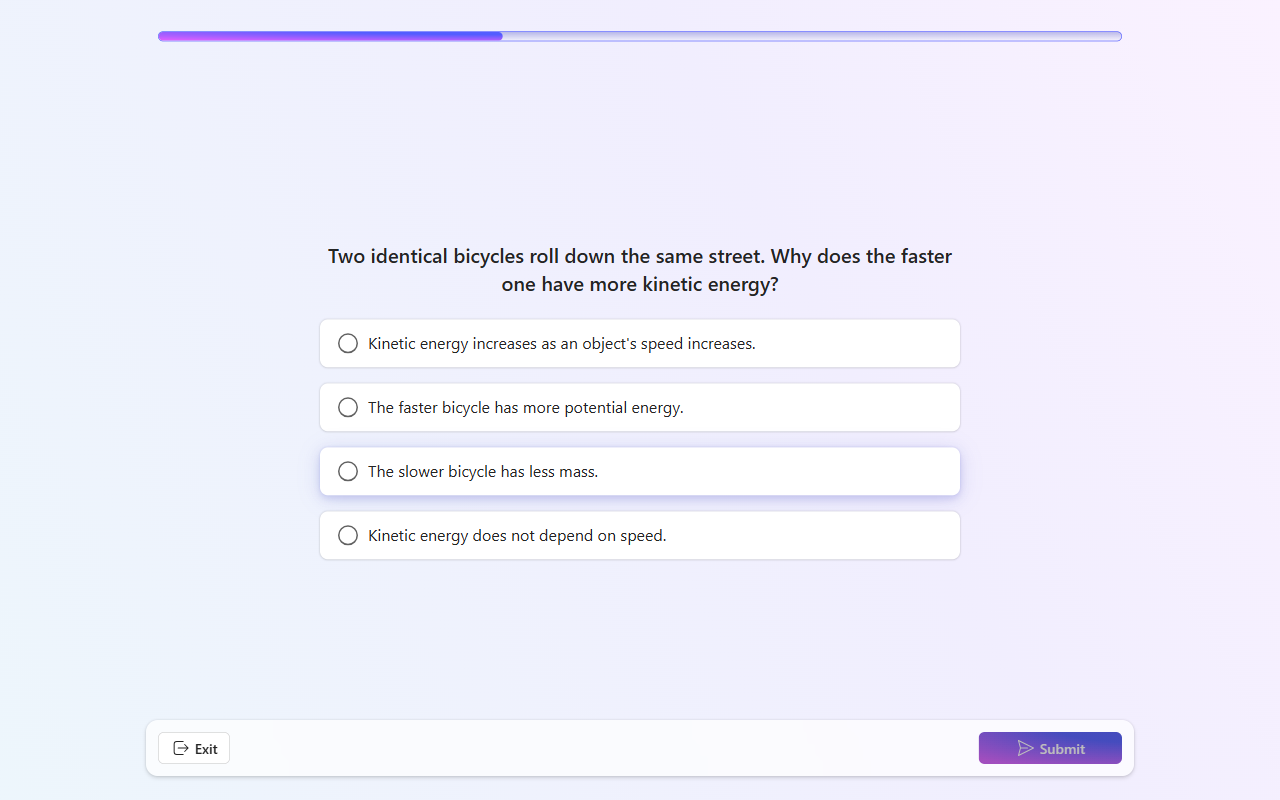
On an exercise, choose your answer and select Check. You see right away whether your answer is correct, along with an explanation.
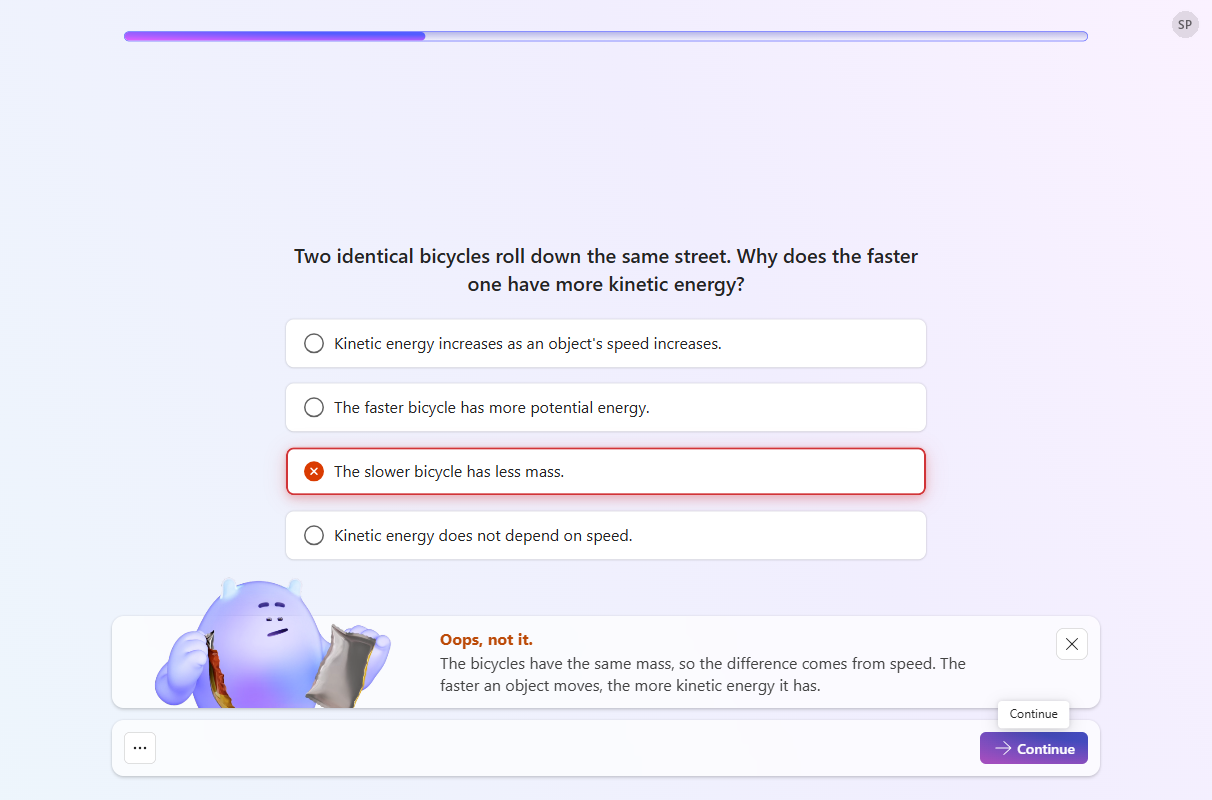
If you answer an exercise incorrectly, you might get another question on the same idea later in the lesson, so you get a second chance to practice it.
At the end of the lesson, you revisit the exercises you didn't answer correctly yet.
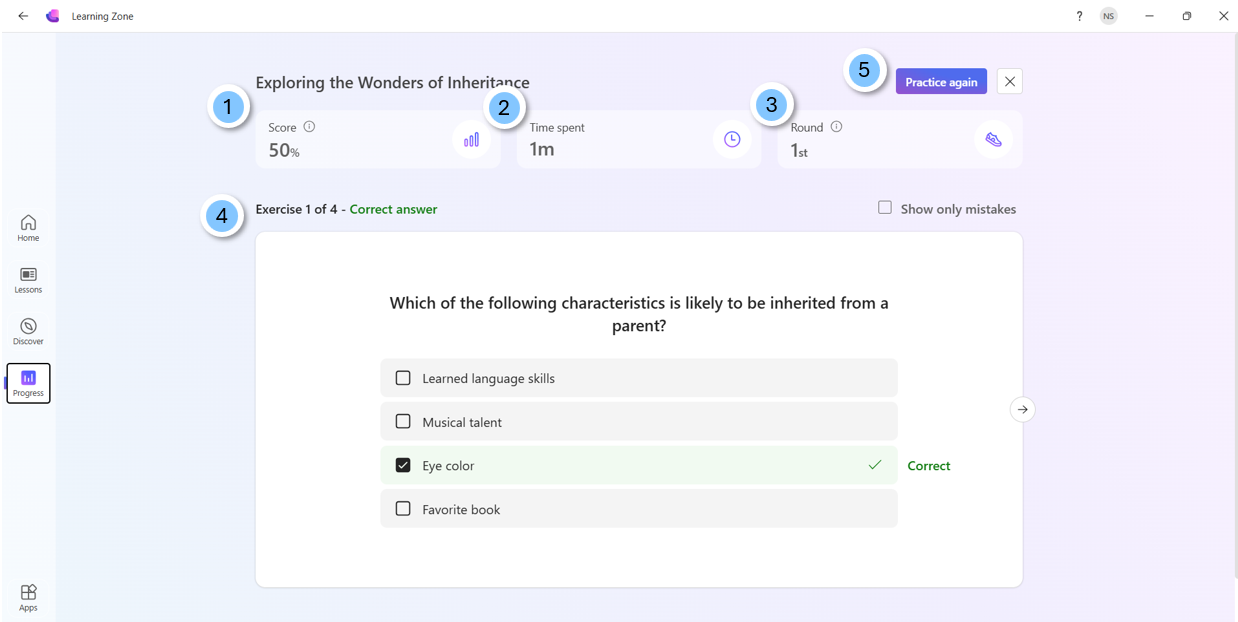
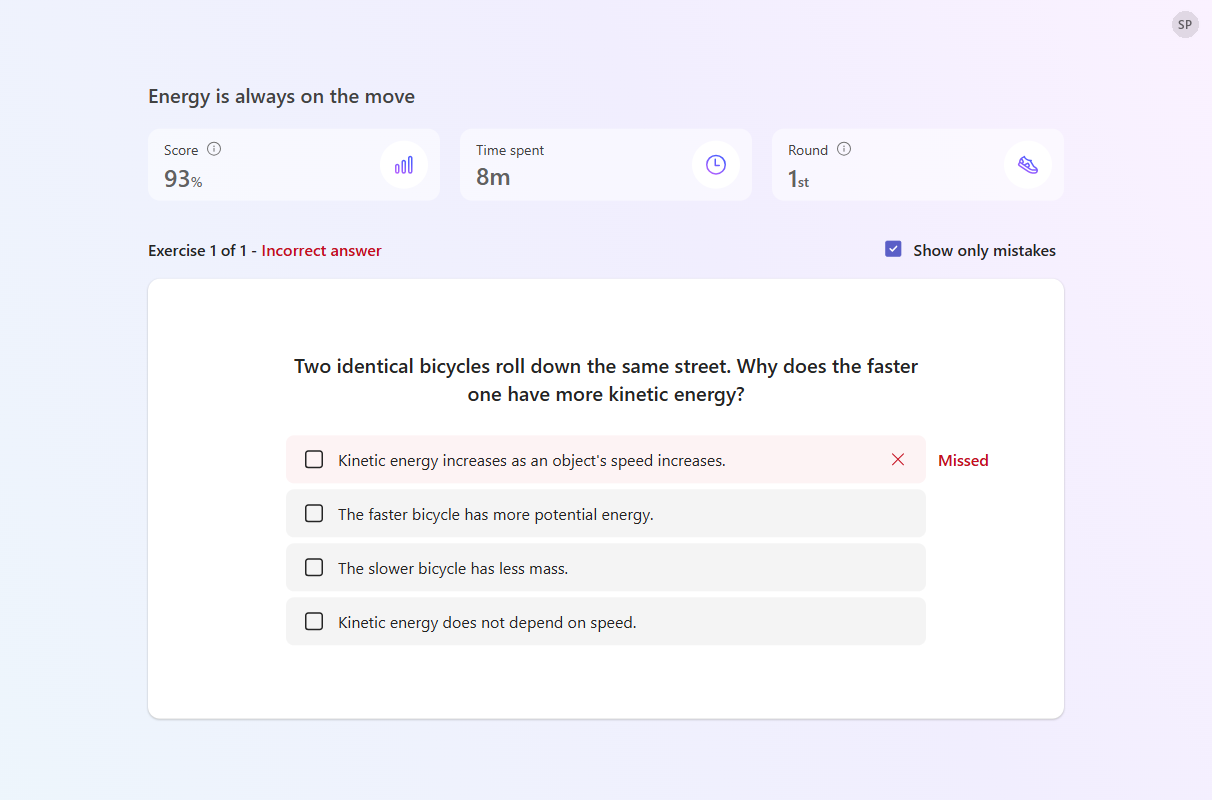
When you finish, you see your score, the time you spent, and the round number. Select Show only mistakes to review the exercises you answered incorrectly.
Lesson tools
Select More (…) at the bottom of the lesson to:
- Mute sound.
- Open in Immersive reader, to hear the text read aloud and change how it looks, such as text size and spacing.
If you leave a lesson before you finish, you can come back to it later. When you open it again, select Resume to continue from where you left off, or Start over to begin again.
Join a live lesson
When your teacher teaches a lesson live, they share a join code or link. Enter the code at mlz.do/code or in the Learning Zone app, or open the link.
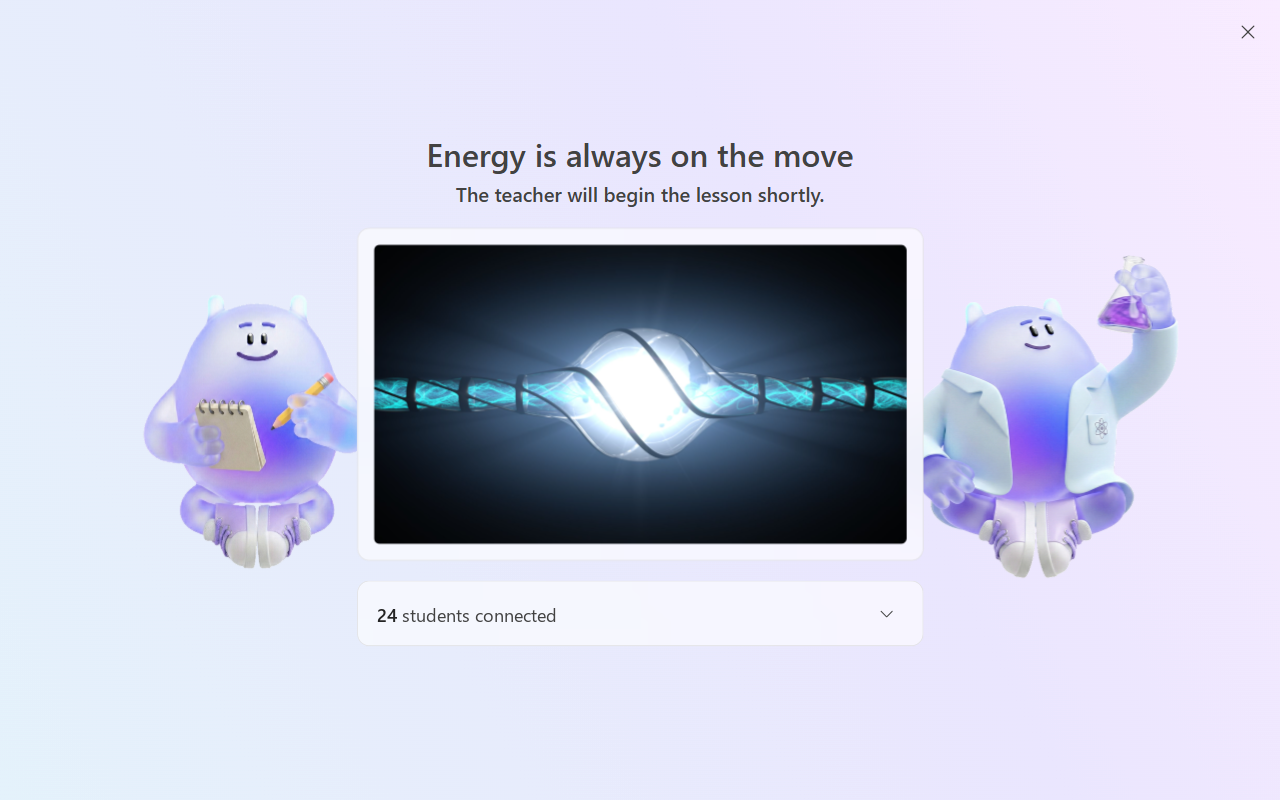
You join the lesson lobby, where you see the lesson title and how many classmates are connected. Wait there until your teacher starts the lesson.
During the lesson, your teacher moves through the slides. When a question appears on your device, choose your answer and select Submit. Your teacher can then show the answer and discuss the results with the class.
Explore the lesson library
Learning Zone includes a library of ready-to-learn lessons created by trusted partners. You can explore these lessons to discover new topics and learn independently.
- Open Discover to browse available lessons.
- Filter lessons by subject, grade, type, or creator, or search by keyword.
- Select a lesson card, and then select Start to begin learning.
Track your progress
You can revisit lessons you've already completed to track your progress and improve your understanding.
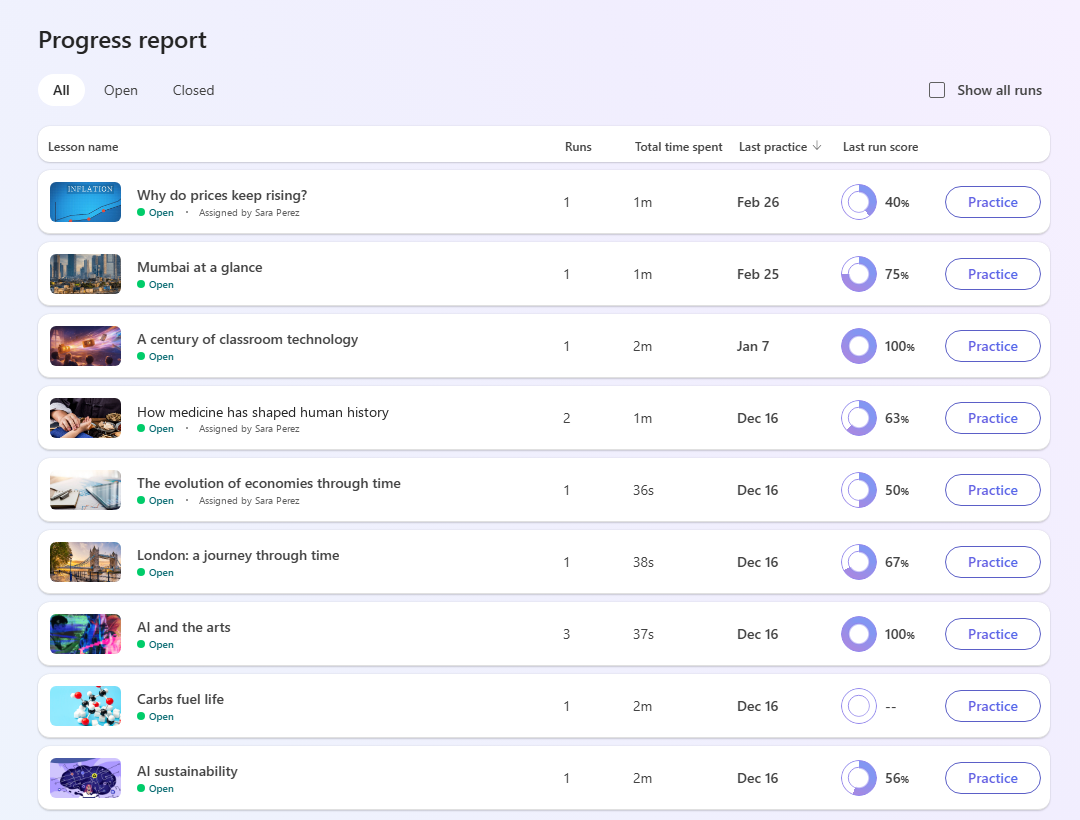
- Open Progress to view your lessons. Filter by All, Open, or Closed lessons.
- For each lesson, see how many times you completed it, the total time you spent, the date you last practiced, and your latest score.
- Select a lesson to review it.
Tip
To try a lesson again, select Practice.
When you open a lesson, you can:
- See your score.
- Check how much time you spent on the lesson.
- See how many times you completed it.
- Review your answers, including any mistakes.
- Select Practice to improve your understanding.