Microsoft Learning Zone is a free app for Microsoft 365 Education that helps educators turn their ideas, standards, and teaching materials into interactive lessons in minutes. Each lesson mixes content slides with a variety of exercises, adapts to each learner's answers, and gives you reports that show where your class needs support. You can assign a lesson for learners to complete at their own pace, or teach it live in class.
Navigate between the tabs to learn about each phase: create a lesson, review and edit it, assign it to learners, teach it live, see the learner experience, view reports, share and export lessons, create a Kahoot! quiz, and explore the ready-to-learn lesson library.
Generate and preview a new lesson
Create a lesson from your own description, standards, and resources. At the end of the process, you have a classroom-ready interactive lesson that's easy to share.
To create a lesson with Microsoft Learning Zone:
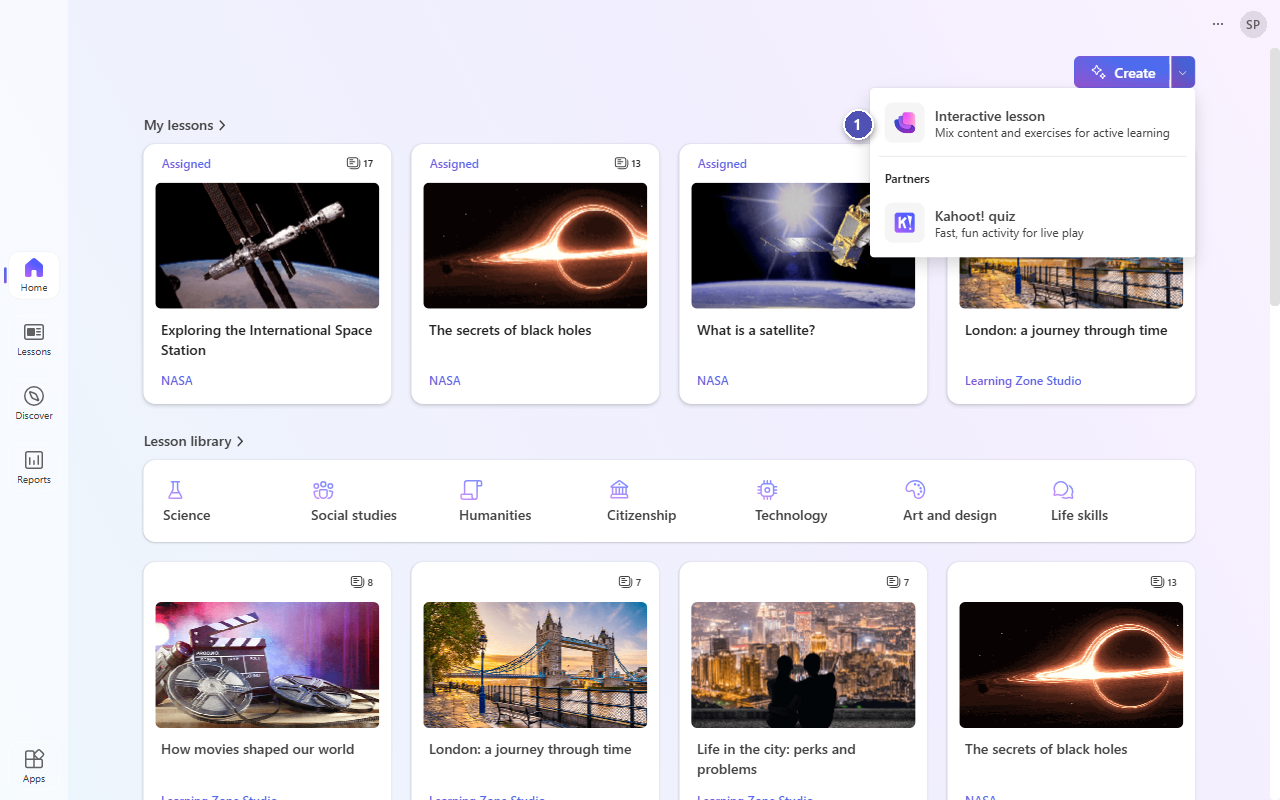
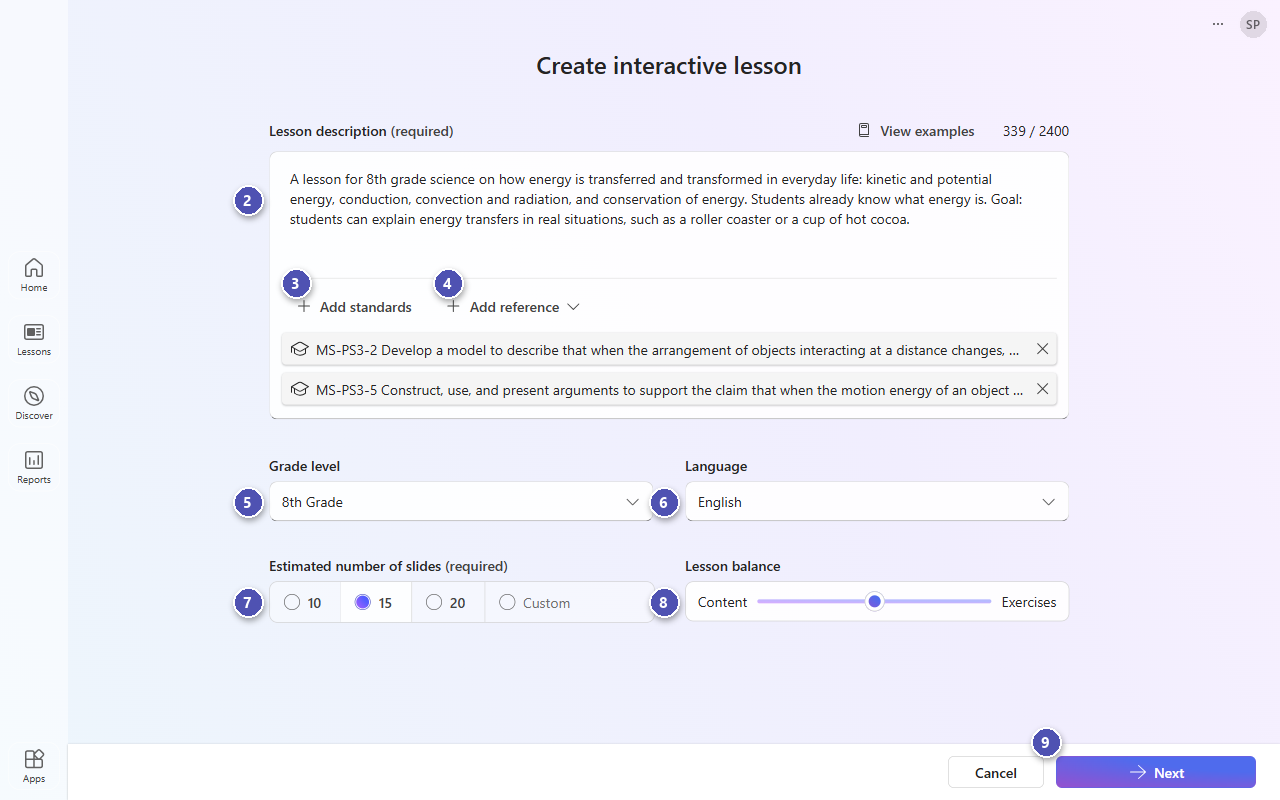
On the Learning Zone home page, select Create, or select the arrow next to it and choose Interactive lesson.
In Lesson description, describe the lesson in your own words. You can include the topic, learning goals, what learners already know, and the activities or examples you want. Select View examples for ideas.
Tip
Include as much detail as possible so that Learning Zone drafts a lesson that fits your class.
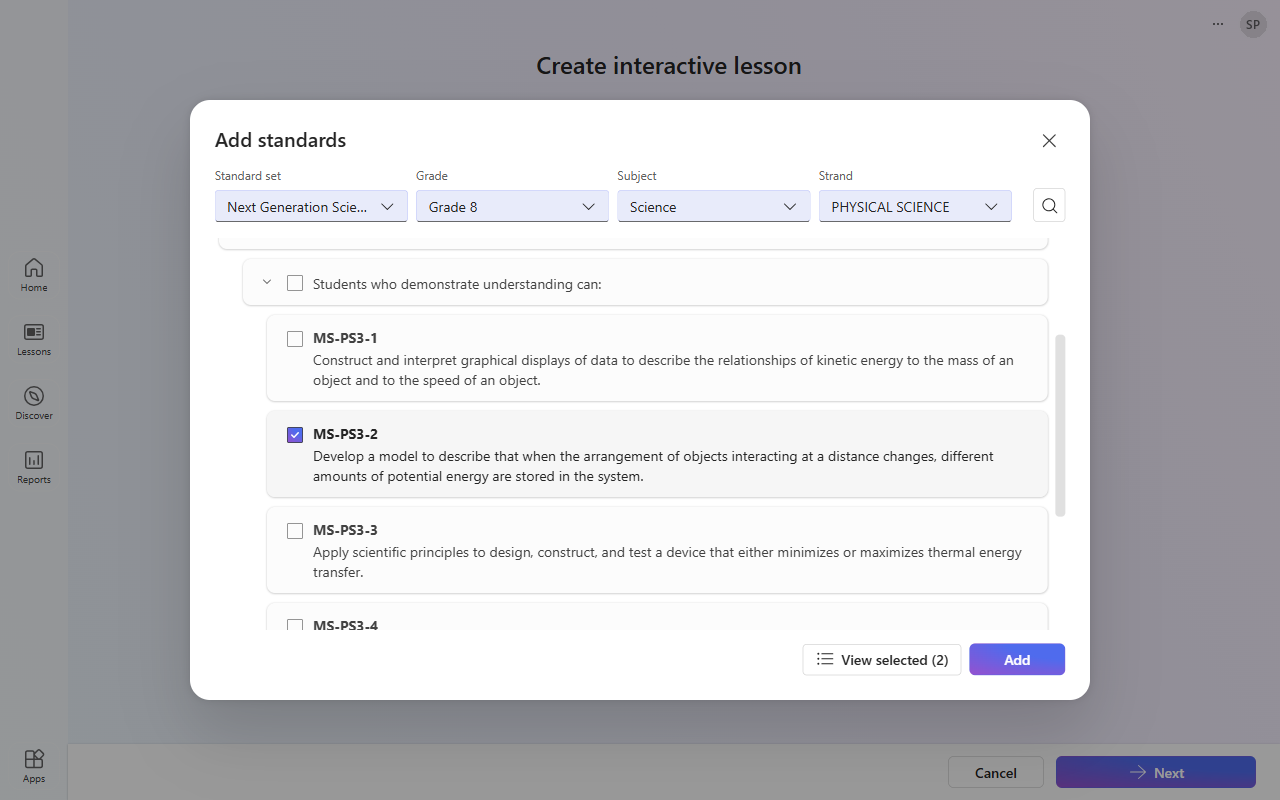
(Optional) Select Add standards to align the lesson to a standard set. Choose the standard set, grade, subject, and strand, select one or more standards, and then select Add.
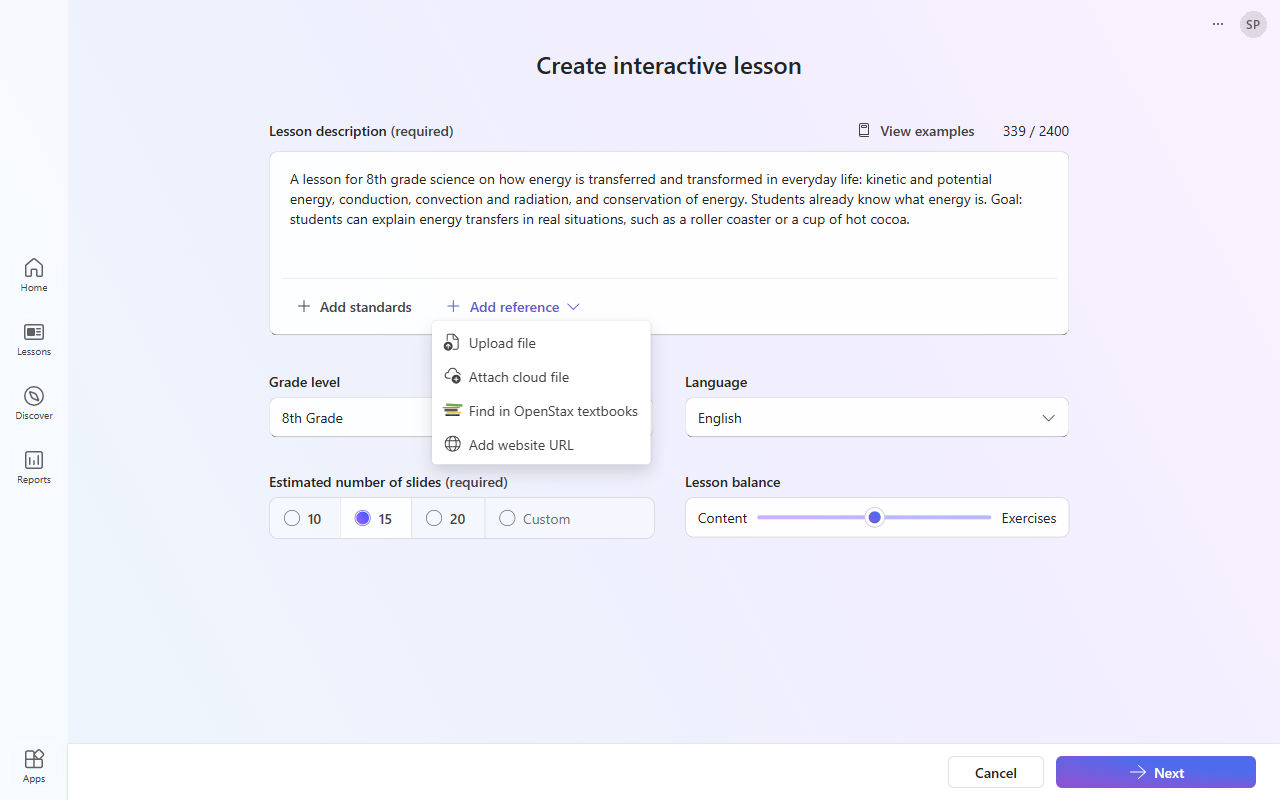
(Optional) Select Add reference to ground the lesson in your own materials, such as lesson plans, unit plans, or curriculum documents. You can:
- Upload file: Add a PDF, Word, or PowerPoint file from your computer.
- Attach cloud file: Choose a file from your cloud storage, such as OneDrive.
- Find in OpenStax textbooks: Choose a chapter from a free, peer-reviewed OpenStax textbook.
- Add website URL: Paste the address of a web page to import its content. Image and video websites aren't supported.
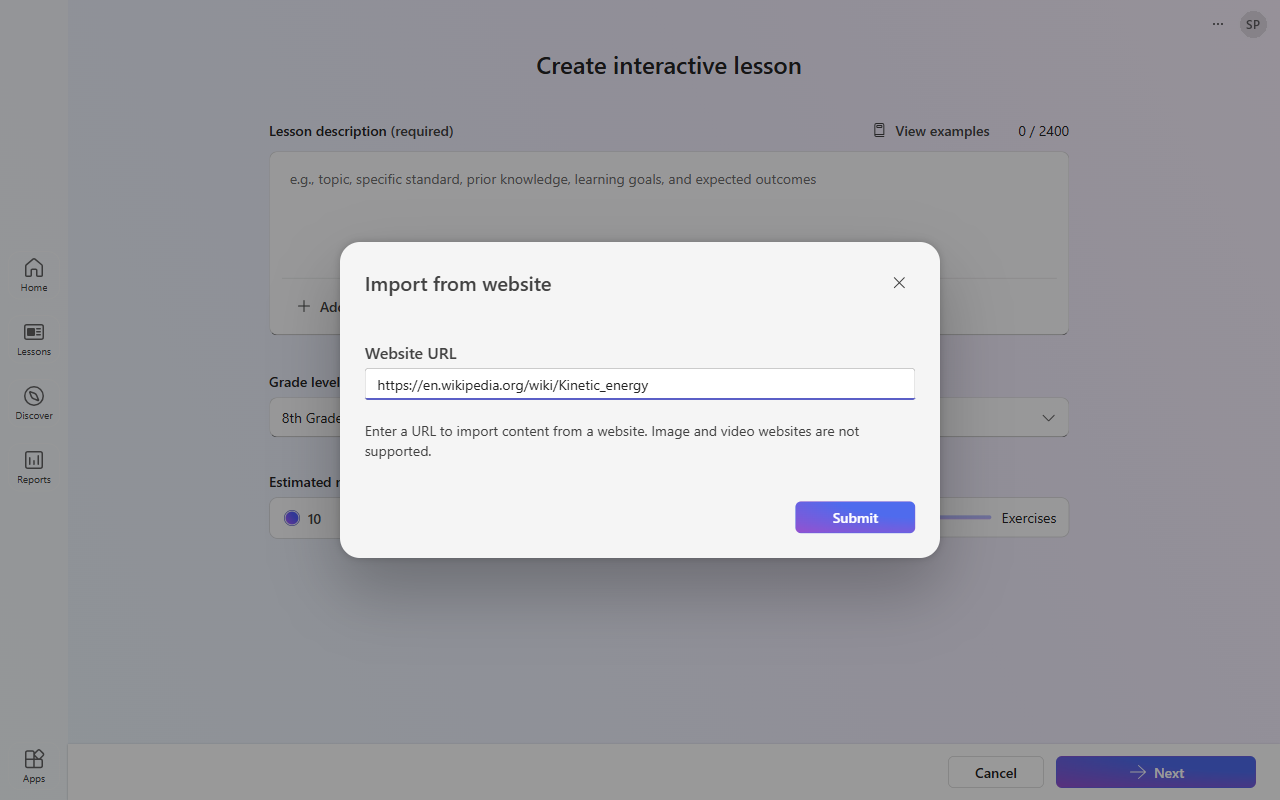
To add a web page, select Add website URL, paste the address in Website URL, and select Submit.
Select a Grade level, from 4th grade to 12th grade or higher education.
Select the Language of the lesson.
Select the Estimated number of slides: 10, 15, 20, or a custom number.
Use the Lesson balance slider to set the balance between content slides and exercises.
Select Next to generate the lesson outline.
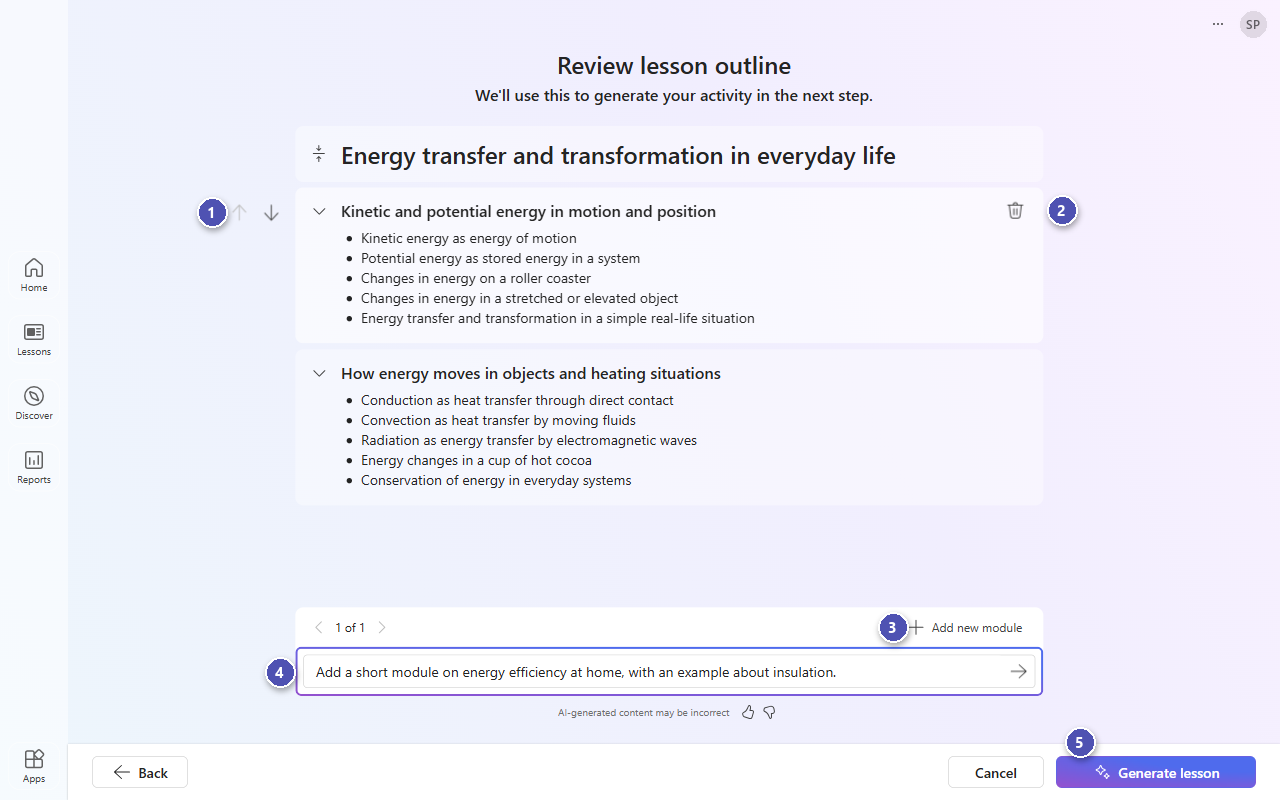
Learning Zone uses your description, standards, and references to draft an outline based on the number of slides you requested.
Refine a lesson outline
Learning Zone creates an outline that shows the modules in the lesson and the topics each module covers. Review the outline to make sure it fits your goals before you generate the lesson. You can:
- Change the order of the modules by using the up and down arrows.
- Delete a module.
- Select Add new module.
- Refine the outline by describing the changes you want in the text box, such as "Add a short module on energy efficiency at home."
- When you're satisfied with the outline, select Generate lesson.
Learning Zone generates the slides one by one, and you can start reviewing them while the rest of the lesson is generated. To stop the generation at any point, select Stop generating.
Lesson flow
The lesson that Learning Zone generates includes content slides with images and a variety of interleaved exercises.
The lesson flow adapts to each learner:
- Each main exercise is paired with a conditional exercise on the same concept. Learners who answer the main exercise correctly skip the conditional exercise. Learners who answer incorrectly see it later in the lesson, which gives them a second chance to practice the same idea. You can edit these pairs, or link and unlink exercises, to shape how the lesson responds to learner answers.
- At the end of the lesson, learners revisit the exercises they didn't answer correctly yet. This learning loop helps reinforce understanding where it's needed.
Review and edit your lesson
You have full control over the lesson content. You can change any element that Learning Zone generates, including the order of slides, the text, images, and exercises.
Ways to review your lesson
You can review and improve a lesson in several ways, and combine them as you like:
- Edit manually: Select any text, answer option, or explanation on a slide and type your changes. You can also add, remove, and reorder answer options, slides, and exercise pairs.
- Edit with AI: Regenerate a slide as the same or a different exercise type, simplify the language of a slide, generate distractors for an exercise, or generate a new slide from a short description.
- Change images: Replace an image with a stock image, a Bing image, or your own image, crop it, and check its attribution.
- Add and remove slides: Add blank content, media, or exercise slides, duplicate or delete slides, and link or unlink conditional exercises.
- Check the learner experience: Try the lesson in Student view before you share it.
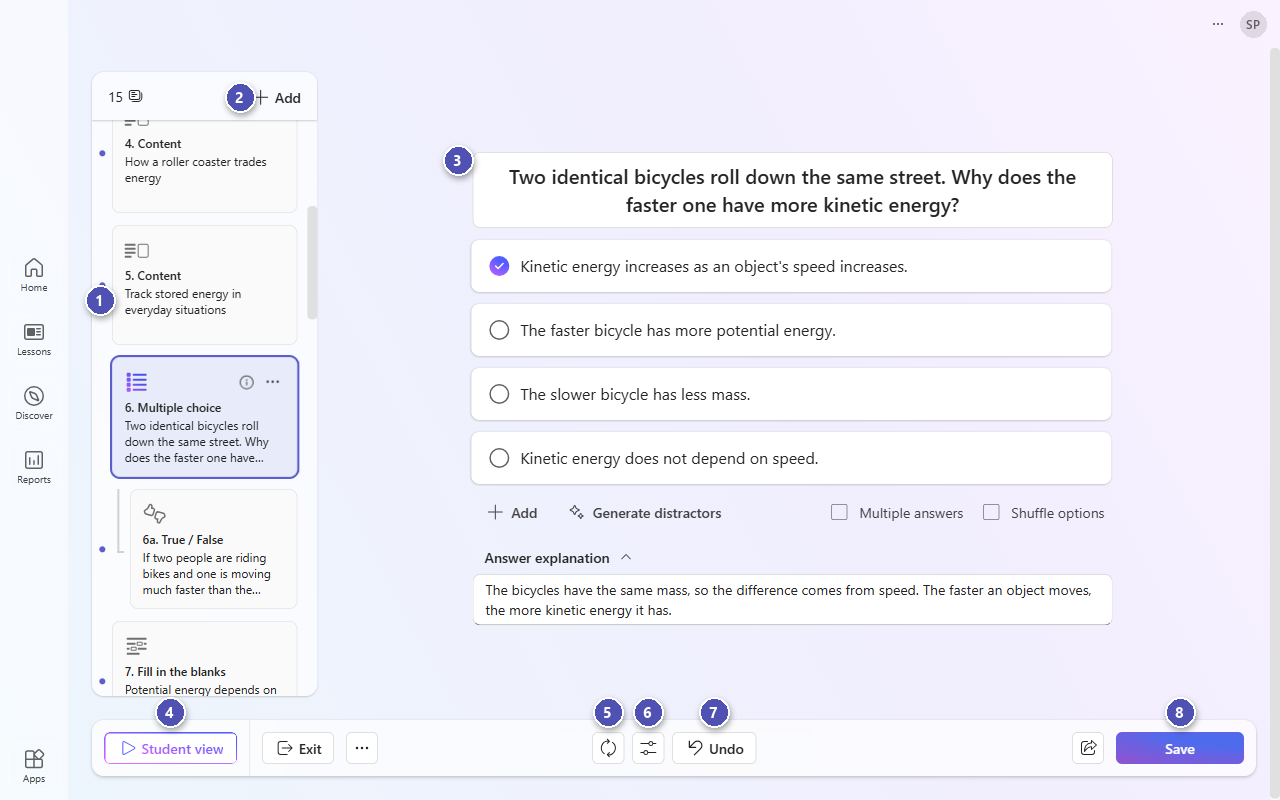
The lesson editor brings these options together:
- Slide panel: See all the slides in order. Select a slide to edit it, drag slides to reorder them, and select the ellipsis (…) on a slide for more options.
- Add: Add a blank slide, generate a new slide, or duplicate the selected slide.
- Slide: Edit the content of the selected slide directly.
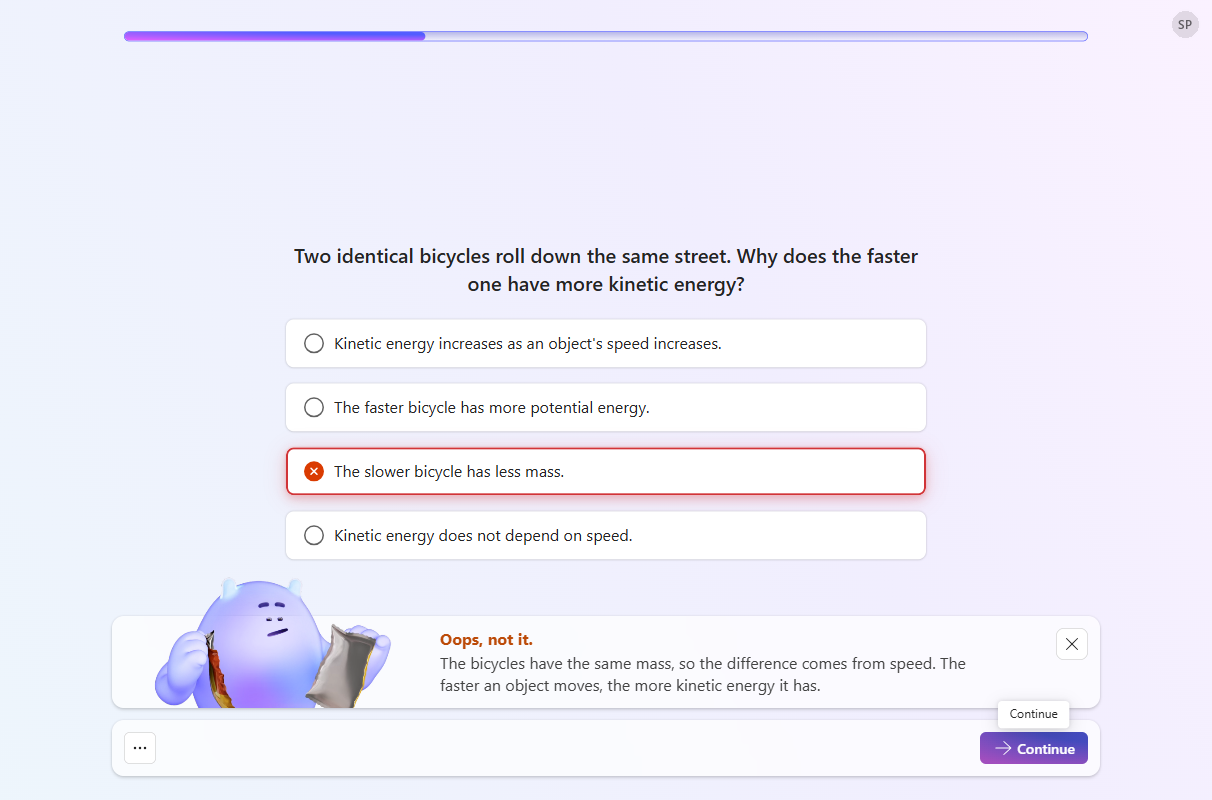
- Student view: Try the lesson as a learner, including the feedback learners get.
- Regenerate slide: Create a new version of the selected exercise.
- Adjust slide: Select Simplify language to make the wording easier to read.
- Undo: Undo your latest change.
- Save: Save the lesson so you can use it with learners.
Tip
AI-generated content can be incorrect. Check every slide, especially facts, correct answers, and explanations, before you use the lesson with learners.
The following sections describe each option in more detail.
Make structural changes
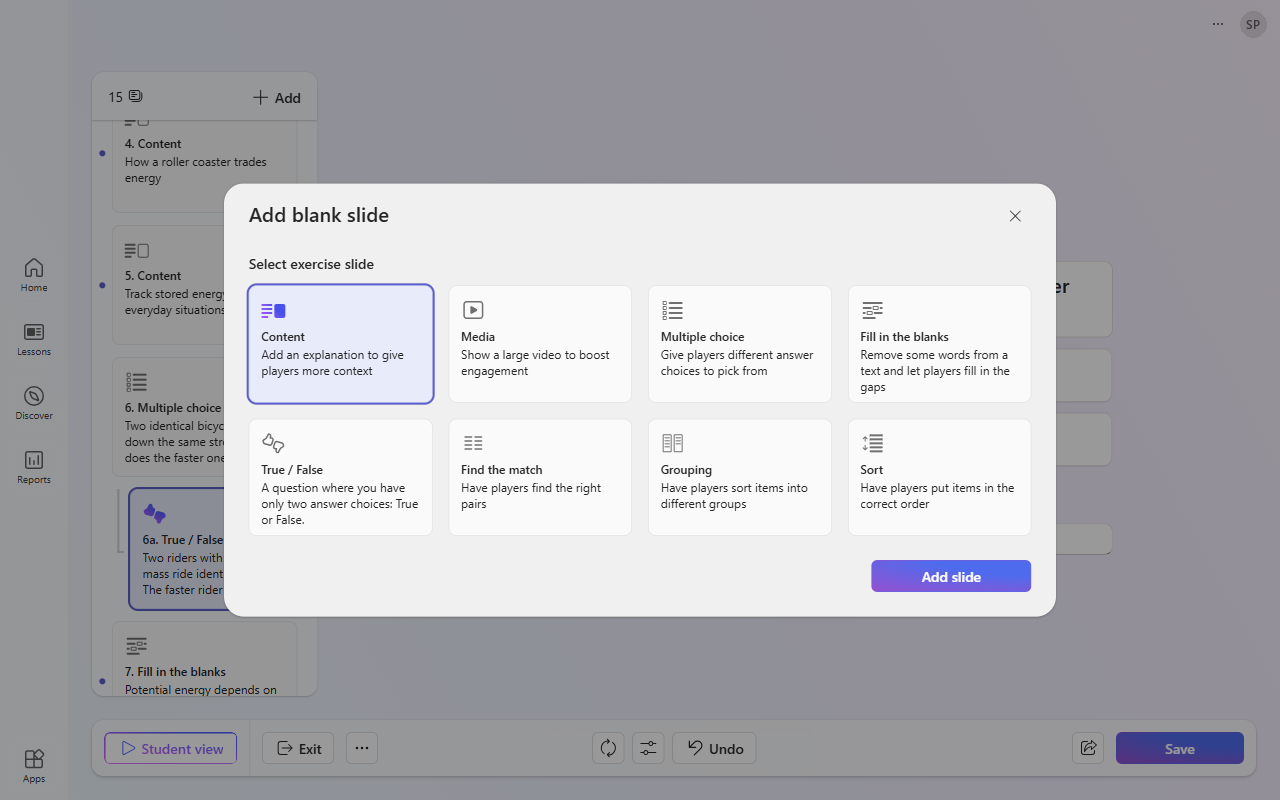
Select Add at the top of the slide panel, or select the ellipsis (…) on a slide, to:
- Add blank slide. Choose a content slide, a media slide, or one of the exercise types: Multiple choice, Fill in the blanks, True / False, Find the match, Grouping, or Sort, and then select Add slide.
- Generate new slide. Learning Zone creates a new slide based on your lesson and your description.
- Duplicate selected slide.
- Delete slide.
You can also reorder slides by dragging them in the slide panel.
Generate a new slide
A generated slide is always added right after a specific slide, so start from the place in the lesson where you want it:
- Select Add at the top of the slide panel. The new slide is added right after the slide you're on.
- Or, select the ellipsis (…) on a specific slide. The new slide is added right after that slide.
- Choose Generate new slide.
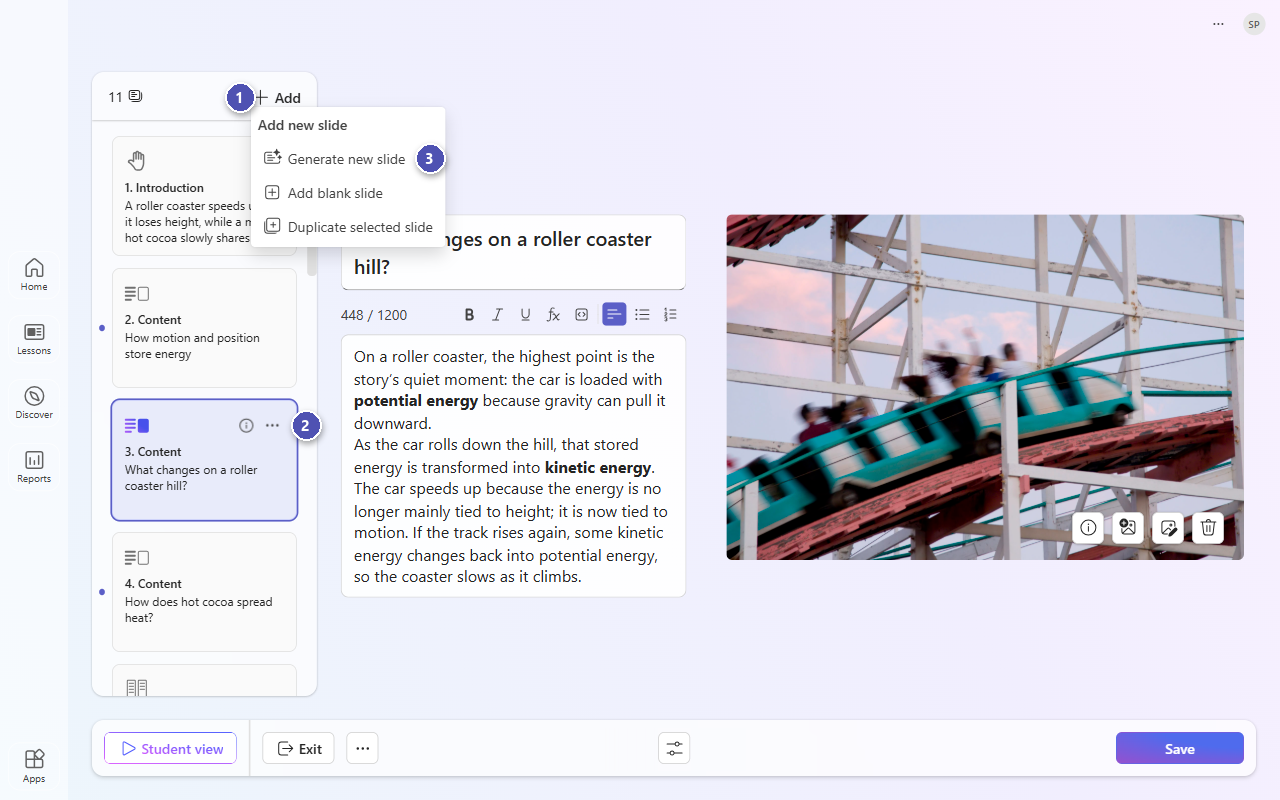
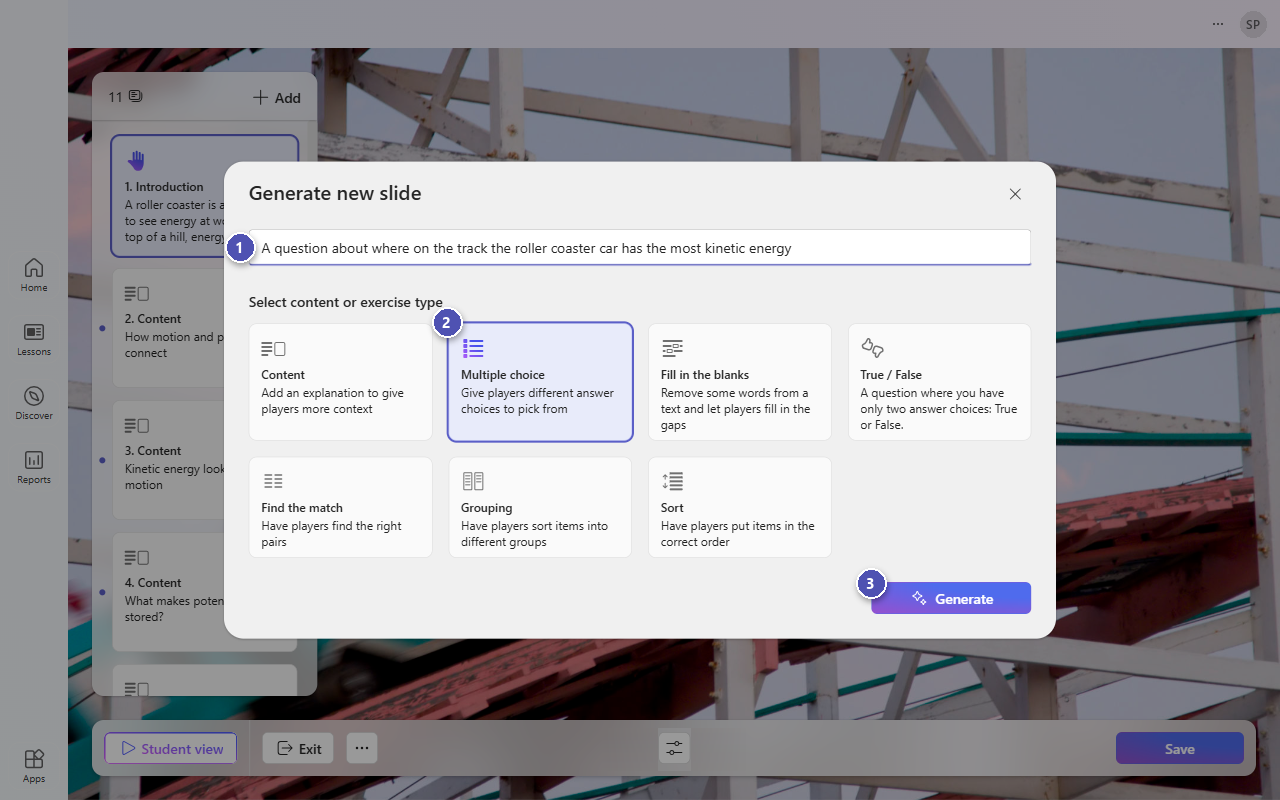
Then, in the Generate new slide dialog:
- Describe what you want the slide to cover.
- Choose a content or exercise type.
- Select Generate. The new slide appears in the slide panel, marked New.
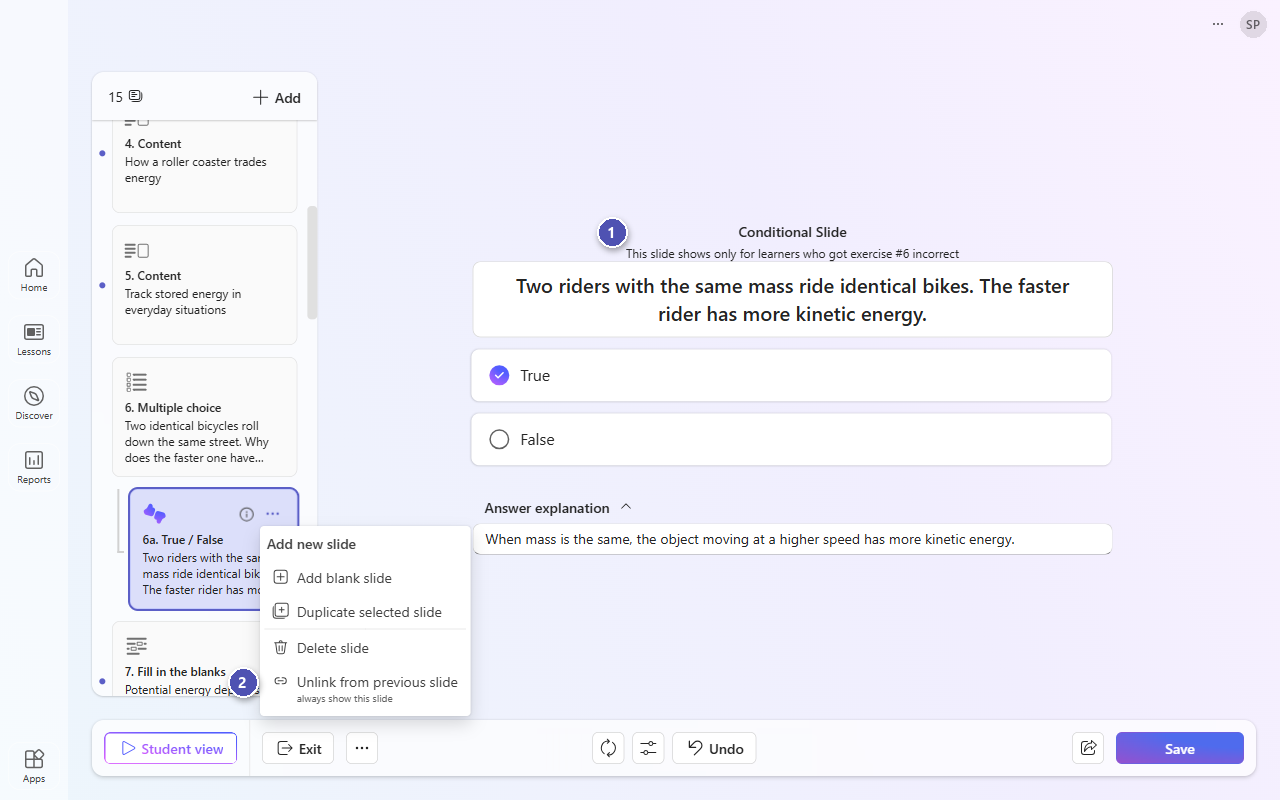
Update conditional exercises
A conditional exercise appears only for learners who answered the linked main exercise incorrectly.
- Conditional exercises are labeled Conditional Slide, with the number of the main exercise they're linked to.
- To change this, select the ellipsis (…) on the slide. Choose Unlink from previous slide to show the exercise to all learners, or Link to previous slide to turn an exercise into a conditional exercise for the exercise before it.
Make changes to content
For content slides, you can:
- Edit the title and text. Use the formatting toolbar for bold, italic, underline, math formulas, code blocks, and lists.
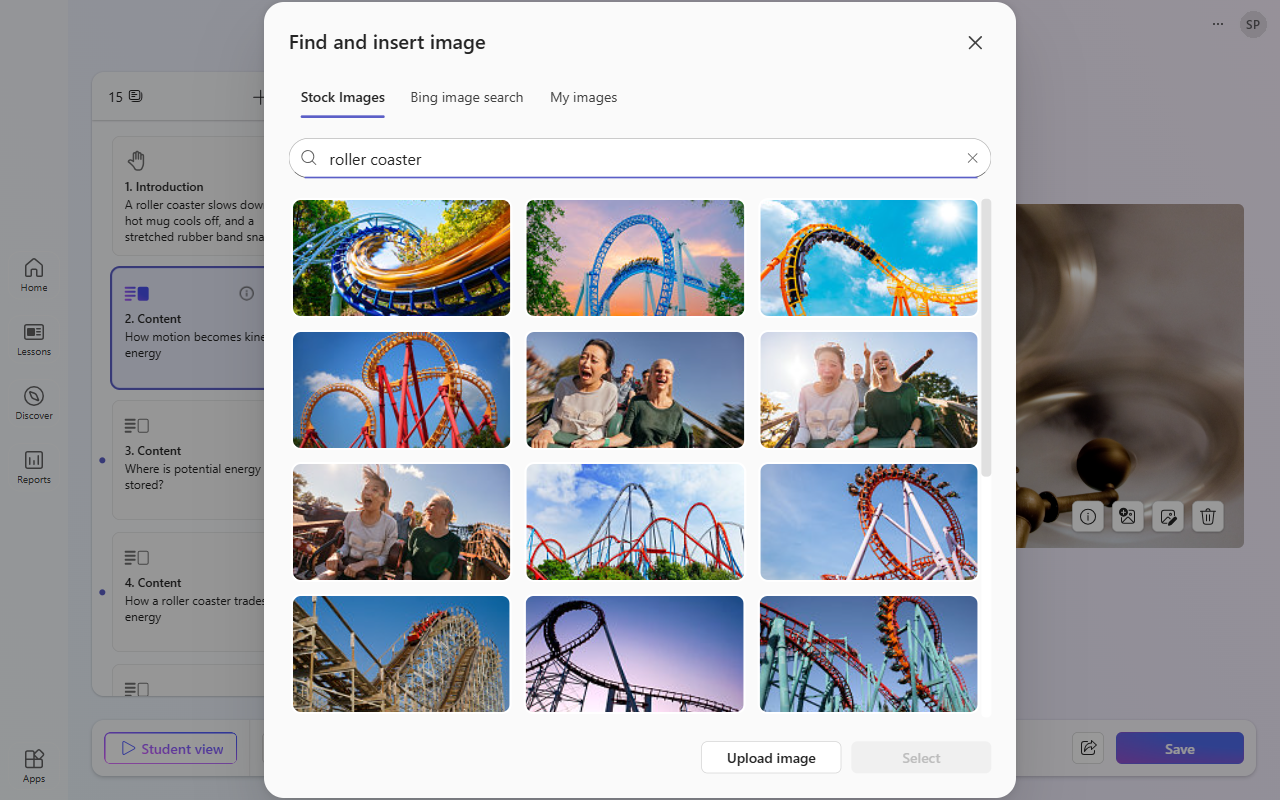
- Select Image info to see the image's description and attribution.
- Select Replace to choose a different image.
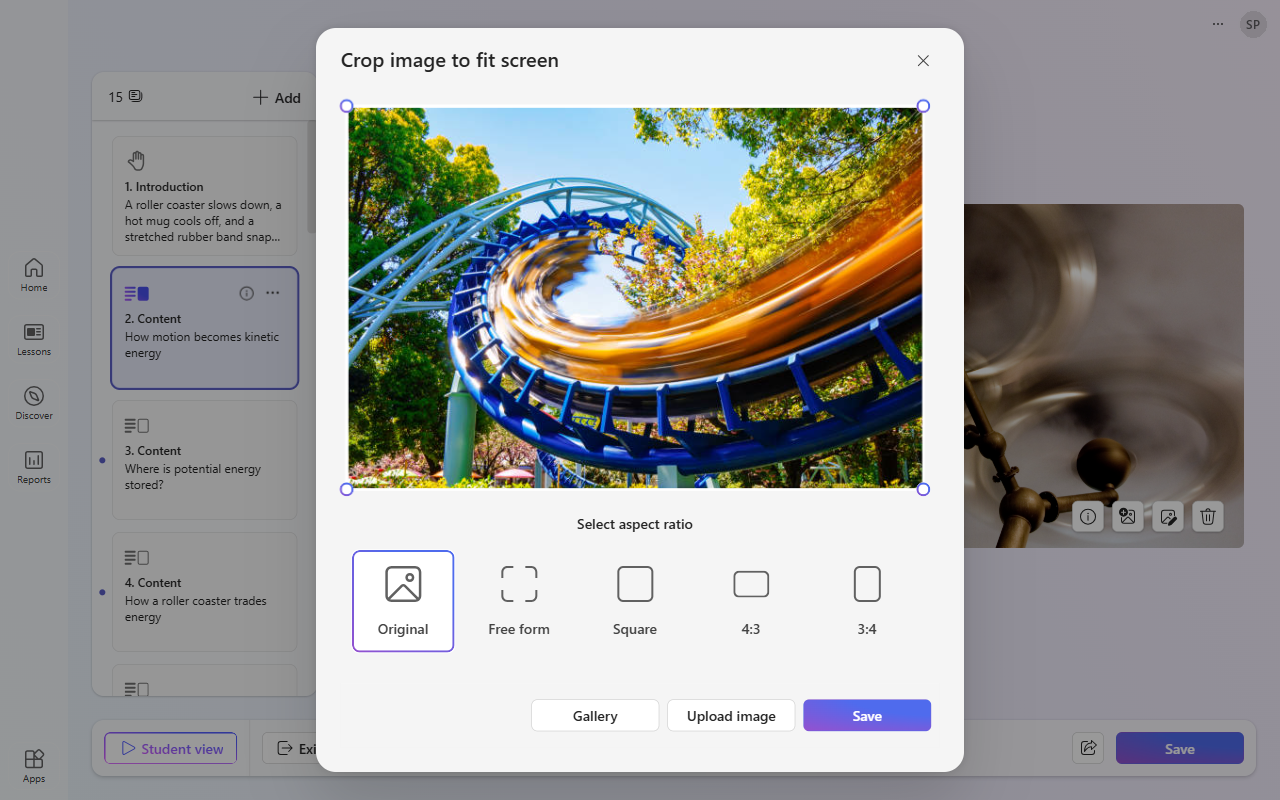
- Select Edit to crop the image.
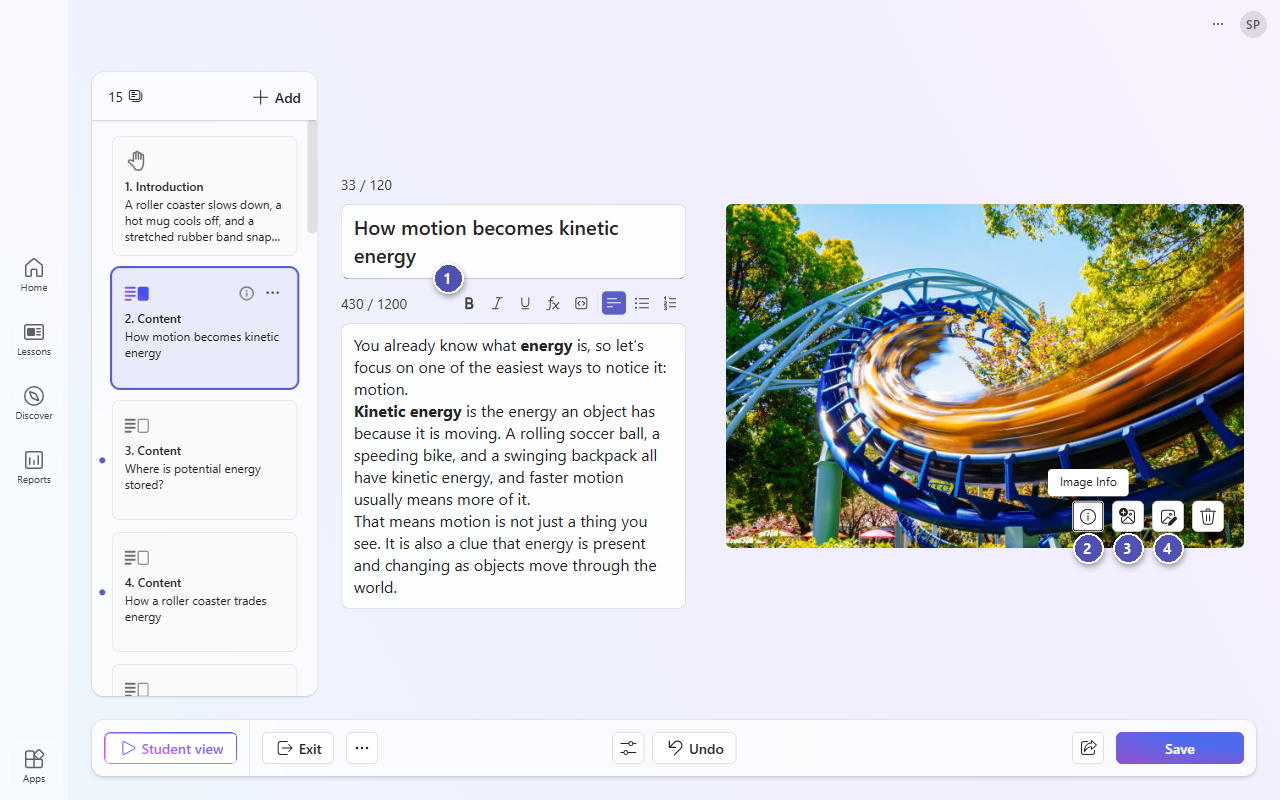
When you select Replace, search stock images or Bing images, choose from My images, or select Upload image to use your own. When you search Bing images, you can filter by license, and images with Creative Commons licenses are attributed automatically.
To crop an image, choose Original, Free form, Square, 4:3, or 3:4, and then select Save.
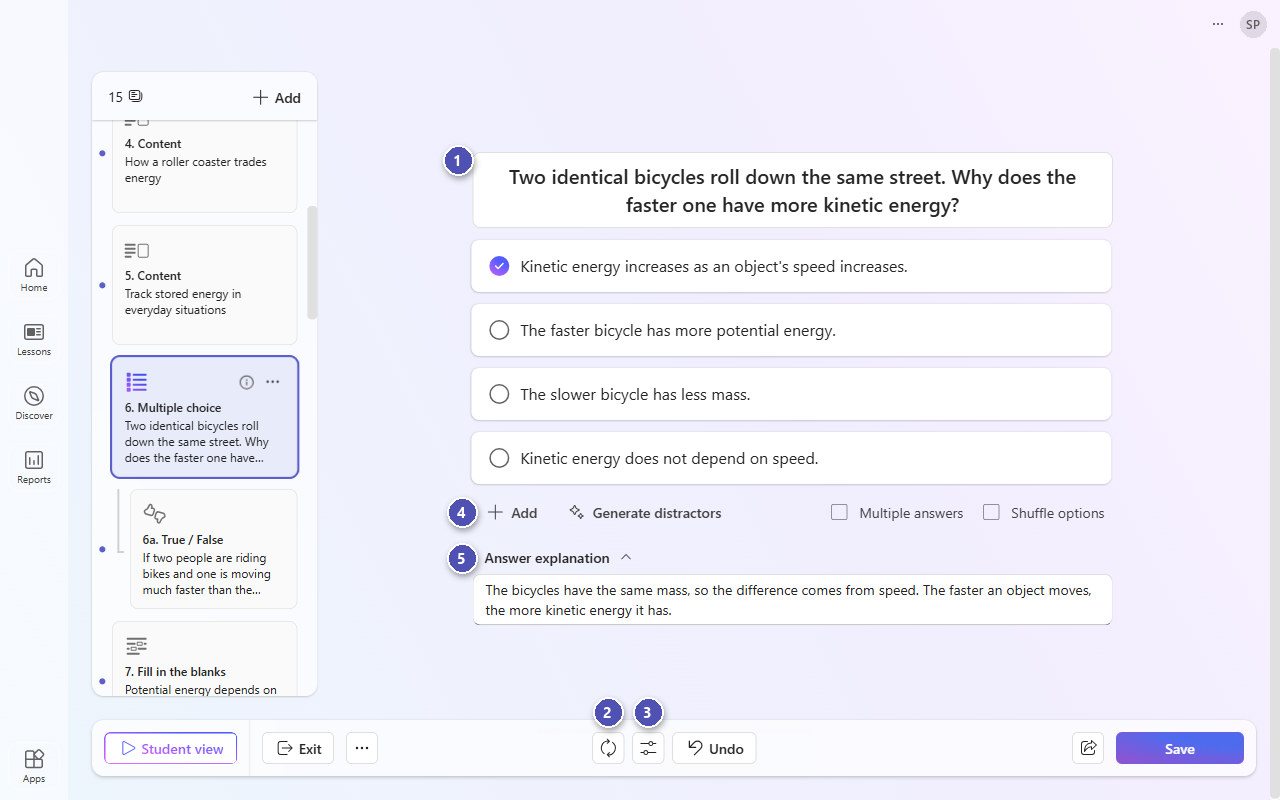
For exercise slides, you can:
- Edit the question and the answer options.
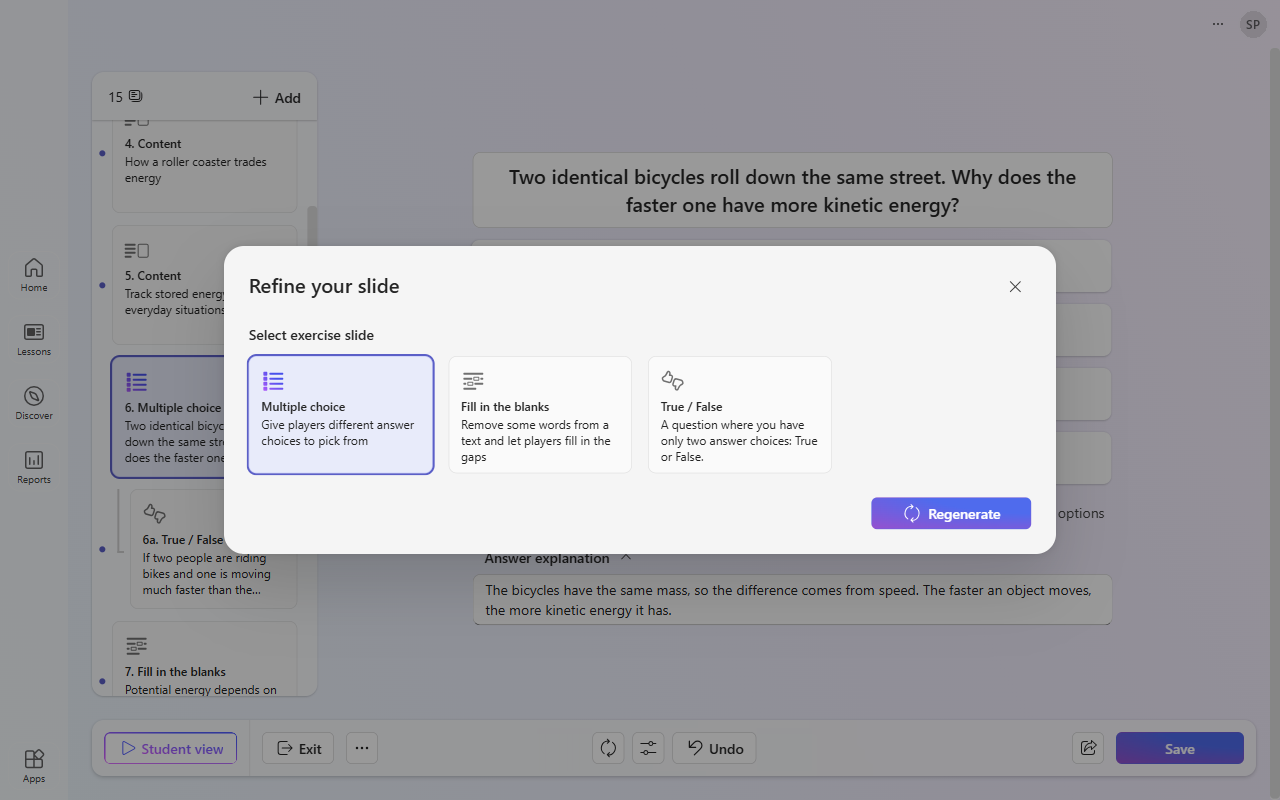
- Select Regenerate slide to create a new version of the exercise. In Refine your slide, choose the exercise type and select Regenerate.
- Select Adjust slide and choose Simplify language to make the wording easier to read.
- Add answer options, or select Generate distractors to create new incorrect options.
- Edit the answer explanation that learners see after they answer.
You can edit each exercise type in different ways. The following table outlines the options.
| Exercise type |
Capabilities |
| Multiple choice |
- Add, remove, and edit options
- Generate distractors
- Allow multiple answers
- Shuffle options
- Edit the answer explanation |
| True / False |
- Edit the statement and the correct answer
- Edit the answer explanation |
| Fill in the blanks |
- Edit the text and blanks
- Add, remove, and edit distractors
- Generate distractors |
| Sort |
- Add, remove, edit, and reorder items
- Edit the answer explanation
- Items are shuffled automatically for learners |
| Grouping |
- Add, remove, and edit items
- Add, remove, and edit groups
- Edit the answer explanation |
| Find the match |
- Add, remove, and edit pairs
- Pairs are shuffled automatically for learners |
Student view
To experience the lesson as a learner, select Student view in the lower-left corner. You can answer the exercises and see the feedback that learners receive.
Save lessons
You must save your lesson to use it with learners. When you finish reviewing the lesson, select Save.
If some slides haven't been reviewed, Learning Zone reminds you that the lesson includes AI-generated content. Select Continue review to check the remaining slides, or Use anyway to save the lesson.
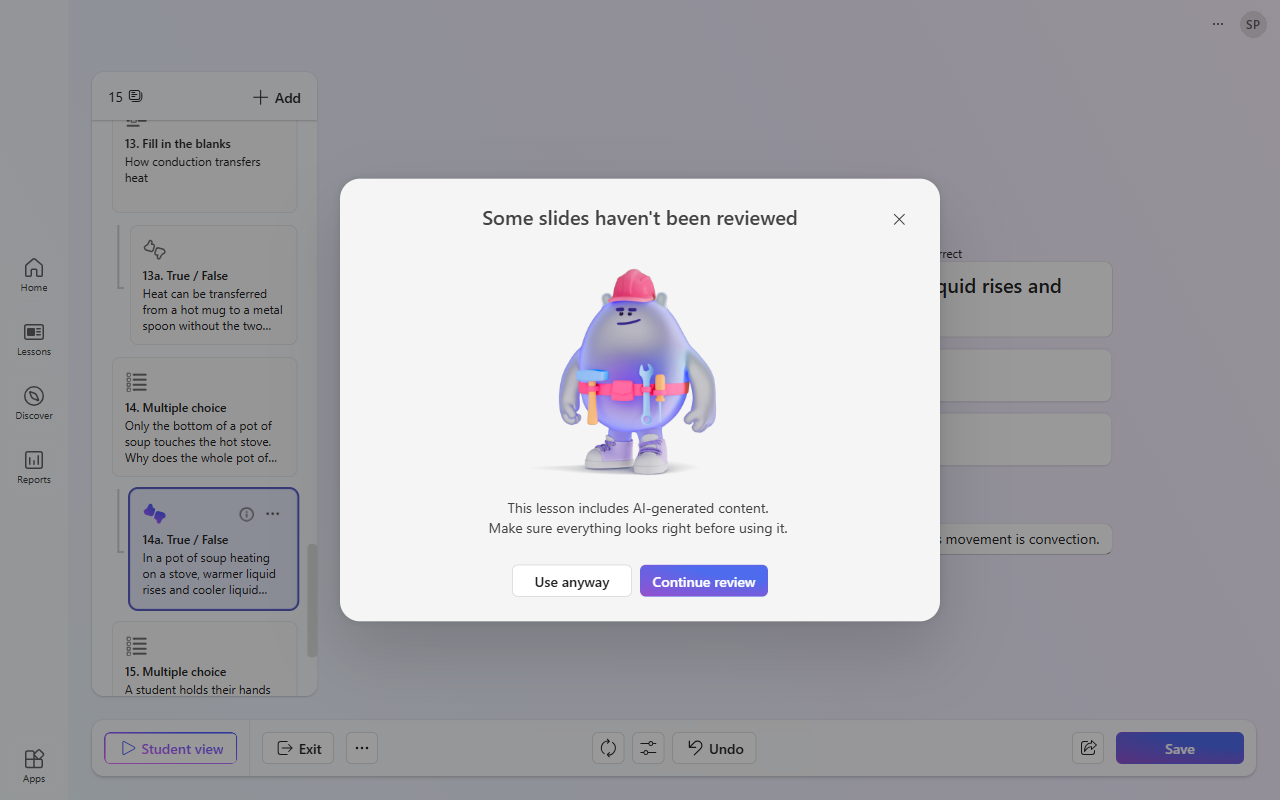
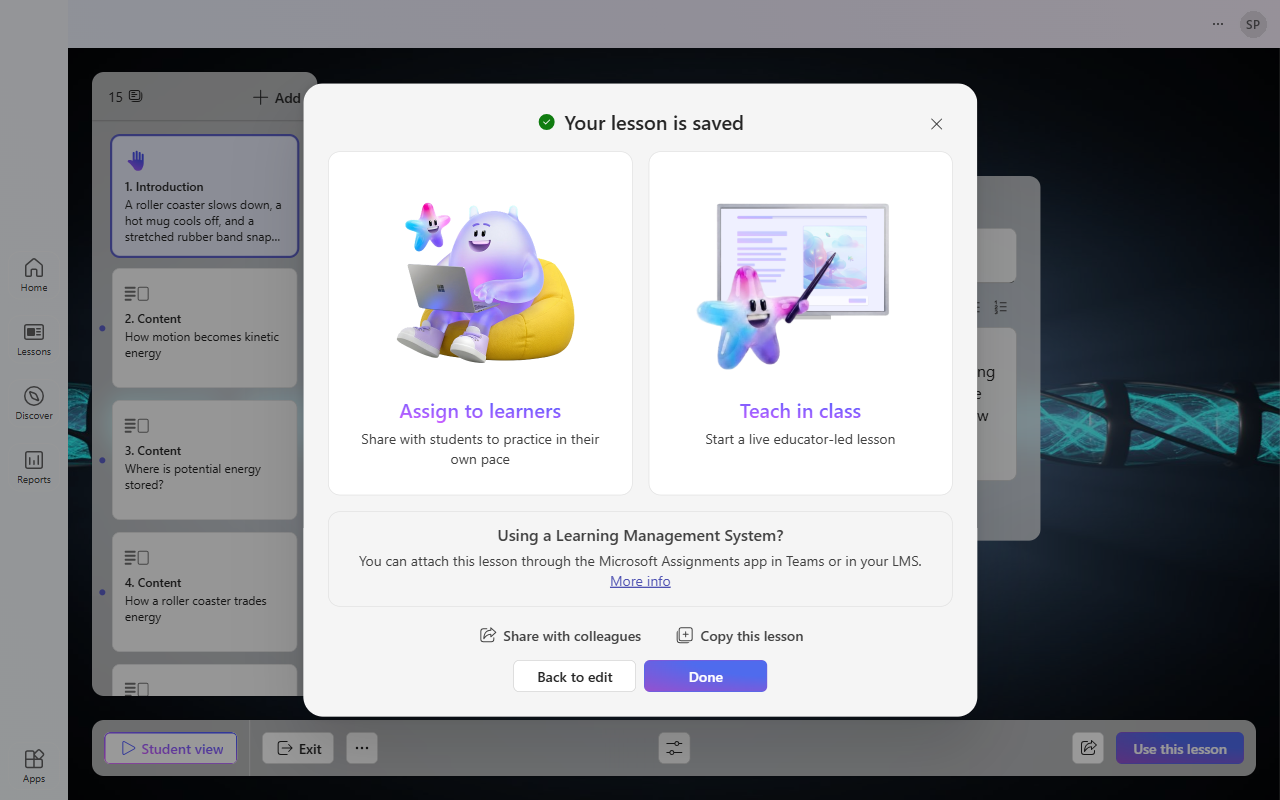
After you save, choose what to do next:
- Assign to learners so that learners complete the lesson at their own pace.
- Teach in class to lead a live lesson.
- Share with colleagues or Copy this lesson.
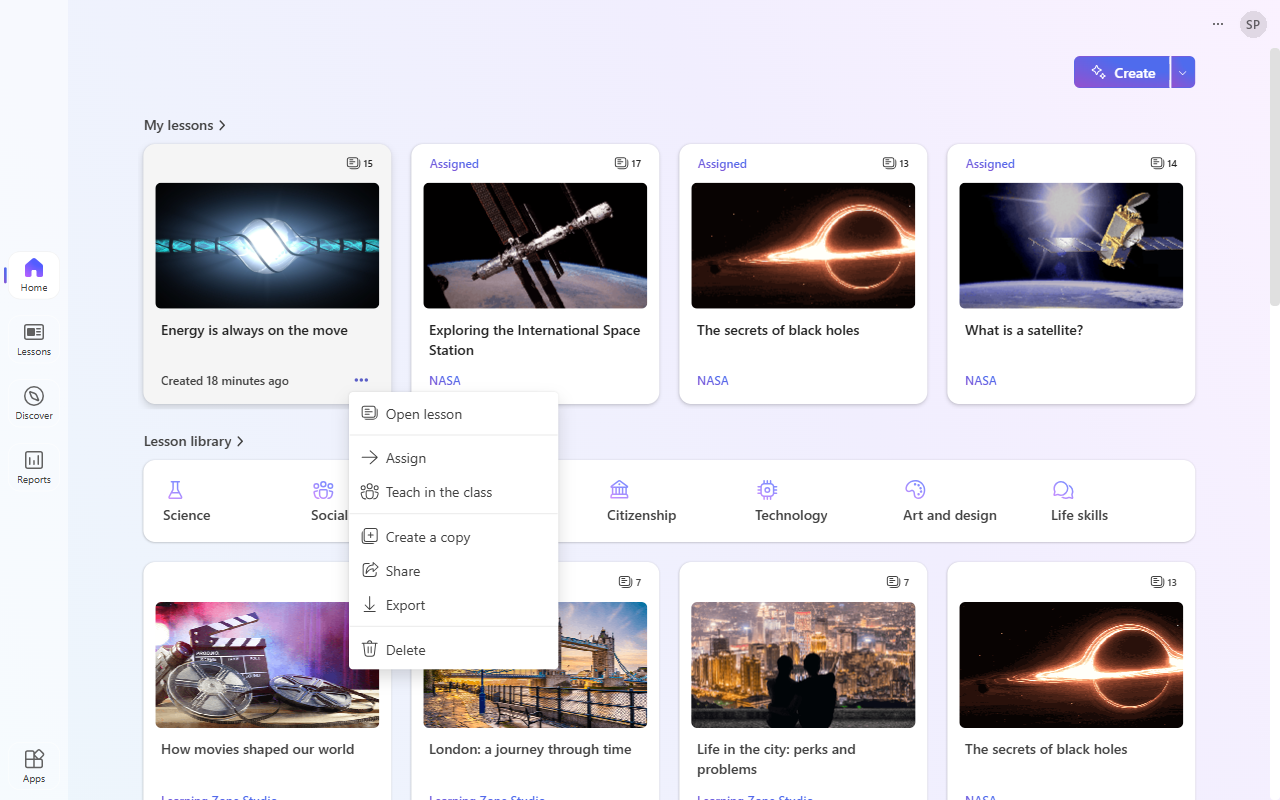
The lesson is added to My lessons. You can find it on the Home page and under Lessons in the navigation bar.
Manage lessons
Manage your lessons in My lessons. Select the ellipsis (…) on a lesson card to:
- Open lesson
- Assign
- Teach in the class
- Create a copy, for example to adapt the lesson for another class
- Share with colleagues in your organization. After you share, you can also choose Get lesson link or Stop sharing.
- Export the lesson as a file
- Delete
For more information about sharing and exporting, see the Share and export tab.
Assign lessons to learners
When you assign a lesson, learners complete it at their own pace. You can share the lesson by using a join code, a link, or a QR code. You can also attach the lesson to a Microsoft Teams assignment or to an assignment in your learning management system (LMS).
Assign a lesson by using a join code or link
Select the ellipsis (…) on the lesson card in My lessons and choose Assign. You can also select Assign to learners after you save a lesson.
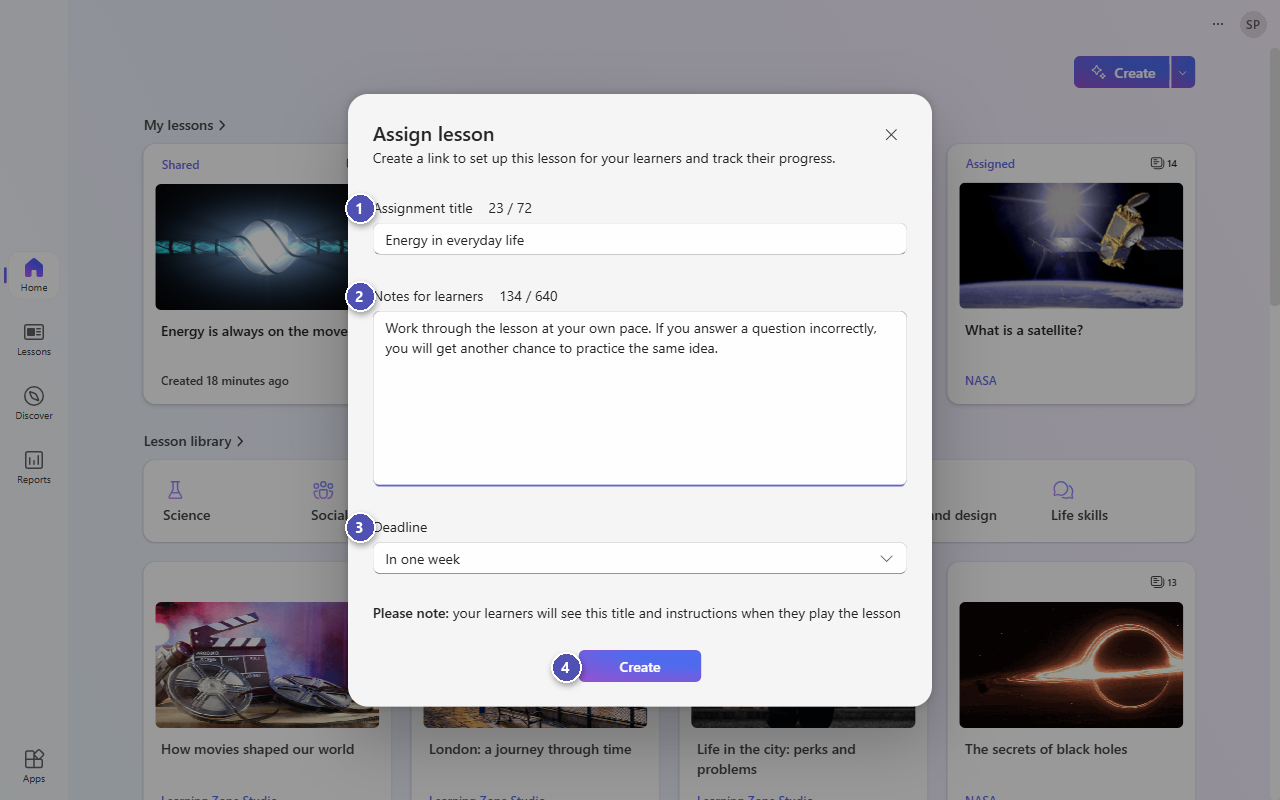
- Enter an Assignment title.
- Add Notes for learners. Learners see the title and notes when they open the lesson.
- Choose a Deadline: no deadline, the end of today, tomorrow, or this week, or in one or two weeks.
- Select Create.
Note
The deadline shows learners how long they have to complete the lesson. Before the deadline, the assignment shows how much time is left, for example Closing in 3d. After the deadline, it's marked as overdue, for example Due 2 days ago. The deadline isn't a closing date: learners can still open and complete the lesson after it passes.
Invite learners to the lesson
After you create the assignment, invite your learners by using:
- The join code, which learners enter in the Learning Zone app or at mlz.do/code.
- The lesson link. Select Short link to get a shorter link that's easier to share.
- A QR code, which is useful for learners who use devices with cameras.
- Microsoft Teams or Google Classroom.
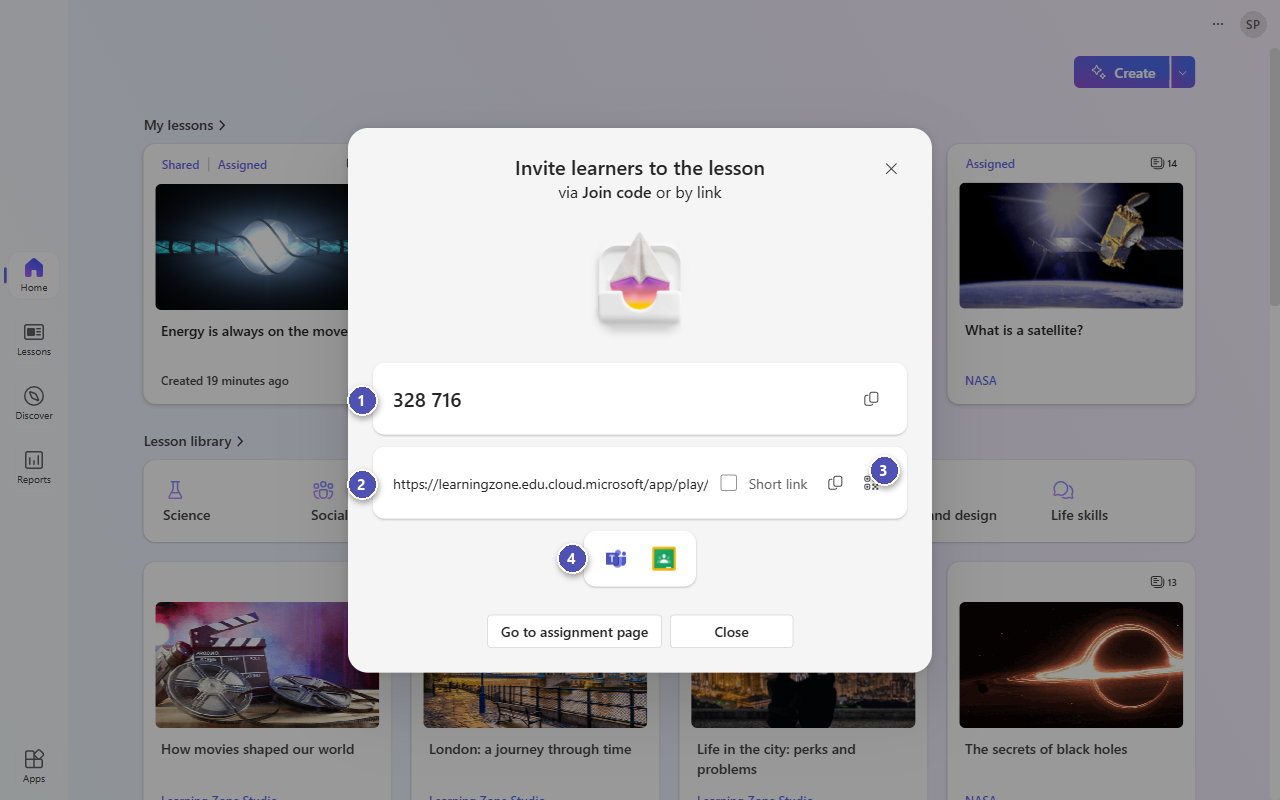
To find the join code or link again later, open the lesson in Reports and select Get join link or code.
Share a lesson as an assignment with Microsoft Teams (or other learning management systems)
You can attach a Learning Zone lesson to a Microsoft Teams assignment. Learners open the lesson inside the assignment, and the lesson is connected to the Grades tab of your class team.
To add a Learning Zone lesson to a Microsoft Teams assignment:
- Go to Microsoft Teams.
- Create a new assignment.
- When you add content to the assignment, choose Interactive lessons.
- Select the lesson you want to assign.
Note
Before you can attach a lesson to a Teams assignment, you must save it in Learning Zone. Saved lessons appear under Lessons in Learning Zone.
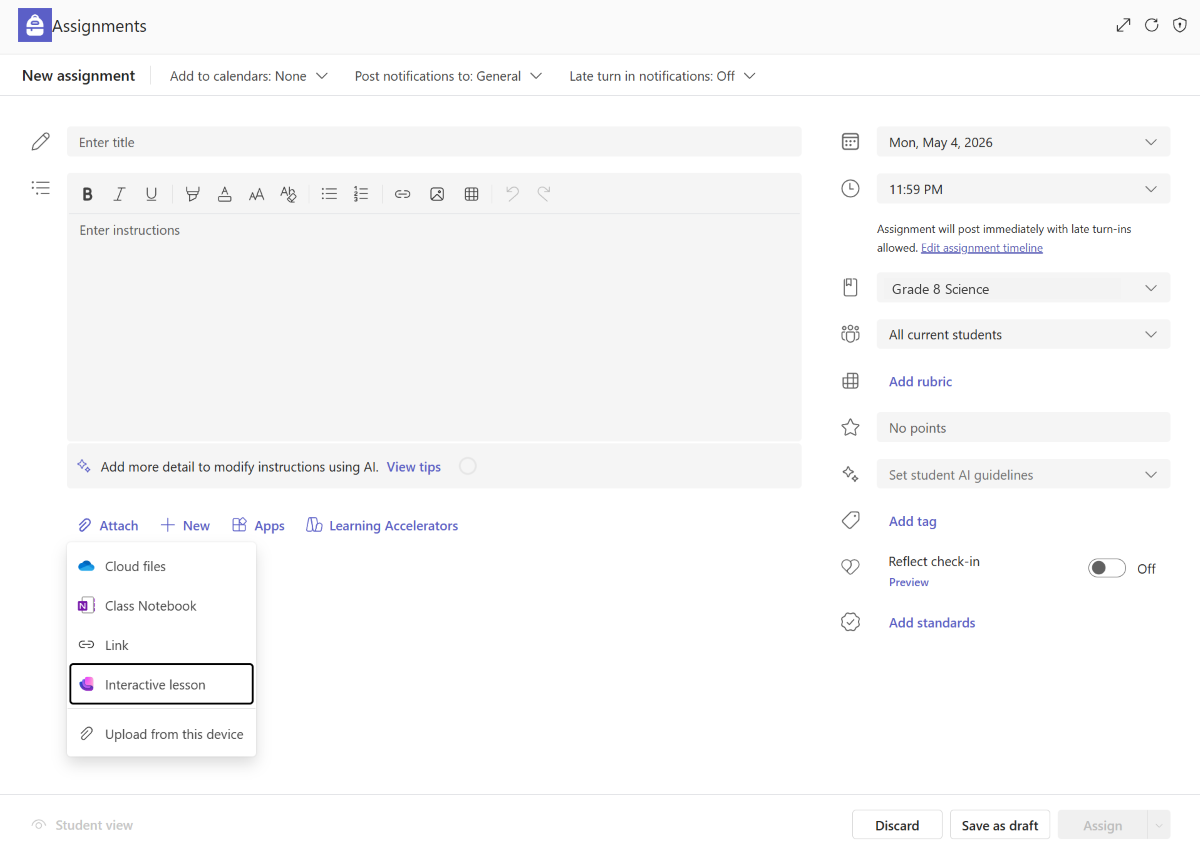
After you attach the lesson, select it in the assignment to review the lesson content and flow.
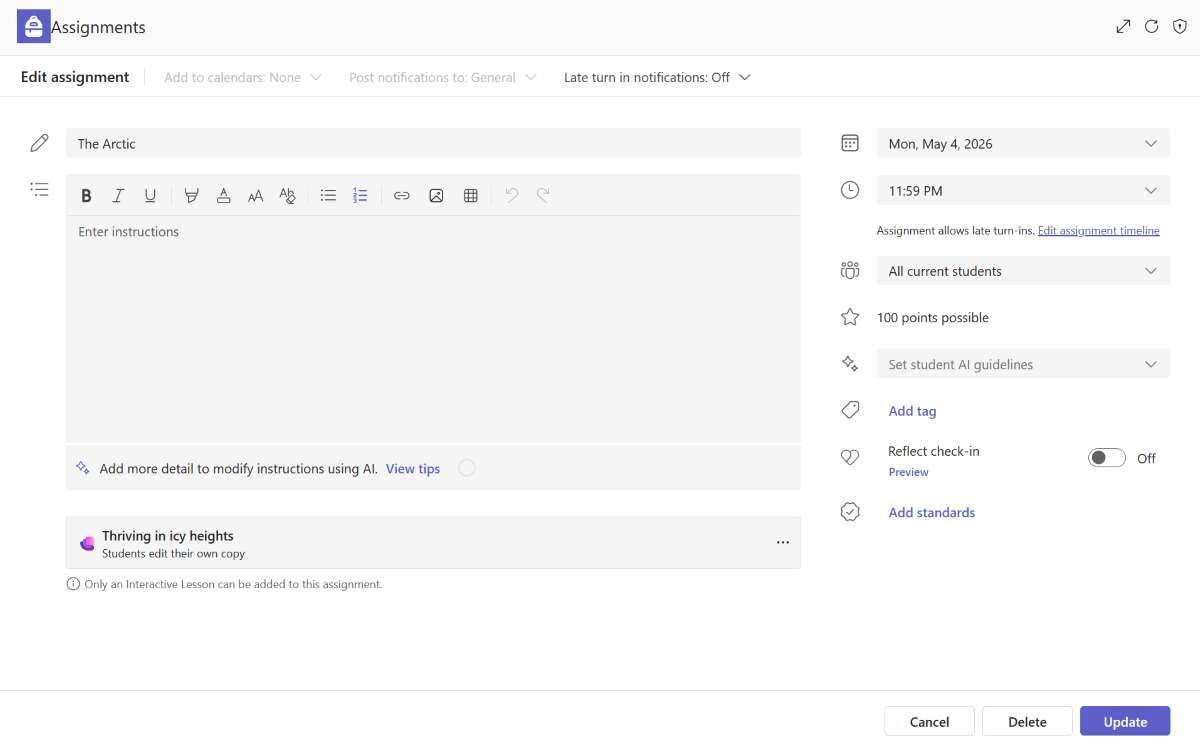
After you fill out the assignment details, assign it to learners. Learners open the lesson directly from the Teams assignment, without switching to another app.
Other learning management systems
If your learning management system is connected to Microsoft Teams Assignments through LTI, you can attach Learning Zone lessons through your usual assignment process. Select Microsoft Education when you create a new assignment.
Find more information about supported learning management systems.
Teach a live lesson
Lead a live lesson with your class. Bring learners into a shared lesson, guide them through the slides, see their answers in real time, and review the results together.
Start a live lesson
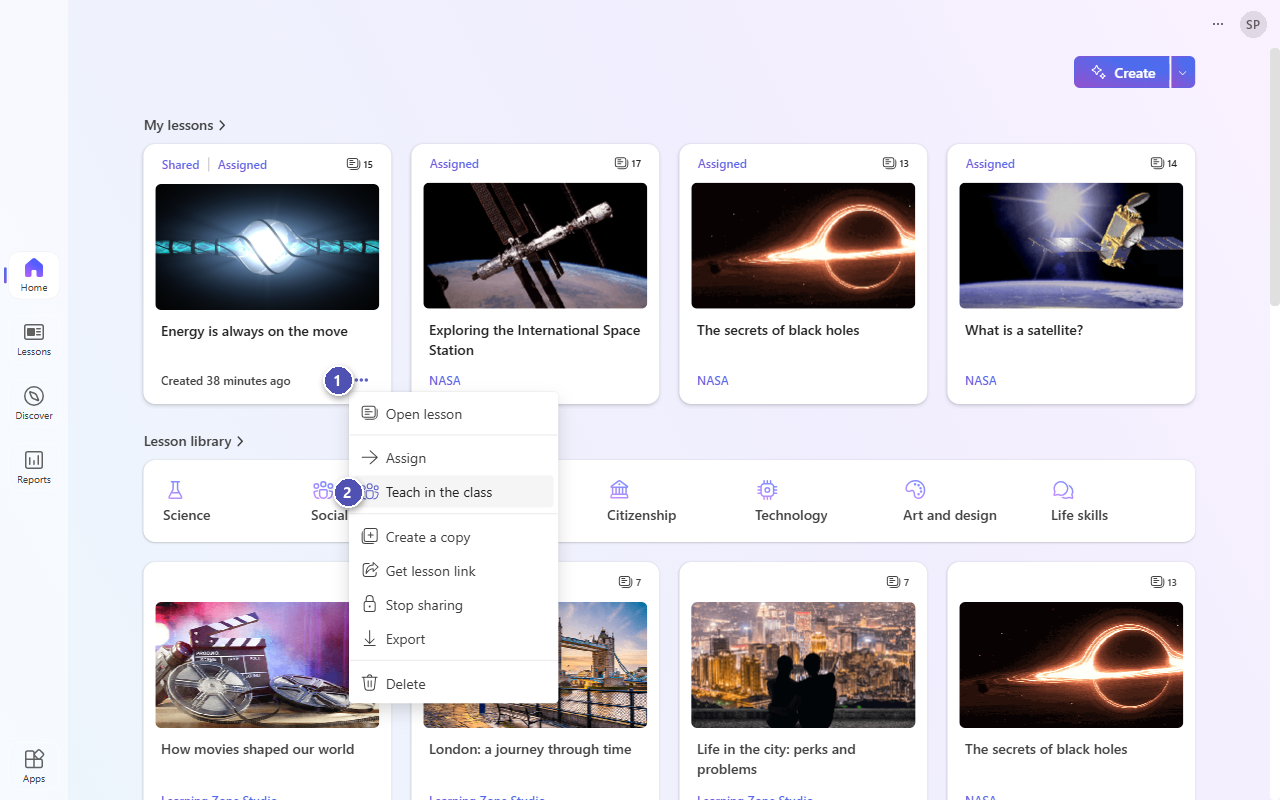
On a lesson card, select the ellipsis (…).
Choose Teach in the class. You can also select Teach in class after you save a lesson.
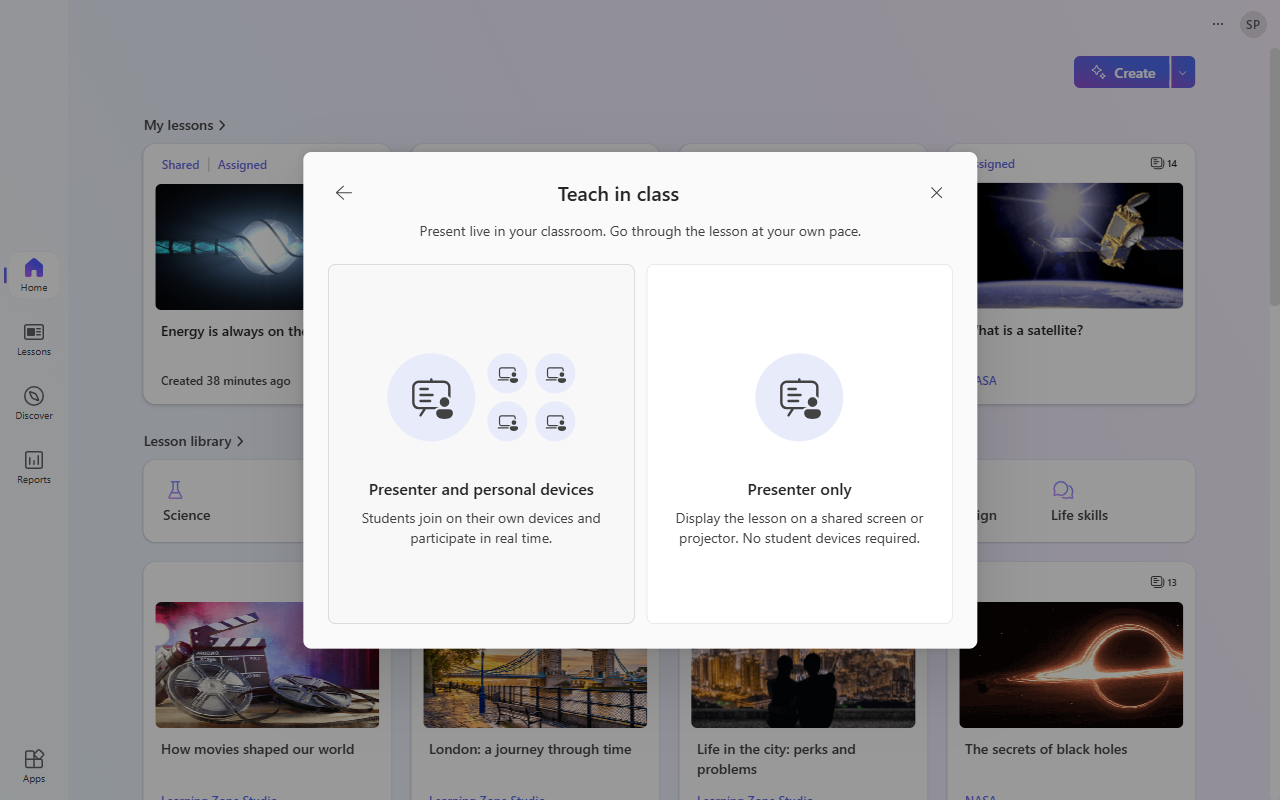
Choose the setup that works for your class:
- Presenter and personal devices if learners join and answer on their own devices.
- Presenter only if you present the lesson from your screen only.
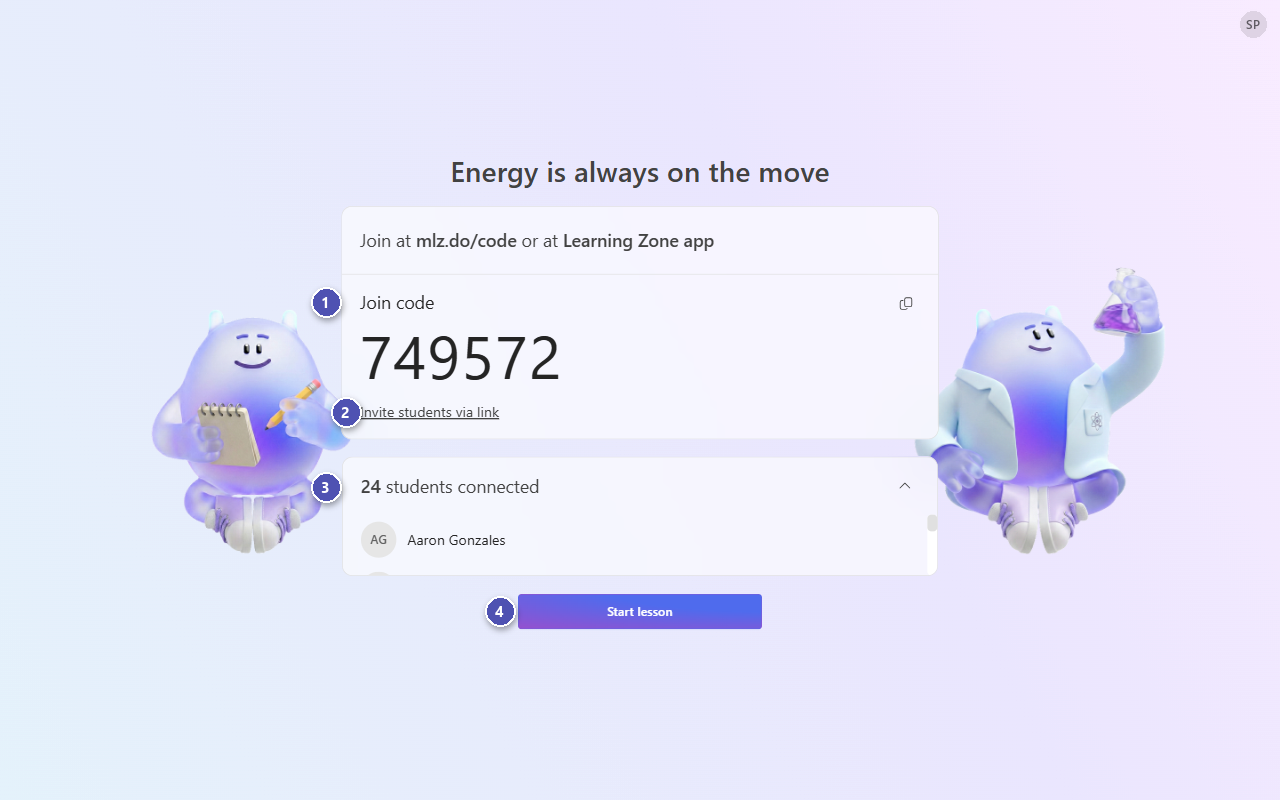
For Presenter and personal devices, the join page opens:
- Share the join code. Learners enter it in the Learning Zone app or at mlz.do/code.
- Or select Invite students via link to share a link.
- See how many learners are connected and expand the list to see their names.
- When you're ready, select Start lesson.
For Presenter only, the lesson opens directly on your screen. Select Start.
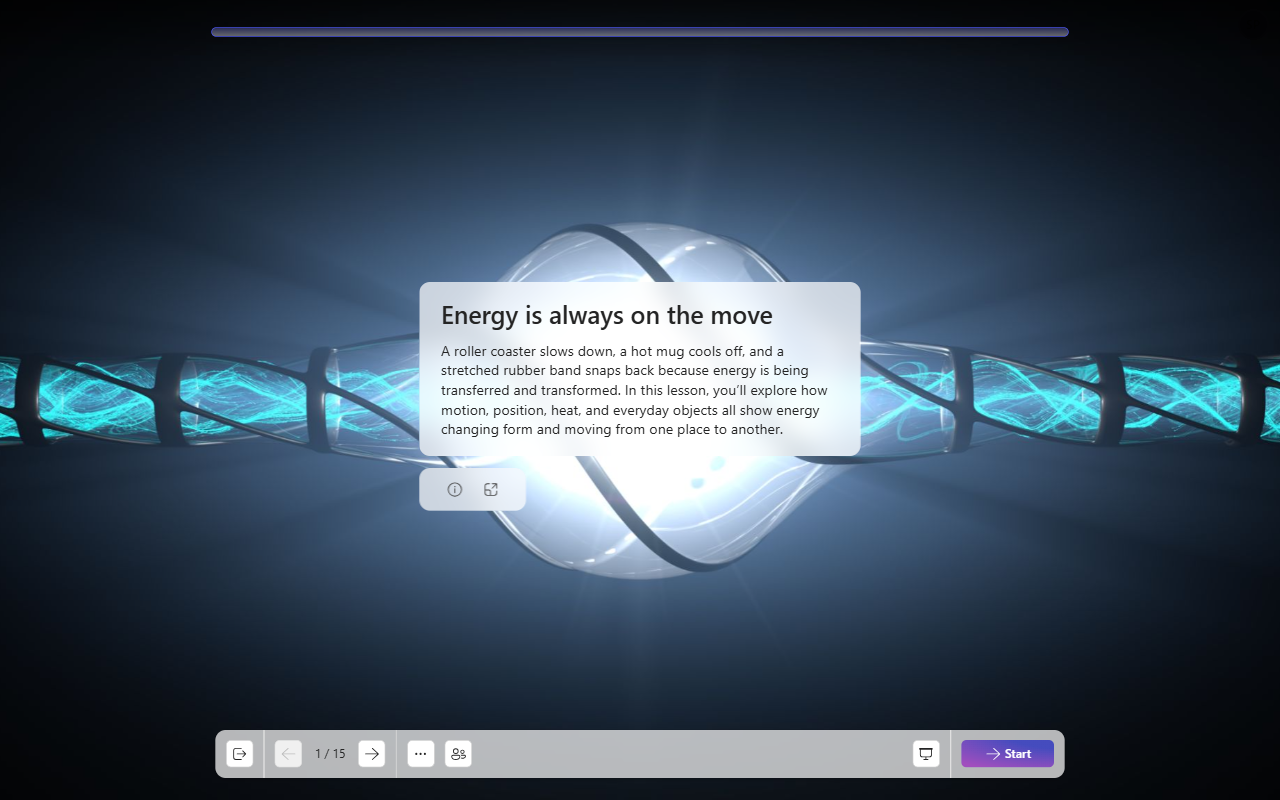
Manage your lesson
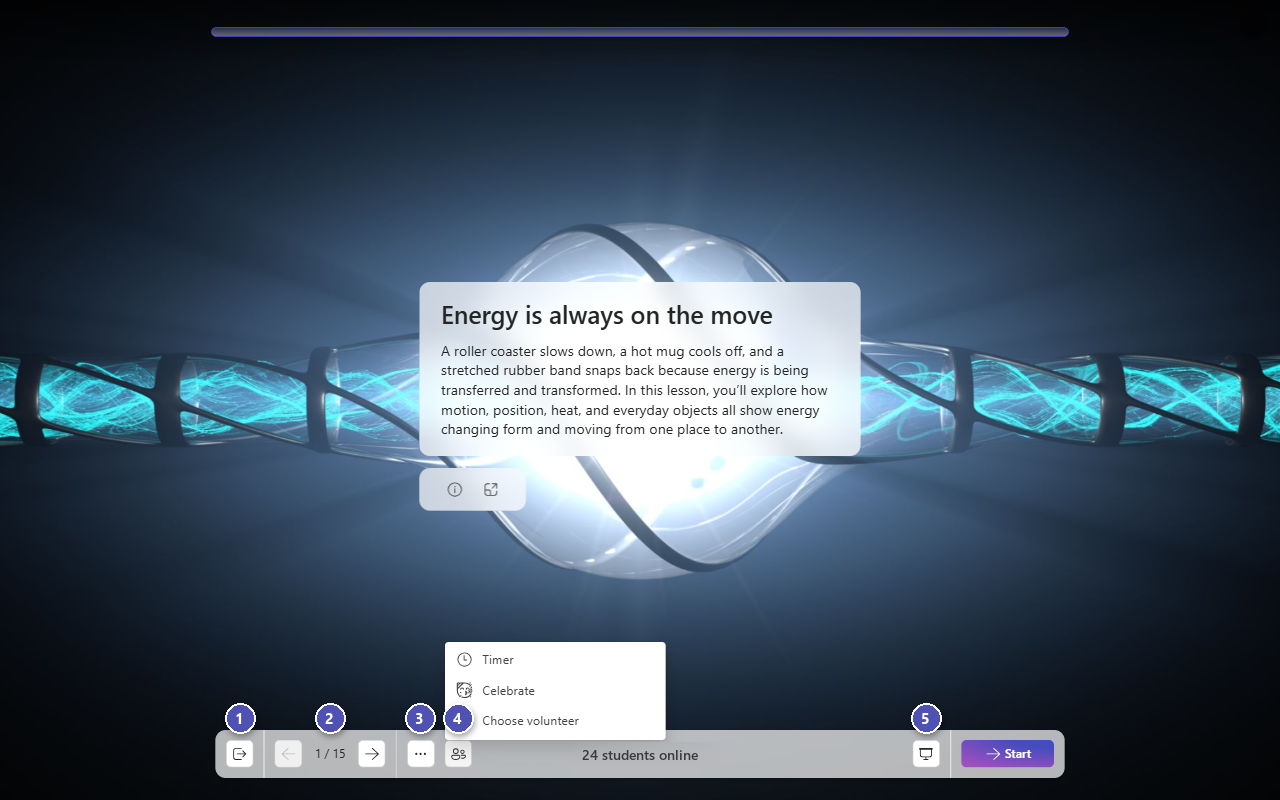
Use the controls at the bottom of the screen to:
- Exit the lesson.
- Move to the previous or next slide.
- Select More (…) to mute sounds or show the join code again, so that learners can join at any time.
- Select Class interactions to start a Timer, Celebrate achievements, or Choose volunteer.
- Enter full screen for a focused teaching experience.
In Presenter and personal devices mode, you also see how many learners are online.
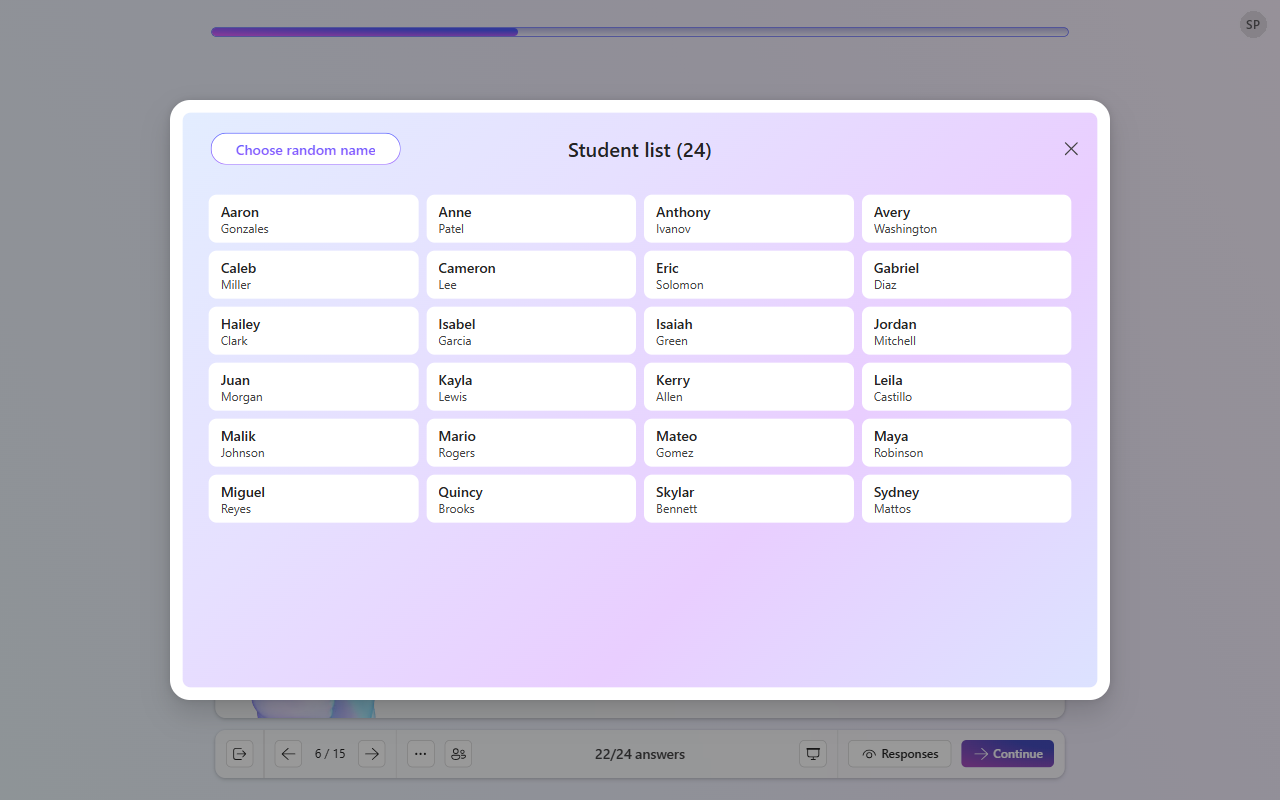
To choose a volunteer, select Choose random name, or pick a learner from the list.
Questions
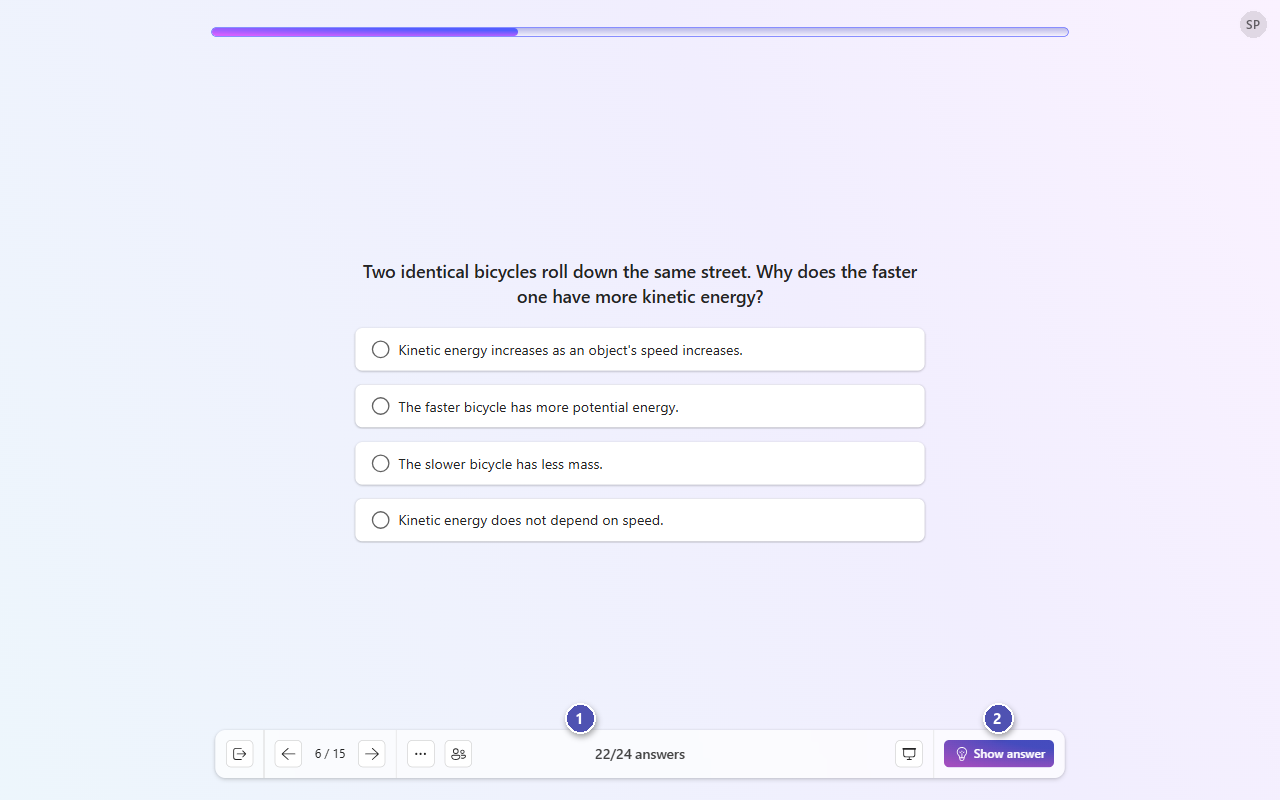
When you reach a question slide:
- See how many learners have answered.
- When you're ready, select Show answer.
After you reveal the answer:
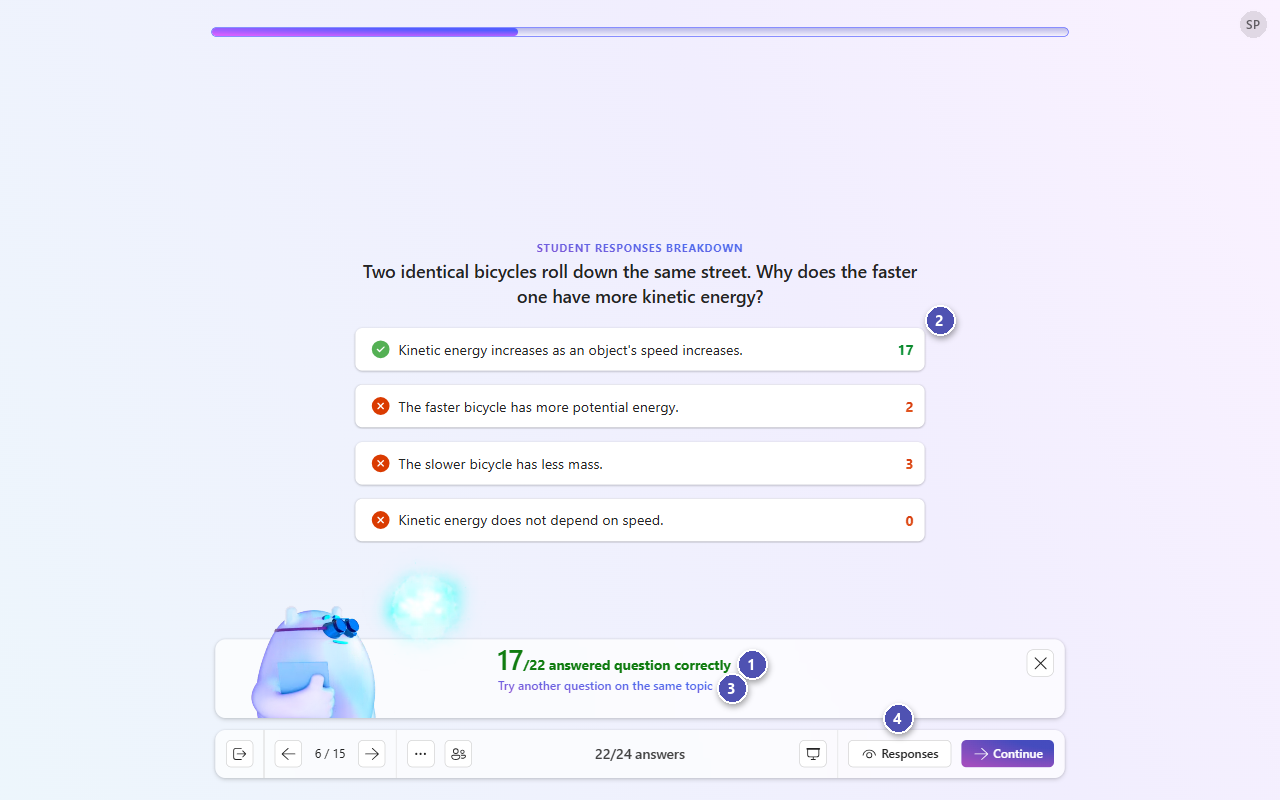
- See how many learners answered correctly.
- See how many learners chose each option, to understand common mistakes and guide discussion.
- Select Try another question on the same topic to give the class another question on the same idea.
- Select Responses to show or hide the response breakdown, and then select Continue.
Wrap up the lesson
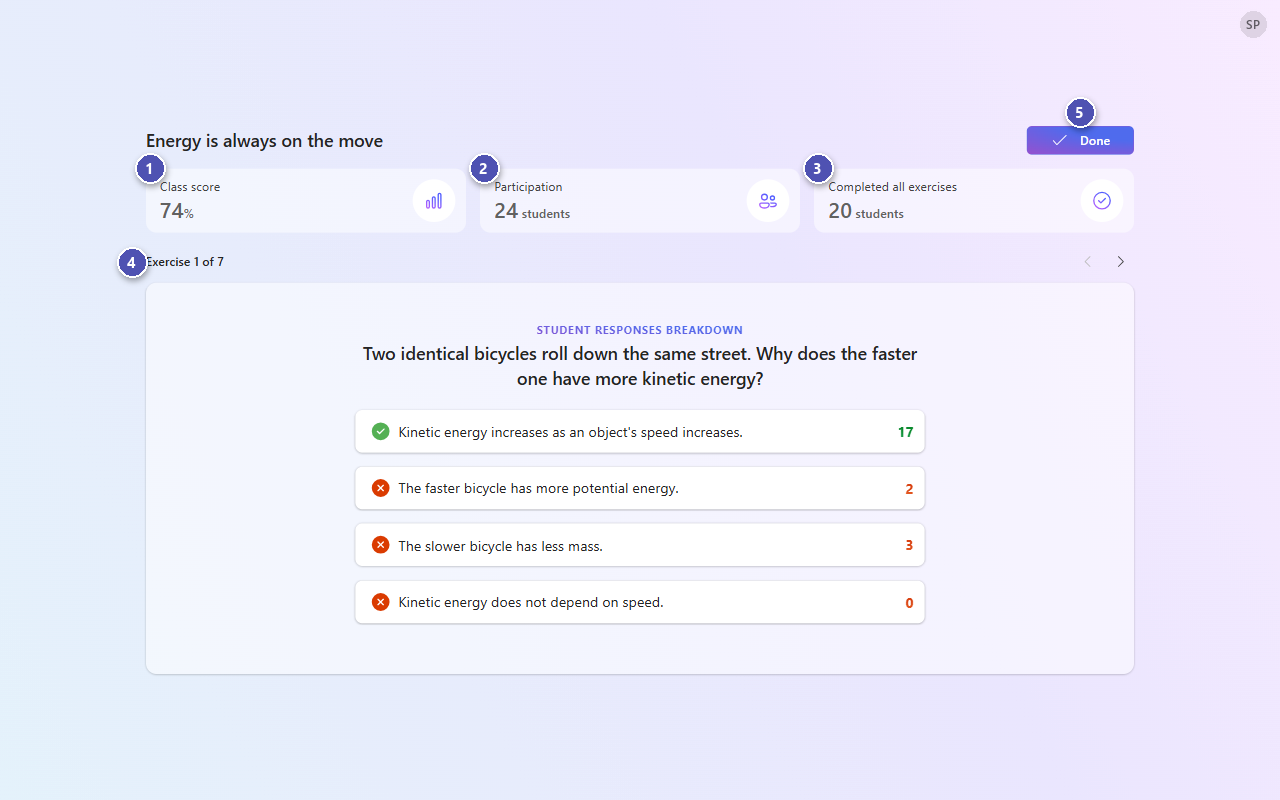
At the end of the lesson, the summary page shows:
- The class score.
- How many learners participated.
- How many learners completed all the exercises.
- A review of each exercise, with the number of learners who chose each answer.
- When you're finished, select Done.
When you exit a live lesson, the session ends for all learners.
What learners see
This tab describes Learning Zone from the learner's side. Share it with your learners so they know how to join a lesson, complete it, and track their progress.
Join a Learning Zone lesson
When you join a Learning Zone lesson, you take part in an interactive experience designed to support your learning. You move through slides, answer questions, and get feedback as you go. Your teacher can assign a lesson for you to complete at your own pace, or teach it live in class.
You can use Learning Zone in a web browser on a computer or tablet, or in the Learning Zone app on Windows. Phones aren't supported.
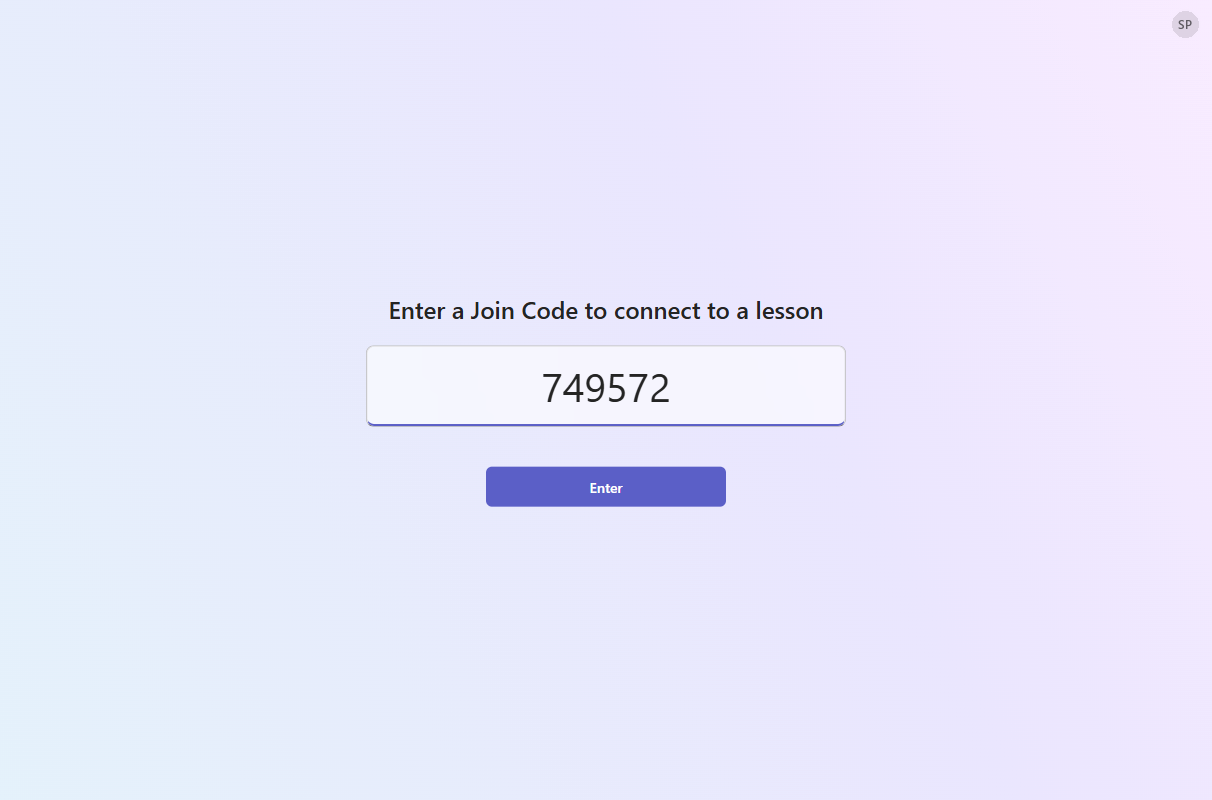
Use a join code
When your teacher shares a join code, go to mlz.do/code or open the Learning Zone app, enter the code, and select Enter.
Use the lesson link or QR code
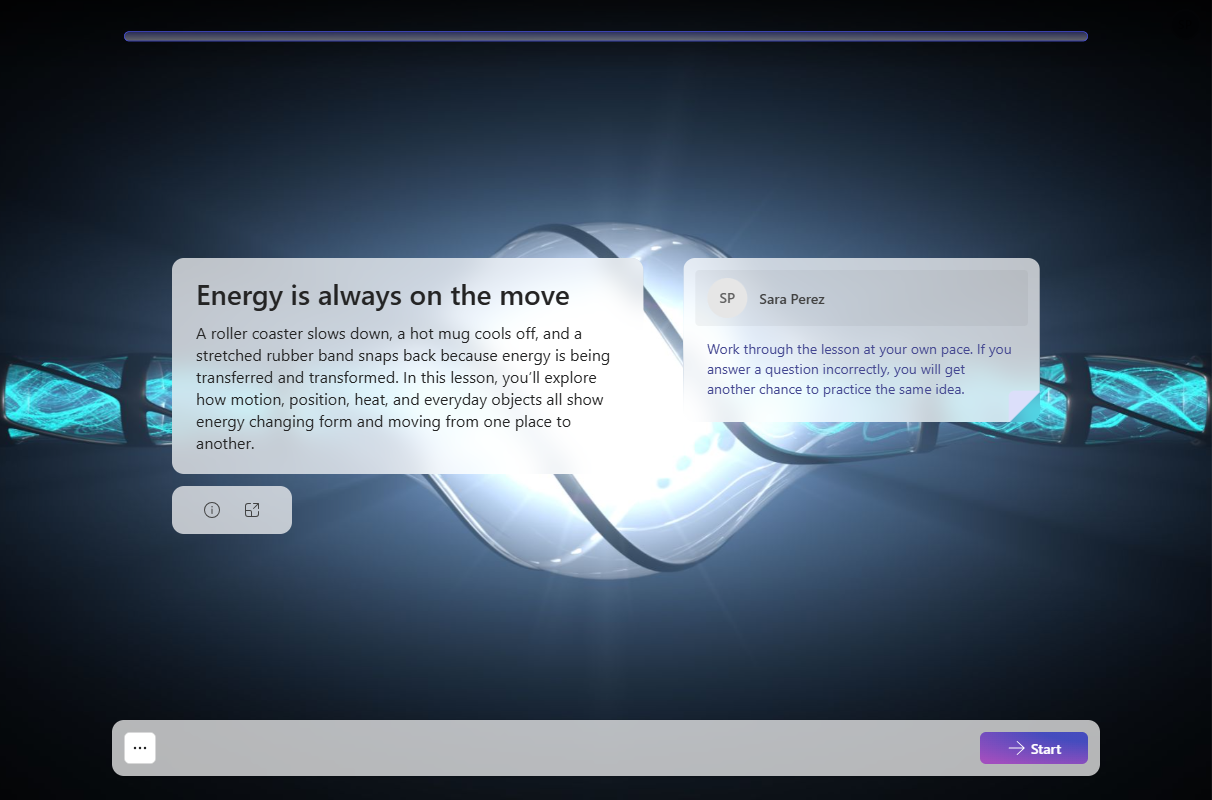
You can also join directly by using a link or a QR code. Your teacher might share these through Microsoft Teams, Google Classroom, or another platform. When you open the link, the lesson opens in your browser, so you can start learning right away.
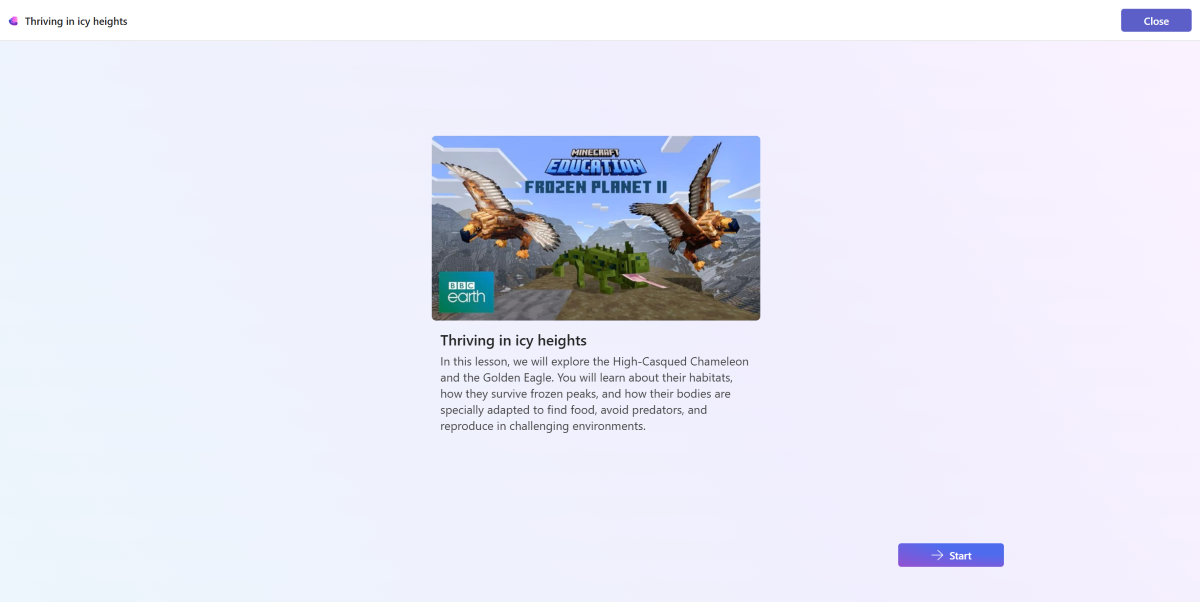
The first slide shows the lesson title and any notes from your teacher. Select Start to begin.
Use a Microsoft Teams or LMS assignment
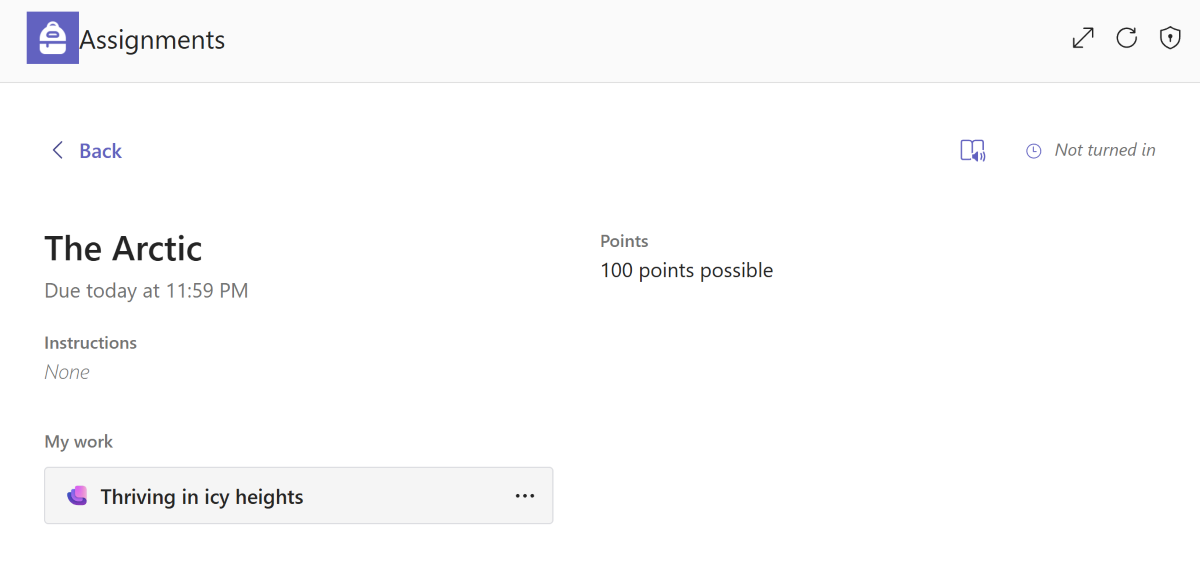
If your teacher assigns the lesson through Microsoft Teams or your school's learning platform, open the assignment and select the lesson. The lesson opens inside the assignment, so you don't need to switch between tools.
Complete a lesson
Lessons combine content slides with exercises such as multiple choice, fill in the blanks, true or false, sort, grouping, and find the match.
Read each content slide, and then select Continue.
On an exercise, choose your answer and select Check. You see right away whether your answer is correct, along with an explanation.
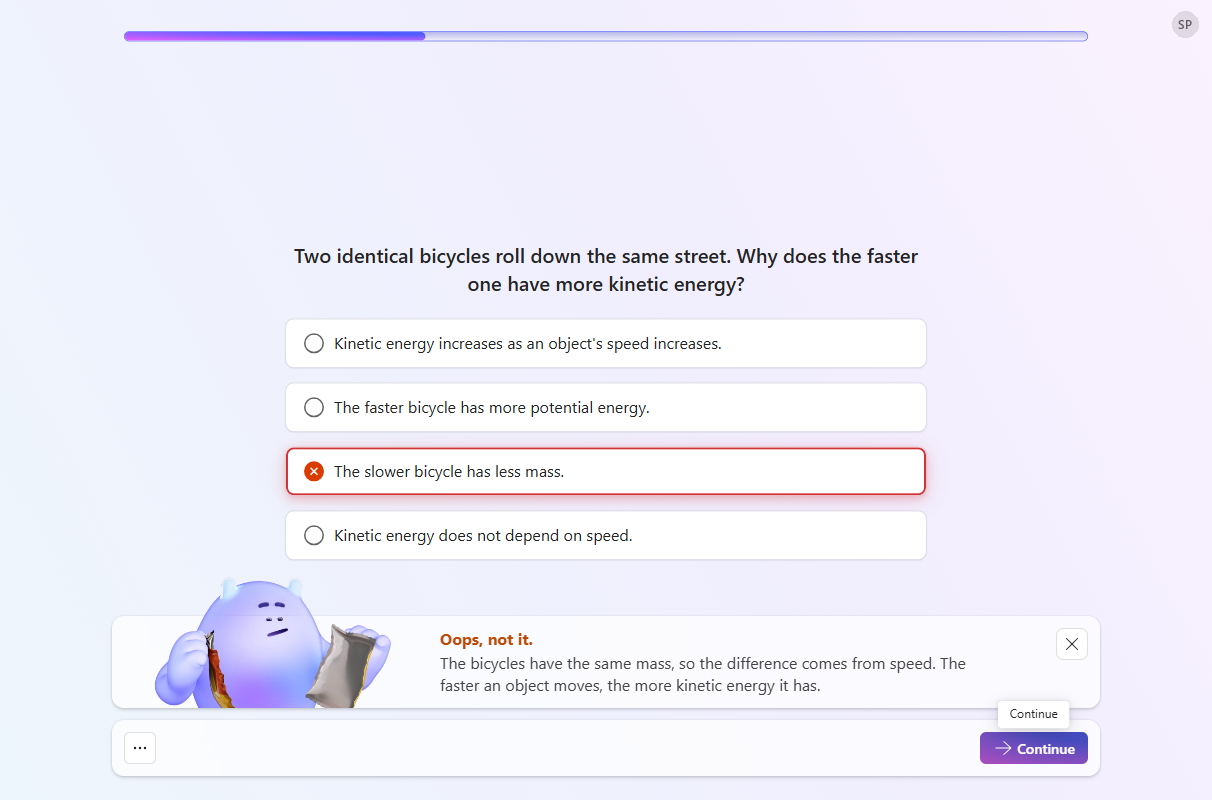
If you answer an exercise incorrectly, you might get another question on the same idea later in the lesson, so you get a second chance to practice it.
At the end of the lesson, you revisit the exercises you didn't answer correctly yet.
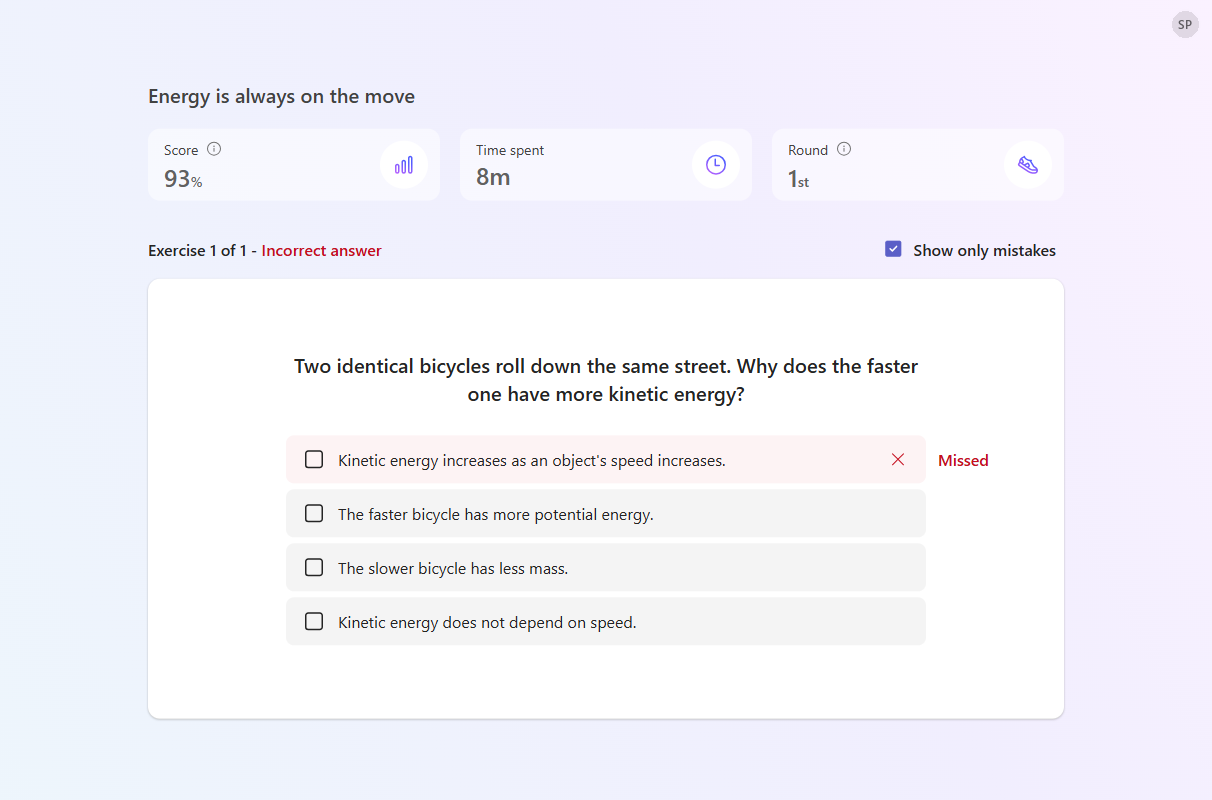
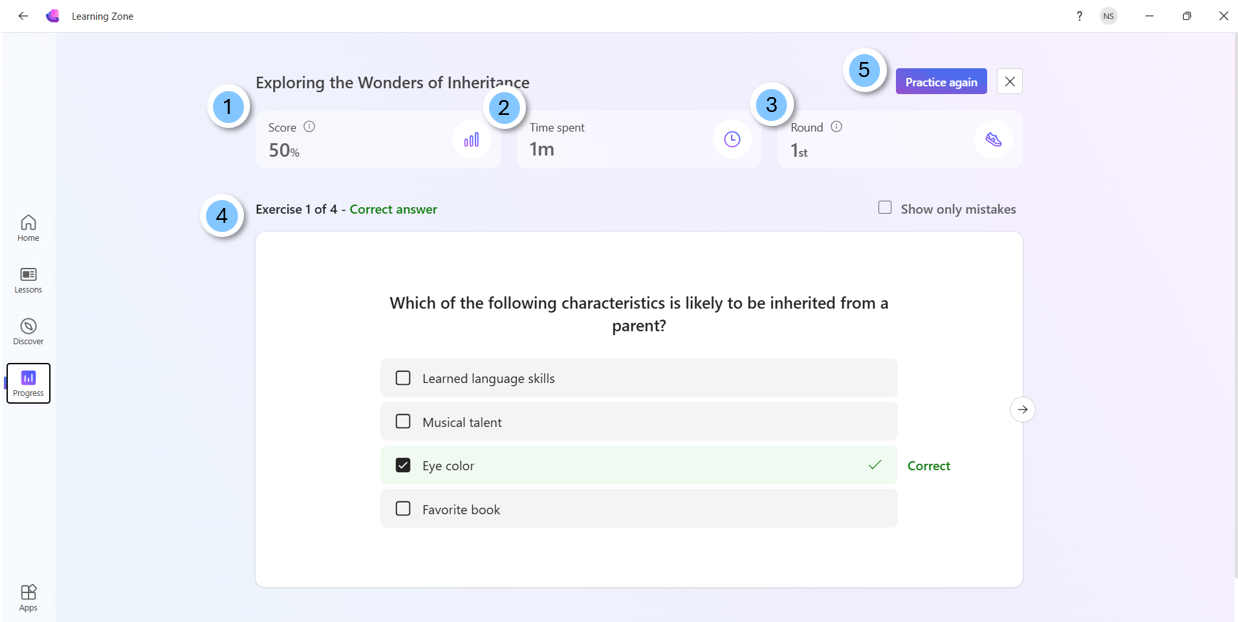
When you finish, you see your score, the time you spent, and the round number. Select Show only mistakes to review the exercises you answered incorrectly.
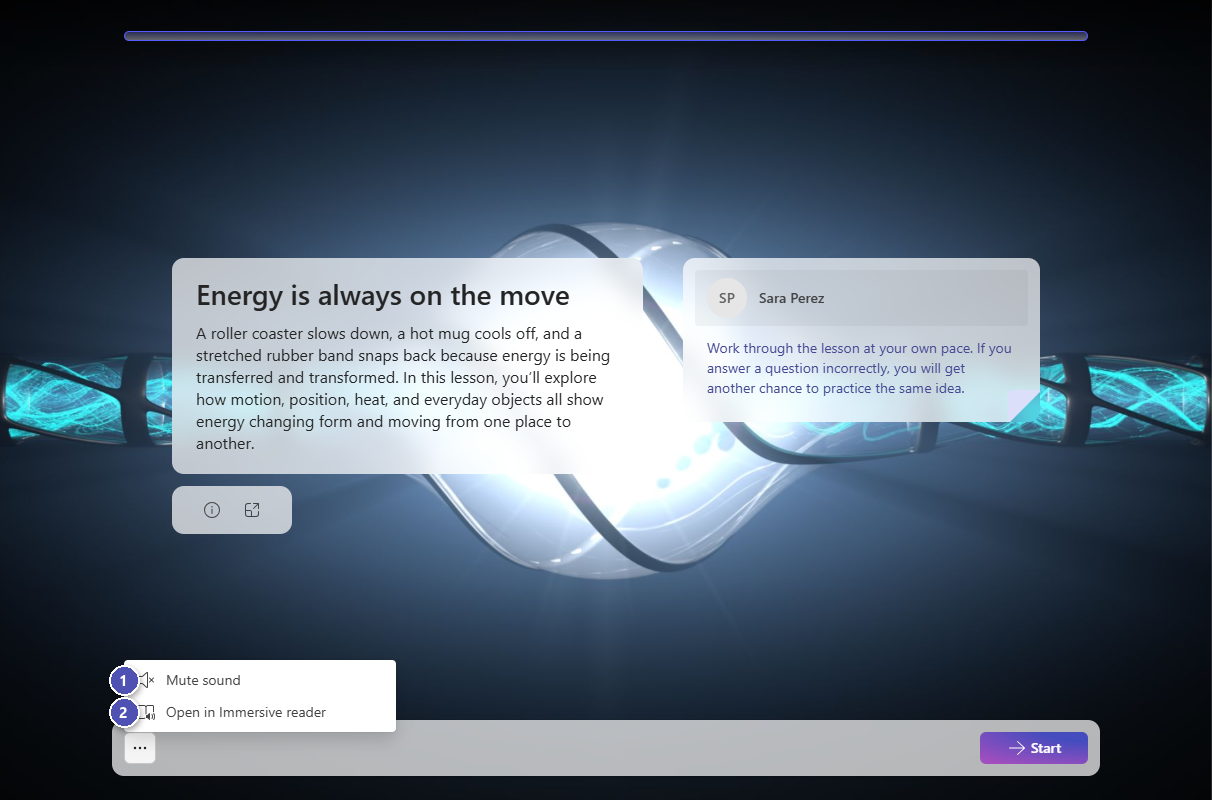
Select More (…) at the bottom of the lesson to:
- Mute sound.
- Open in Immersive reader, to hear the text read aloud and change how it looks, such as text size and spacing.
If you leave a lesson before you finish, you can come back to it later. When you open it again, select Resume to continue from where you left off, or Start over to begin again.
Join a live lesson
When your teacher teaches a lesson live, they share a join code or link. Enter the code at mlz.do/code or in the Learning Zone app, or open the link.
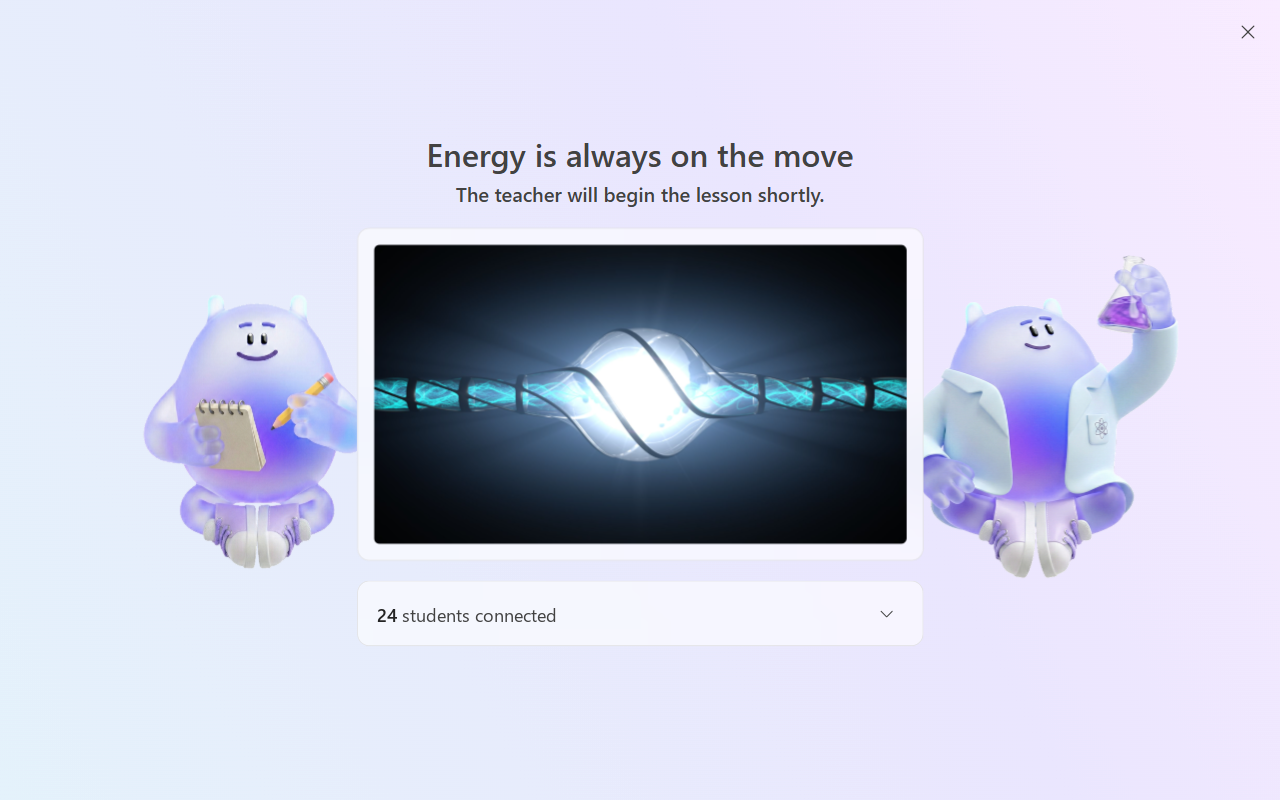
You join the lesson lobby, where you see the lesson title and how many classmates are connected. Wait there until your teacher starts the lesson.
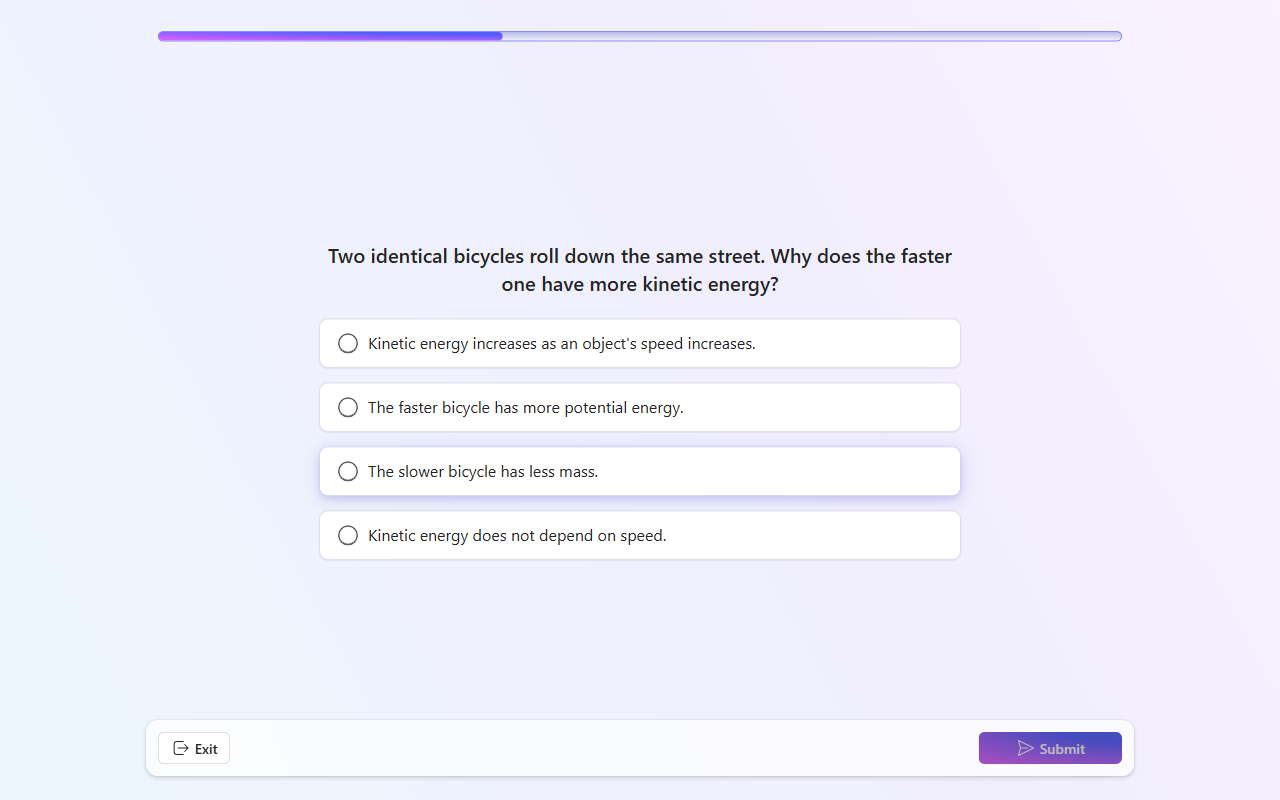
During the lesson, your teacher moves through the slides. When a question appears on your device, choose your answer and select Submit. Your teacher can then show the answer and discuss the results with the class.
Explore the lesson library
Learning Zone includes a library of ready-to-learn lessons created by trusted partners. You can explore these lessons to discover new topics and learn independently.
- Open Discover to browse available lessons.
- Filter lessons by subject, grade, type, or creator, or search by keyword.
- Select a lesson card, and then select Start to begin learning.
Track your progress
You can revisit lessons you've already completed to track your progress and improve your understanding.
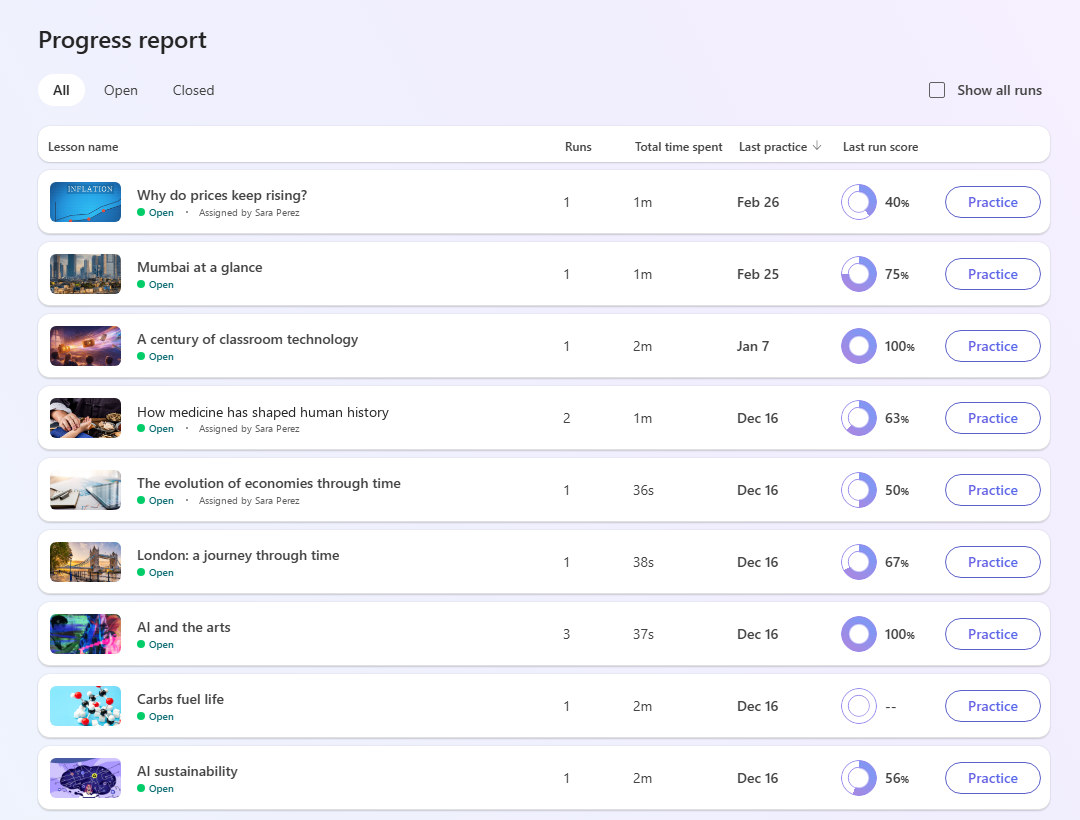
- Open Progress to view your lessons. Filter by All, Open, or Closed lessons.
- For each lesson, see how many times you completed it, the total time you spent, the date you last practiced, and your latest score.
- Select a lesson to review it.
Tip
To try a lesson again, select Practice.
When you open a lesson, you can:
- See your score.
- Check how much time you spent on the lesson.
- See how many times you completed it.
- Review your answers, including any mistakes.
- Select Practice to improve your understanding.
Reports
Microsoft Learning Zone provides built-in reports that help you understand how learners engage with a lesson, how they progress through the exercises, and where they might need support. Reports support formative teaching and reflection. They don't replace summative assessments.
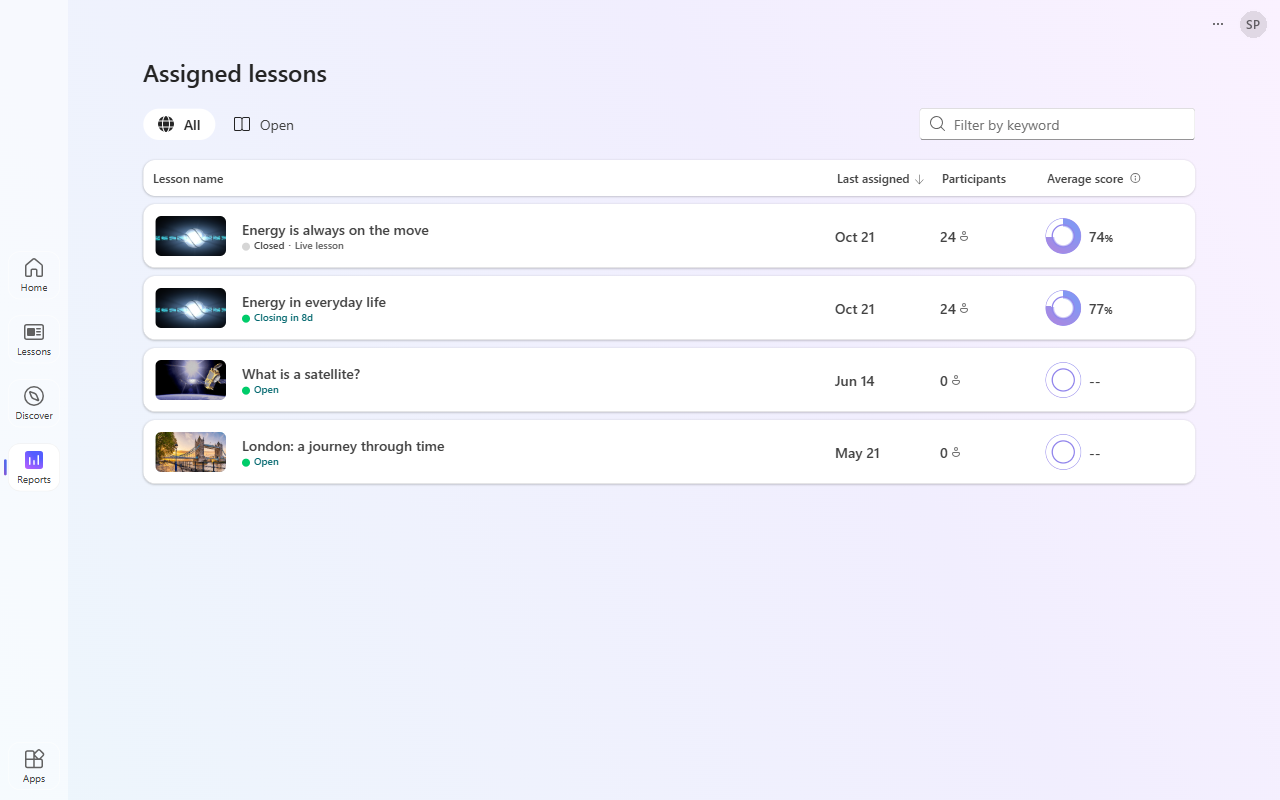
Select Reports in the navigation bar to see your Assigned lessons. For each lesson, you can see when it was last assigned, the number of participants, the average score, and the assignment status: how much time is left before the deadline (for example, Closing in 8d), or how long ago the deadline passed (for example, Due 2 days ago). Lessons you taught live are labeled Live lesson.
Lesson reports
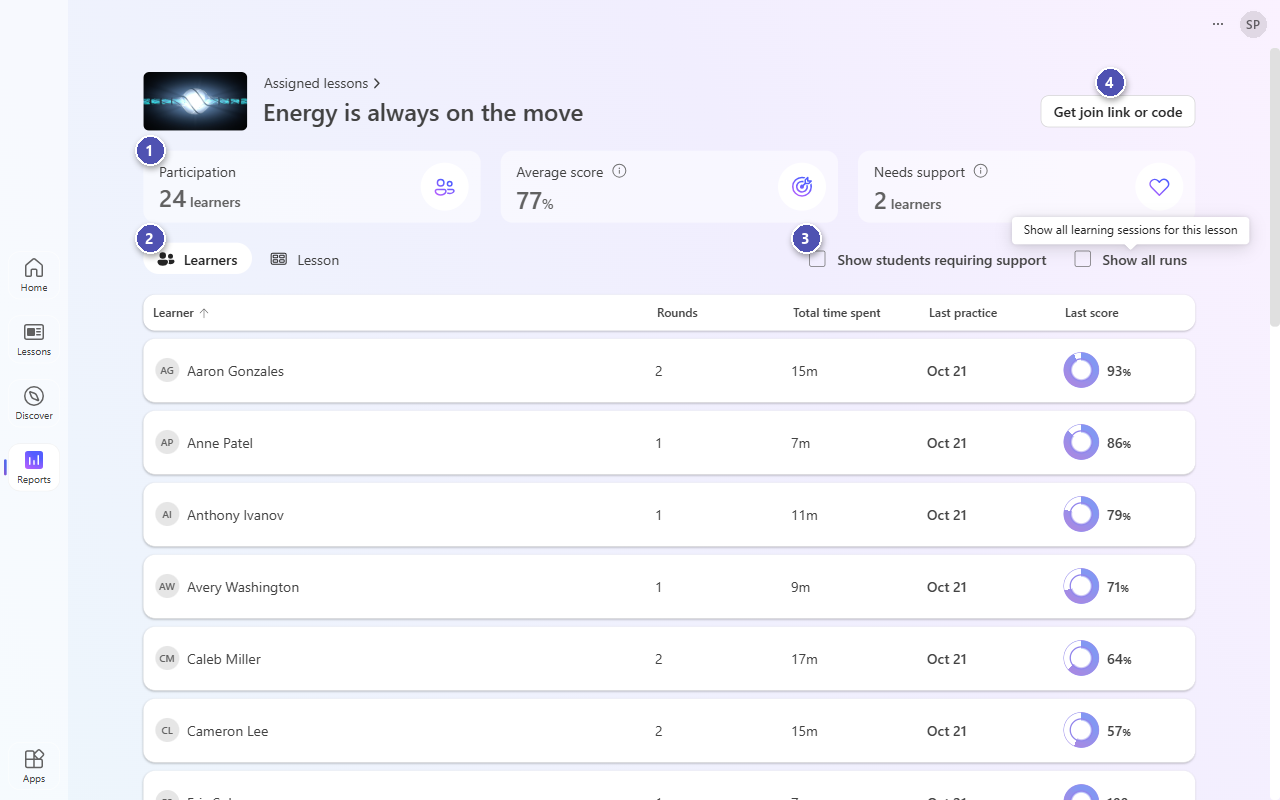
Select a lesson to open its report. Reports relate only to the lesson you assigned, so they reflect real learner activity, and they update as learners work. You can see:
- Participation, Average score, and Needs support: the number of learners who might need help.
- The Learners tab, with each learner's rounds, total time spent, last practice date, and last score.
- Filters to Show students requiring support or Show all runs, which includes every time a learner completed the lesson.
- Get join link or code, if you need to share the lesson again.
Understand learner progress
Use the Learners tab to see who started the lesson, how long they spent on it, and how many rounds they completed. For example, learners who haven't started might need a reminder, and learners who take much longer than expected might need an extra explanation.
Learners can practice a lesson more than once. Each completion counts as a round. Repeated rounds often signal productive practice rather than difficulty.
Understand grading
Each exercise is marked correct or incorrect:
- An exercise answered correctly on the first try earns full credit.
- If a learner answers a main exercise incorrectly and then answers its conditional exercise correctly, the learner earns half credit.
- Exercises answered correctly only when revisited at the end of the lesson don't add to the score.
The lesson score is the percentage of the total possible credit. Reports show the score of each learner's latest round.
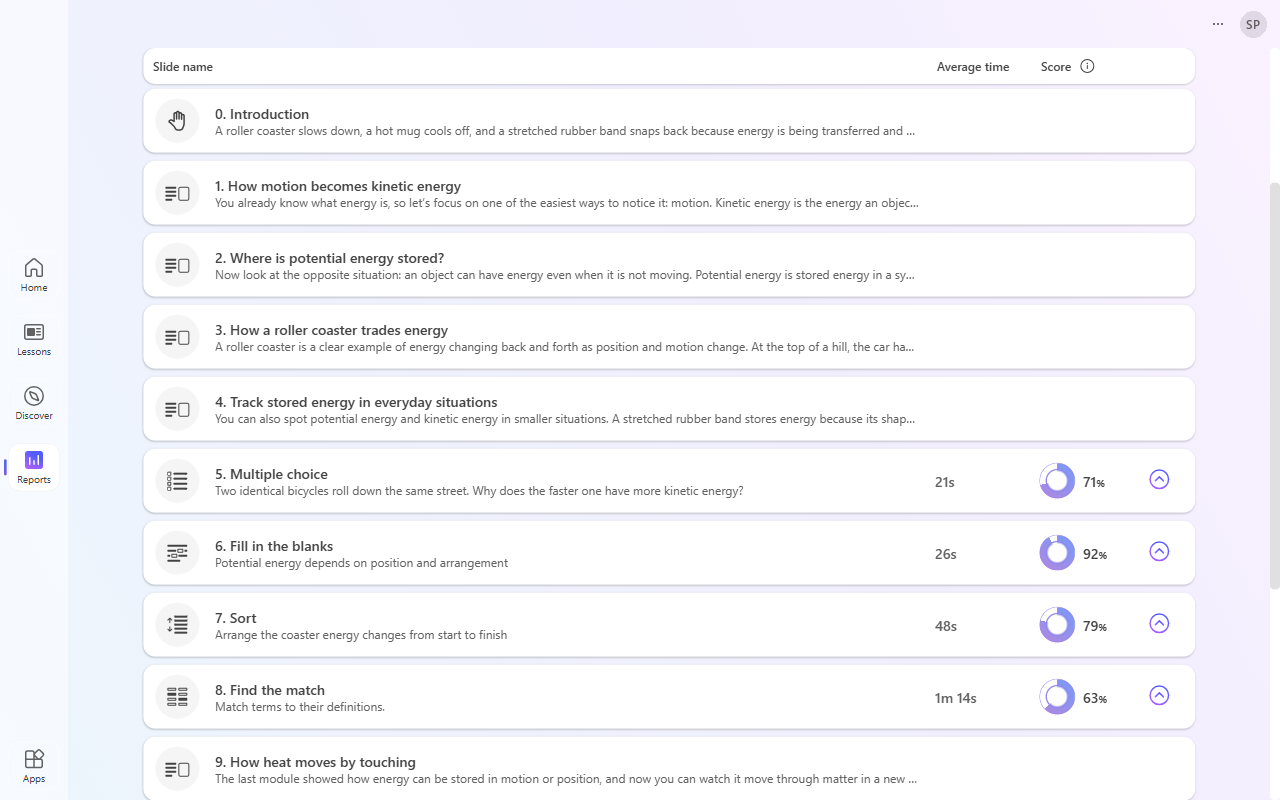
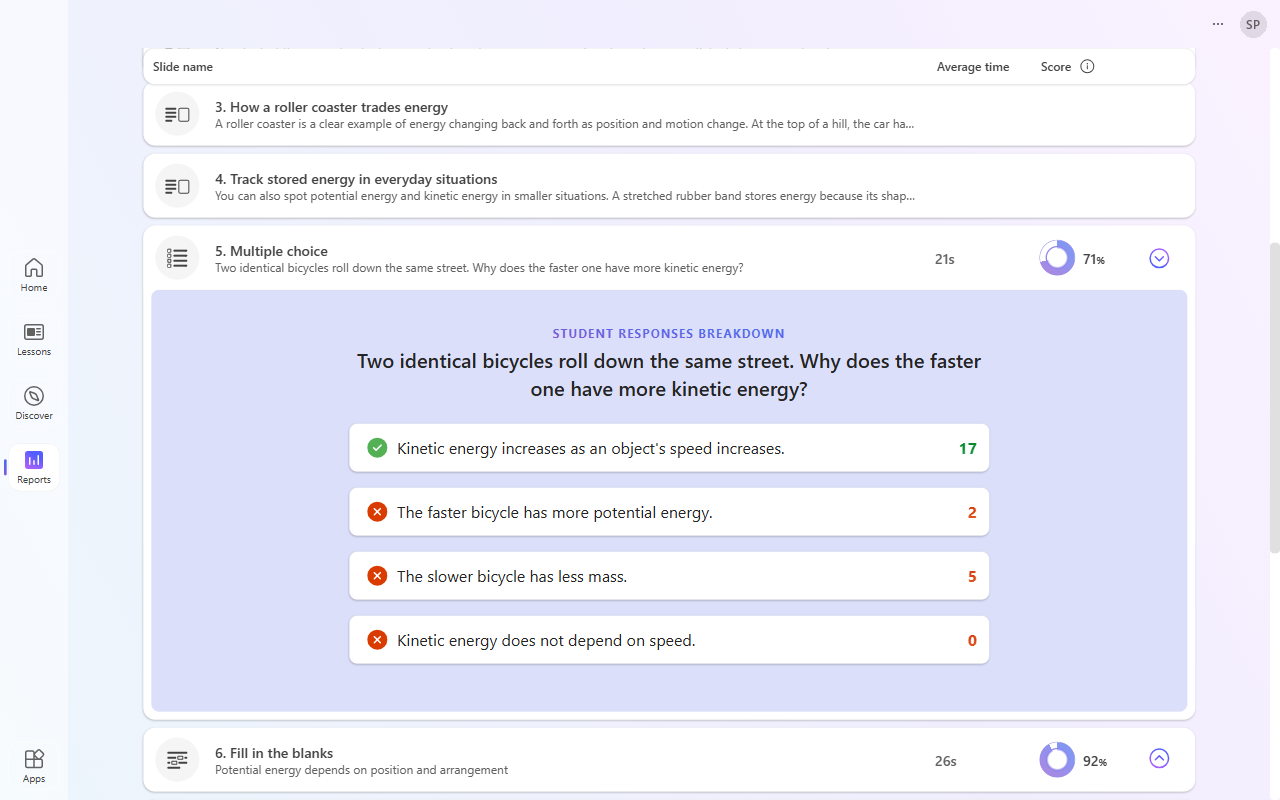
The Lesson tab shows each slide with the average time learners spent on it and, for exercises, the average score. Select Show challenging exercises to focus on the exercises learners found hardest, and select Show details on an exercise to see how many learners chose each answer.
If many learners struggle with the same exercise or concept, use this information to revisit it in class, adjust upcoming lessons, or refine the lesson for future use.
Responsible and transparent use of reports
Use Learning Zone reports responsibly and transparently. You stay in control of how you interpret and apply them, and learners receive feedback focused on their own progress rather than comparisons with others. Use reports to guide improvement and inform your teaching, not to rank or label learners.
Share and export lessons
There are two ways to give a lesson to another educator:
- Share with colleagues gives educators in your organization a link to the lesson. It works only within your school's or institution's Microsoft 365 organization.
- Export saves the lesson as a Learning Zone lesson file (.mlz). You can send the file to anyone, share it on any platform, or add it to your organization's resource library or knowledge base. Anyone with Learning Zone can import the file.
In both cases, the other educator gets their own copy of the lesson. Your original lesson doesn't change.
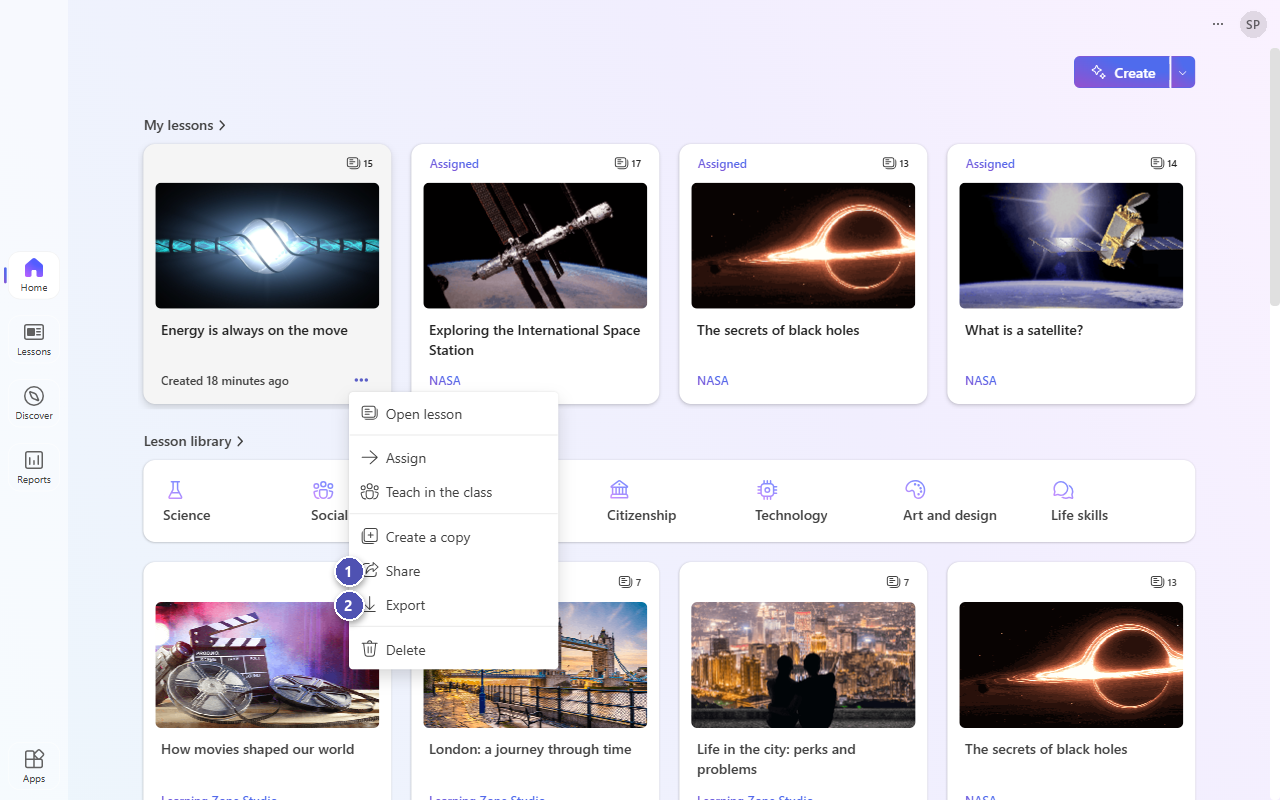
To share or export a lesson, select the ellipsis (…) on the lesson card in My lessons and choose:
- Share
- Export
You can also select Share with colleagues after you save a lesson.
Share with colleagues in your organization
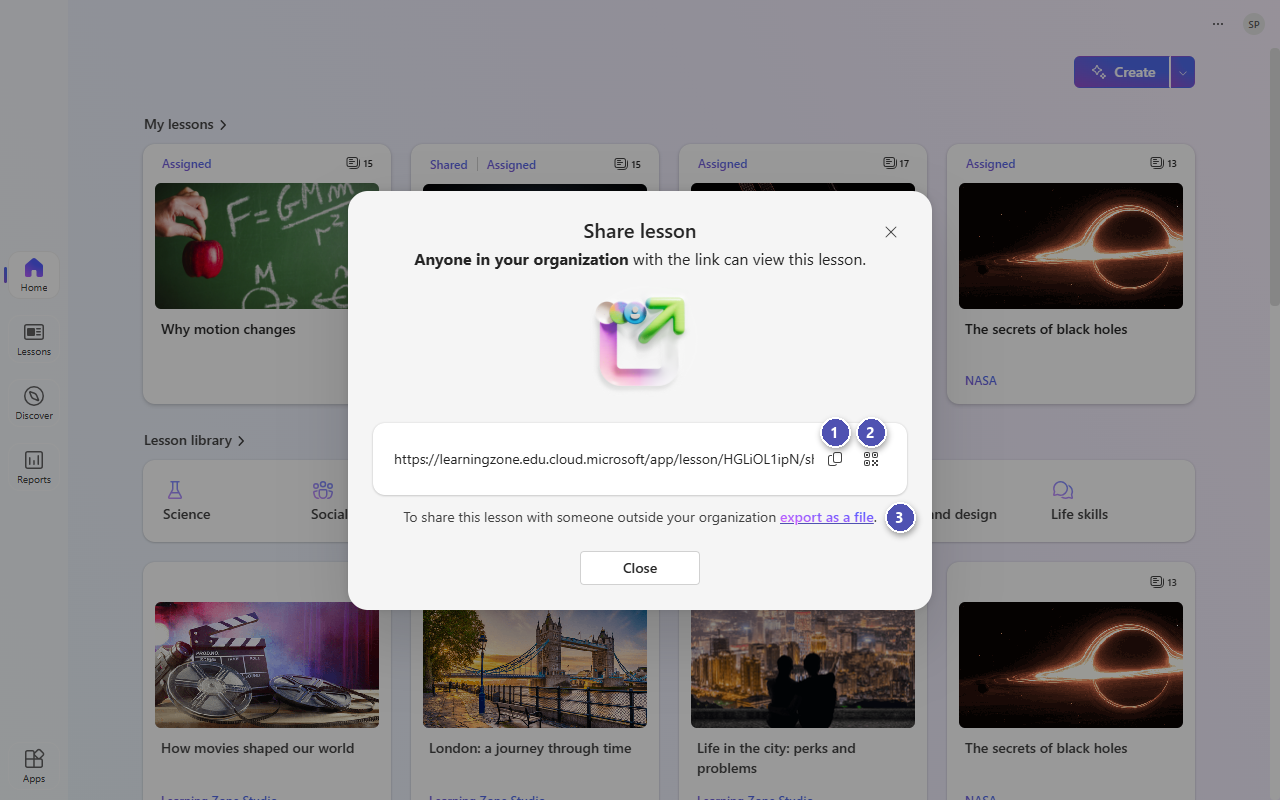
When you share a lesson, Learning Zone creates a link that anyone in your organization can use to view the lesson:
- Select Copy link to copy the lesson link, and then send it to your colleagues, for example in an email or a Teams chat.
- Select View QR code to show a QR code for the link.
- To share the lesson with someone outside your organization, select export as a file.
After you share a lesson, its card is labeled Shared. To get the link again, select the ellipsis (…) on the card and choose Get lesson link. To turn off the link, choose Stop sharing.
Note
Sharing a lesson with colleagues doesn't assign it to learners. To give a lesson to learners, use Assign or Teach in the class.
Receive a shared lesson
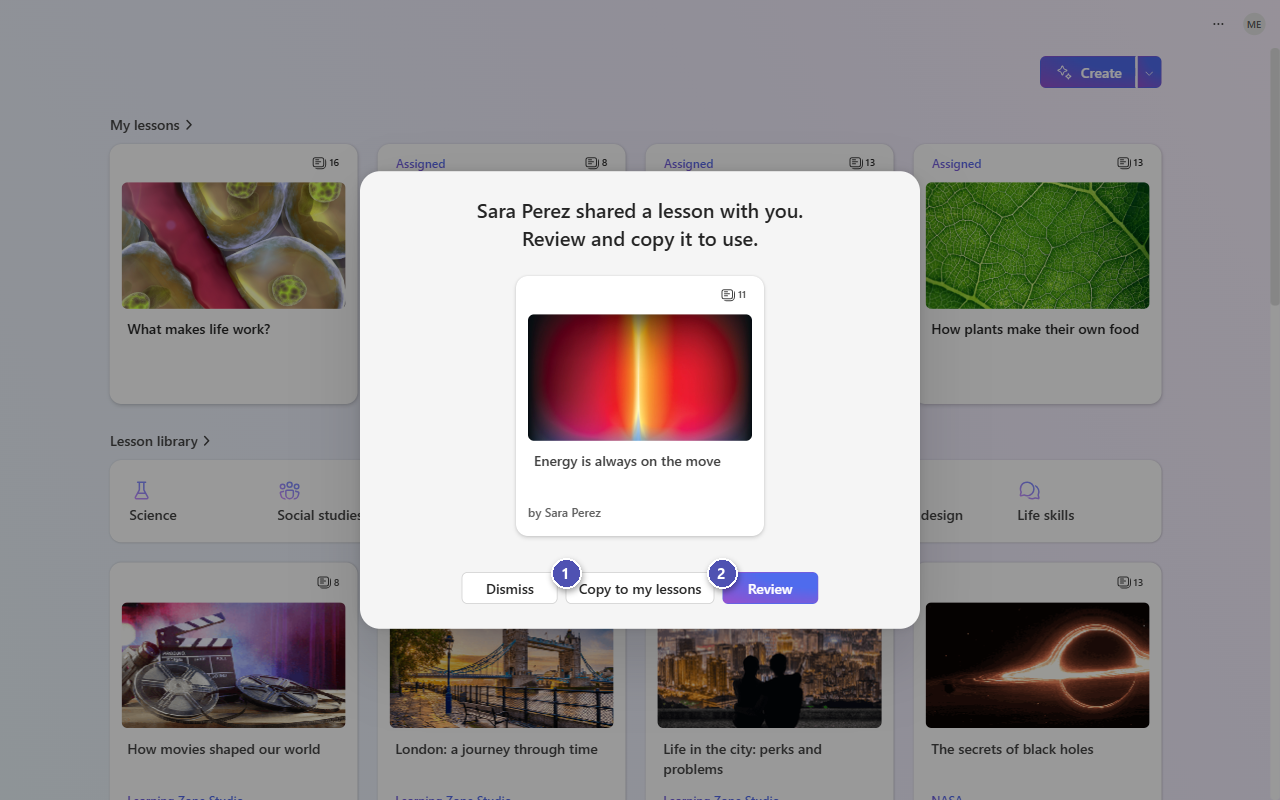
When a colleague opens your link, Learning Zone shows who shared the lesson. Your colleague can:
- Select Copy to my lessons to add an editable copy of the lesson to their My lessons.
- Select Review to look through the lesson first.
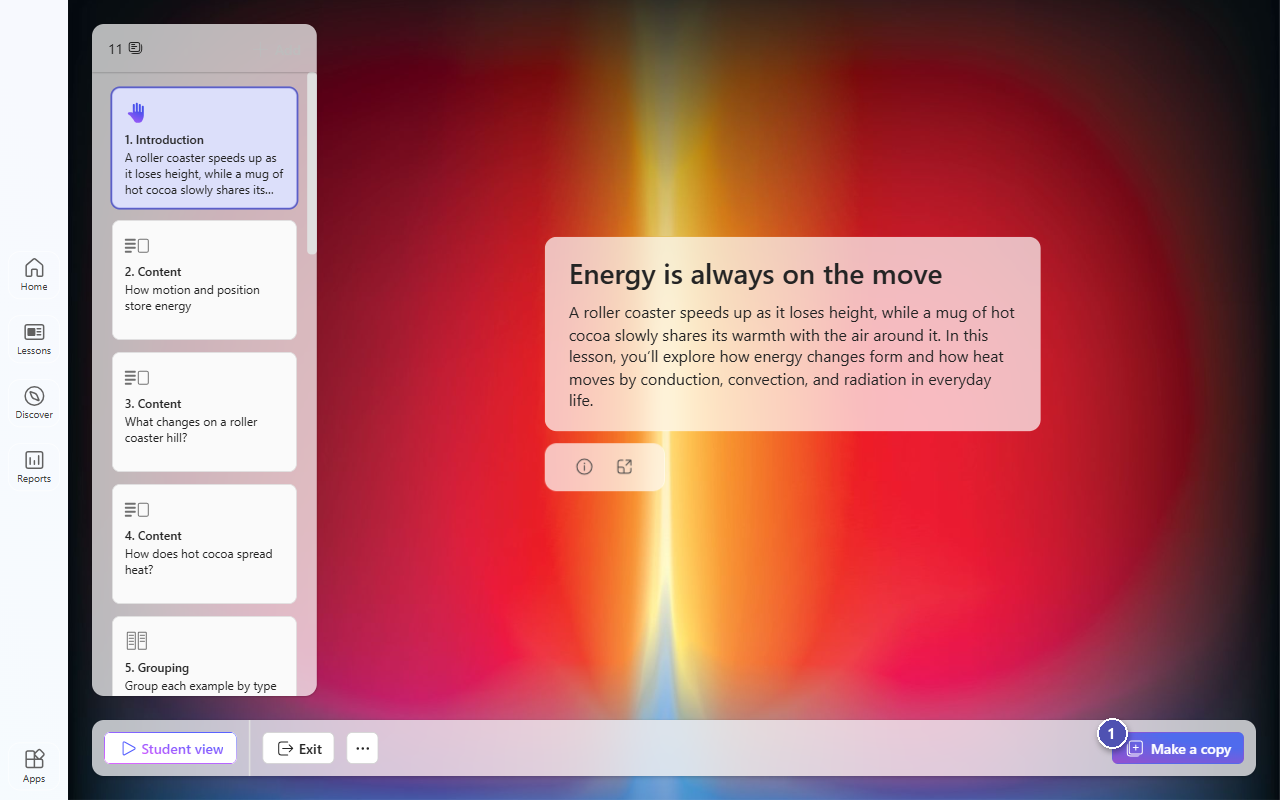
In review, the lesson can't be edited. Your colleague can go through the slides and try the lesson in Student view. To use or change the lesson:
- Select Make a copy. Learning Zone adds the copy to your colleague's My lessons and opens it for editing.
Export a lesson as a file
When you select Export, Learning Zone downloads the whole lesson to your device as a Learning Zone lesson file (.mlz).
- A message confirms that the lesson was exported and downloaded to your device.
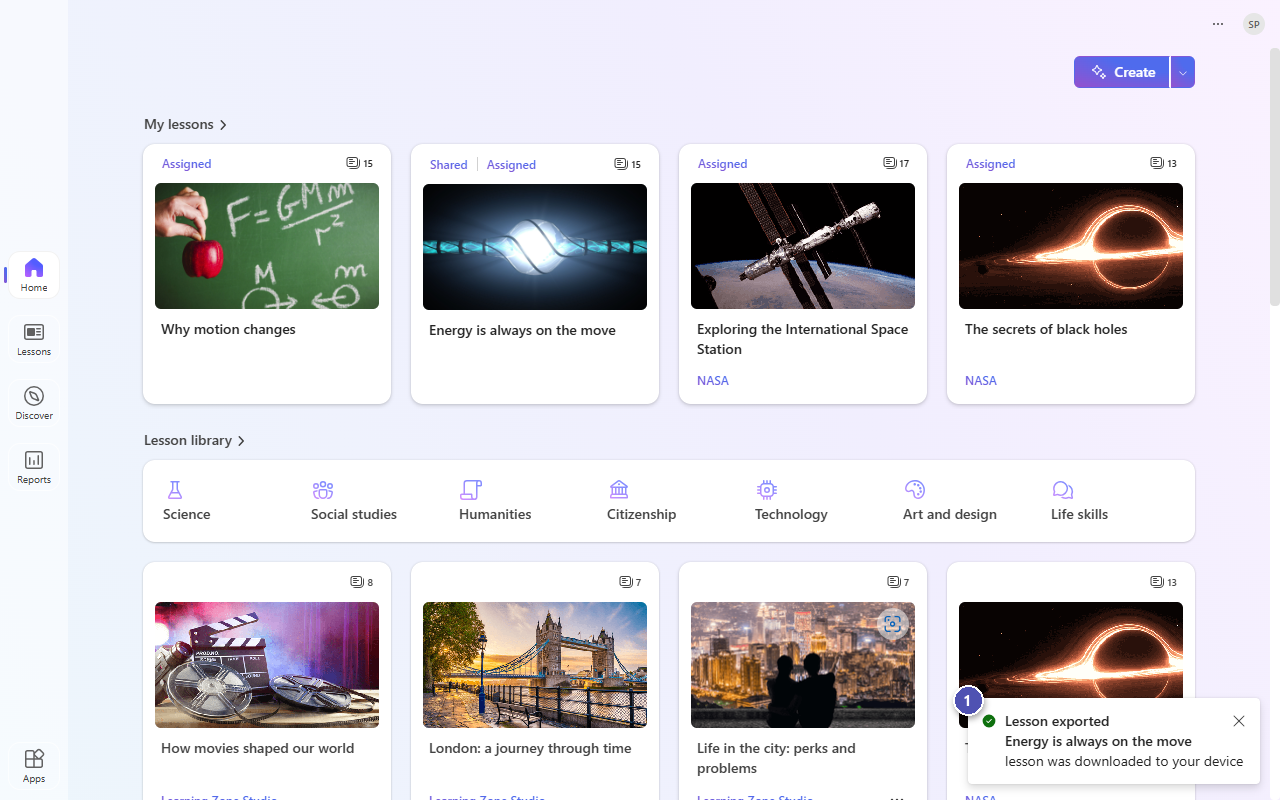
You can then send the file by email, share it in OneDrive, Teams, or another platform, or add it to your organization's resource library or knowledge base, so that other educators can find and reuse it.
Import a lesson file
To import a .mlz file that you received:
- Go to Lessons, select Import Learning Zone lesson (.mlz file) next to Create, and then select the file.
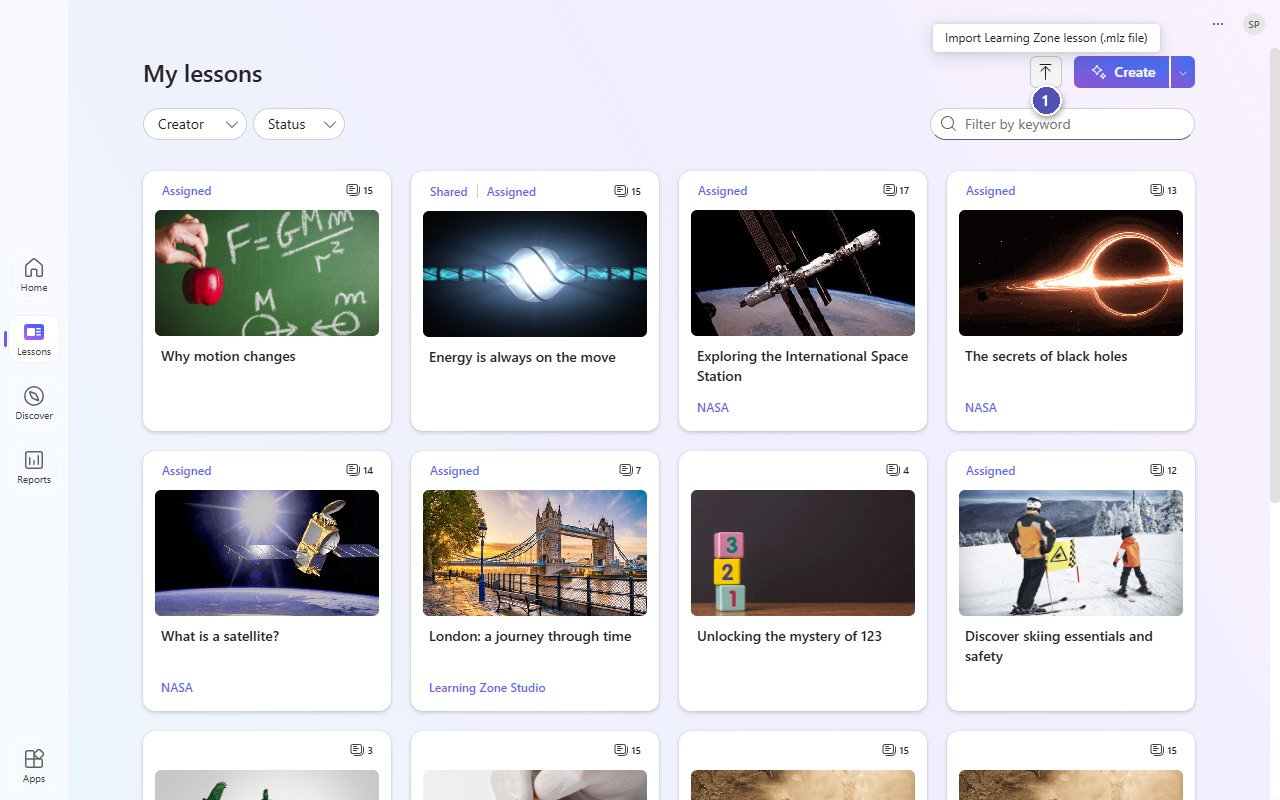
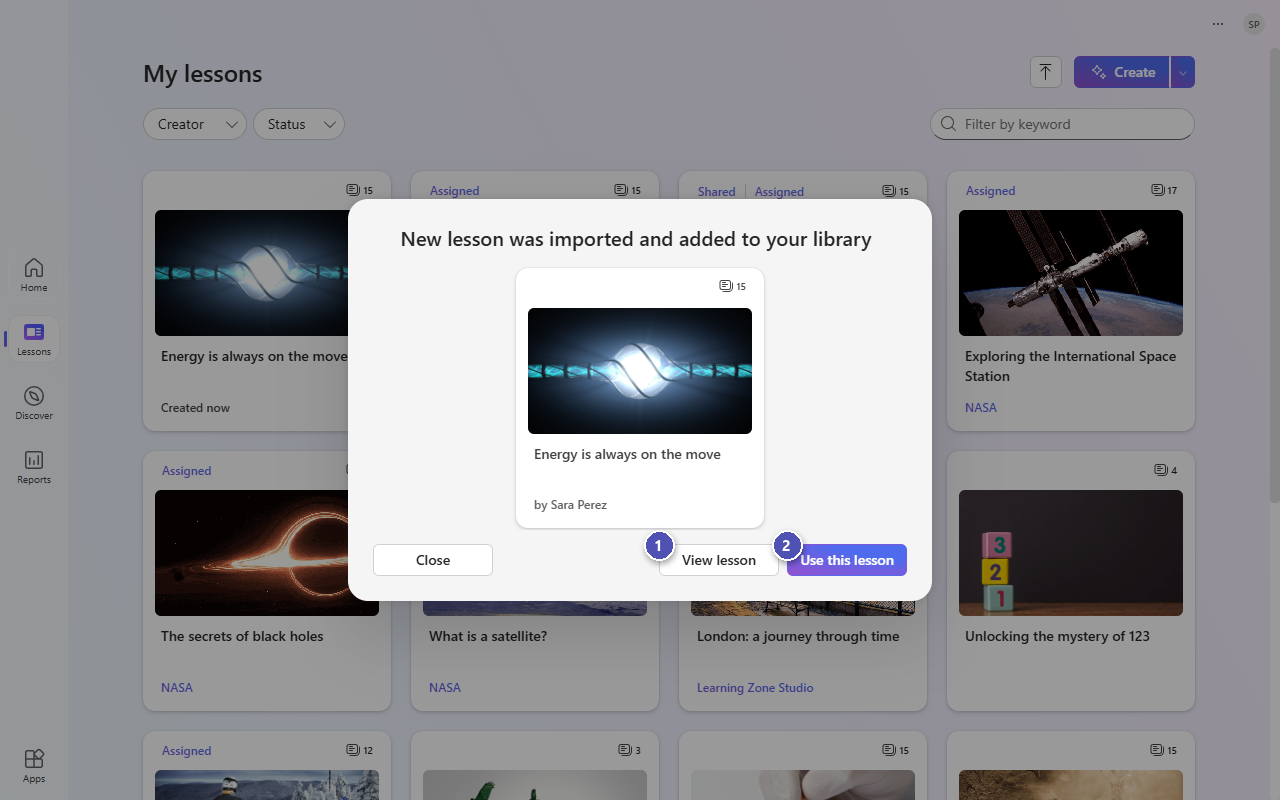
Learning Zone adds the lesson to your My lessons and shows who created it. Then:
- Select View lesson to open it.
- Or, select Use this lesson to assign it, teach it in class, or copy it.
Note
If Learning Zone can't open a file, make sure it's a Learning Zone lesson file (.mlz) and that your app is up to date, or ask for a new copy of the file.
Create a Kahoot! quiz
You can use Microsoft Learning Zone to create a Kahoot! quiz, and then open it in your Kahoot! account to edit, host, and share it. Creating a quiz follows a process similar to creating an interactive lesson: you describe the topic, choose the grade and language, and Learning Zone creates the quiz for you.
On the Home page, select the arrow next to Create, and under Partners, choose Kahoot! quiz.
Describe the quiz. You can also add standards and references, and choose the grade level, language, and estimated number of slides.
Select Next, and review the quiz outline. To refine it, describe the changes you want in the text box. When you're happy with the outline, select Generate quiz.
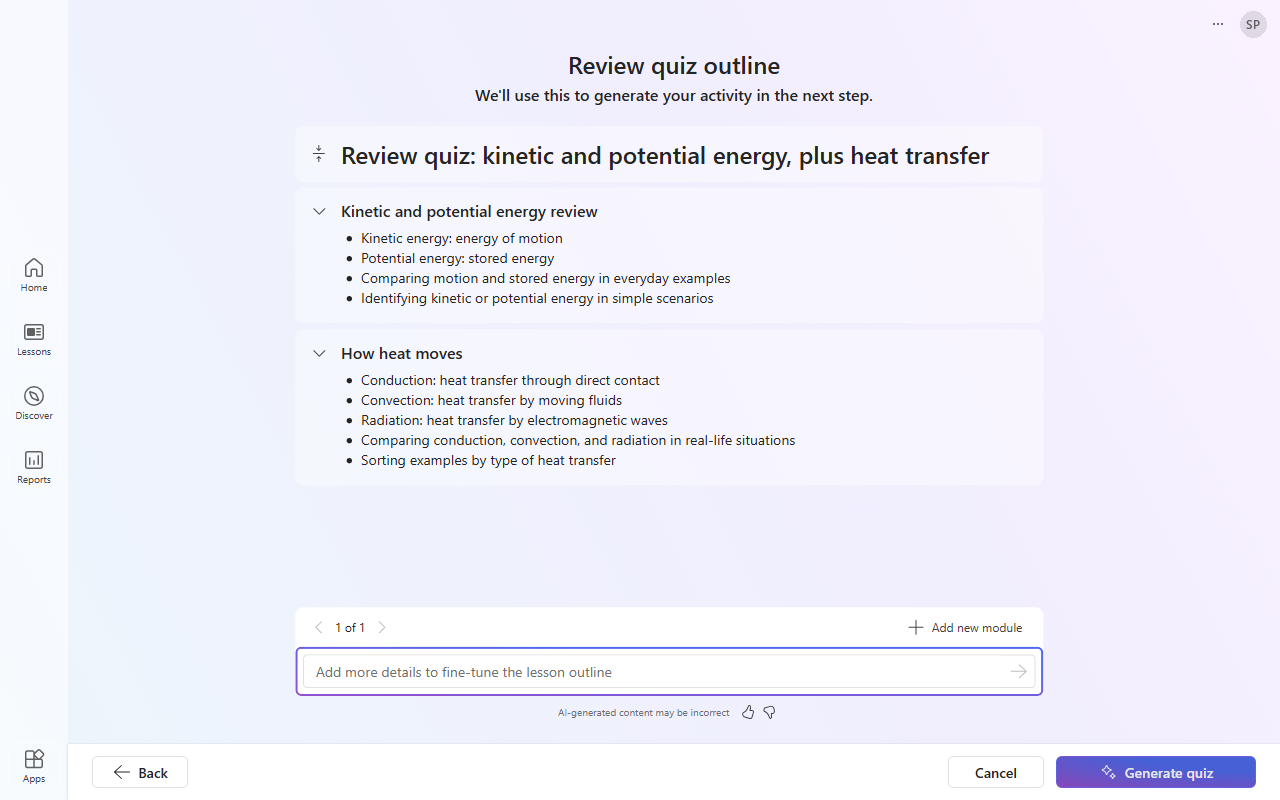
Learning Zone generates the quiz and shows a preview. Select Open kahoot to open the quiz in Kahoot!.
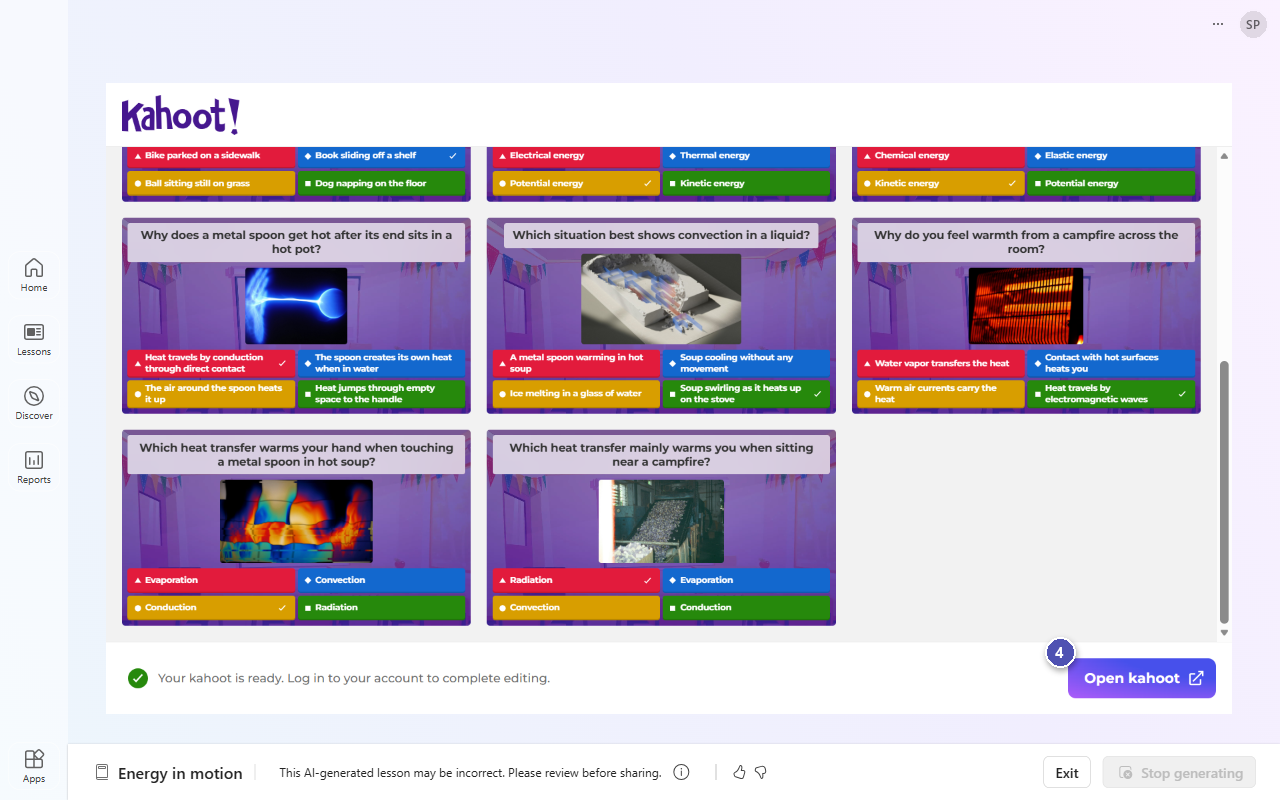
Sign in to your Kahoot! account, or create one. You can use single sign-on with your Microsoft account.
Your quiz is saved in your Kahoot! account. From there, you can edit the questions, images, settings, and question order, and then host or assign the quiz as usual.
Tip
Review the questions and images before you use the quiz. AI-generated content can be incorrect. For more information about editing and hosting quizzes, see Kahoot! help.
Learning Zone ready-to-learn lessons
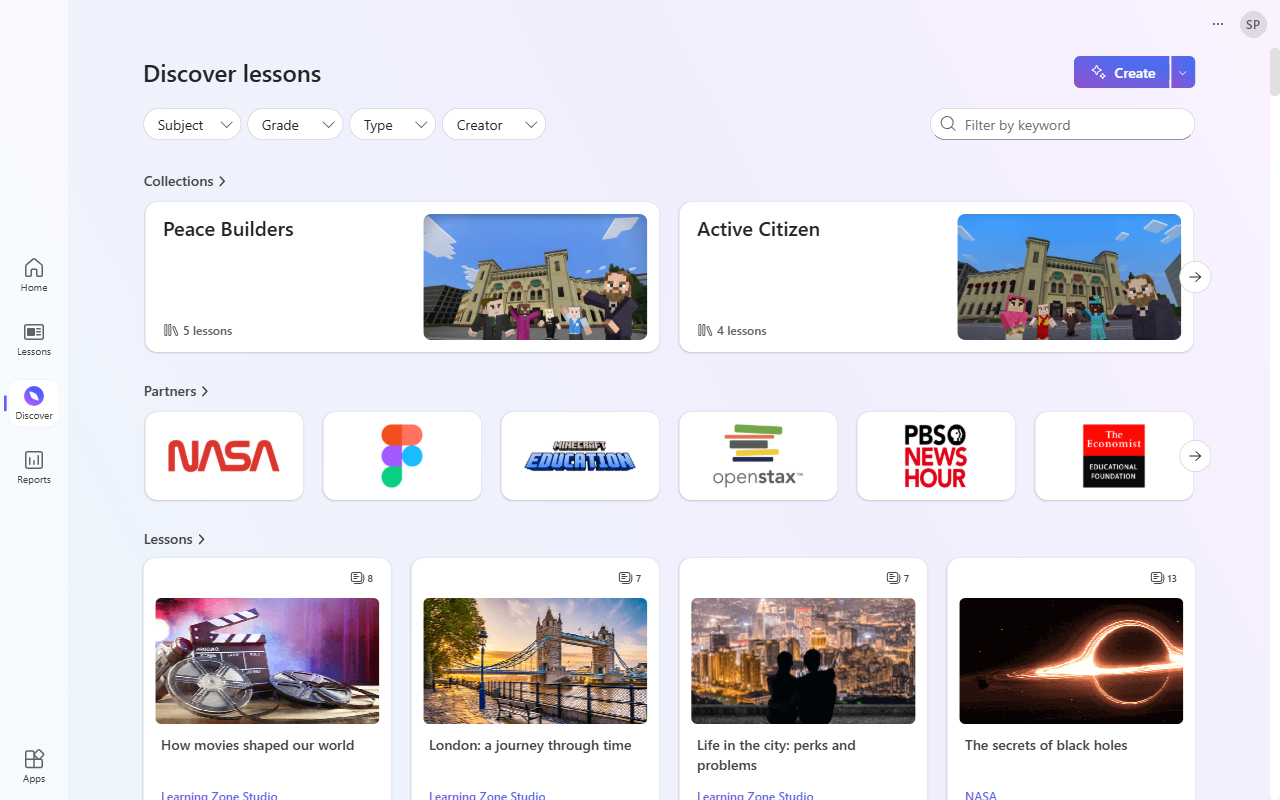
Learning Zone includes a library of curated lessons and collections from trusted partners, such as NASA, Minecraft Education, OpenStax, PBS NewsHour, and The Economist Educational Foundation.
- Select Discover to explore ready-to-learn lessons.
- Filter the lessons by subject, grade, type, or creator, or search by keyword. You can also browse Collections and Partners.
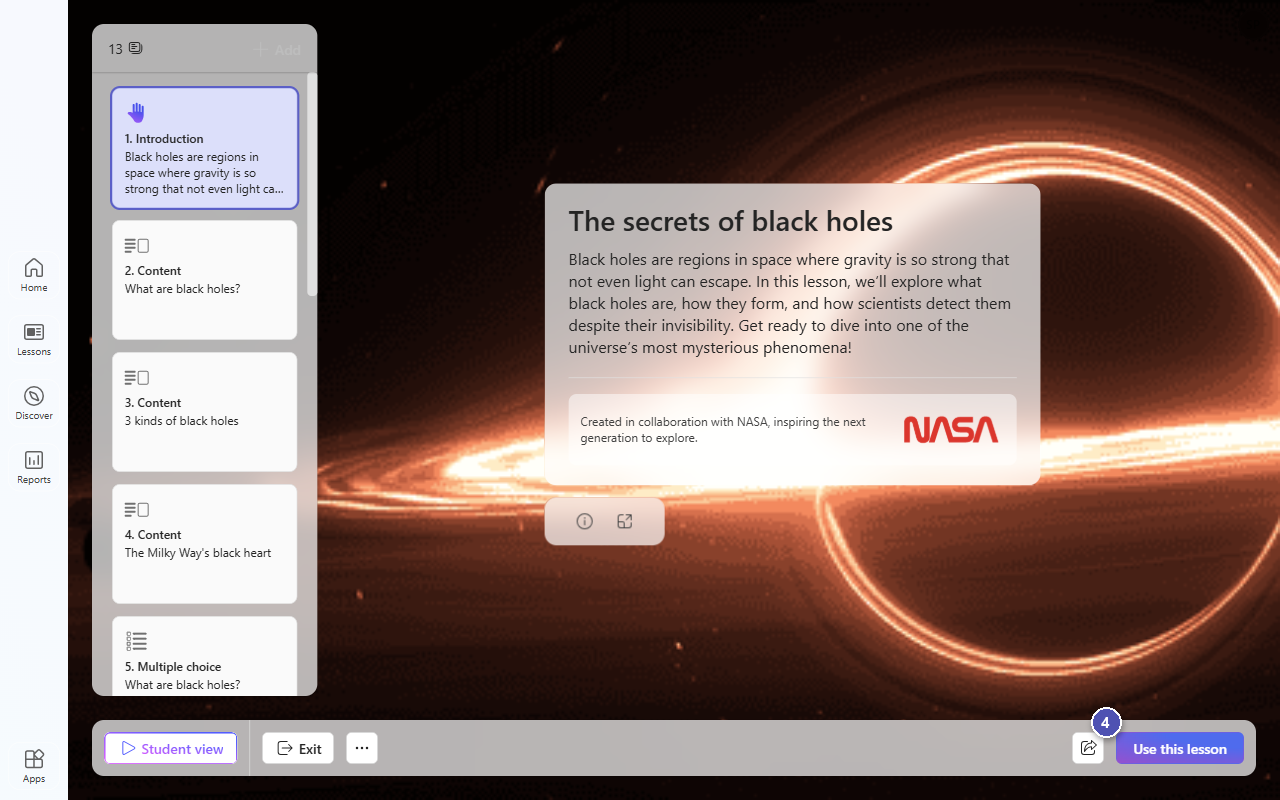
- Select a lesson card to open the lesson.
- Review the lesson, and then select Use this lesson.
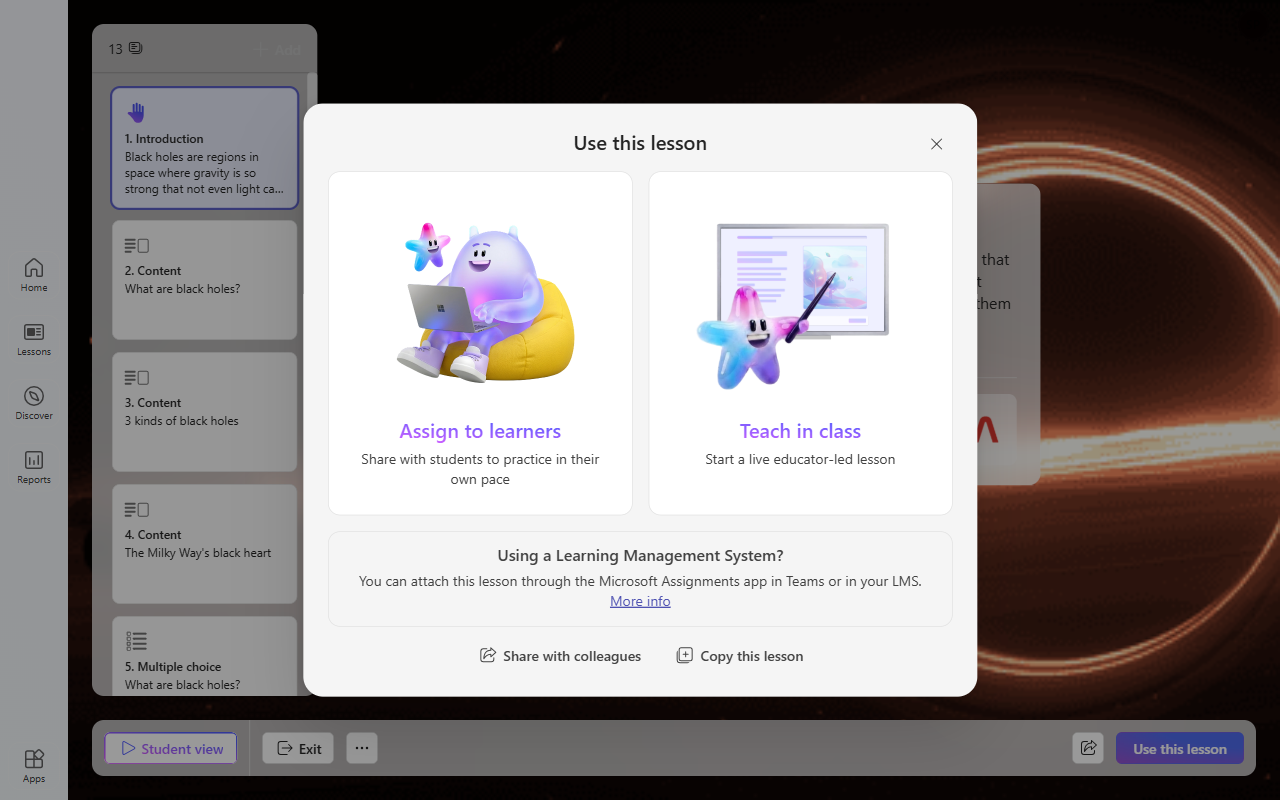
- Choose Assign to learners or Teach in class to use the lesson as is, or select Copy this lesson to create your own editable version.
Note
Learners can also explore ready-to-learn lessons on their own in the Learning Zone app, so they can follow the topics that interest them.
