
Applies To: Microsoft 365 LTI
Copilot teaching tools in Microsoft 365 LTI bring AI-powered teaching capabilities from Teach in the Microsoft 365 Copilot app directly into supported Learning Management Systems (LMS).
Educators can create and adapt instructional materials, differentiate instruction, adjust reading levels, align content to educational standards, and create interactive learning activities—all within their LMS workflows.
These capabilities are powered by the same Microsoft Teach experience available in the Microsoft 365 Copilot app.
Note
Teach is available to faculty and staff with a Microsoft 365 Education license and doesn't require a paid Microsoft 365 Copilot license.
In this article
- Get started with Copilot teaching tools
- Explore Copilot teaching tools
- Create interactive learning activities
- Access Copilot teaching tools in your LMS
- Get help and give feedback
Get started with Copilot teaching tools
Copilot teaching tools are available through the Microsoft Education integration in supported learning management systems. Before getting started, confirm that your organization's LMS administrator has deployed Microsoft 365 LTI and enabled Copilot teaching tools.
Users with the following LMS course roles can use Copilot teaching tools:
- Instructors
- Teaching assistants
- Course designers
- Administrators with inherited instructor permissions
Supported learning management systems include Canvas, Blackboard Ultra, Schoology, D2L Brightspace, and Moodle.
For more information about deploying the integration, see Microsoft 365 LTI overview and deployment documentation.
Explore Copilot teaching tools
Copilot teaching tools use generative AI to help educators create and modify educational content. Educators can tailor existing materials to different learning needs, enhance instructional content, and prepare resources for students.
Curriculum planning
Lesson plan
Create a lesson plan in a guided experience that uses international education standards for grounding and AI-powered suggestions. Lesson plans can be saved as Microsoft Word documents.
Homework and assessments
Rubric
Create grading rubrics for consistent evaluation of student work, using international education standards for grounding and AI-powered suggestions. Rubrics can be saved as Microsoft Word documents.
Modify existing content
Align to standards
Adapt instructional content to align with relevant educational standards and curriculum objectives.
Learn more about align to standards
Differentiate instructions
Customize instructions and learning activities for students with different learning needs and abilities.
Learn more about differentiate instructions
Modify reading level
Adjust the complexity of instructional text to better match students' reading abilities.
Learn more about modify reading level
Add supporting examples
Enhance instructional content with additional explanations, context, and real-world examples.
Learn more about add supporting examples
Create interactive learning activities
Copilot teaching tools can transform existing educational content into interactive learning activities that help students practice and reinforce understanding. Educators can create activities from instructional materials and share them through LMS courses.
Tip
Learning activities can be embedded into LMS course content and assignment instructions, allowing students to access practice materials alongside their coursework.
Flashcards
Create interactive flashcards from educational content to help students review important concepts, terminology, and information.
Fill in the blanks
Transform educational content into interactive fill-in-the-blank exercises that reinforce key concepts. Availability might vary as this capability rolls out.
Matching
Create interactive matching activities that challenge students to connect related concepts, terms, or definitions. Activities might include leaderboard options.
Access Copilot teaching tools in your LMS
After your LMS administrator enables Copilot teaching tools, access them through the Microsoft Education integration in your course. Entry points depend on your LMS.
Canvas
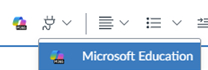
From the Rich Content Editor:
Open a course and go to a content area that supports the Rich Content Editor.
Select the Apps (plug) icon.
Select Microsoft Education.
Choose the Copilot teaching tool or learning activity you want to use.
From assignments or modules:
Open your Canvas course.
Go to Assignments or Modules.
Select More options (...) or Add (+) in a module.
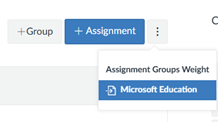
Choose Microsoft Education. When adding a module item, select External Tool first.
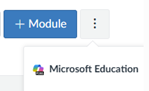
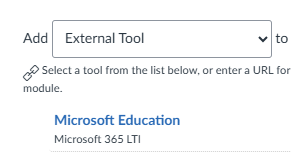
Select the activity you want to create.
Blackboard Ultra
Open your Blackboard course.
Open your Blackboard course.
In the course content area, select Add (+).
Select Content Market.
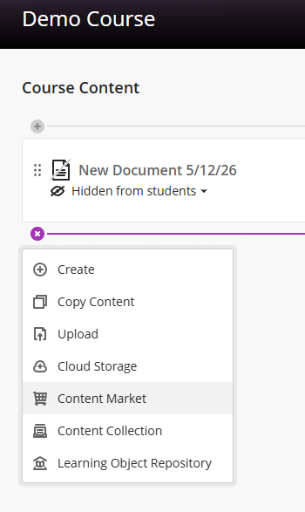
Choose Microsoft Education Activity/Assignment.
Select Copilot Teaching Tools.
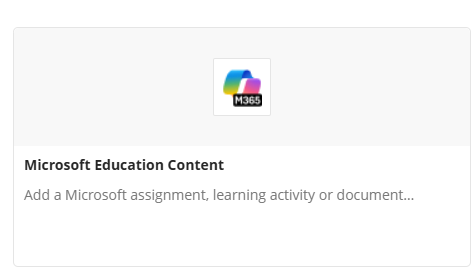
Choose the activity you want to create.
Schoology
To create a learning activity:
Open your Schoology course.
Go to Materials.
Select Add Materials.
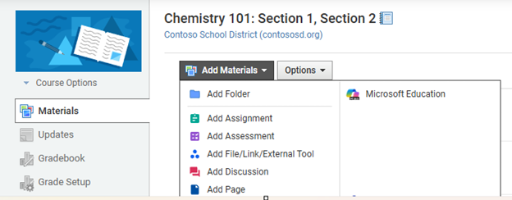
Choose Microsoft Education.
Select the learning activity you want to create.
To insert content into an existing item:
Open an assignment, discussion, or page that supports LTI content.
In the text editor, select Insert Content.
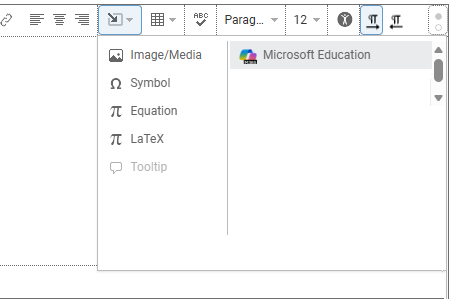
Choose Microsoft Education.
Select the content or learning activity you want to insert.
D2L Brightspace
- Open your Brightspace course.
- Go to Content.
- Select Add Existing or Existing Activities, depending on your course interface.
- Choose Microsoft Education Activity.
- Select the activity you want to create.
Moodle
Open your Moodle course.
Turn on Edit Mode.
Select Add an activity or resource.
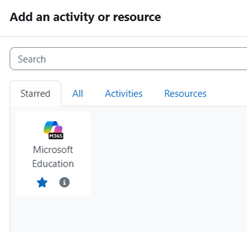
Choose Microsoft Education.
Select Select Content to open the Microsoft 365 LTI experience.
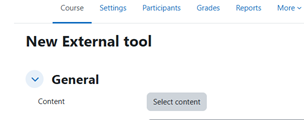
Choose the learning activity you want to create.
Tip
In Moodle, mark Microsoft Education as a favorite to find it more easily when adding activities.
Getting help and giving feedback
For educators and students: Access help and provide feedback from the Help and feedback menu in the Microsoft Education application.
For LMS and Microsoft 365 administrators: If you experience issues with deployment, configuration, or enabling Copilot teaching tools, contact Microsoft Education Support.
Share your feedback: Copilot teaching tools will continue to evolve with additional capabilities and improvements.