The HAS function allows you to check whether a value exists anywhere in an array or range. It returns TRUE if the value is found and FALSE if it isn't.
HAS searches every level of a nested array, so you can use it on arrays that are stored inside a single cell.
Syntax
The HAS function determines whether value exists in array.
The syntax of the HAS function is:
HAS(array, value)
| Argument | Description |
|---|---|
| array (required) |
The array or range to search within. Every level of a nested array is searched. |
| value (required) |
The value, or array of values, to search for. |
Note
- Comparisons are strict about type. The number 1 doesn't match the text "1", and the number 1 doesn't match TRUE. If you need to compare across types, convert the value first — for example, with the VALUE function.
- Text comparisons aren't case-sensitive, so "apple" matches "APPLE".
- When value is an array, HAS returns an array of TRUE and FALSE results with the same shape as value. Each value is tested on its own.
- If array is empty, HAS returns the #CALC! error.
- If value contains an error, that error is returned.
- To check for several values at once with a single TRUE or FALSE answer, use HASANY or HASALL.
Examples
Copy the example data and paste it in cell A1 of a new Excel worksheet. If you need to, you can adjust the column widths to see all the data.
Example 1
Check whether a range contains specific values.
| Data | ||||
|---|---|---|---|---|
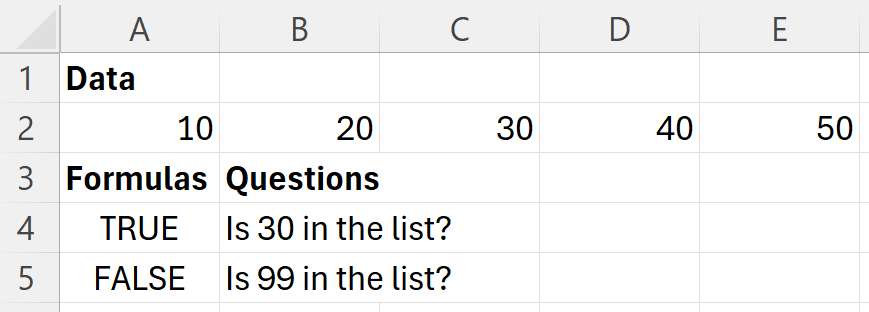
| 10 | 20 | 30 | 40 | 50 |
| Formulas | Questions |
|---|---|
| =HAS(A2:E2,30) | Is 30 in the list? |
| =HAS(A2:E2,99) | Is 99 in the list? |
The following illustration shows the results.
Example 2
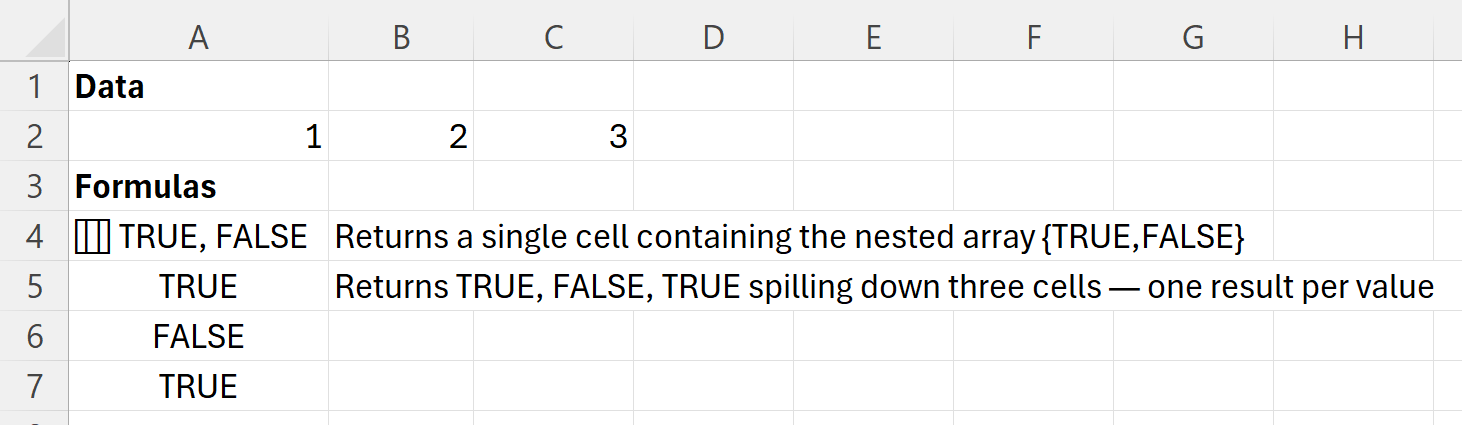
Check for several values at once. Because the second argument is an array, HAS returns one result per value, in the same shape as the values you searched for.
| Data | ||
|---|---|---|
| 1 | 2 | 3 |
Leave two empty cells below the second formula so its results can spill.
| Formulas | Description |
|---|---|
| =HAS(A2:C2,{{2,5}}) | Returns a single cell containing the nested array {TRUE,FALSE} |
| =HAS(A2:C2,{2;5;3}) | Returns TRUE, FALSE, TRUE spilling down three cells — one result per value |
The following illustration shows the results.
Example 3
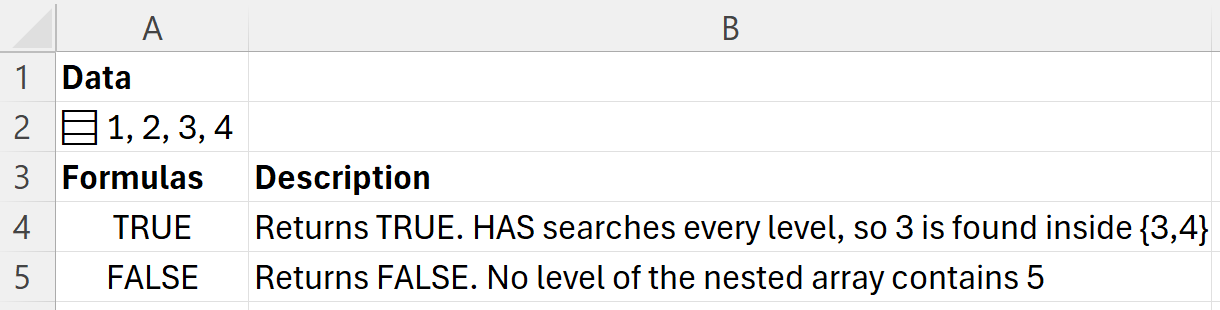
Search inside a nested array. Copy the entire table and paste it into cell A1 of a new worksheet. The formula in A2 stores a nested array in a single cell.
| Data | |
|---|---|
| ={{{1,2};{3,4}}} | |
| Formulas | Description |
| =HAS(A2,3) | Returns TRUE. HAS searches every level, so 3 is found inside {3,4} |
| =HAS(A2,5) | Returns FALSE. No level of the nested array contains 5 |
The following illustration shows the results.