The HASANY function allows you to check whether an array or range contains at least one of the values you're looking for. It returns TRUE if any of the values are found and FALSE if none of them are.
HASANY searches every level of a nested array, so you can use it on arrays that are stored inside a single cell.
Syntax
The HASANY function determines whether array contains any of the values.
The syntax of the HASANY function is:
HASANY(array, values)
| Argument | Description |
|---|---|
| array (required) |
The array or range to search within. Every level of a nested array is searched. |
| values (required) |
The values to check for. HASANY returns TRUE if any of them are found. |
Note
- HASANY always returns a single TRUE or FALSE, no matter how many values you search for. To get one result per value, use the HAS function instead. To require that every value is present, use the HASALL function.
- Comparisons are strict about type. The number 1 doesn't match the text "1", and the number 1 doesn't match TRUE. Text comparisons aren't case-sensitive, so "apple" matches "APPLE".
- If array is empty, HASANY returns the #CALC! error.
- If values contains an error, that error is returned.
Examples
Copy the example data and paste it in cell A1 of a new Excel worksheet. If you need to, you can adjust the column widths to see all the data.
Example 1
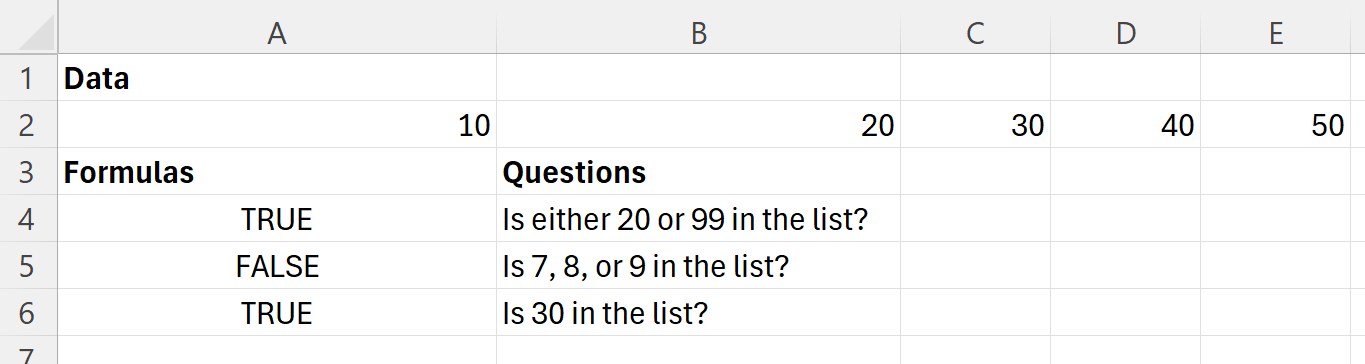
Check whether a range contains at least one of several values.
| Data | ||||
|---|---|---|---|---|
| 10 | 20 | 30 | 40 | 50 |
| Formulas | Questions |
|---|---|
| =HASANY(A2:E2,{20,99}) | Is either 20 or 99 in the list? |
| =HASANY(A2:E2,{7,8,9}) | Is 7, 8, or 9 in the list? |
| =HASANY(A2:E2,30) | Is 30 in the list? |
The following illustration shows the results.
Example 2
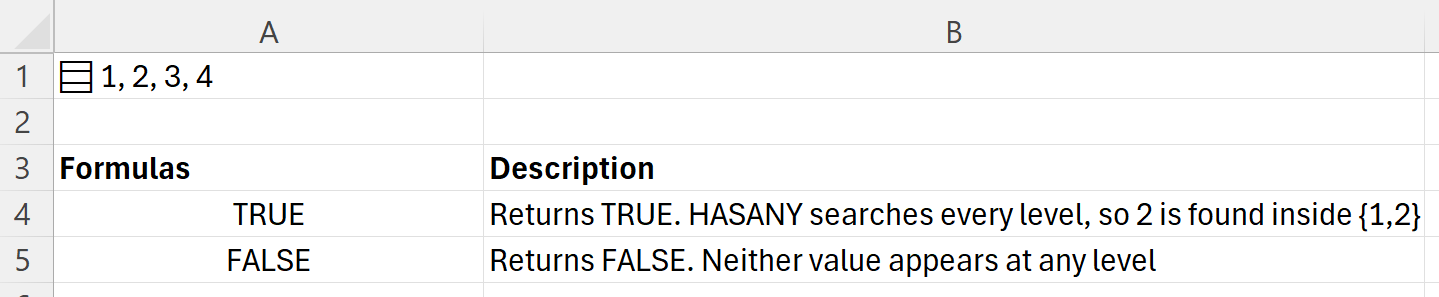
Search inside a nested array. The formula ={{{1,2};{3,4}}} in cell A1 stores a nested array in a single cell.
| Formulas | Description |
|---|---|
| =HASANY(A1,{2,5}) | Returns TRUE. HASANY searches every level, so 2 is found inside {1,2} |
| =HASANY(A1,{5,6}) | Returns FALSE. Neither value appears at any level |
The following illustration shows the results.
Example 3
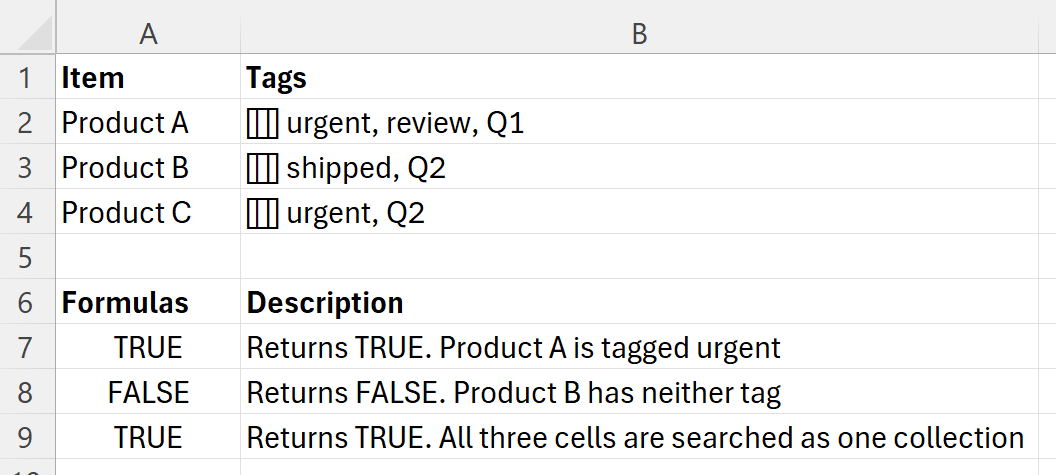
Check a list of tags. Each cell in column B holds a List of tags, displayed separated by commas.
After you paste the data, select B2:B4 and press Ctrl+J to turn each cell into a List. Until you do, each cell holds a single piece of text, and the formulas below won't find the individual tags.
| Item | Tags |
|---|---|
| Product A | urgent, review, Q1 |
| Product B | shipped, Q2 |
| Product C | urgent, Q2 |
| Formulas | Description |
|---|---|
| =HASANY(B2,{"urgent","blocked"}) | Returns TRUE. Product A is tagged urgent |
| =HASANY(B3,{"urgent","blocked"}) | Returns FALSE. Product B has neither tag |
| =HASANY(B2:B4,"shipped") | Returns TRUE. All three cells are searched as one collection |
Note
The last formula searches the whole range at once, because array is a single collection rather than a list of items to test one by one. To get a separate answer for each row, enter the formula in one cell and fill it down the column.
The following illustration shows the results.