
Caution
- If you rename a shared notebook, everyone loses access. Before renaming notebooks that you already shared with other people, consider giving the other notebook authors advance notice about your plans to rename the notebook they’re working in. Learn how to re-share the notebook after the rename.
- Do not rename Class and Staff Notebooks as this action disrupts student and staff access.
To rename a OneNote notebook
To rename a OneNote notebook, go to its file location in OneDrive or SharePoint.
Go to www.onenote.com.
Select the notebook you want to rename to open it.
Select the notebook name at the top of the window to display a flyout with the Location.
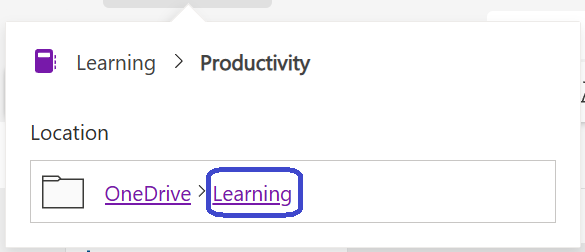
Select the last link on the location to open that OneDrive or SharePoint folder.
In the list of files displayed, find the OneNote notebook that you want to rename.
Right-click on that notebook, and select Rename.
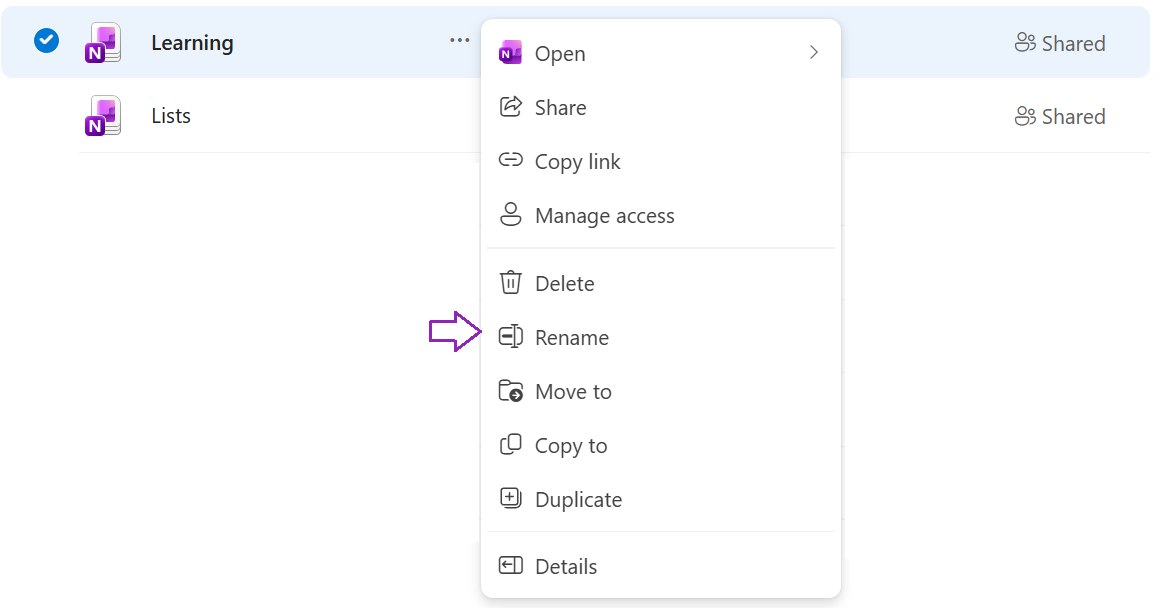
In the Rename dialog box, enter a new notebook name, and select Update.
Caution
If you rename a shared notebook, everyone loses access.
To change the display name for a notebook
You can also set a display name for a notebook in the OneNote app on Windows. This name change affects only your view in the app and doesn't rename the notebook for everyone else.
To change the display name, use OneNote on Windows:
Right-click the notebook.
Select Properties.
Change the Display name to your desired name.
Select OK.
Note
This change might not appear when viewing the notebook on certain locations such as OneNote on the web.