
The ruler in the Draw tab helps you draw straight lines, align ink, and create precise annotations. You can move and rotate the ruler to any angle you need.
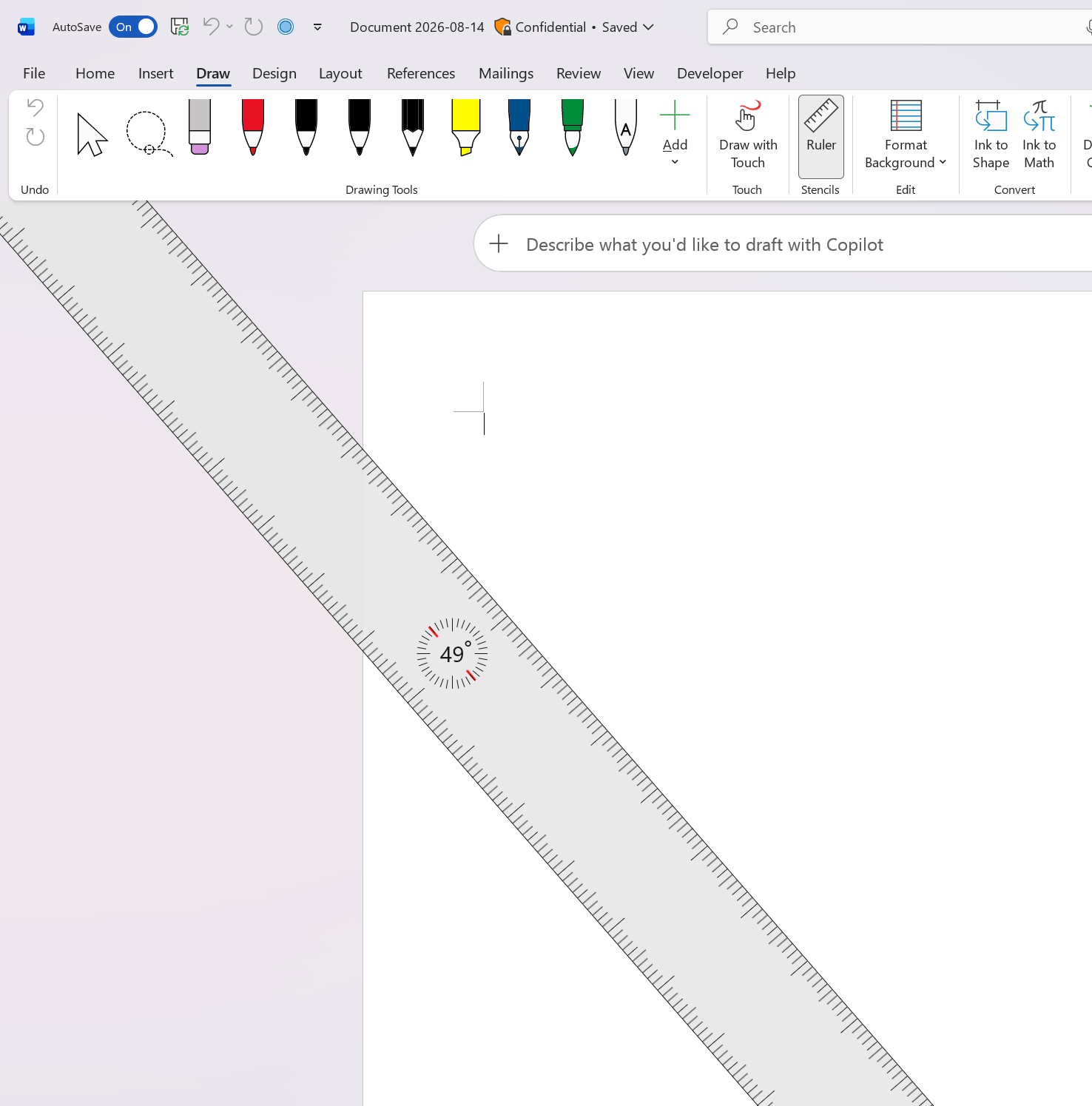
Rotate the ruler with a mouse
Select Draw > Ruler to display the ruler.
Position the pointer over the ruler.
Rotate the mouse wheel forward or backward to adjust the ruler's angle.
Draw or align content along the ruler edge.
Rotate the ruler on a touch-enabled device
Select Draw > Ruler.
Place two fingers on the ruler.
Rotate your fingers clockwise or counterclockwise until the ruler reaches the desired angle.
Tip: Use one finger to move the ruler across the page, slide, or canvas while maintaining its current angle.
Notes
The rotating ruler is available in the Draw experience in Word, PowerPoint, and OneNote.
The standard page ruler that you use for margins, indents, and tabs in Word is different from the Draw tab ruler and doesn't rotate.