
The AutoText Manager provides a centralized experience for searching, creating, editing, cloning, organizing, and managing AutoText used in PowerScribe One. It showcases the potential that PowerScribe One brings to AutoText creation and use.
Tip
The AutoText Manager can be accessed from AutoText menu on the Explorer screen and the Report Editor screen.
Searching for an AutoText using keyword search and filters

You can search for AutoText using keywords, advanced search options, and filters to quickly narrow results and find the content you need.
Keyword search helps locate existing AutoText in your system. By default, the search checks the AutoText name.
Additional search options in content and in shortcut are available from the dropdown. Search results appear in the results grid. For more details, see searching for an AutoText.
Filters can be applied on their own or combined with keyword search to refine results. Selecting a filter automatically updates the results. The suggestive search bar helps quickly narrow filter criteria.
Select Clear to remove the selected filter.
AutoText results that match the keyword search and selected filters appear in a sortable results grid.
Manage AutoText

Manage AutoText by creating new entries, cloning existing content, organizing AutoText with folders, deleting unused AutoText, or converting AutoText types to support different reporting workflows.
- Create a New AutoText: Create a blank AutoText to build a new Template, Module, or Macro from scratch. For details, see Create a new AutoText.
- Clone an AutoText: Create a personal copy of an existing AutoText that can be modified and saved.
- Delete an AutoText: Permanently remove personal AutoText that are no longer needed, including any nested references.
- Convert an AutoText: Change the AutoText type individually or in bulk to support different reporting needs.
For details on cloning, deleting, or converting an AutoText, see Manage existing AutoText.
- Organize AutoText with Folders: Use folders to organize personal AutoText by creating and managing folders. For details, see Managing AutoText folders.
Search results and AutoText preview
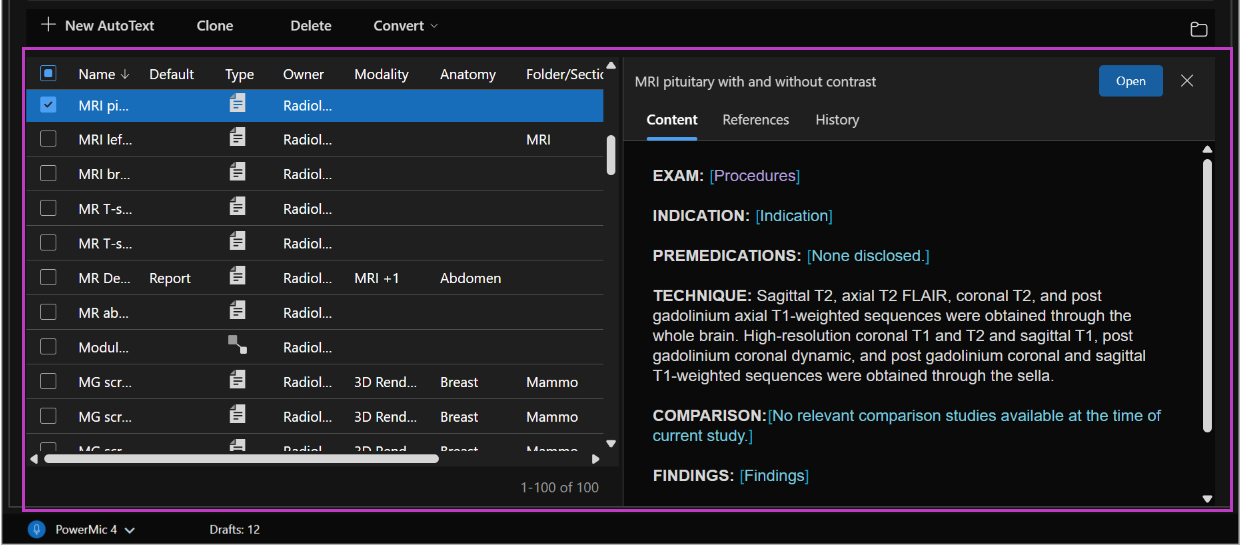
Review AutoText search results in a sortable grid with result counts, and preview content, references, and change history before opening or editing an AutoText.
Search results grid: The results grid displays AutoText that match the search criteria. The total number of results is shown, with up to 200 results per page. Results can be sorted to help quickly locate specific AutoTexts.
Preview an AutoText: Preview AutoText content directly from the AutoText Manager before opening or editing it.
- Content preview: Select the checkbox or highlight a row by clicking outside the AutoText name to view the content preview. The preview displays the AutoText body, including components and sub-components within the selected Template, Macro, or Module.
- Open AutoText: To open and edit the previewed AutoText, select Open above the Preview pane.
- References: Displays AutoText that reference or are nested within the selected AutoText.
- History: Shows the last 20 changes made to the AutoText, including Create, Change Properties, Change Procedures, Change Content, and Change Default.