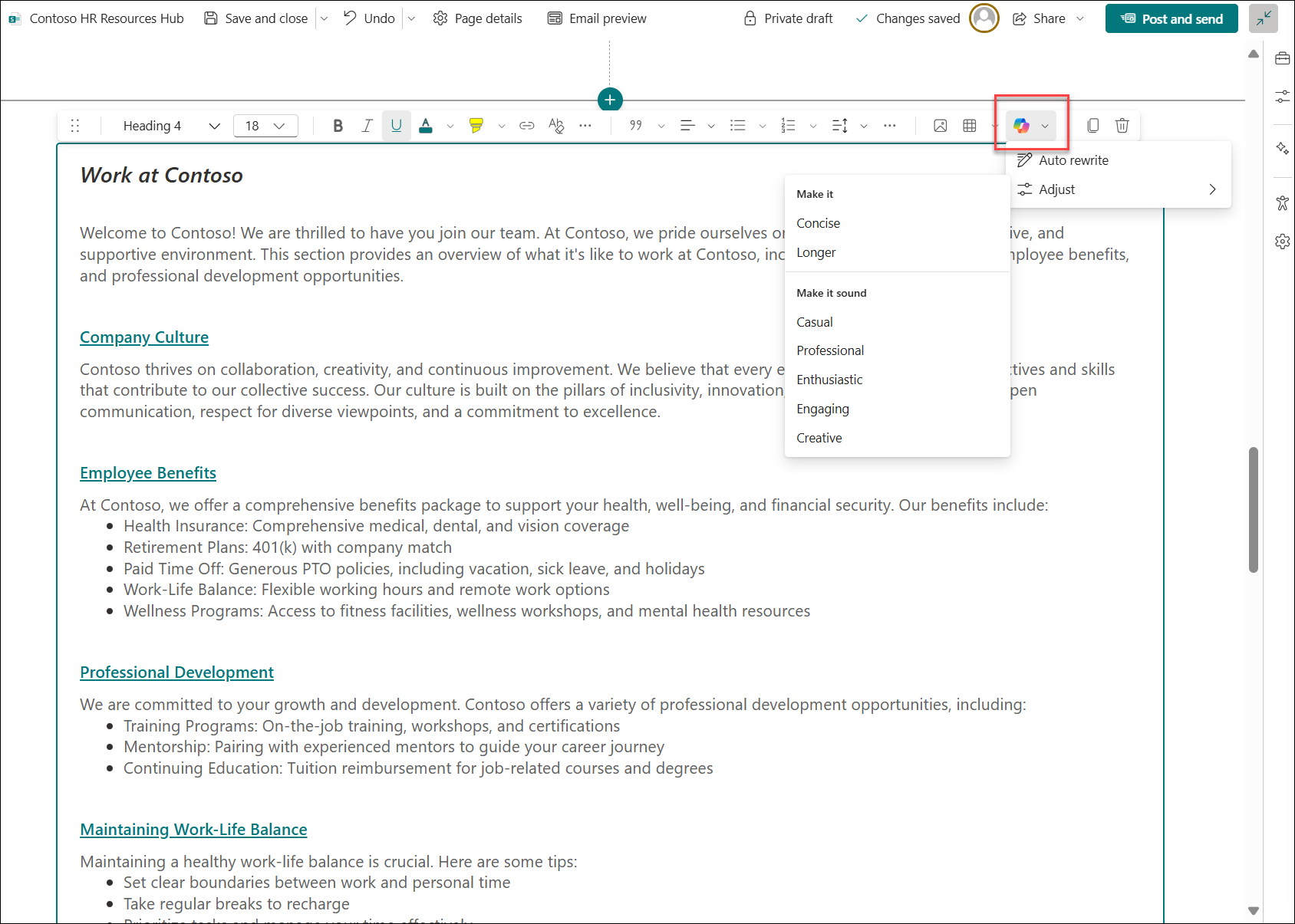
After creating your page, you can continue refining it with AI to enhance the page’s layout, design, and content. You can use Design ideas to get inspirations on page layouts and design. You can then further adjust colors, fonts, images in Toolbox and Properties. You can rewrite with AI in rich text editor to polish your content.
Note
To access AI authoring, you need Knowledge Agent turned on for your site.
Enhancing your page design
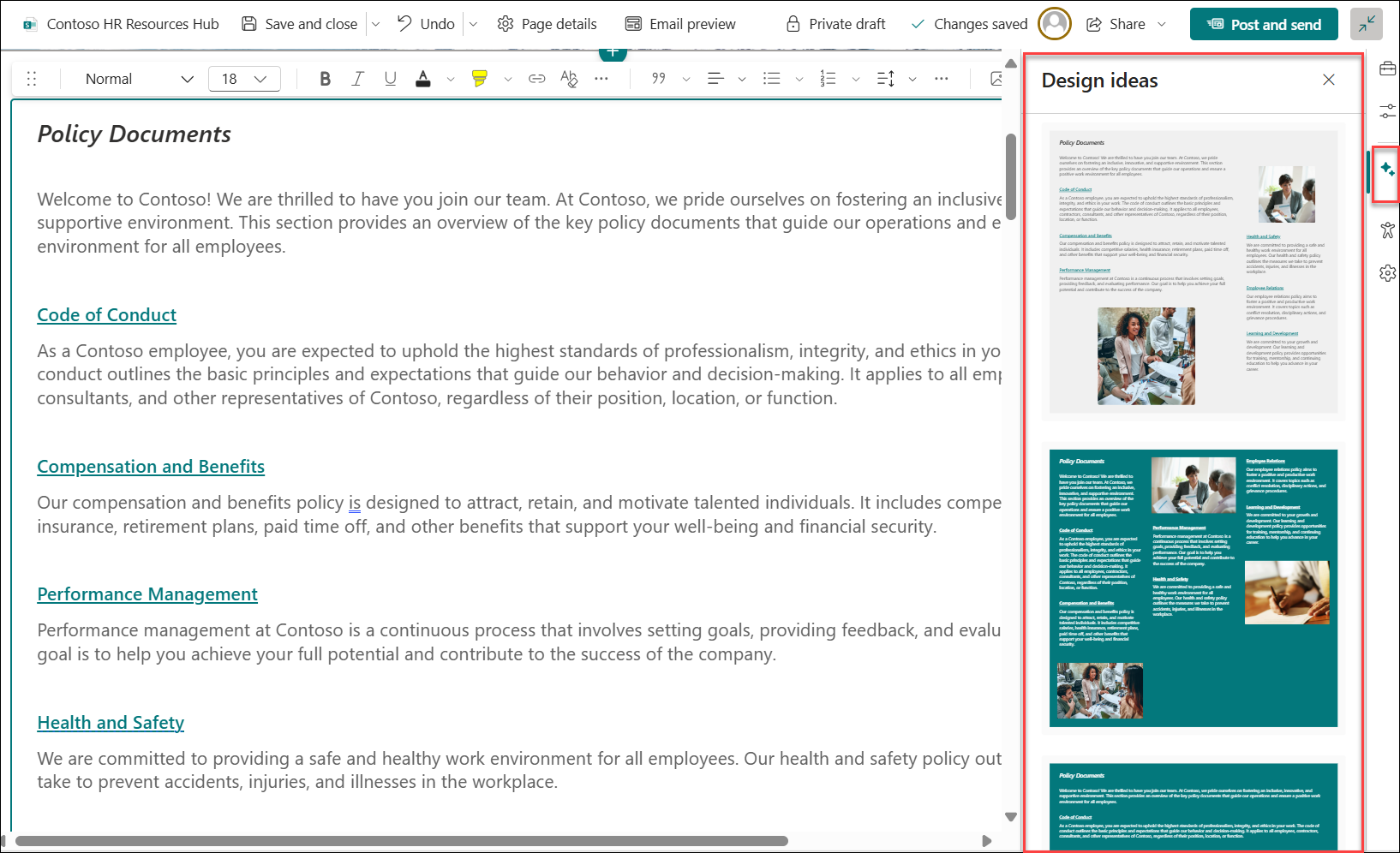
Get inspiration about layout and design from Design ideas
Design ideas help ensure that your page not only contains the right information but also looks visually appealing. You can select the Design ideas icon to the right side of the page to open the suggested design ideas. You can choose to apply the design ideas as they are or customize them further.
Fine tune fonts, colors and images with Toolbar, Properties and Toolbox
You can adjust colors, fonts, and images to match your brand or personal style. For example, you can adjust the color, background and layout of a section by selecting the section, then select Properties next to the page.

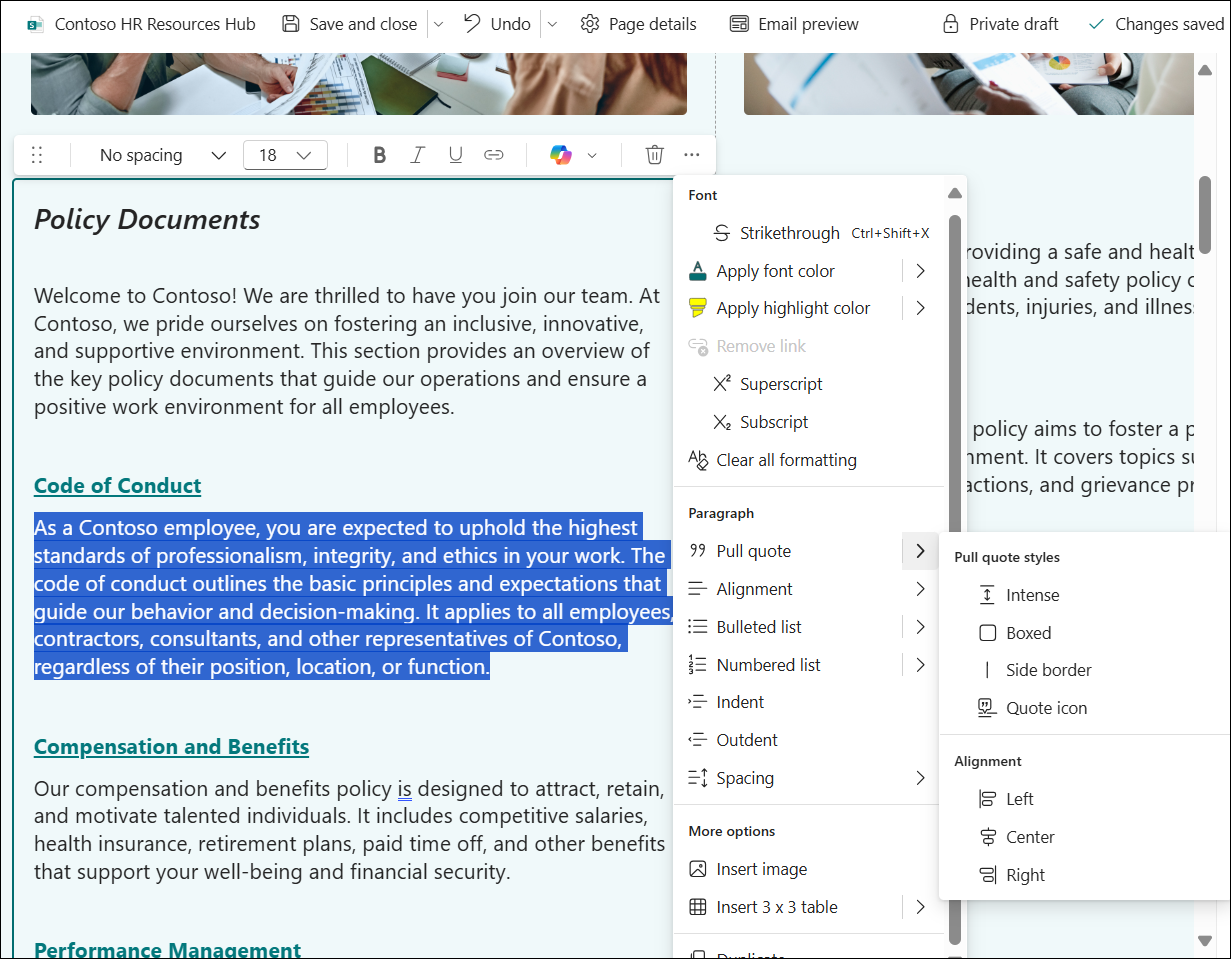
Or use the text editor to change fonts, style and colors.
Once you're satisfied with the design and content, preview the entire page to ensure everything looks perfect. Make any final adjustments before publishing.
Refine your page content
You can use AI in rich text editor to fine tune your content either by using auto rewrite, or changing its length, or changing its tone.