
Cross-posting distributes a published SharePoint news post to one Viva Engage destination: a storyline or community. The news post keeps its SharePoint layout, while comments, replies, and reactions from SharePoint and Viva Engage remain in one synchronized conversation.
After you cross-post the news, it can appear in Viva Engage feeds, digests, and the Viva Engage app in Outlook and Teams. On the SharePoint news post, the Viva Engage conversation module replaces the SharePoint comments module.
Before you begin
- You must have a Microsoft 365 license.
- You must have permission to create or edit content on the SharePoint site.
- Review the destination audience and the SharePoint site's sensitivity label before you cross-post. People in the Viva Engage destination can see the news post even if they don't have access to the SharePoint site. A storyline or public community can make the post visible to anyone in your organization. In a private community, only community members can see it.
- Cross-post the news soon after publishing if you expect immediate engagement. Existing SharePoint comments and reactions don't transfer to the Viva Engage conversation.
Cross-post a news post
Publish the SharePoint news post. The distribution panel opens automatically.
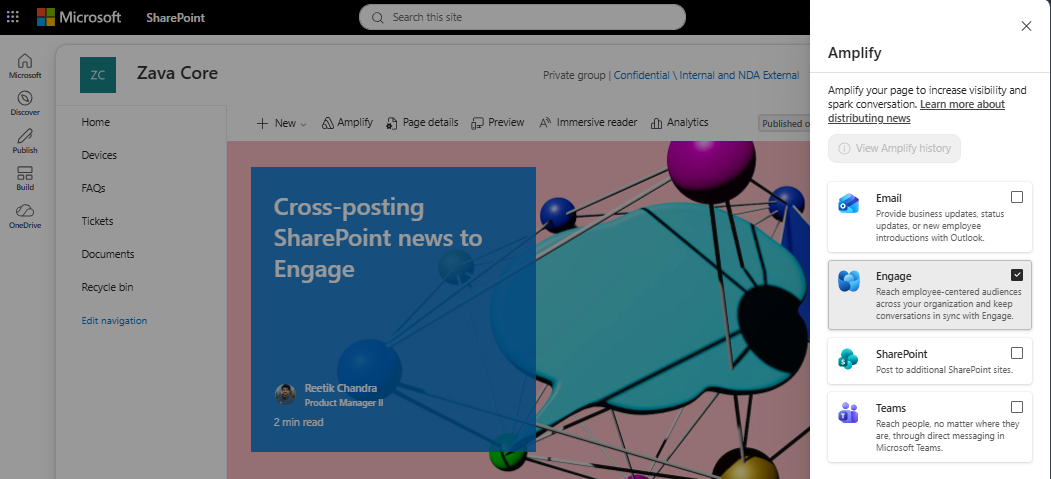
If you closed the panel or published the news earlier, open the news post, and then select Promote or Amplify on the command bar. The label depends on your license, but the distribution steps are the same.
In the distribution panel, select Engage.
Under Post as, confirm that you want to post as yourself. You can also post on behalf of a person for whom you're a Viva Engage delegate.
Under Post to, select My storyline or Community. If you select Community, select the community where you want to post the news.
To notify specific people, add them under Add people. To send the post as an announcement, turn on Send as an announcement.
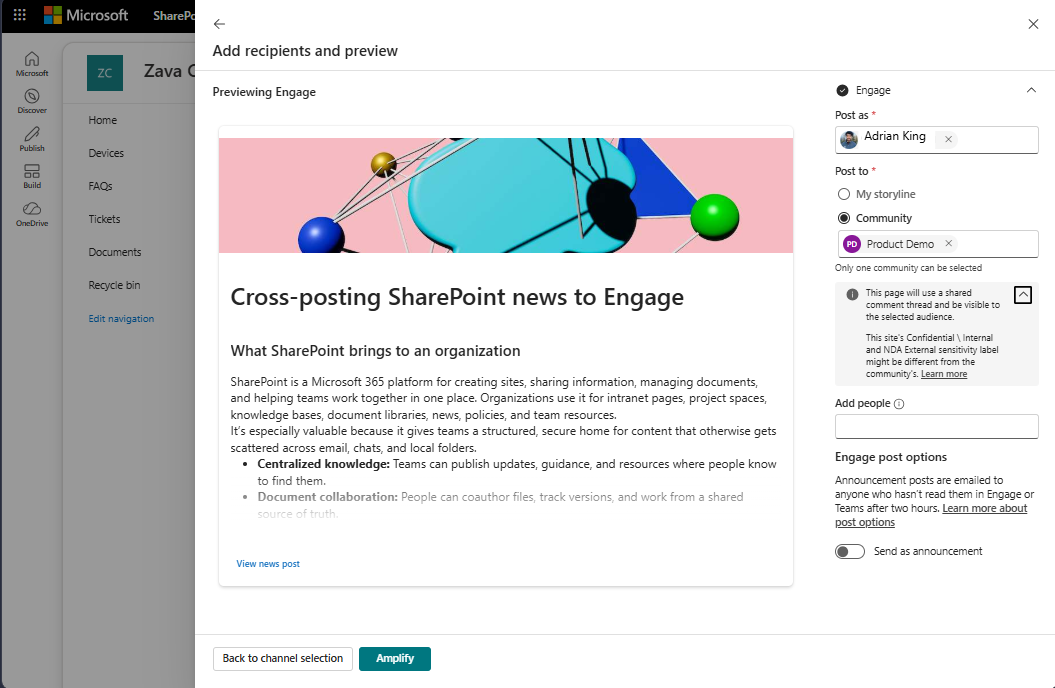
Select Amplify or Promote.
The news post appears in the selected Viva Engage feed with its SharePoint layout preserved. Readers can select View news post to open the complete post without leaving the feed.
Note
- To cross-post a SharePoint page, open the Promote panel and convert the page to a news post. You can then cross-post the news post to Viva Engage.
- You can cross-post a SharePoint news post to only one Viva Engage destination. You can't cross-post the same news post to multiple communities or schedule the cross-post in advance.
Manage a cross-posted news post
Update the content
Edit the news post in SharePoint. When you republish it, the update synchronizes to Viva Engage. Changes that you save as a draft don't synchronize.
If the news was cross-posted to a storyline, only the person who created the cross-post and that person's delegates can republish it. Other people with site permissions can edit the news and save a draft, but they can't synchronize their changes to the storyline.
Delete the content or conversation
The result of deleting a SharePoint news post depends on your permissions in the Viva Engage destination:
- If you have the required permissions in the Viva Engage destination, deleting the news post in SharePoint also removes the Viva Engage post and its conversation.
- If you have limited permissions in the Viva Engage destination, deleting the news post in SharePoint removes the news content but leaves the conversation in the feed. A community or network admin can remove the remaining conversation.
Deleting only the first message in Viva Engage doesn't affect the SharePoint news post. Deleting the entire Viva Engage post removes the Viva Engage conversation module from the SharePoint news post and restores the SharePoint comments module. You can then cross-post the news again to the same destination or a different destination.
View analytics
SharePoint page analytics include the news post's performance in Viva Engage. Depending on your license, analytics can attribute views, reactions, and comments to the channel where they occurred.
The Viva Engage destination shows reach, reactions, and comments by channel and identifies SharePoint news as a distinct post type. Use the analytics experience that provides the channel details you need.
Compare Viva Amplify with Amplify from SharePoint
Viva Amplify and Amplify from SharePoint distribute news to Viva Engage differently:
- From the Viva Amplify app, you can distribute a news post to multiple communities. These distributions don't support synchronized comments or full-fidelity rendering in Viva Engage.
- For posts distributed from Viva Amplify, media attachments appear at the end of the article. For posts distributed by using Amplify from SharePoint, media attachments don't appear at the end of the thread.
- For posts distributed by using Amplify from SharePoint, the Viva Engage feed card omits the author's name to avoid displaying it twice.