

Microsoft Teams Rooms for Android brings HD video, audio, and content sharing to Microsoft Teams calls and meetings of all sizes, from small huddle areas to large conference rooms. Bridging the gap between people working remotely and those in the office, Teams Rooms enable everyone to be seen, heard, and to fully participate from anywhere.
Here are some things you might find in your Teams Room:
- camera(s), microphone(s), speaker(s) that can be integrated or modular
- one or two external display that could be non-touch or touch enabled
- a touch screen console on the table to control the room
- a touch screen board device
Teams Rooms can be Windows-based or Android-based.
Find the Windows user guide here: Teams Rooms (Windows)
What do you want to do?
Learn about the touchscreen controls

The touchscreen console in a conference room is the heart of every meeting. It automatically wakes up when it detects motion. On the screen, there are a few things you can do:
- Join an upcoming scheduled meeting by selecting Join.
- Scan the room QR code to join a meeting on your mobile device using the room system or to cast content from your mobile device to the room display.
- Start a new meeting by selecting Meet now
 .
. - Make a phone call by selecting Call
 and dialing a number.
 - If you have a touch-enabled room display, select Whiteboard
 to collaborate on a digital canvas outside of a meeting. You can select Start meeting to bring the whiteboard into an instant meeting.
 - Project your laptop by plugging in the cable connected to the console. Depending on the room settings, it may be projected to the room automatically, or you may have to select Share
 on the room console.
 - Cast content onto the room display from your desktop or mobile device.
- Select Join with an ID
 to join a meeting that isn’t on your calendar.
 - Select Help ? to report a problem or give feedback.
- Select More
 to change settings. You can also adjust the volume of system sounds (notifications, incoming call ringtone, and HDMI content audio playback).
When you're in a meeting, you'll have options to manage your camera and mic, share content, manage participants, invoke reactions, change layouts for the in-room display, and leave the meeting.
Note
To get a meeting to show up on the room console, organizers should set the room as the meeting location.
Invite a room to a meeting
Use Outlook to reserve a room equipped with Microsoft Teams Rooms
Tip
To prevent the meeting name from being displayed on the Teams Room front-of-room and touchscreen consoles for anyone in the room to see, mark the meeting as "Private" in Outlook.
- Open Outlook and go to your calendar.
- Select New Teams Meeting in the Teams Meeting section or New Meeting, then Teams Meeting.
- Select Room Finder in the meeting scheduler or type the conference room email address.
- Select Show a room list and find a building or list.
- Choose a room from the list of available rooms.
- Complete the meeting invitation as you would for any other meeting before sending.
Use Microsoft Teams to reserve a room equipped with Microsoft Teams Rooms
- Open Microsoft Teams and go to your calendar.
- Select New meeting to schedule a meeting. Select a meeting type from the drop-down menu to schedule a webinar or live event.
- Select Add required attendees in the meeting scheduler and type the conference room name or address.
- Choose a room from the list of available rooms.
- Complete the meeting invitation as you would for any other meeting before sending.
Note
For live events, you can add a room as a presenter but not as a producer or attendee.
Use Microsoft Teams to add a Microsoft Teams Room to an existing meeting
- Join the meeting from your personal device.
- Select People.
- Search for the room name (it's on the console) and select OK.
- Accept the call on the console to join the meeting.
Use Teams or Outlook to add a Microsoft Teams Room to an existing meeting
- Open the meeting in Teams or Outlook on your personal device.
- Add the room name (it's on the console) to the participants list or find the room using Room finder in the meeting scheduler (available in Outlook) and send the update.
- If the meeting is accepted, it will appear on the console.
- Select the meeting on the console to join.
Join a meeting
Join a scheduled meeting
Find your meeting on the console and select Join to enter.
The room schedule displays the current meeting on top. Upcoming meetings and available slots are found under the current meeting. You can select an upcoming meeting to view its details.
If your room settings allow joining third-party meetings, you can join other providers' meetings by entering their meeting ID and passcode if required, and selecting Join.
If a scheduled meeting doesn't appear on the room calendar, or if there is no Join button on the meeting tile, you can invite the room, scan the room QR code, select Join with an ID
, or add the room on your personal device to join the meeting on the room system.
Join a scheduled meeting that's not on the console
Join the meeting on your personal device.
When you're choosing your audio and video settings, you'll have the option to add a room and use that room's audio and video equipment. Your personal device may even detect a nearby room using Bluetooth.
If it does, you'll see (suggested) next to Room audio. If the nearby room has already joined the meeting, just select Audio off to join with your audio off and avoid disrupting the meeting.

If your device doesn't detect the room nearby, select Room audio and search for a room.

If you've already joined the meeting on your personal device, you can select Show participants
 , then go to Invite someone or dial a number and search for the room name. Then, select the room and OK to call it into the meeting.
Then, the room will ring. To join the meeting, select Accept on the room console.
Note
Make sure the audio on your personal device is off before you accept the call on the room console, or you could cause echo.
Join a town hall, webinar, or structured meeting If you're joining a scheduled town hall, webinar, or structured meeting as a presenter or attendee, join the event from the Teams room following the instructions above. The room will be added to the meeting with the role of the user adding the room. For more information on how to host or attend an event from a Microsoft Teams room, see Host or attend an event from a Microsoft Teams Room.
Start an instant meeting
- Select Meet
on the home screen. Your meeting will begin automatically.
- Under Type a name, search for who you want to invite.
- Select peoples' names from the search results. They will automatically be called into the instant meeting.
Make a call
- Select Call
on the home screen.
- Dial a number, then select Call
.
Share content
Share your screen in a Teams Room (outside of a Teams meeting)
To share your desktop with in-room participants outside of a Teams meeting, connect your personal device to the appropriate cable connected to the room system. Depending on your room settings, your screen may be shared automatically, or you may have to select Share
on the room system.
You can also cast content from your personal device. To learn more, see casting from a mobile device or casting from a desktop.
Share your screen with all meeting participants (during a Teams meeting)
There are several ways to share content with both in-room and Teams meeting participants from a personal device:
- Join the meeting on your personal device and select Share
, then the item you want to share. Go to Share your screen in a Teams meeting to learn more.
- Connect your personal device to the cable connected to the room system. Depending on your room settings, your screen may be shared automatically or you may have to select Share
> Connected device on the room system. Control when you want to broadcast your device's sound by turning on or off the toggle next to Share system audio.
- Cast content from your personal device. Learn more about casting from a mobile device or casting from a desktop.
- If your room has a touch display, you can use Microsoft Whiteboard in your meeting by selecting Share
> Microsoft Whiteboard on the room system.

To stop sharing, select Stop sharing on the room system.
Note
Depending on your device settings, you may see different content sharing options.
Manage participants in a meeting
Add a participant
- In the meeting, type the name of the participant you want to add in the search bar.
- Select peoples' names from the search results. They will automatically be called into the meeting.

Pin a participant
When you want to focus on specific participant(s), select their name(s) on the room system, then Pin for me.
Note
This will only pin the video for the room system, not for others in the meeting.
Remove a participant from the meeting
To remove someone from a meeting, select their name on the room system, then Remove from meeting.
Change your view in a meeting
Manage the view on the front of room display
Select
 View on the room system. Toggle between different views for your room display, including prioritize video and hide yourself from view.
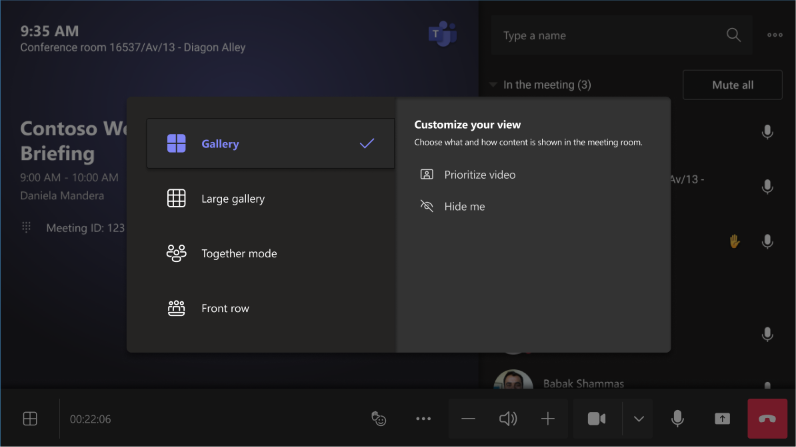
Note
Depending on the type of license assigned to your room account, some functionalities may not be available.
| View | Use it to... |
|---|---|
| Gallery | The default experience of Teams Rooms on Android optimizes the layout of participants on screen with video participants prioritized by default. |
| Content + gallery | When someone shares content like a presentation, Content + gallery optimizes the layout to make that content as large as possible while also showing more video participants. |
| Content | Available when content is being shared. This is the view to choose when you'd like to pay close attention to the content without the distraction of seeing people's video feeds. |
| Large gallery | View up to 49 video streams at once. Large gallery view is available when at least 9 people have their cameras turned on. |
| Front row | Enhance hybrid meetings and provide in-room participants with greater context of the meeting. On the front-of-room display, you can see remote attendees at eye level, including meeting experiences like chat and a rostered view of participants with raised hands. |
| Show chat | Turn on the toggle next to Chat on Gallery and Large gallery mode. In-room participants can see the meeting chat sent by remote participants on the front-of-room display. However, a room device cannot send a message. |
Manage other meeting options
Change meeting settings
The meeting controls on the touch console are similar to those found on the Teams desktop app.

| Control | Use it to... | Learn more |
|---|---|---|
| View | Customize the view you see on the front of room display to focus on different aspects of the meeting. | |
| View participants | Open the participant panel. | |
| React | Send live reactions or raise your hands to engage in a meeting. | Live reactions Raise your hand |
| Share content | Share connected device content and Microsoft Whiteboard. | See above section Share content |
| More actions | Customize your audio, video, chat, call settings, and more. | Turn on/off live captions Show/hide chat bubbles Turn on/off incoming video Turn on/off room remote Put a call on hold Report a problem |
| Volume | Adjust the volume of the speakers. | |
| Camera | Turn the camera on or off or choose the video device you want to use. Select the dropdown arrow next to the camera to see the following options:
|
|
| Mic | Turn the mic on or off. | |
| Leave | Leave a meeting. |
Related topics
Microsoft Teams Rooms (Windows)