

Your organization's Microsoft Teams Rooms enable you to hold meetings where in-room participants can be identified in live transcription.
During the meeting, all participants can easily see who’s saying what, and the post-meeting transcript identifies both remote and in-room attendees, except any who choose not to be identified. Without speaker recognition, audio will be attributed to the room in AI notes.
In this article
Set up your digital voice profile
Room experience with and without speaker recognition
Identify yourself in a meeting transcript
Supported regions and languages
Ensuring your data privacy and security
Set up your digital voice profile
To set up your voice profile, you can use the desktop version of Teams on a Windows or Mac device.
Note
Regardless of what language you've set up your voice profile with, you can still participate in meetings where a different language is spoken.
Before creating a voice profile, make sure your language is supported in Teams. See Create your Microsoft Teams Recognition profile for more information.
Room experience with and without speaker recognition
 With speaker recognition set up, individuals in the conference room will each be attributed by name in AI notes.
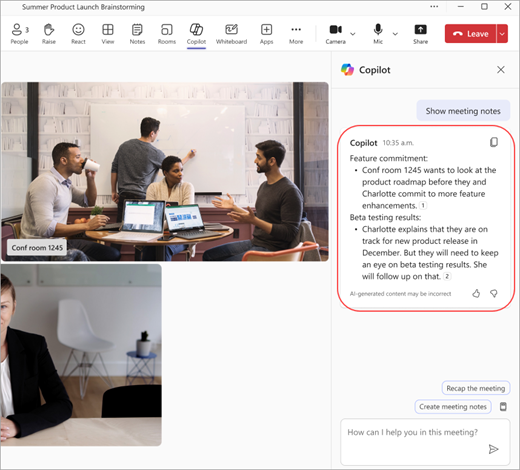 Without speaker recognition set up, audio will be attributed to the room in AI notes.
Note
- If you are joining from rooms that aren't Microsoft Teams Rooms, select Room audio in the pre-join window. You'll be attributed by your name in the transcription and AI notes if you set up voice recognition.
- If your voice profile isn't available under the Recognition tab in Settings and you aren't being attributed in transcriptions, re-enroll your Voice Profile.
Identify yourself in a meeting transcript
Follow these steps to make sure you're identified correctly in a meeting transcript.
- In the meeting transcript, find something you've said. You'll appear as Speaker 1,2 (Room name) if you haven't set up a voice profile.
- Select Identify speaker.
- You'll be asked if you'd like to update all instances of Speaker 1,2 (Room name) to your name. Choose Just this one or Update all. The transcript will be updated accordingly.
- To undo identification, select Remove me next to your name in the transcript.
Note
You can only identify yourself in a meeting transcript, not other attendees.
Misrecognition
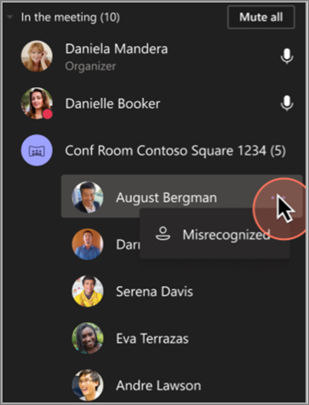
In some cases, meeting participants may not be correctly identified. If someone is not labeled correctly, any user can fix this.
- Under Participants, the misrecognized person will be listed under the conference room's heading.
- Next to the person’s name, select
 More > Misrecognized.
This action will change the participant to a guest for the duration of the meeting.
Turn people recognition on or off
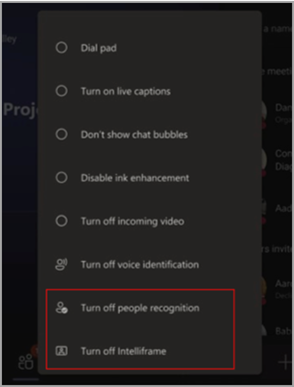
You may wish to turn off the people recognition feature for a given meeting.
- Select
More on the Microsoft Teams Rooms console.
- Select Turn off people recognition.
Disable speaker recognition during the meeting
You can disable speaker recognition during the meeting for everyone using the Microsoft Teams Room console.
After you've joined the meeting, select
More options at the bottom of the console, and select Turn off voice identification.
Note
For BYOD (bring your own device) scenarios, after you’ve joined a meeting and started the transcription or recording, you can disable speaker recognition by selecting More options
> Record and transcribe > Stop voice ID for this room.
Supported regions and languages
Intelligent Speaker is available in all countries and regions.
The language of the Teams app you've installed determines the voice enrollment languages. These are the localized versions that are available:
| Language | Country/Region | Culture ID |
|---|---|---|
| Arabic | United Arab Emirates | ar-ae |
| Arabic | Saudi Arabia | ar-sa |
| Bulgarian | Bulgaria | bg-bg |
| Catalan | Catalonia | ca-es |
| Chinese (Simplified) | China | zh-cn |
| Chinese | Hong Kong | zh-hk |
| Chinese | Taiwan | zh-tw |
| Croatian | Croatia | hr-hr |
| Czech | Czech Republic | cs-cz |
| Danish | Denmark | da-dk |
| Dutch | Belgium | nl-be |
| Dutch | Netherlands | nl-nl |
| English | Australia | en-au |
| English | Canada | en-ca |
| English | India | en-in |
| English | New Zealand | en-nz |
| English | United Kingdom | en-gb |
| English | United States | en-us |
| Estonian | Estonia | et-ee |
| Finnish | Finland | fi-fi |
| French | Canada | fr-ca |
| French | France | fr-fr |
| German | Germany | de-de |
| German | Switzerland | de-ch |
| Greek | Greece | el-gr |
| Hebrew | Israel | he-il |
| Hindi | India | he-in |
| Hungarian | Hungary | hu-hu |
| Indonesian | Indonesia | id-id |
| Italian | Italy | it-it |
| Japanese | Japan | ja-jp |
| Korean | Korea | ko-kr |
| Latvian | Latvia | lt-lt |
| Lithuanian | Lithuania | lv-lv |
| Norwegian | Norway | nb-no |
| Polish | Poland | pl-pl |
| Portuguese | Brazil | pt-br |
| Portuguese | Portugal | pt-pt |
| Romanian | Romania | ro-ro |
| Russian | Russia | ru-ru |
| Serbian | Serbia | sr-rs |
| Slovak | Slovakia | sk-sk |
| Slovenian | Slovenia | sl-si |
| Spanish | Spain | es-es |
| Spanish | Mexico | es-mx |
| Swedish | Sweden | sv-se |
| Thai | Thailand | th-th |
| Turkish | Turkey | tr-tr |
| Ukrainian | Ukraine | uk-ua |
| Vietnamese | Vietnam | vi-vn |
| Welsh | United Kingdom | cy-gb |
Note
We are actively expanding our language support across different regions. If your preferred Teams language is not listed in the table above, we will soon automatically switch you to the closest available language based on linguistic and regional similarities. Meanwhile, please manually choose a language from the currently supported list.
Ensuring your data privacy and security
At Microsoft, we take your privacy and security extremely seriously. Our commitment is to ensure that your data is handled with the highest standards of protection and transparency.
You have ultimate control: You have the authority to decide how your data is used. You must first enroll and opt-in to provide your data. Your consent is required for any use of your data. Please review the overview of face and voice enrollment if you have any questions regarding voice profile data usage and storage.
Informed consent: You provide explicit consent for your data to be used, ensuring you are always in control of your personal information.
Opt-out any time and data deletion: You have the option to withdraw your consent and stop the use of your data at any time. If you choose to unenroll, your data will be deleted, ensuring it is no longer stored or used.
Where is the data stored? Your data is stored in the same region as your Microsoft Teams data, ensuring adherence to regional data sovereignty and privacy regulations.
Secure storage in Microsoft Cloud: The data, such as voice signatures for meeting rooms feature, is stored securely within your organization’s tenant in the Microsoft Cloud and locally on the user's device for Voice Isolation. This data is managed in accordance with Microsoft's stringent data protection standards.
Data access: Access to data is highly regulated within Microsoft, supported by stringent security protocols that ensure privacy and prevent this data from being shared with third parties.
FAQs
Why aren't I being identified? I've set up my voice profile and my speech is clearly transcribed.
After the meeting, try updating your voice profile.
What are the requirements for inviting meeting attendees to use Intelligent Speakers?
Each meeting attendee must be invited individually, on the original invite or through a forwarded invitation.
What is my voice profile used for?
Your voice profile is only used in ways you've already consented to. Microsoft won't use your voice profile without your permission.
How many people can be on the invitation list?
There is no limitation on the number of people in the invitation list. However, voice identification is only available in meetings with up to 20 people with enrolled voices.
When will my voice profile be deleted?
Your voice profile will be deleted after one year of no use.
What should I do if I can't access certain features?
If you can't access certain features, please contact your IT admin. To learn more, see Manage voice recognition technology controls for an Intelligent Speaker
What's the recommended room size for recognizing participants?
This technology works best in medium-sized rooms that hold 8–10 people although larger meeting spaces with more participants are supported.
Want to know more? Please review the face and voice enrollment document if you have any questions regarding voice profile data usage and storage.