
September 2026
Keep conversations moving while files upload
When you share a file in Teams, you no longer need to wait for the upload to finish before continuing your work. Across chats, channels, and meetings, files upload in the background so you can keep collaborating without interruption. Progress indicators keep you informed, and your files appear in the conversation as soon as they're ready, creating a more seamless collaboration experience that reduces wait times and helps you stay focused on work. To learn more, see Send a file, picture, or link in Microsoft Teams.
July 2026
Catch up in the Meeting Recaps app
Review past meetings in one place from the Meeting Recaps app. Choose from different recap styles, like audio and video, to suit your personal preference. Quickly filter recaps to find the ones that matter to you most. To learn more, see Get started with the Meeting Recaps app in Microsoft Teams.
Access Viva communities in Teams
Open your org's Viva communities directly in Teams and stay up to date with notifications that appear in your Activity feed.
Search for keyboard shortcuts
Find keyboard shortcuts quickly in the keyboard shortcut dialog's new search functionality.
Hiring made easier in Teams
The LinkedIn Hiring Assistant is now integrated in Teams, helping streamline candidate review and hiring manager collaboration.
Remember sign-in settings on Teams for web
Teams for web now honors your sign-in preference across browser sessions, whether you want to stay signed in or sign in again when you reopen your browser.
June 2026
Search with Copilot
Find chats, files, and other content by asking questions in natural language instead of searching exact keywords. Copilot helps surface information you're looking for across Teams. To learn more, see .
Find files faster
Discover files in chats and channels with improved search and filtering options. Narrow results by file type, sender, and date to quickly locate content. Press Ctrl+F (Windows), Cmd+F (Mac), or select Find
 in chat to start. To learn more, see Search for messages and more in Microsoft Teams.
Simplified app discovery
Browse your apps in a new list view designed to make finding and launching apps easier. To learn more, see Find teams and personal apps in Microsoft Teams.
Return to where you left off
Teams now preserves your chat layout and open panels when you navigate between conversations, making it easy to pick up where you left off.
Better chat organization
Muted chats and meeting chats are now grouped together in separate sections to help you keep track of conversations and reduce distractions. To learn more, see Chat in Microsoft Teams meetings.
Improved downloads
Your download manager now appears in the Teams title bar or with a keyboard shortcut to let you monitor downloads without blocking you from other actions in Teams.
Quick share for images
Access image sharing options from hover, right-click, overflow menus, and shared tabs. Permissions are preserved for images stored in OneDrive or SharePoint, so the right people maintain access. Images pasted directly in chat don’t support permission-based sharing. To learn more, see Send a file, picture, or link in Microsoft Teams.
Smarter meeting security
Teams can help identify automated participants in meetings, giving organizers and admins more visibility into who or what is joining.
Branded meeting reactions
Express yourself with organization-branded reactions during meetings. Companies can create custom reaction experiences that align with their brand. To learn more, see Use meeting themes in Microsoft Teams.
Room availability indicators
See whether a meeting room is available before confirming it when scheduling a Teams event. To learn more, see Host or attend an event from a Microsoft Teams Room (MTR).
Better voicemail transcripts
Receive more accurate voicemail transcriptions with support for more languages.
Report suspicious calls
Flag suspicious calls directly from Teams and optionally block the caller. Your reports help strengthen protections against fraud and impersonation threats. To learn more, see Reporting for Teams calling.
May 2026
Watch past meeting highlights with video recap
Video recap is a new, engaging way to catch up on past meetings. Recorded meetings are clipped into short, narrated highlights that show key conversations, presented content, and more. To learn more, see Video recap in Microsoft Teams.
Delete meeting recaps
Delete a meeting recording, summary, and notes in one place. On the recap page, select More options
 > Delete recap content
 . Shared files stay in their original locations. To learn more, see Recap in Microsoft Teams.
Create workflows with slash commands
Reduce context switching by using slash commands in the compose box to create workflows. Change your Teams status, schedule a message, and more.
Clearer code sharing in Teams chat
Now, when you share code in Teams chat, Teams automatically formats it to display line numbers, making it easier to reference specific lines in conversation.
Special badging for relevant chat updates
New purple indicators in Teams chat show which conversations are active and need your attention. They appear for mentions, tags, and activity in followed threads.
Search filters in chat and channel search
When you search in a chat or channel, choose a filter to see results from specific dates and people, or with mentions and attachments. To learn more, see Search for messages and more in Microsoft Teams.
Windows “Do not disturb” settings carry over to Teams
When you set your Windows device to “Do not disturb,” your Teams notifications will be silenced. Notifications will resume after “Do not disturb” is turned off on your device.
Stay protected against scammers on Teams calls
Teams now detects when callers might be impersonating your bank, IT admin, or other trusted brands, and warns you. Decline, leave, or report the call instantly.
Report suspicious calls
Select Report call in your call options to flag unwanted or malicious activity and help prevent it in the future.
Consult and merge PSTN calls through DTMF
Meeting organizers can now consult and merge PSTN callers into active Teams meetings, even when navigating a Dual-Tone Multi-Frequency (DTMF) menu is required. To learn more, see Merge calls in Microsoft Teams.
April 2026
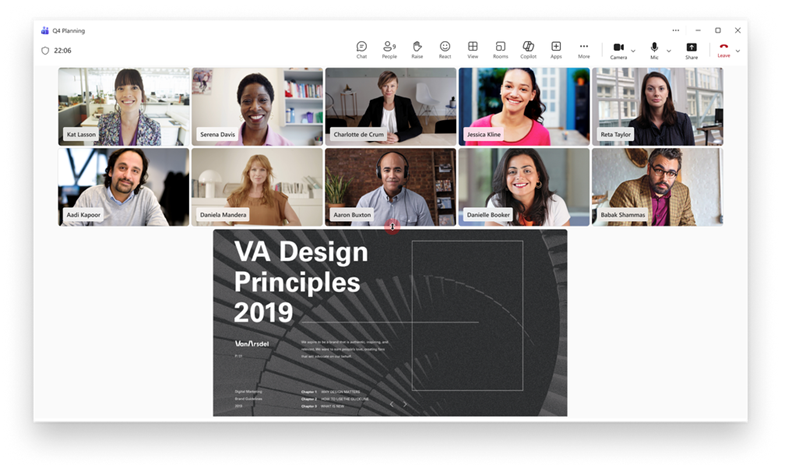
Control the size of shared content in a meeting
During Teams meetings, drag the divider between shared content and the video gallery to adjust how much space each takes up.
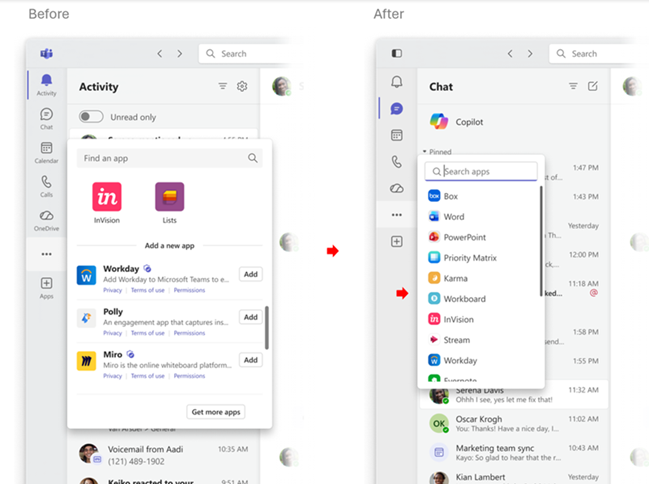
Less is more
In the new simplified app bar in Teams, labels are now hidden by default, so you can focus on what matters. To learn more, see Change settings in Microsoft Teams.
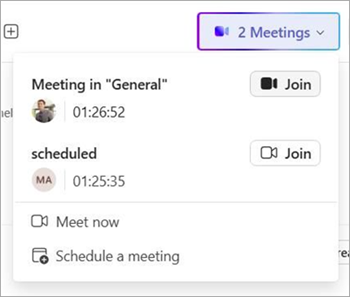
Take notes during instant meetings
Meeting notes are now available for instant meetings that started via Meet now in the calendar. To learn more, see Take meeting notes in Microsoft Teams.
Quick views in Teams chat
Filter your Teams chats by @mentions, followed threads, and more by selecting Quick views at the top of your chat list. To customize, hover over a category and select More quick view options
. To learn more, see Manage notifications in Microsoft Teams.
Accurate transcripts for meetings with sign language interpreters
Transcripts now attribute contributions to the original participant using sign language, not the interpreter.
Automatic spoken language detection
Teams will automatically detect each speaker's spoken language and update it in real time as the conversation evolves. Manual spoken language selection will no longer be available. To learn more, see Multilingual speech recognition in Microsoft Teams.
Delegate calls with Microsoft Copilot
Microsoft Copilot can help you answer incoming Teams calls and schedule follow-up appointments, ensuring you stay focused without missing important connections. To learn more, see Use Copilot Call Delegation in Microsoft Teams.
March 2026
Organization chart enhancements
Our newly designed org chart in profile cards streamlines navigation through reporting relationships, recently viewed profiles, and more. Select Navigate to org chart
 in someone's profile card to get started.
Easily find unsent drafts
Select Chat
 > Drafts
 in Teams to quickly find messages you've composed but haven't sent yet.
Live meeting indicator for threaded channels
Live meeting indicators make it easy to see and jump right into active threaded channel meetings, keeping you in the loop.
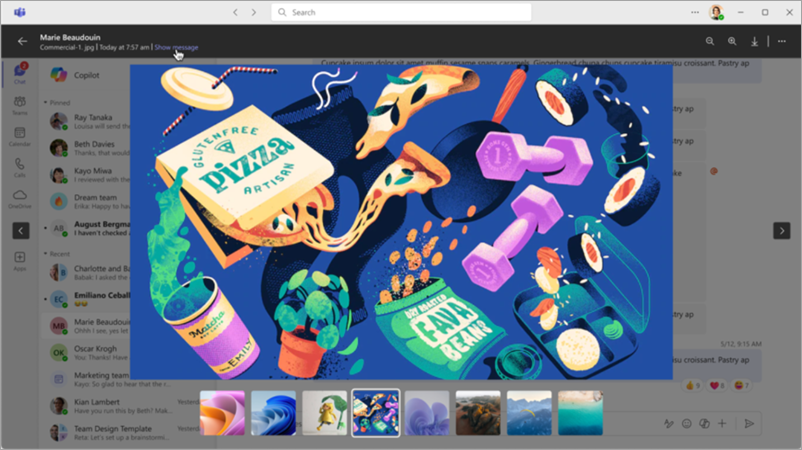
Enhanced image viewing
Scroll through images shared in a chat without distractions. The new Lightbox experience highlights the image you're viewing. Select Show message in the header to go right to the message the image was shared in.
Customize the Enter key function in Teams chat
Choose what the Enter key does in a Teams chat by selecting Settings and more
> Settings
 > Chats and Channels
in Teams and choosing an option in When writing a message, press Enter to.
> Chats and Channels
in Teams and choosing an option in When writing a message, press Enter to.
Keyboard shortcut to mark chat and channel messages as read
Press Shift + Enter on your keyboard to instantly mark all your chat and channel messages as read.
Take action in Teams from Mac Spotlight
Set your presence status, open your Teams calendar, compose a message, or open Teams to create a new meeting without leaving Spotlight.
Share files and Loop components with people outside your org
Now, Teams automatically manages permissions so you can collaborate in shared files and Loop components with people outside your org. To learn more, see Collaborate on files in Microsoft Teams.
More supported languages in audio recap
Audio recap for Teams meetings now generates summaries in Chinese, English (multiple variations), French, German, Italian, Japanese, Portuguese, and Spanish. To learn more, see Listen to audio recaps of your meetings.
Annotate with others on single-shared windows during meetings
When you share a specific application window in a meeting, you and others can now directly annotate on that shared content without you sharing the entire desktop. To learn more, see Use annotation while sharing your screen in Microsoft Teams.
February 2026
Forward multiple messages at once
Forward up to five messages at a time from a Teams chat or channel. Hover over a message and select More options
. Select Forward
 > Multiple messages and choose the messages you want to send. Select Next, add recipients, and select Forward.
View file search results in grid view
When you search for files in Teams, select Files > View all files and switch to Grid view
 for a more visual way to browse results.

Keep collaborations secure with Trust Indicators
Assess who you're working with by checking Trust Indicators, visual badges that appear next to external people in Teams. Labels are automatically assigned based on the person's relationship with your org.

Copilot experience in Teams meetings
Copilot in Teams can analyze chat history, meeting transcripts, and calendar content to generate smart recaps, rewrite messages, and surface relevant insights. To learn more, see Use Copilot in Microsoft Teams meetings.
Customizable meeting recap summaries
Generate custom meeting recaps that include the details most important to you, in your preferred tone and format. To learn more, see Customize recap summaries in Microsoft Teams.
Reference meeting visuals in recap summaries
Teams meeting recaps now include key on-screen moments, like screen shares, directly next to the relevant sections of the summary, so you can see exactly what was being discussed. To learn more, see Recap in Microsoft Teams.
Reshape your Teams meeting layout
Resize and reshape your right and top galleries during a Teams meeting to prioritize the content most important to you.
Network strength indicator in Teams meetings
If your connectivity drops in a meeting, you'll see a notification alerting you that your network connection is weak. You'll also receive suggestions for strengthening and restabilizing it, like turning your video off.
January 2026
Customize recap summaries
View meeting recaps in your desired format with customized recap summaries, available with a Microsoft Copilot license. Choose a ready-made summary template or create your own. To learn more, see Customize recap summaries in Microsoft Teams.
Find channel files in the Shared tab
The Files tab in channels is now the Shared tab. There, you can find files and links that were shared in the channel. To learn more, see Share files in Microsoft Teams.
Preview messages in your notifications
Now, when you get channel, mention, or reaction notifications, Teams will surface a preview of the message in that notification.

Keep your Teams window in view
Pin your Teams window on top in your desktop to always keep it visible above other open windows. Just select Settings and more
> Pin window on top
 in Teams.
Native screen sharing on MacOS
Share your screen or specific windows using your Mac's native picker experience. To learn more, see Present content in Microsoft Teams meetings.
December 2025
Multitask with pop-out windows
Open core Teams functions in their own windows to transition seamlessly between your Teams chat, calendar, activity, and more. Simply right-click an icon in Teams and select Open in new window
 .
.

More security for private group joins
Now, joining a private group by code requires direct approval by one of the group owners, ensuring more security and the prevention of unauthorized access to private groups. To learn more, see Use a link or code to join a team in Microsoft Teams.
Automatic language detection in Interpreter
Your spoken language can now be detected across Interpreter, live captions, and live transcription when Interpreter is turned on. To learn more, see Interpreter in Microsoft Teams meetings.
"Preparing" status in Interpreter
See when Interpreter initializes so you can start speaking at the right time with Interpreter's new "Preparing" status. To learn more, see Interpreter in Microsoft Teams meetings.
November 2025
More Microsoft Copilot functionality in Teams
Use Copilot in Teams to generate messages, and insights from chat and channel history and calendar content. Available with a Microsoft Copilot license. To learn more, see Get started with Microsoft Copilot Chat in Teams.
Forwarded message links
When someone forwards a message, it will now include a link that takes the recipient straight to the original chat or channel it came from. To learn more, see Forward a message in Microsoft Teams.
Skip the navigation with settings search
Need to change a specific setting? Search for it in the settings search bar—no navigation necessary. Just type in a keyword, like "notifications" or "dark mode," to go straight to that option.
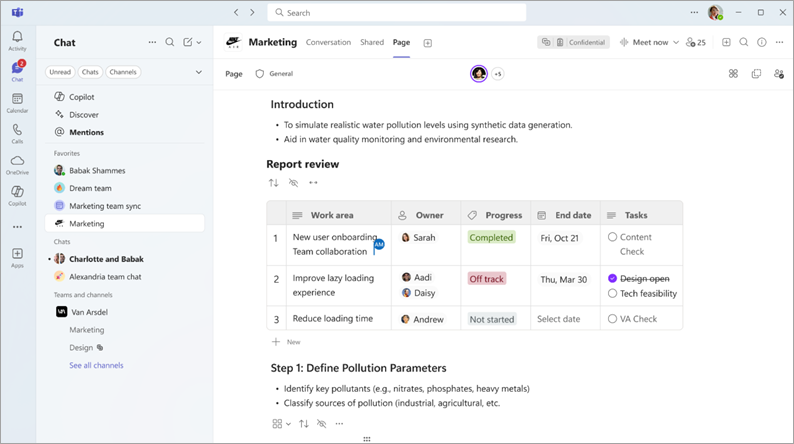
Organize and collaborate in chat and channels
Add existing Loop components and pages to channels for more organized, contextual places to work.
Take notes in 1:1 and group chats that only chat members can see to centralize information. Add images, @mention members to get their attention, and more.
Give your chat and channel sections more personality and visibility by adding emoji to their names. Just select the section icon and choose Change icon
 .
.
To learn more, see Change settings in Microsoft Teams.
Facilitator Agent enhancements
- Facilitator can recognize agendas shared in chat and create live progress trackers in meetings to keep everything on track.
- If someone invited to a meeting hasn't joined and their name comes up twice in conversation, Facilitator politely nudges them to join in chat.
To learn more, see Facilitator in Microsoft Teams meetings.
Share your screen on Mac devices
Joining from a Mac? Share your screen and present content using the standard native picker experience when you opt in through settings. To learn more, see Present content in Microsoft Teams meetings.
Gain insight with presenter analytics for town halls
View data about a town hall's video quality, audio clarity, and connection stability to ensure smooth content delivery during events. Available with a Teams Premium license.
Meta Quest VR headset support for immersive events
Our most immersive virtual event experience yet is here—join immersive events from a Meta Quest VR headset to feel like you're standing right there in the room. To learn more, see Attend an immersive event in Microsoft Teams.
Make Teams mobile your default calling app
No need to switch apps to make Teams calls—set Teams as your default calling app to automatically route all your calls through Teams mobile. To learn more, see Getting started with Microsoft Teams Phone Mobile.
Stay protected with malicious file and URL detection
Now, Teams actively protects against potentially harmful links by automatically detecting and warning against malicious files and URLS shared in Teams chats and channels.
When a link is incorrectly identified as a potential threat, flag it to help improve Teams' detection accuracy.
Quickly access key actions from the jump list
Open the Teams jump list in your Windows taskbar or Mac menu bar to start a chat or view, join, and schedule meetings.
October 2025
Get quick context with Copilot file summaries
Now available with a Copilot license, you can view concise summaries of shared files in chat to get context without opening them. To view a file's Copilot summary, select Summarize for me
 on the file thumbnail. To learn more, see Use Copilot in Microsoft Teams chat and channels.
:insert your emoji here:
Quickly insert an emoji into your posts and messages using the updated emoji keyboard shortcut. Just type “:”, followed by the name of the emoji, then type “:” again.
Listen to meeting recaps on-the-go
Take a break from your screen and catch up on meetings with podcast-style audio recaps. This feature utilizes AI to transform meeting transcripts into engaging audio summaries. Available with Microsoft 365 and Microsoft Copilot licenses. To learn more, see Listen to audio recaps of your meetings.
Pop-out Intelligent recap for calls
Access Intelligent recap for recorded or transcribed calls in Teams. Select Calls
 in Teams and find the call in your call history. Then, select View recap to open the call’s Intelligent recap and see AI summaries, notes, and more. To learn more, see Recap in Microsoft Teams.
Teams Phone Mobile now available with AT&T
AT&T customers can now make and receive calls across their mobile phone and Teams endpoints using a single phone number.
Give feedback faster on certified Teams Phone devices
When you enter a feedback rating from your certified Teams Phone device, Teams will suggest tailored text prompts to help you quickly share what’s working well or needs improvement.
Improved call transfer experience
Ensure smooth call transfers with your certified Teams Phone devices with our improved interface, including the option to Consult first (speak with the recipient before transferring the call to them) and live updates that indicate when a transfer is in-progress and when it’s complete. To learn more, see Transfer a call in Microsoft Teams.
September 2025
Threads in channels
View channel conversations as threads to easily reply to specific messages and keep related conversations grouped in one place. Follow threads to stay informed and view relevant updates in the Followed Threads view. To learn more, see Follow threads in Microsoft Teams.
Catch up on threads with Copilot
Quickly catch up on posts and threaded channels with thread summaries by Copilot. Thread summaries include key takeaways and a list organized by topic for easy scanning. Available with a Microsoft Copilot license.
Run smoother meetings with Facilitator
Add Facilitator, a meeting AI agent, to your Teams meetings to keep them running smoothly and efficiently. Facilitator reminds participants about agenda items and time remaining, captures real-time notes, and much more. Available with a Microsoft Copilot license. To learn more, see Facilitator in Microsoft Teams meetings.
Prevent screen captures in meetings
Keep information confidential in Teams meetings with Prevent Screen Capture. When Prevent Screen Capture is turned on, the meeting window will turn black if someone attempts to capture the screen. Available in meetings organized with a Teams Premium license.
Start a meeting countdown timer
Keep meetings on track with countdown timers. When someone starts a countdown timer, everyone will see in their meeting window and be able to start, stop, pause, or add more time.
See your mic volume in real time
Know your mic's audio levels with the real-time feedback indicator in Teams meetings. In your meeting controls, you’ll see the Mic icon
 fluctuate with your volume levels. You can also select Mic to see the feedback in more detail.
Ultra-low latency during town halls
Stay in sync when you attend town halls with ultra-low latency, available in events organized with a Teams Premium license. With ultra-low latency, you’ll see organizers, presenters, and shared content in near real-time.
Organizer controls in the meeting toolbar
Select Controls
 in your meeting controls for quicker access to key organizer meeting options, like lobby settings, attendee mic and camera access, and more. Select View more options for a complete list of customizations.
More privacy and stability for live captions and RTT
When meeting transcription is turned off, live captions and RTT will now only show the past five minutes of dialogue instead of the full meeting to protect information. Also, a previous issue that caused data loss when changing caption position has been resolved.
Chat privately with webinar organizers and presenters
Private chat between organizers, co-organizers, and presenters is now available before, during, and after webinars, giving time and privacy for coordinating and preparing for the event.
August 2025
Filter chat and channel search results
Easily find files in your chats and channels by adding a search filter. In a chat or channel, select Find in chat
or Find in channel
and select the Has attachment filter to only see results with attachments. To learn more, see Search for messages and more in Microsoft Teams.
Create your own keyboard shortcuts
Make keyboard shortcuts your own by customizing commands or choosing a preset layout. In Teams, select Settings and more
> Keyboard shortcuts
 to pick a layout and make any changes. To learn more, see Keyboard shortcuts for Microsoft Teams.
View all your saved messages
Open Chat
in Teams and select Saved
 under Quick views to see all your saved messages. Select one to open the conversation it was in and review or reply directly.
Express yourself with multiple emoji reactions
Can't choose which emoji to react with? Respond to messages and posts with more than one! Just hover over a message or post and select multiple emoji reactions that resonate with you. To learn more, see Like or react to messages in Microsoft Teams.
Personalize meeting templates
Simplify your scheduling experience in Teams Premium by pre-saving meeting options as templates you can use to quickly organize meetings. To learn more, see Personal meeting templates in Microsoft Teams.
Send messages to attendees in the lobby
Meeting organizers can send one-way messages to attendees waiting in the lobby via lobby chat. To learn more, see Using the lobby in Microsoft Teams meetings.
Customize the screen in town halls
Elevate presentations you organized with Teams Premium by customizing your screen with select layouts, backgrounds, and name tags using the Manage what attendees see meeting option. To learn more, see Control town hall production tools in Microsoft Teams.
Host 3D virtual events with immersive events
Transform online events into impactful 3D experiences with Teams immersive events. Create, customize, and host interactive events that captivate attendees, strengthen connections, and boost engagement.
- Schedule immersive events from your calendar in Teams.
- Customize environments with objects and media that add interest and help your immersive event flow.
- Host engaging experiences by interacting with attendees, visiting different event rooms, and presenting content.
- Join immersive events through your Teams and Outlook calendars.
- Design 3D spaces without needing coding or technical expertise.
To learn more, see Get started with immersive events in Microsoft Teams.