
Any member of a Viva Engage community can edit files that users post there. Because Viva Engage files are stored in SharePoint, you can organize the files into folders, change access permissions on files, and have additional version history.
Note
Viva Engage uses SharePoint libraries to contain and control content. All Viva Engage files for connected communities are stored in SharePoint and accessed from within Viva Engage. Because Viva Engage is Microsoft 365 connected, each community also is backed by a group in Microsoft 365.
Methods for editing, opening, and uploading new versions of files depend on the file type
- For Word, PowerPoint, or Excel files stored in Viva Engage: Edits to Microsoft 365 files can be made online or by opening them in desktop apps directly through Engage's SharePoint files module. Any changes made will be tracked in Version history whether you make them online or through an Microsoft 365 app.
- For other types of files: Version history is tracked when you download the file, make changes, and upload an updated version with the same file name.
Note
A community's Files module won't appear if the admin has disabled this feature.
In this article
Open or edit a file from an Engage community
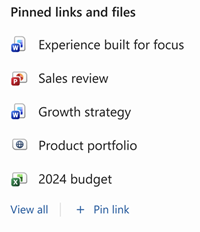
- In a community, find Pinned links and files on the right panel, and then select View all.
- Select the Files tab.
- Open and edit a Microsoft 365 file: Select the file name to open it. Make the changes that you want. To stop editing, close the file. Your changes are automatically saved.
- Open and edit a non-Microsoft 365 document: Select Show more actions for this item
 > Download. Save the file with the same file name and edit if necessary. Upload your changes to Viva Engage by dropping it into the Files tab in Engage.
Tip
To Preview a file without making changes, select Show more actions for this item
> Preview.
Open and edit a Word, Excel, or PowerPoint, files from an Engage conversation
- Navigate to the conversation.
- Select the file name to open it.
- Make the changes that you want.
- To stop editing, close the file. Your changes are automatically saved.
Tip
Because all files posted in conversations are stored in Engage's SharePoint library, you can upload edits to a file found in a conversation by following the instructions to open or edit a file from a community.
Check out files to prevent editing in Engage
To prevent others from editing a file you're working on, check out the file. The file will remain accessible to others in read-only view, but no one else can make edits until you check it back in.
- Select Show more actions for this item
> More > Check out.
- Follow the same steps and select Check in when you're done editing.
View a file's version history in Engage
- In a community, find Pinned links and files on the ride panel, and then select View all.
- Select Files.
- Select Show more actions for this item
> Version history.
Tip
Learn more about restoring previous versions of a file at View the version history of an item or file in a list or library.
Manage access to files in Engage
The file's community determines the access rights for that file, but admins can manage sharing and editing access for files stored in Engage.
- Locate the file, and then in the Show more actions for this item
select Manage access.
- Choose the people or groups who can have access to the file or you can select Stop sharing to restrict access to admins only.
Upload a new version of a file that's not Word, PowerPoint or Excel
- In a community, find Pinned links and files on the ride panel, and then select View all.
- Select Files.
- Locate the file you want to upload on your device or cloud storage.
- Drag and drop it into the Files tab of Engage.
Create new files
- Under Pinned links and files on the right panel, select View all.
- Select Files.
- Select New and choose the file type you'd like to create.
Filter your organization's files
- Under Pinned links and files on the right panel, select View all.
- Select Files.
- Select Open the filters pane
 to filter the file list.
You can reorganize or move files into subfolders, and links from Viva Engage will still work. Open the Engage Files library to see the reorganization.
Note
When you view the list of files from Viva Engage, the list only indicates that the file is stored in SharePoint and doesn't specify the folder name.
Enable the Pinned links and files module
Admins can enable or disable access to community files by managing the Pinned links and files module on the right panel. If it's disabled, members won't see this module or have access to content via SharePoint that has been shared with the community.
- Navigate to the community and select More
> Settings.
- Under Enable Files tab, enable or disable the toggle to turn Pinned links and files on or off.
How guests access files in Engage
Guest access to files depends on the type of guest:
Network level guests don't have default access to view Viva Engage files saved in SharePoint.
- For guests to request access to view specific files, add them as a Azure B2B guest on the Microsoft 365 tenant. For more information, see Azure Active Directory B2B Documentation.
- Community members can view, upload, and edit from the SharePoint library. Network-level guests who are Azure B2B guests can also do so. Engage doesn't support direct editing.
- If you want them to be able to upload files to a specific community from SharePoint or have default access to files uploaded to SharePoint, add them as a community member in SharePoint.
- Conversation level guests don't have default access to files saved in SharePoint. To allow access to specific files in the conversation, add the guests as an Azure B2B guest on the Microsoft 365 tenant. They can't upload files.
- External guests can only be members of external groups. External groups only store files in Viva Engage.
Learn more
Where are my Viva Engage files stored?