
Cloud rebuild reinstalls Windows on your PC with a fresh copy of Windows and drivers from Windows Update. Use it when your PC has problems that other recovery options can't fix. You can also use it to sanitize your data before you recycle, return, or give away your PC.
Note
- Cloud rebuild is available on Windows 11. To use Cloud rebuild and data sanitization, install the October 2026 Windows non-security update or later for your version of Windows 11. You can get the update through Windows Update or download and install it from the Microsoft Update Catalog.
- IT professionals can find management and deployment details in Cloud rebuild.
Important
Cloud rebuild removes everything on your PC, including your personal files, accounts, apps, and settings. Files saved in OneDrive or another cloud service aren't affected. Back up your important files before you start.
How does Cloud rebuild work?
- Your PC restarts into the Windows Recovery Environment (Windows RE).
- Cloud rebuild connects to the internet and downloads Windows and the drivers your PC needs.
- It removes your files, or removes and sanitizes them, depending on the option you choose.
- It installs Windows. When it's done, you set up your PC like a new one.
Because Cloud rebuild downloads everything it needs, it works even if the Windows files on your PC are badly damaged. You don't need a USB drive or installation media.
Before you start
- Back up your files. Everything on your PC is removed.
- Connect to the internet. Use an Ethernet cable or a Wi‑Fi network.
- Plug in your PC. Keep it connected to power until Cloud rebuild is finished.
- Plan for time. Cloud rebuild can take a while. If you choose to sanitize your data, it can take much longer.
Start Cloud rebuild
Start Cloud rebuild from Settings. If Windows doesn't start, start it from Windows RE.
From Settings
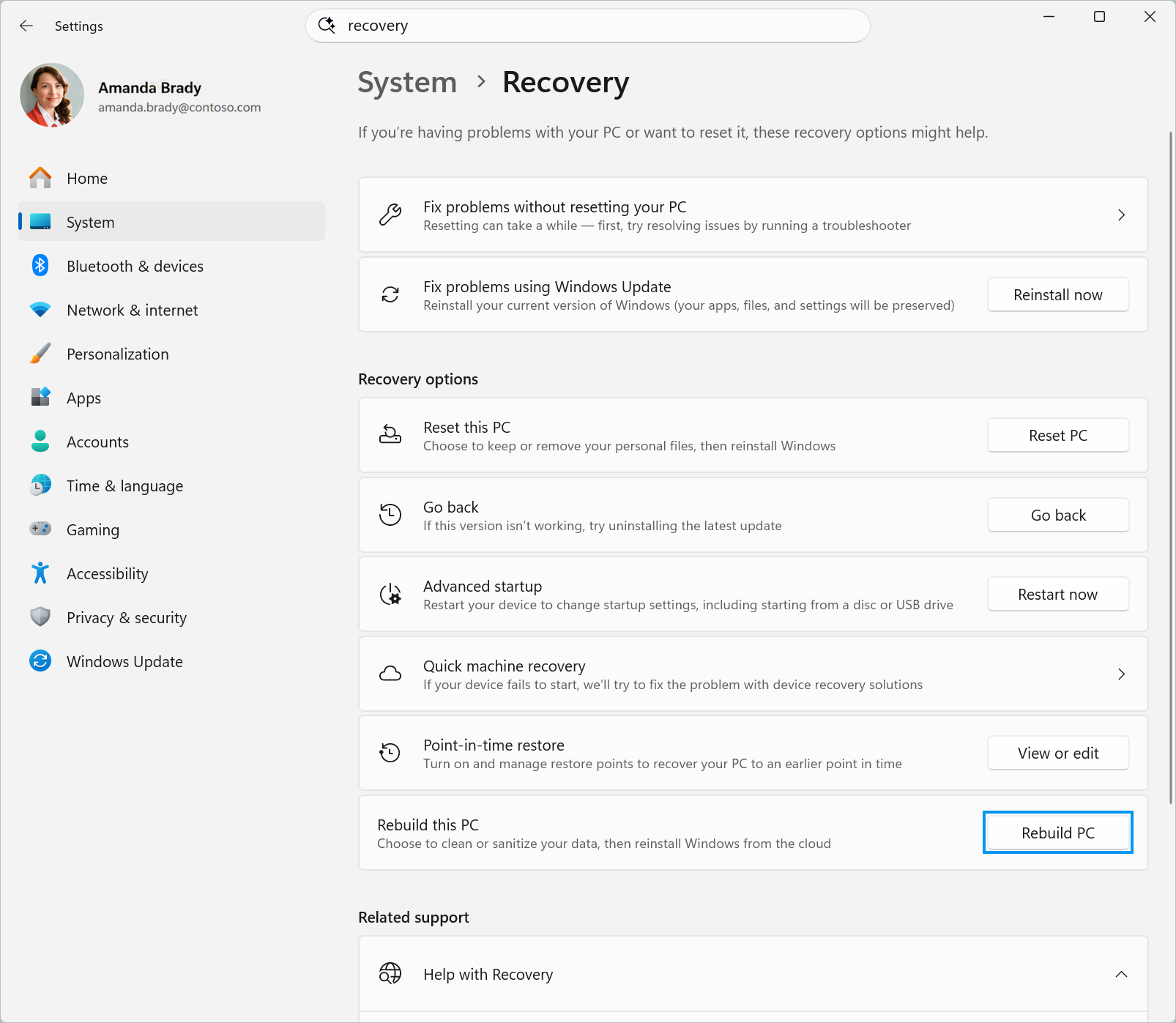
In the Settings app
 on your Windows device, select System > Recovery.
Next to Rebuild this PC, select Rebuild PC. Your PC restarts into Windows RE and starts Cloud rebuild.
Continue with Choose how to remove your files.
From Windows RE, if Windows doesn't start
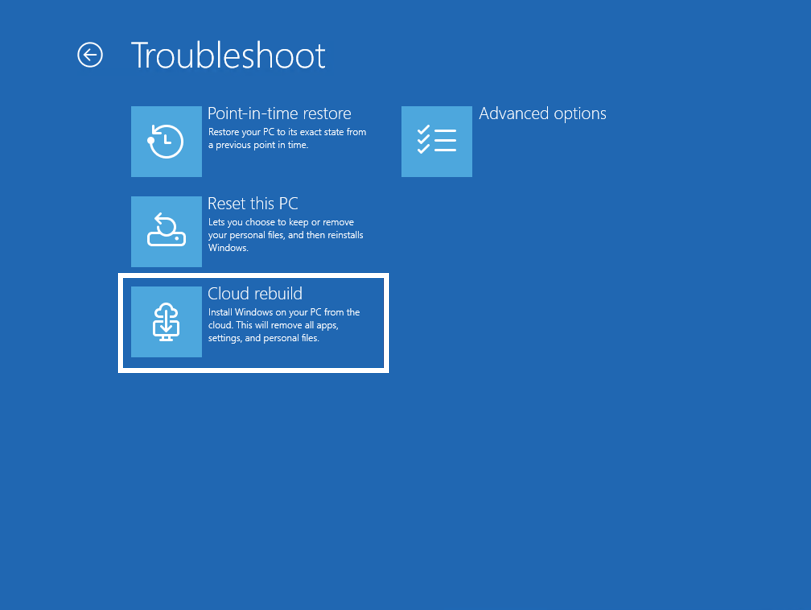
- Access the Windows Recovery Environment. If Windows fails to start several times, your PC opens Windows RE automatically.
- On the Choose an option screen, select Troubleshoot > Cloud rebuild.
- Continue with Choose how to remove your files.
Choose how to remove your files
Connect to a network. If you use Ethernet, your PC connects automatically. For Wi‑Fi, select your network and enter its password.
Wait while Cloud rebuild gets things ready.
Choose how thoroughly to remove your files:
Option What it does Use it when Remove files Removes your files. This is faster, but someone with special recovery tools might still recover them. You plan to keep using this PC. Remove & sanitize Removes your files and sanitizes your data, which makes it much harder to recover. This takes longer. You plan to recycle, return, or give away this PC. 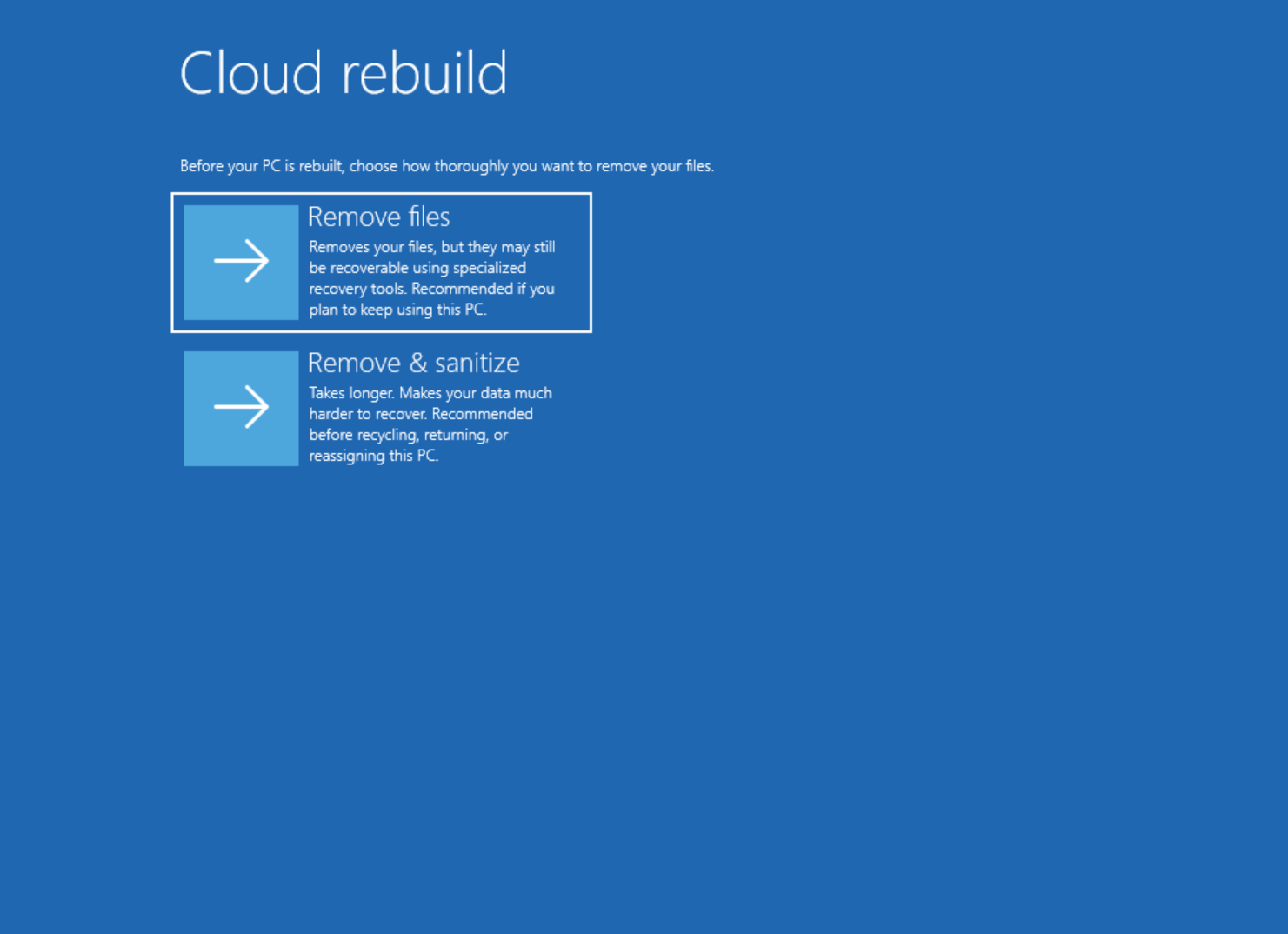
Follow the steps for the option you chose.
If you chose Remove files
- Check that the Windows version, edition, and language shown are the ones you want.
- Read the warning about removing your data, and then select Continue.
- Continue with Finish Cloud rebuild.
If you chose Remove & sanitize
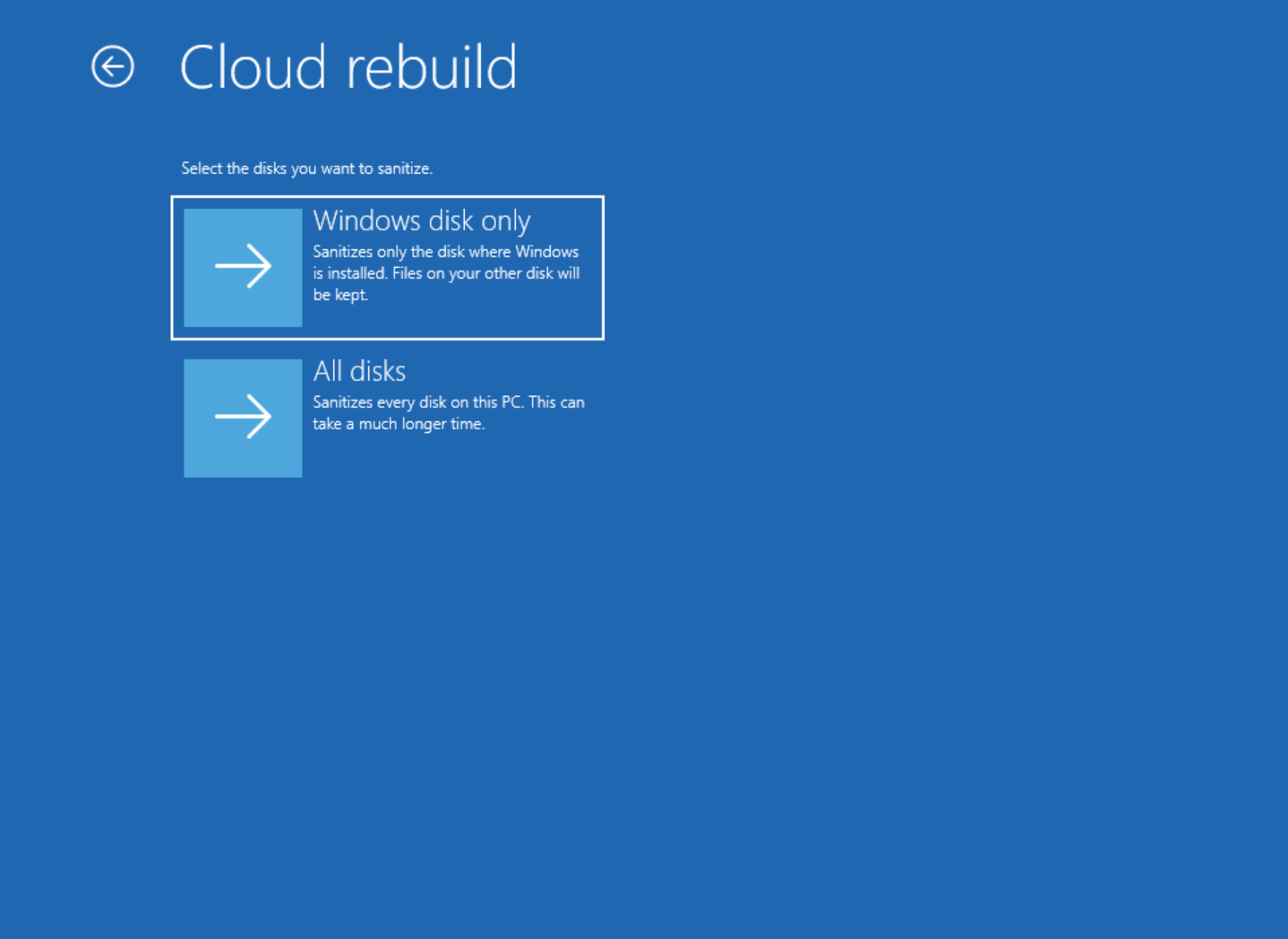
If your PC has more than one disk, choose which disks to sanitize:
- Windows disk only sanitizes only the disk where Windows is installed. Files on your other disks are kept.
- All disks sanitizes every disk on your PC. This can take much longer.
If your PC has only one disk, you don't see this screen.
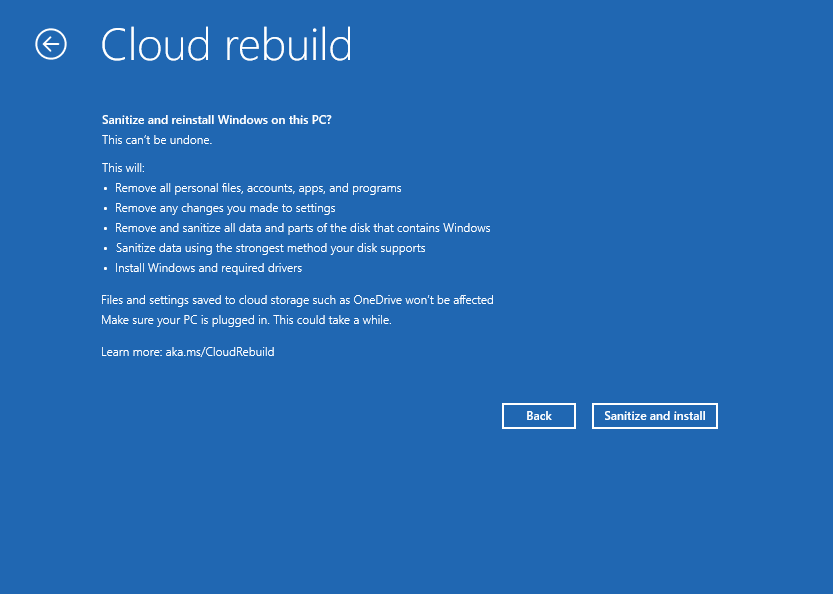
Read the summary of what will happen. Sanitizing can't be undone.
Select Sanitize and install.
Continue with Finish Cloud rebuild.
Finish Cloud rebuild
Warning
Don't turn off or restart your PC while Cloud rebuild is running. Keep it plugged in. If Cloud rebuild is interrupted, Windows might not start.
- Wait for Cloud rebuild to finish. If you chose to sanitize, you see Sanitizing data first. Your PC might look idle for a long time during this step.
- Cloud rebuild downloads and installs Windows. Your PC might restart several times.
- When it's done, your PC starts Windows setup. Set up your PC as you would a new PC.
After Cloud rebuild
- Get your files back. Sign in with your Microsoft account to get files you saved in OneDrive. If you backed up files somewhere else, copy them back to your PC.
- Restore your apps and settings. If you used Windows Backup, you can restore your apps and settings when you set up your PC.
- Reinstall other apps. Reinstall any apps that aren't restored for you.
- Check for updates. Go to Settings > Windows Update and install any available updates.
About data sanitization
When you choose Remove & sanitize, Windows asks your PC's storage hardware to erase the data on your disks. It uses the strongest method your disk supports.
Important
How well data sanitization works depends on the storage hardware in your PC. Windows can't independently check what the disk did. If you must erase data for a company or legal requirement, ask your PC manufacturer whether your PC supports data sanitization.
If Cloud rebuild doesn't work
If Cloud rebuild can't finish, it shows an error code. Find the code in this table.
| Error code | What it means | What to do |
|---|---|---|
| 0x800704C6 | Your PC isn't connected to the internet. | Connect an Ethernet cable or connect to a Wi‑Fi network. Select Cancel, and then select Troubleshoot > Cloud rebuild to try again. |
| 0xc1900200 | Your PC doesn't meet the Windows 11 requirements. Most often, the Trusted Platform Module (TPM) is turned off. | Turn on TPM in your PC's firmware (UEFI or BIOS) settings. It might be called PTT, fTPM, or Security Device. Check your PC manufacturer's website for how. Then try again. |
| 0xc1900224 | A driver your PC needs isn't available from Windows Update. | Contact your PC manufacturer. Or use recovery media from your PC manufacturer, or reinstall Windows with installation media. |
If data sanitization can't finish, you see Data sanitization couldn't be completed. You can choose:
- Try again to retry sanitizing.
- Skip sanitizing to reinstall Windows without sanitizing your data.
- Copy log to save the log files to a USB drive. Connect the drive first.
Warning
If you plan to recycle, return, or give away your PC, don't skip sanitizing. Use a tool from your PC manufacturer to erase your data instead.
If Windows doesn't start after Cloud rebuild was interrupted, use a recovery drive, installation media, or recovery media from your PC manufacturer.
Frequently asked questions
Will I lose my files?
Yes. Cloud rebuild removes all personal files, accounts, apps, and settings on your PC. Files saved in OneDrive or another cloud service aren't affected. Back up your files before you start.
When should I use Cloud rebuild?
Use Cloud rebuild when other recovery options don't fix your PC, or when you want a completely fresh start. Try less disruptive options first. To find the right one, see Recovery options in Windows.
How is Cloud rebuild different from Reset this PC?
- Reset this PC can keep your personal files. Cloud rebuild always removes everything.
- Cloud rebuild downloads both Windows and your PC's drivers from Windows Update. It doesn't rely on the Windows files already on your PC.
- Cloud rebuild can sanitize your data before you recycle, return, or give away your PC.
If Reset this PC doesn't work, try Cloud rebuild.
Should I sanitize my data?
Choose Remove & sanitize if your PC is leaving your hands, for example when you recycle, return, or give it away. If you plan to keep using your PC, Remove files is faster.
How long does Cloud rebuild take?
It depends on your internet speed and your PC. Sanitizing adds more time, especially on large disks or when you choose All disks. Keep your PC plugged in and let it finish.
Send us feedback
Let us know what you like, share your ideas, and offer suggestions on how to make the experience better through Feedback Hub. In the Feedback Hub app on your Windows device, select Report a problem, and then select the Cloud rebuild category. If your PC can't start, use another PC to send feedback.