
Point-in-time restore helps you recover your Windows PC by returning it to the exact state it was in at earlier point in time. This includes your apps, settings, and files. Windows automatically saves restore points at regular intervals. If something goes wrong, (such as a problematic update, a software conflict, or an unexpected change), you can go back to a time before the issue occurred.
Note
IT professionals looking for advanced configuration options, including CSP and command-line management, can learn more in Point-in-time restore for Windows.
Important
Point-in-time restore reverts your entire system to the selected restore point. Any changes you made after that restore point will be lost. This includes new files, app installations, settings changes, and passwords. Restoration doesn’t affect files stored in cloud services like OneDrive.
How does point-in-time restore work?
When point-in-time restore is enabled, Windows automatically creates restore points at regular intervals (by default, approximately every 24 hours). These points are snapshots of your entire system, stored locally on your PC.
If your PC develops a problem, and cannot boot, you can select a recent restore point in the Windows Recovery Environment (WinRE) and restore your PC back to that state. Your PC restarts and returns to the state it was in when the restore point was captured.
Restore points are kept for up to 72 hours. After that, they are automatically deleted to free up space.
Configure point-in-time restore
Note
Only local admins can view or edit configurations for point-in-time restore.
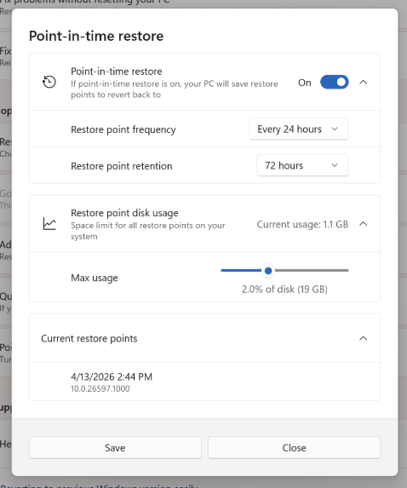
To view or change point-in-time restore settings:
- On your Windows device, go to Settings > System > Recovery.
- Select Point-in-time restore.
- Select View or edit.
- If prompted by User Account Control, select Yes.
- To enable point-in-time restore, turn the toggle to On.
The following settings are available:
| Setting | Description | Default |
|---|---|---|
| On / Off | When turned on, point-in-time restore automatically creates restore points. When turned off, existing restore points remain until they expire or disk space is needed. | On* |
| Restore point frequency | How often restore points are created | Every 24 hours** |
| Restore point retention | How long restore points are kept before automatic deletion | 72 hours** |
| Maximum usage limit | Upper limit for total disk space used by restore points. Space is not reserved in advance; unused capacity remains available to the system. | 2% of disk |
* This feature is currently disabled by default on IT-managed devices. Starting with Windows 11, version 26H2, it will be enabled by default. Point-in-time restore is already enabled by default on unmanaged devices.
For the feature to be enabled by default, the Windows OS volume must be 200 GB or larger. Devices with smaller OS volumes can enable the feature manually.
** These settings are only configurable on Windows devices running the Enterprise edition of Windows.
You can view the disk space currently used by restore points and see available restore points on the same settings dialog.
Restore your PC to a previous point in time
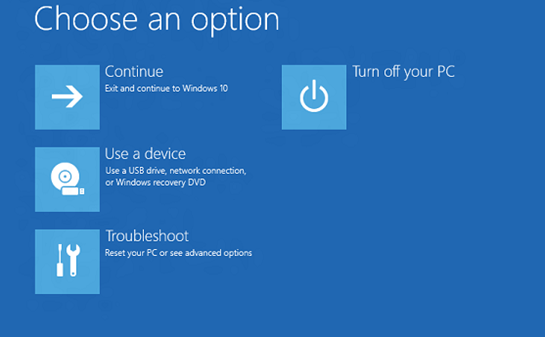
To perform a restore, you will need to be in the Windows Recovery Environment (WinRE). Follow these steps:
- Access the Windows Recovery Environment.
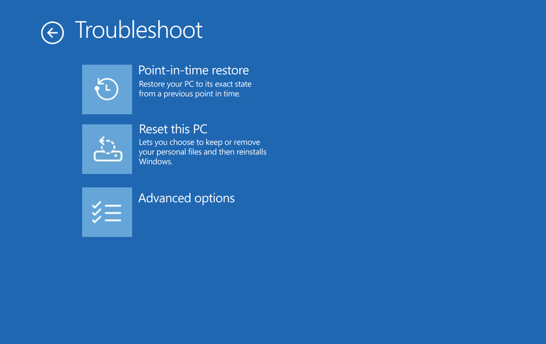
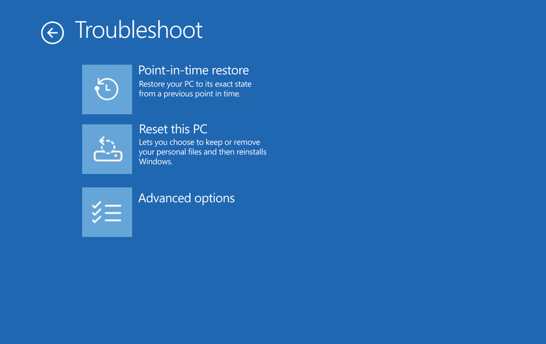
- Once in WinRE, select Troubleshoot > Point-in-time restore.
- If prompted, enter your BitLocker recovery key.
- Select a restore point.
- Review the information, and then select Continue to acknowledge the risks.
- Confirm your restore point selection, and then select Restore to start the restore process.
- After the restore process is complete, your PC restarts and starts Windows.
Warning
Do not power off your device during a restore. This could leave your PC in an unusable state. We recommend plugging in your device to power before starting.
What to know before restoring
Point-in-time restore reverts everything on your system drive, including files, apps, settings, passwords, certificates, and keys, to the state they were in at the selected restore point. Any changes made after the restore point will be lost.
- Files stored in cloud services such as OneDrive aren't affected by a restore.
- If BitLocker is enabled, you need your BitLocker recovery key to perform a restore.
- Your PC needs enough free disk space to complete the restore process. Make sure you have at least as much free space as the total size of all restore points on the system.
- Only the drive where Windows is installed is restored. Other drives are not affected.
- A restore process might revert recent security updates. After restoring, check for and install the latest Windows updates.
How point-in-time restore differs from System Restore
Both point-in-time restore and System Restore can restore your PC to a previous state, but they work differently:
| Capability | Point-in-time restore | System Restore |
|---|---|---|
| What is restored | Entire system: OS, apps, settings, and files | System files and settings only; personal files are not affected |
| Restore point frequency | Automatic, on a regular schedule | Event-triggered or manual |
| Restore point retention | Up to 72 hours | Indefinite (subject to disk space) |
| Configuration method | Settings app | Control Panel |
| Storage impact | Designed to minimize storage impact | Higher impact to storage space |
If both options are available, try point-in-time restore first because provides a more comprehensive recovery experience. If point-in-time restore is not available or you need to go back further than 72 hours, use System Restore.
Send us feedback
Let us know what you like, share your ideas, and offer suggestions on how to make the experience better through Feedback Hub. In the Feedback Hub app on your Windows device, select Recovery > Uninstall > Point-in-time restore.
For more technical information, see Point-in-time restore for Windows.