Kaustadega saate Outlookis meilisõnumeid, kalendreid, kontakte ja tööülesandeid korraldada.
Valige altpoolt kasutatava Outlooki versiooni vahekaart.
Milline Outlooki versioon mul on?
Märkus.
Kui selle menüü Uus Outlook juhised ei toimi, ei pruugi te uut Outlooki Windowsi versiooni veel kasutada. Valige Klassikaline Outlook ja täitke hoopis need juhised.
Ülataseme kausta loomine uues Outlookis
- Paremklõpsake vasakus servas asuval kaustapaanil oma meiliaadressi või libistage kursoriga üle selle ja valige Rohkem suvandeid
 >Loo uus kaust.

- Sisestage uue kausta nimi ja vajutage sisestusklahvi (Enter).
Alamkausta loomine uues Outlookis
- Valige kaust, kus soovite alamkausta luua.
- Paremklõpsake kausta või libistage kursoriga üle kausta ja valige Rohkem suvandeid>Loo uus alamkaust.
- Sisestage uue kausta nimi ja vajutage sisestusklahvi (Enter).
Kausta lisamiseks klassikalise Outlooki kaustapaanile tehke järgmist.
Paremklõpsake vaate Elektronpost, Kontaktid, Tööülesanded või Calendar vasakul paanil kohta, kuhu soovite kausta lisada, ja seejärel klõpsake käsku Uus kaust.
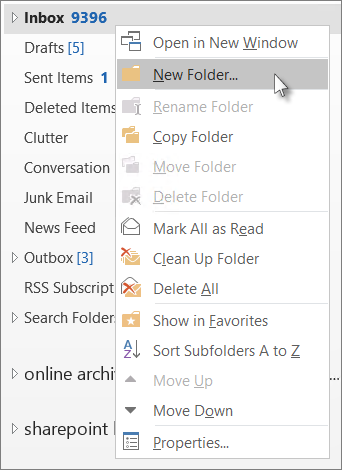
Märkus.
Vaates Kalenderasendatakse käsk Uus kaust käsuga Uus kalender.
Sisestage väljale Nimi kausta nimi ja vajutage sisestusklahvi (Enter).
Märkus.
Outlooki veebirakendus on Outlooki veebiversioon töö- või koolikontoga ärikasutajatele.
Ülataseme kausta loomine Outlooki veebirakendus
- Paremklõpsake vasakus servas asuval kaustapaanil kausta või libistage kursoriga üle kausta ja valige Rohkem suvandeid>Loo uus kaust.

- Sisestage uue kausta nimi ja vajutage sisestusklahvi (Enter).
Outlooki veebirakendus alamkausta loomine
- Valige kaust, kus soovite alamkausta luua.
- Paremklõpsake kausta või libistage kursoriga üle kausta ja valige Rohkem suvandeid>Loo uus alamkaust.
- Sisestage uue kausta nimi ja vajutage sisestusklahvi (Enter).
Märkus.
Outlook.com on mõeldud Outlooki veebiversiooni kasutajatele, kes logivad sisse isikliku Microsofti kontoga (nt Outlook.com-i või Hotmail.com-i konto).
Ülataseme kausta loomine Outlook.com
- Paremklõpsake kaustapaanil kaustad ja seejärel valige Loo uus kaust.

- Sisestage uue kausta nimi ja vajutage sisestusklahvi (Enter).
Outlook.com alamkausta loomine
- Valige kaust, kus soovite alamkausta luua.
- Paremklõpsake kausta ja valige Käsk Loo uus alamkaust.
- Sisestage uue kausta nimi ja vajutage sisestusklahvi (Enter).
Seotud artikkel
Kausta lisamine või eemaldamine rakenduses Outlook for Mac
