Connect to a Wi-Fi network in Windows

套用到
Windows 10 Windows 11

Whether you're at home, work, or out and about, chances are you'll find a Wi-Fi network that you can connect to for internet access.

Connect to a Wi-Fi network

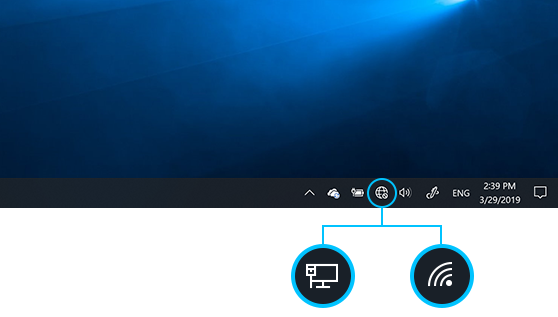
  1. Select the Network, Sound, or Battery icons ( Wifi   Volume3   MobBatteryCharging9 ) on the taskbar to open quick settings.

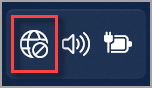
    The Disconnected icon appears when you’re not connected.

    The Network Offline icon in Windows 11.

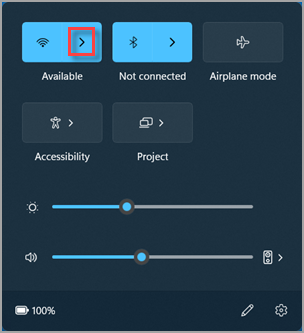
  2. On the Wi-Fi quick setting, select Manage Wi-Fi connections ChevronRight .

    Where to find Manage Wi-Fi connections in the Windows 11 quick settings.

  3. Choose the Wi-Fi network you want, then select Connect. If you don't see the network you expect, you can manually start a new Wi-Fi scan by selecting the Refresh network list Refresh button in the lower right.

  4. Type the network password, and then select Next.

Connecting to a Wi-Fi network with a QR code

On Windows devices that have a camera, you can use it to scan a QR code to quickly connect to a Wi-Fi network without needing to manually enter network details. You may find these QR codes in public places like coffee shops, or you can scan them on another Windows device.

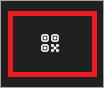
  1. Open the Camera app. Select the barcode mode icon to switch from photo mode to barcode mode.

    The barcode mode icon in the Windows 11 Camera app.

  2. Point your device's camera at the QR code that contains the Wi-Fi connection information.

  3. Select the link that appears in the Camera app, which will open Settings.

  4. In Settings, confirm that you want to add and connect to the Wi-Fi network. You can choose if your device will connect automatically to that network when it is in range.

    Adding a Wi-Fi network to Windows 11.

Find your Wi-Fi network password in Windows

If you forgot your Wi-Fi network password or want to quickly share it with another person, you can find it on a Windows PC that has connected to your Wi-Fi network. After you find your password, you can use it on another PC or device to connect to your Wi-Fi network by scanning the QR code or entering the network details. 

In the SettingsApp Settings app on your Windows device

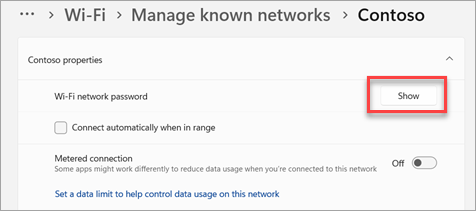
 select Network & internet Wifi Properties Info , then, next to Wi-Fi network password, select Show.

Screenshot of Windows Settings on Wi-Fi profile page, with Show Wi-Fi network password highlighted in red.

Note

You can also view the password of saved networks on the Manage known networks page by selecting any network and then Show next to Wi-Fi network password

On another device, scan the QR code to connect if the device supports it, or connect to Wi-Fi as you normally would and enter your Wi-Fi password when prompted. 

Random hardware addresses

When you're not connected to Wi-Fi, your device sends a signal to look for Wi-Fi networks in the area to help you get connected. The signal contains the unique physical hardware (MAC) address for your device.

Some places, for example shopping malls, stores, or other public areas, might use this unique address to track your movement in that area. If your Wi-Fi hardware supports it, you can turn on random hardware addresses to make it harder for people to track you when your device scans for networks and connects.

There are two controls for using random hardware addresses—one is for all Wi-Fi networks and the other is for the specific Wi-Fi network you choose. When you turn it on for all networks, random hardware addresses are used while your PC scans for networks and connects to any network. When it's turned on for a specific network you choose, random hardware addresses are used the next time you connect to that network.

Use random hardware addresses for all networks

  • In the SettingsApp Settings app on your Windows device select Network & internet > Wi-Fi.
  • Turn on Random hardware addresses.

Use random hardware addresses for a specific network

 select Network & internet > Wi-FiManage known networks.

  • Choose a Wi-Fi network, then turn on Random hardware addresses.

Fix Wi-Fi connection issues in Windows